Queue Management and Configuration
This page consolidates all information pertaining to HPC (High Performance Computing) Queue management in your cloud platform, focusing on queue summaries, detailed configuration, and best practice guidelines.
Accessing Queues
To access the queues:
- Click on the Queues tab from the module.
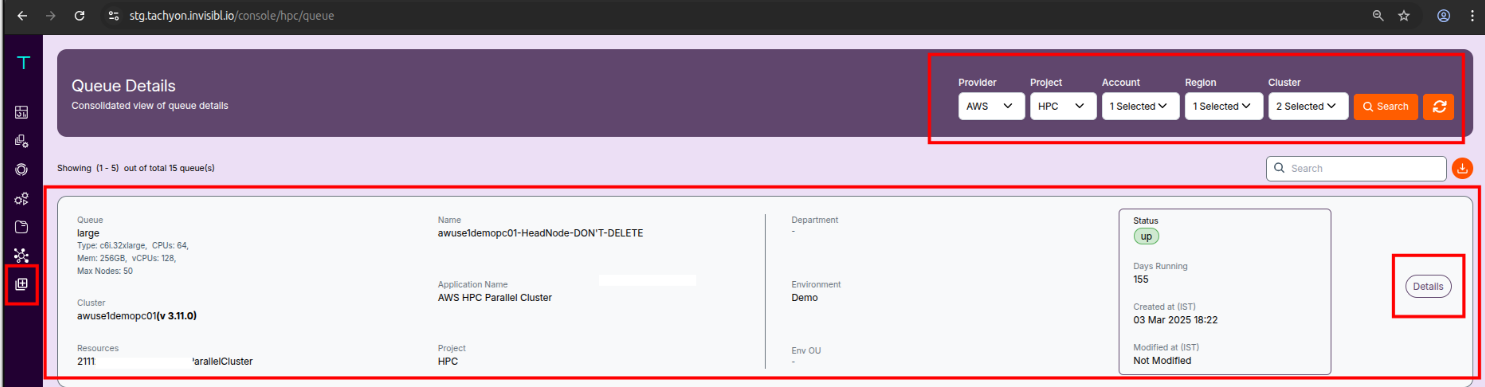
- You will see a list of all queues across selected clusters.
Filters Available
Use the top bar filters to narrow the queues by:
- Provider: Select the cloud provider (e.g., AWS)
- Account: Filter by specific cloud account
- Region: Filter clusters by region
- Cluster: Choose the cluster you want to monitor
- Duration: Date range selection (e.g., 01-Jul-2025 to 31-Jul-2025)
What Each Queue Card Shows
- Queue: The unique name of your compute queue.
- Type: The cloud instance type in use (such as
g5.12xlarge). - CPUs / vCPUs: The total provisioned CPU and vCPU count.
- Memory: Total assigned RAM (in GB).
- Max Nodes: Maximum allowed nodes for this queue.
- Cluster: The cluster’s name and version.
- Resources: Account, region, and cluster identifier.
- Name: Head node (auto-named, should not be deleted).
- Application Name: Scope/app context, such as "AWS HPC ParallelCluster."
- Project: The project or group name, e.g. "HPC."
- Status: Life status, e.g. "up" or "down."
- Days Running: Number of days since the queue became active.
- Created At / Modified At: Timestamps for creation or last changes.
- Clicking Details on any queue reveals in-depth technical and operational details.
Details Panel (Expanded View)
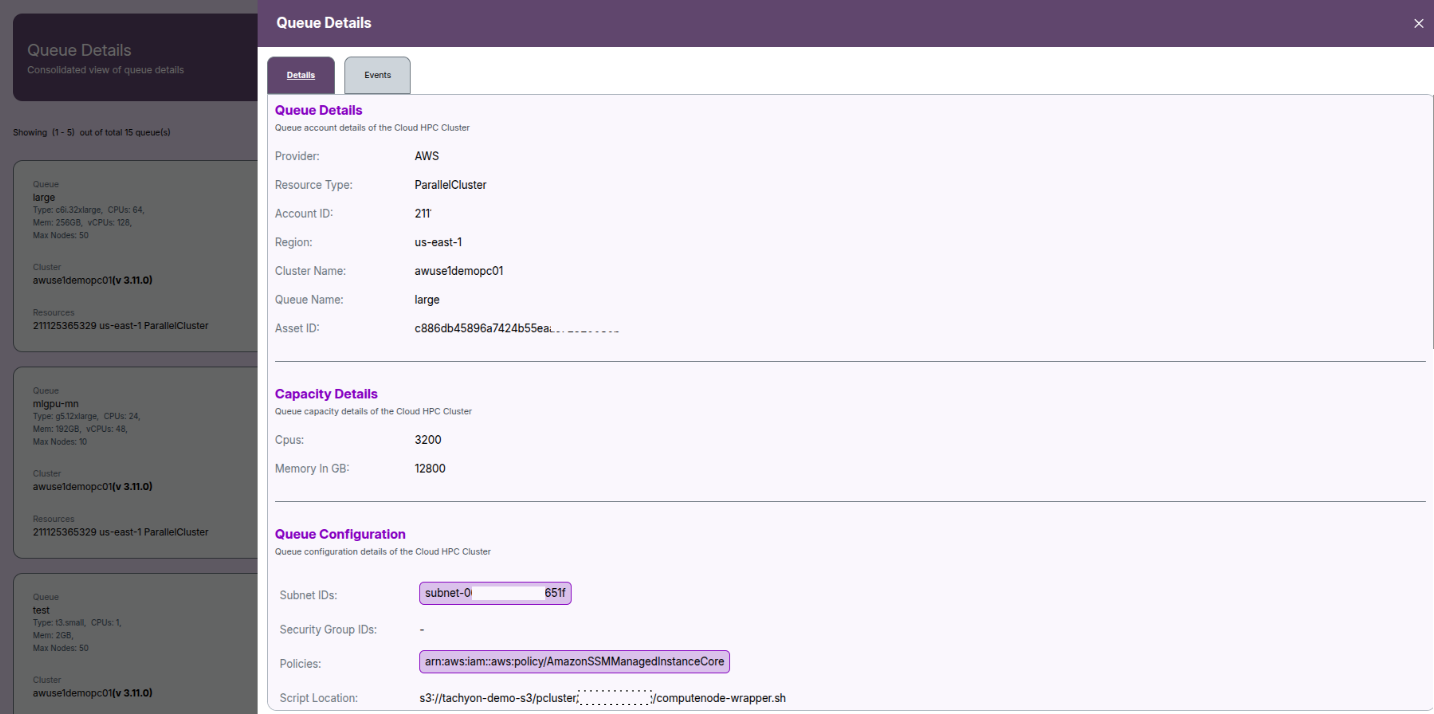
Metadata:
- Provider: AWS
- Resource Type: ParallelCluster
- Account ID: e.g. 211125365329
- Region: e.g. us-east-1
- Cluster Name: e.g. awuse1nprpc03
- Queue Name: e.g. xxsmall
- Asset ID: [internal system ID]
Capacity:
- CPUs: Total CPUs available, across all nodes (e.g. 200)
- Memory in GB: Aggregate memory (e.g. 800GB)
Configuration:
- Subnet IDs: Subnet for compute nodes.
- Security Group IDs: Cloud security group(s) applied.
- Policies: IAM policies linked for the queue.
- Script Location: S3 bucket path for node setup scripts.
Volume and Storage:
- Volume Type: EBS volume class (e.g. gp3).
- Size: Provisioned storage, in GB.
- Encryption: True/False for at-rest encryption.
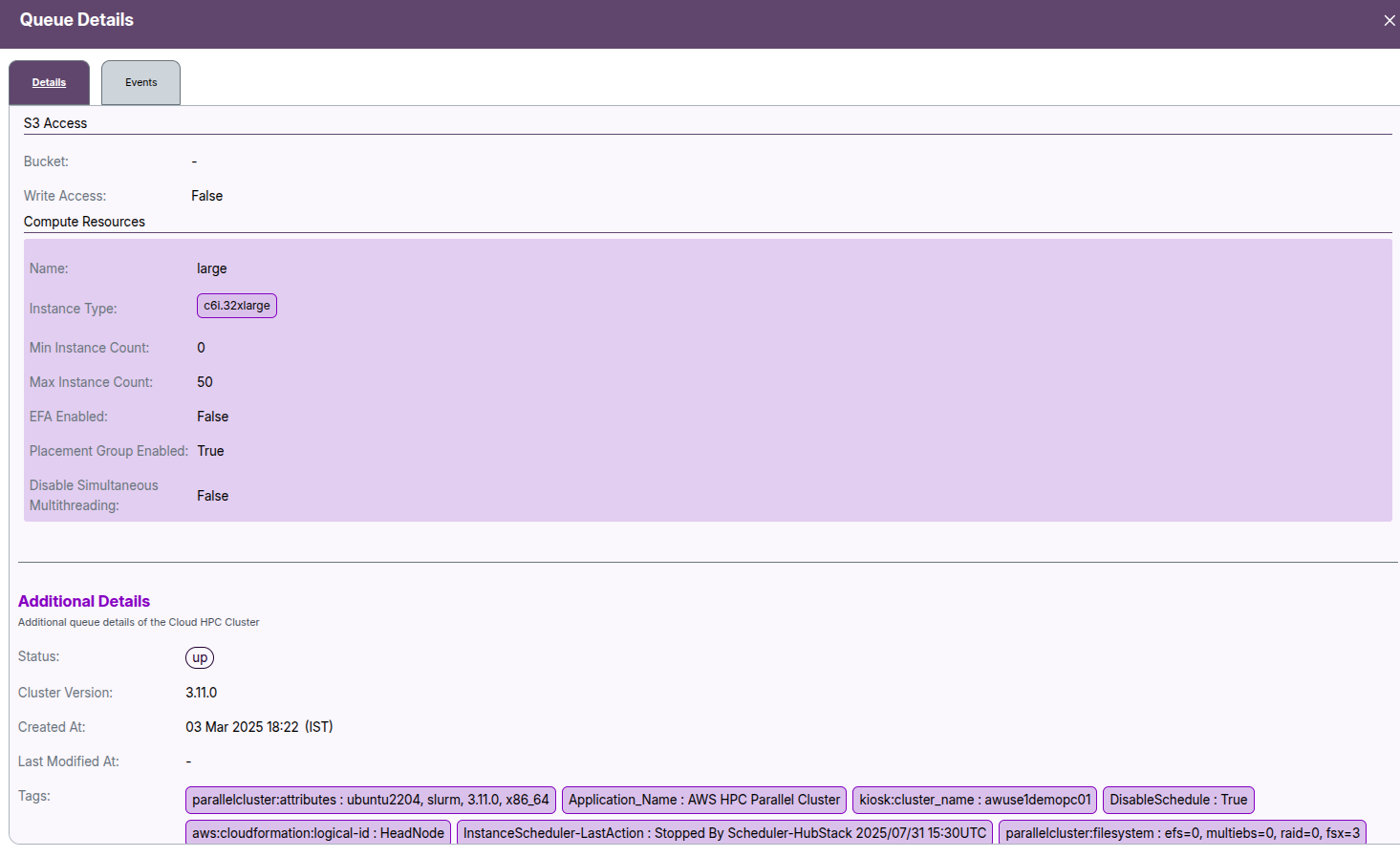
- S3 Access: Shows if S3 access is enabled for the queue.
- Bucket: AWS S3 bucket name in use.
- Write Access: Whether write operations to S3 bucket are permitted.
Compute Resources:
- Name: Resource configuration name (e.g. xxsmall)
- Instance Type: e.g. c6i.2xlarge
- Min Instance Count: Minimum nodes (e.g. 0)
- Max Instance Count: Maximum allowed (e.g. 50)
- EFA Enabled: Whether Elastic Fabric Adapter is active (Y/N)
Additional Details
- Cluster Version: Version number of the deployed HPC cluster (e.g., v 3.6.0).
- Created At: Timestamp marking when the queue or cluster resource was created.
- Last Modified At: Timestamp for the last update or modification made.
- Tags: Key-value metadata tags associated with the queue or cluster. These typically include:
- Environment (e.g., production, development)
- Role (e.g., head node, compute node)
- Template used for creation
- Scheduler actions or configuration settings
- Any other custom metadata for resource tracking
Tags help with organizing, filtering, and managing cloud resources efficiently and are automatically applied or user-defined.
Events & Logs
To track queue activities:
- Navigate to the Events tab (top right or from side menu).
- View logs related to:
- Queue creation
- Configuration updates
- Lifecycle changes
- Scheduled actions
- Tags and IAM policy applications
💡 Info:
- Events provide useful auditing and debugging information, especially in multi-queue environments.
📌 General Notes:
- If you encounter any UI issues or have questions about job submissions or status, please contact the Admin for support.
- Ensure you have selected the correct cluster, region, and provider when filtering queue data.