Alerts
The Alerts module provides a consolidated view of all HPC alerts across your environment.
It helps you track trends, filter by provider or region, and drill down into specific alert details.
Overview Section
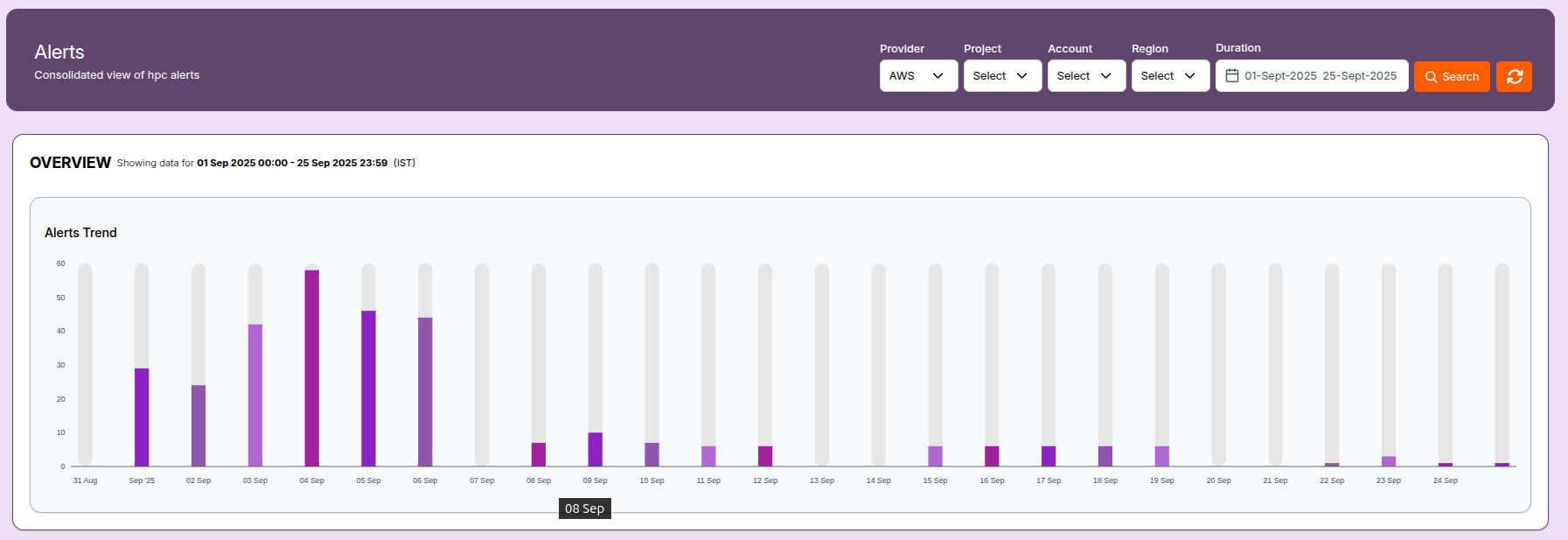
At the top of the page, you will find the Overview panel.
This displays an Alerts Trend chart for the selected date range.
- The chart shows the daily count of alerts broken down by severity.
- Hover over each bar to see the number of alerts per severity for that day.
- The date range can be customized from the Duration filter in the top-right corner.
Filters and Search
You can refine alerts using the filters at the top:
- Provider: Select the cloud provider (e.g., AWS).
- Project, Account, Region: Narrow results to a specific scope.
- Duration: Choose the time period (for example, 01-Sept-2025 to 25-Sept-2025).
The Search box allows you to quickly locate alerts by name, type, or resource.
Click the refresh button to reload the alerts data.

Alerts Notification List
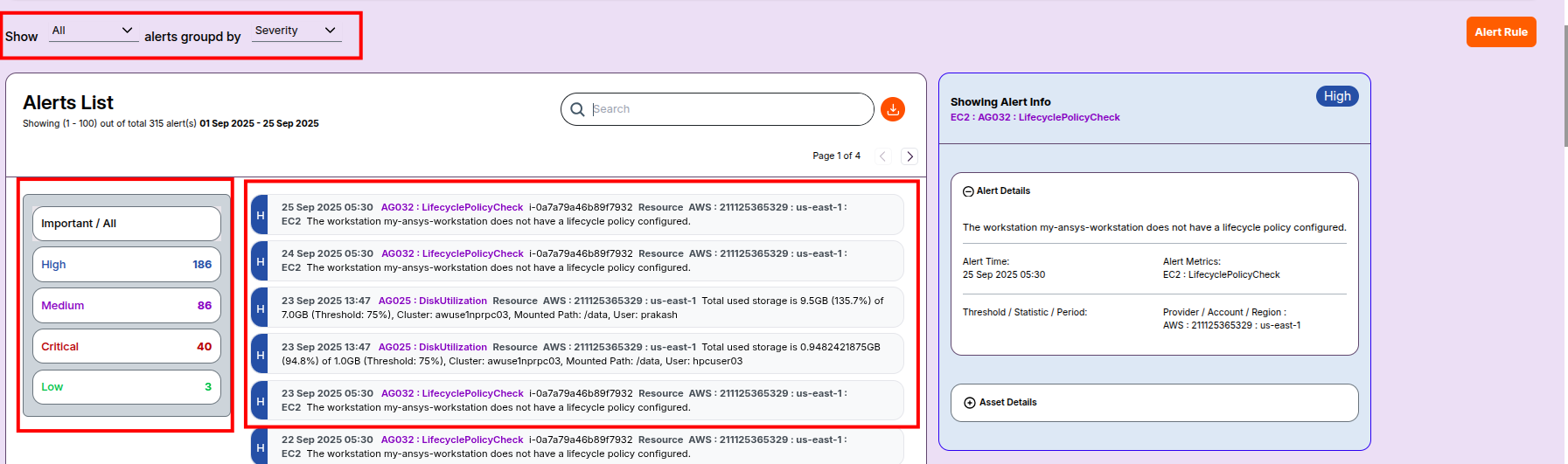
The Alerts List displays all alerts for the selected filters.
Details shown include:
- Severity (High, Medium, Critical, Low)
- Alert Code and Type (e.g.,
AG032 : LifecyclePolicyCheck,DiskUtilization) - Resource and Cluster details (e.g., EC2 ID, Mount Path, User)
- Timestamp of the alert trigger
The left-hand side provides a severity summary panel showing the total count of alerts by category.
Example from the image:
- High: 186
- Medium: 86
- Critical: 40
- Low: 3
Viewing Detailed Alert Notification Info
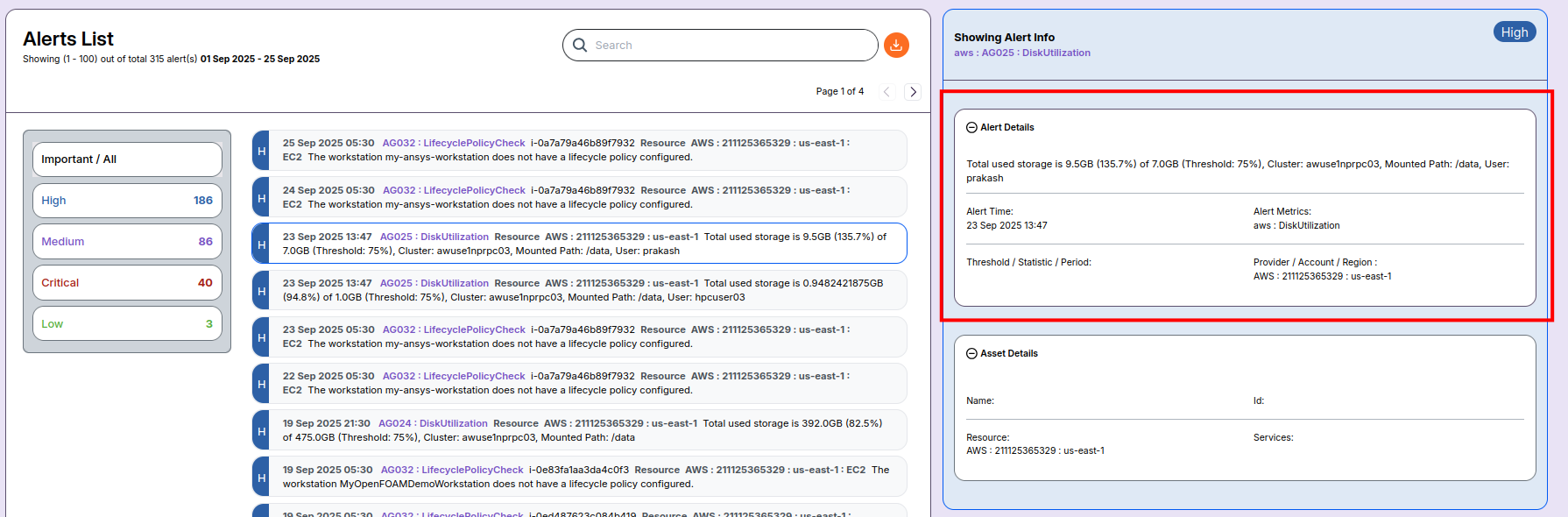
When you click on a specific alert, the Alert Info panel opens on the right-hand side.
This panel provides:
- Alert Details: Type, metric, timestamp, and condition message
- Threshold / Statistic / Period if applicable
- Asset Details: Impacted resource name, ID, cluster, and service
Example:
- Alert: LifecyclePolicyCheck
- Message: “The workstation does not have a lifecycle policy configured.”
- Resource: EC2 instance in region us-east-1
Asset Details
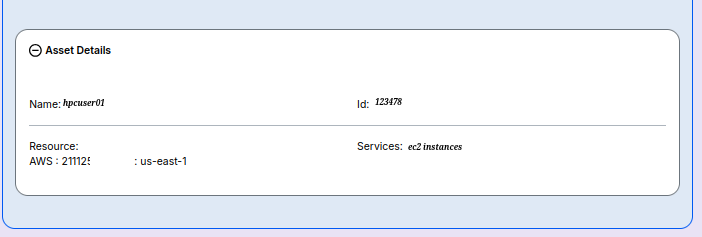
Expand the Asset Details box to see impacted resource information:
- Name — Human-readable resource name (if available)
- Id — Unique resource identifier
- Resource — Provider, resource id, and region (e.g.,
AWS : 211125365329 : us-east-1) - Services — Cloud service type (e.g., EC2)
Managing Alert Rules
You can configure or modify alert rules by clicking on the Alert Rule button.
This allows you to:
- Define conditions and thresholds
- Associate alerts with resources or clusters
- Adjust severity levels and notification settings
-
📌 General Notes
- Always prioritize Critical and High severity alerts.
- Use the trend chart to identify recurring issues over multiple days.
- Filters make it easier to focus on specific providers, projects, or regions.
- Click on an alert to see detailed diagnostic information before taking action.