File Manager Guide for AWS HPC Cluster
This page provides a step-by-step explanation of the File Manager interface for users working with HPC clusters on AWS. Each section in the UI is described in detail.
File Manager Overview
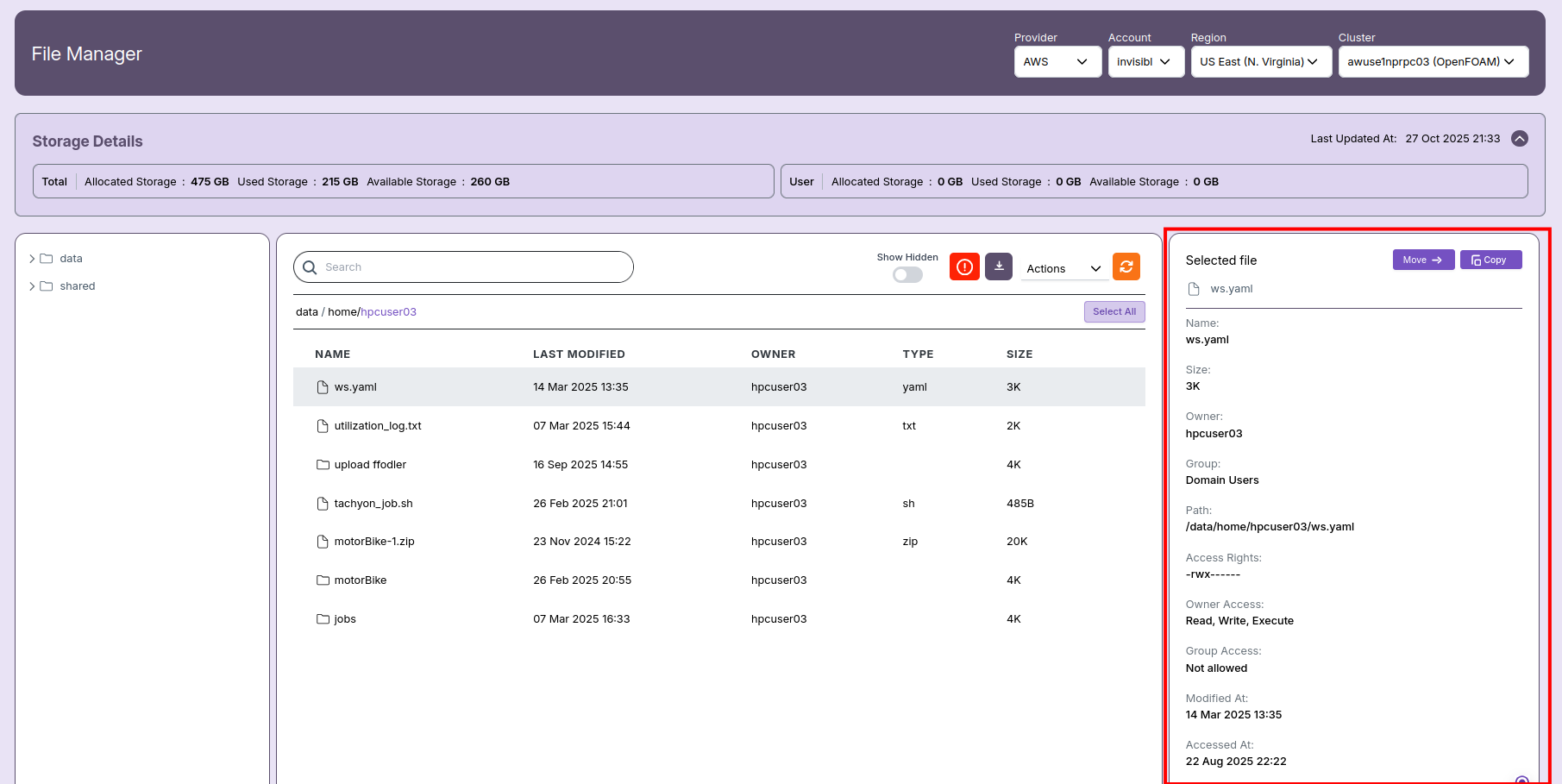
The File Manager helps users manage, browse, and interact with files stored within the HPC environment. The interface provides clear views of storage usage, AWS configuration, navigation trees, and precise file actions.
How to Access
- Select File Manager from the left-hand HPC menu.
-
Choose the appropriate:
- Provider: Cloud host (e.g., AWS).
- Account: Current user’s cloud account (e.g.,
invisibl). - Region: Selected cloud region (e.g.,
US East (N. Virginia)). - Cluster: Name of the active compute cluster.
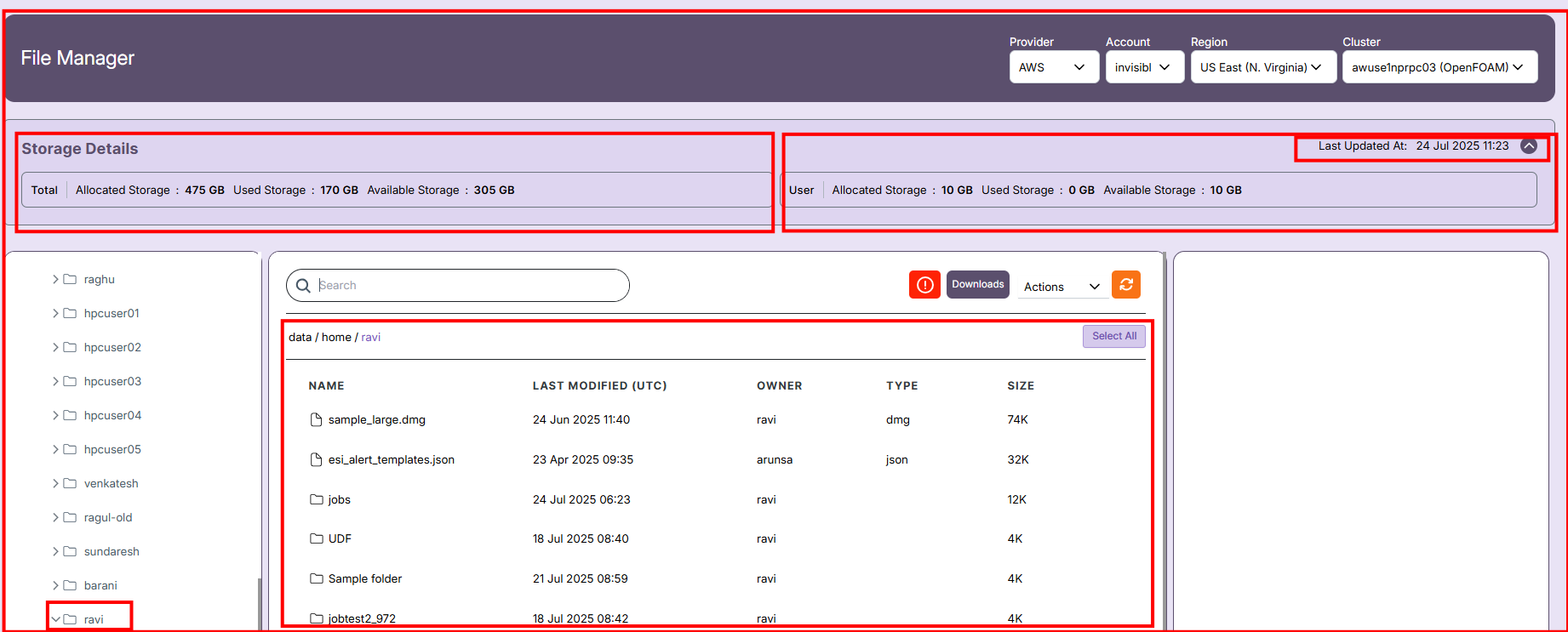
🗂️ Navigation
- The left pane shows folder hierarchy.
- The center pane lists files with details such as:
- Name
- Type
- Modified Date
- Owner
Use the Search Bar on top to locate files quickly.
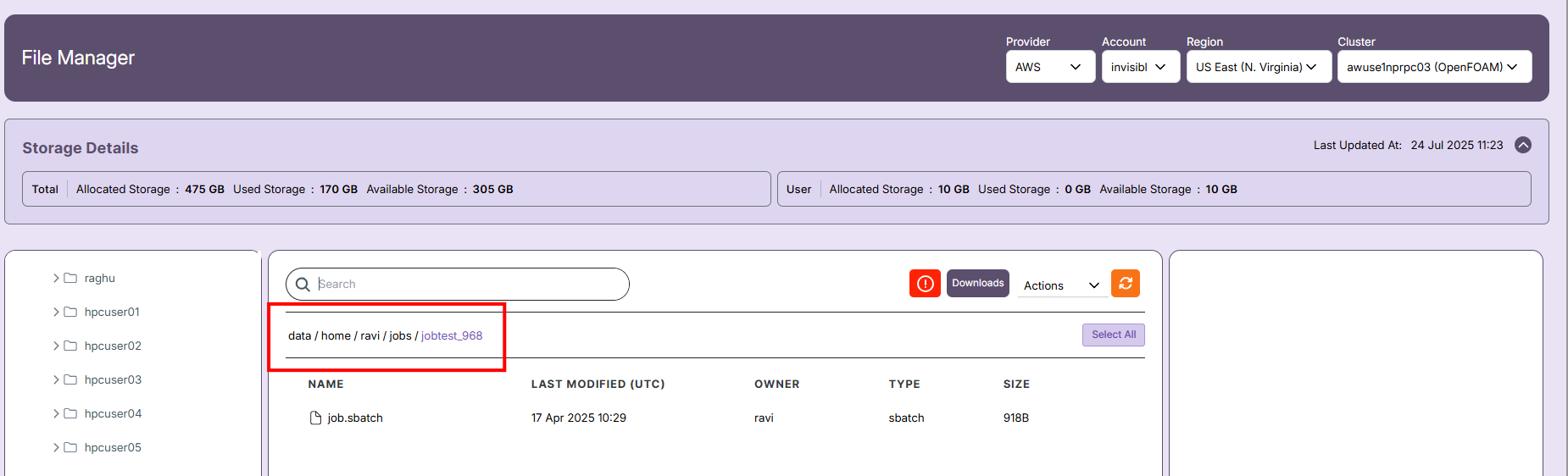
📈 Note:
- Each cluster has its own directory view. You can check similar details for Queue, User, and Project metrics from their respective dashboards.
Storage Details Panel
Just below the filter section (Provider, Account, Region, Cluster), you’ll find Storage Details, which gives an overview of both total and user-specific usage:
🔹 Total Storage
- Allocated Storage: 475 GB
- Used Storage: 170 GB
- Available Storage: 305 GB
🔹 User Storage
- Allocated Storage: 10 GB
- Used Storage: 1.8 GB
- Available Storage: 8.2 GB

📝 Note:
- Last updated timestamp is also displayed for reference.
Directory Navigation
- Panel: Located at the left.
- Details: Folders expand to show file trees (e.g.,
data,shared).
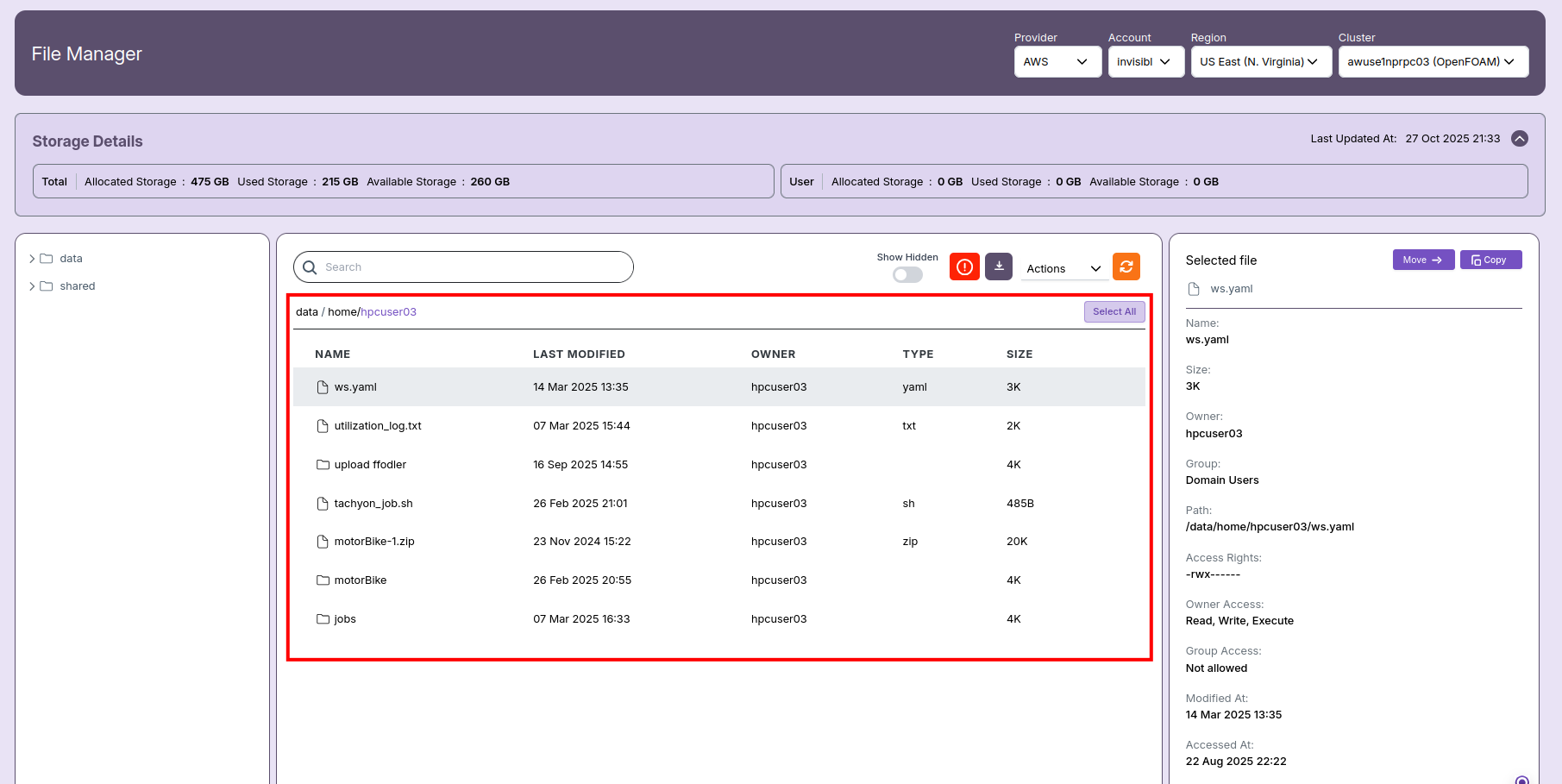
File List View
- Panel: Central, main area.
- Columns:
- Name (e.g.,
ws.yaml) - Last Modified
- Owner
- Type (yaml, txt, sh, zip, folder)
- Size (e.g., 3K)
- Name (e.g.,
- Features:
- Click to select files and view metadata.
- Sort by columns or use the search bar.
- Enable "Show Hidden" for dotfiles.
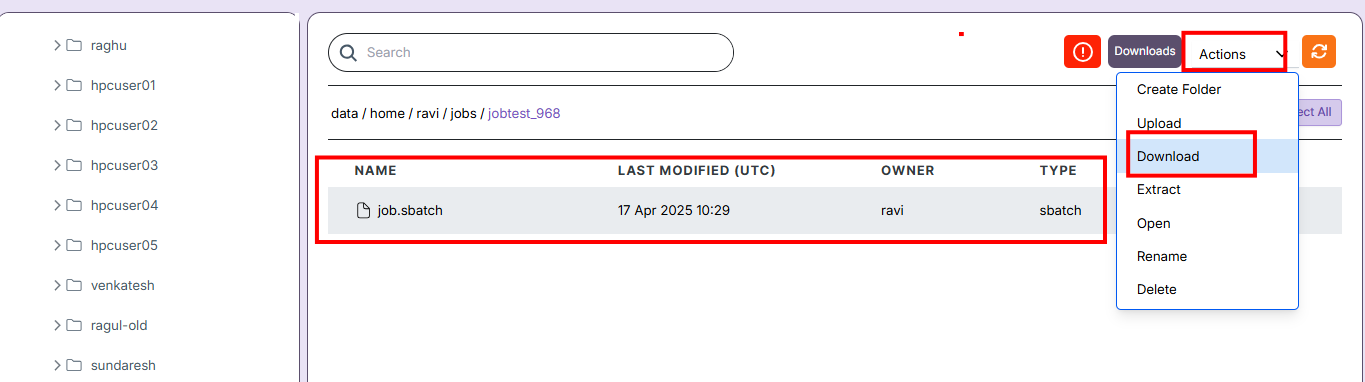
File Actions
- Actions Button: Top-right in the central pane.
- Functions: Bulk selects, moves, copies, and other file
- Select a file and use the Actions dropdown for:
You can also Move or Copy files using options in the right-hand "Selected file" panel.
File Details Panel
- Panel: Right-most section.
- Details Included:
- Name, size, owner, and path.
- Permissions (e.g.,
-rwx------) - Owner/Group access
- Timestamps for last modification and access
User Workflow: Step-by-Step
- Check Storage: Review storage quotas before uploading or running jobs.
- Browse Folders: Use the navigation tree to select the directory.
- Find/Sort Files: Use the search bar or column sorting.
- Select & Inspect: Click to view file metadata and permissions.
- Take Action: Move or copy files as needed, or batch-edit.
- Review Permissions: Confirm safe access for collaboration.
- Track Changes: Use the timestamps for version management.
Additional Controls
- 🔄 Click the Refresh button to reload contents.
- ☑️ Use Select All or individual checkboxes for batch operations.
-
📌 General Notes
- If you encounter any UI issues or have questions about job submissions or status, please contact the Admin for support.
- Ensure you have selected the correct cluster, region, and provider when filtering data.