🖥️ Tachyon File Manager – Shell Access Feature
The Shell Access feature in Tachyon File Manager empowers platform administrators and R&D users to interact with the FSx file system through a secure, built-in SSH terminal.
This allows for direct file operations and light scripting via the browser — similar to working in a local terminal.
⚙️ How to Enable Shell Access (Platform Admin)
Platform administrators can enable or disable Shell Access globally for all users.
Steps:
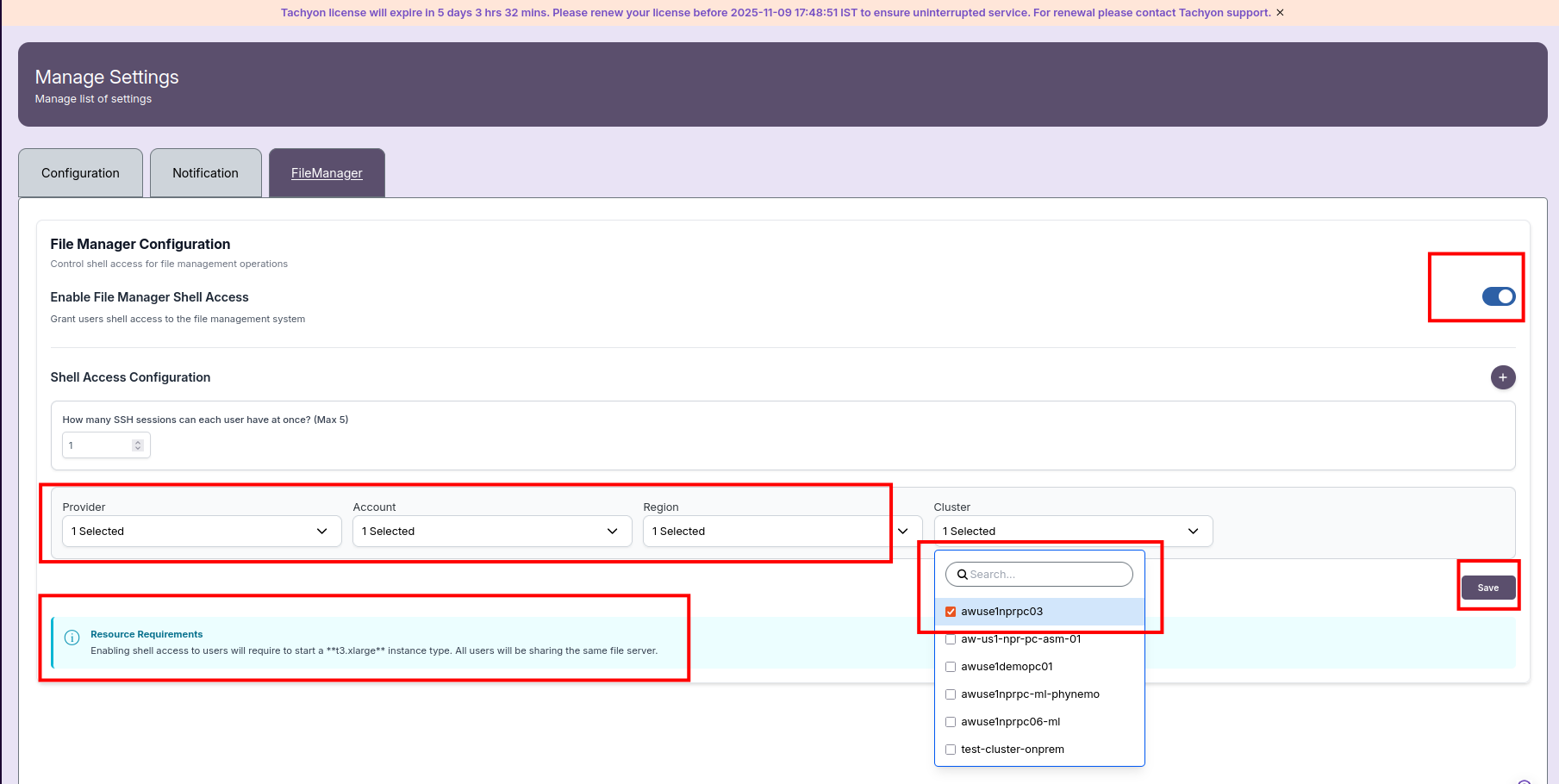
- Navigate to Admin → Settings → File Manager.
- Toggle Enable File Manager Shell Access to ON.
- Configure the number of concurrent SSH sessions (maximum 5).
- Select the AWS provider, account, region, and cluster.
- Click Save to apply changes.
📌 General Notes:
- Shell access requires at least a t3.xlarge EC2 instance. All users share this file server.
- The login node starts automatically when the first session is launched and is shut down after idle timeout.
👤 How to Enable Shell Access for R&D Users
Shell Access can also be provisioned or withdrawn per user by platform administrators.
Steps for User-Specific Enablement:
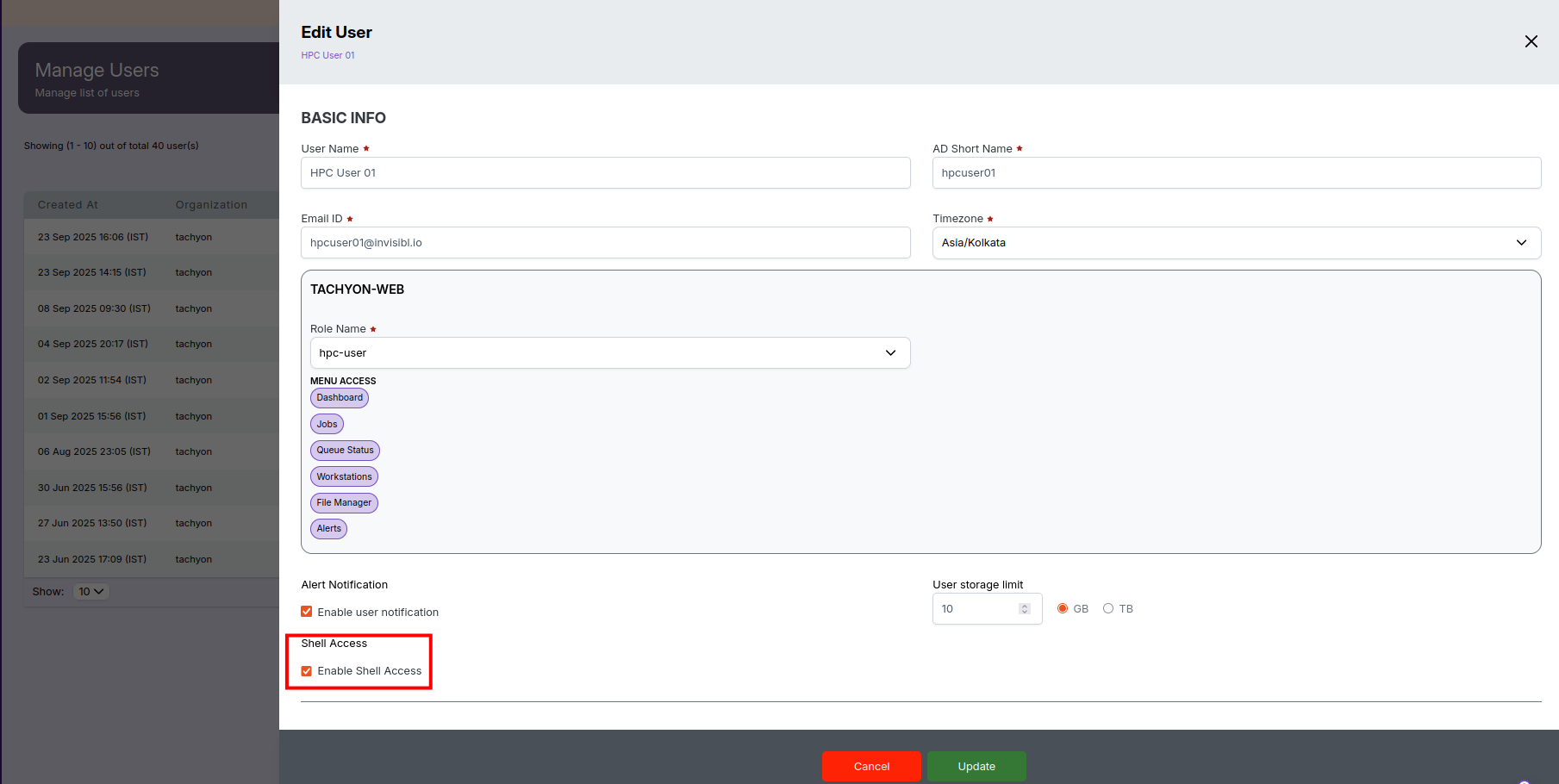
- Go to Admin → Manage Users.
- Select the user and click Edit.
- Check Enable Shell Access under user settings.
- Optionally, set a User Storage Limit.
- Press Update to save changes.
📌 General Notes:
- This can be done during user creation or by editing existing users.
- For new users, follow the onboarding guide in User Onboarding.
💻 File Manager – Accessing the Terminal
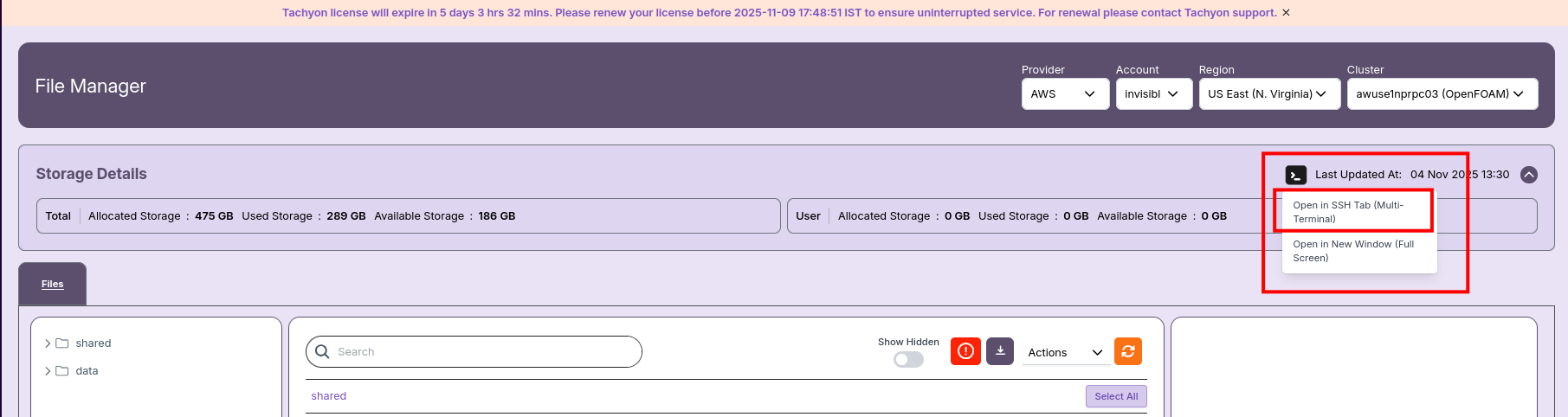
Once Shell Access is enabled, users will see a terminal (shell) icon on the File Manager page.
Access Options:
- Open in SSH Tab (Multi-Terminal): Launches session within the File Manager tab.
- Open in New Window (Full Screen): Opens the terminal in a separate browser window.
Usage:
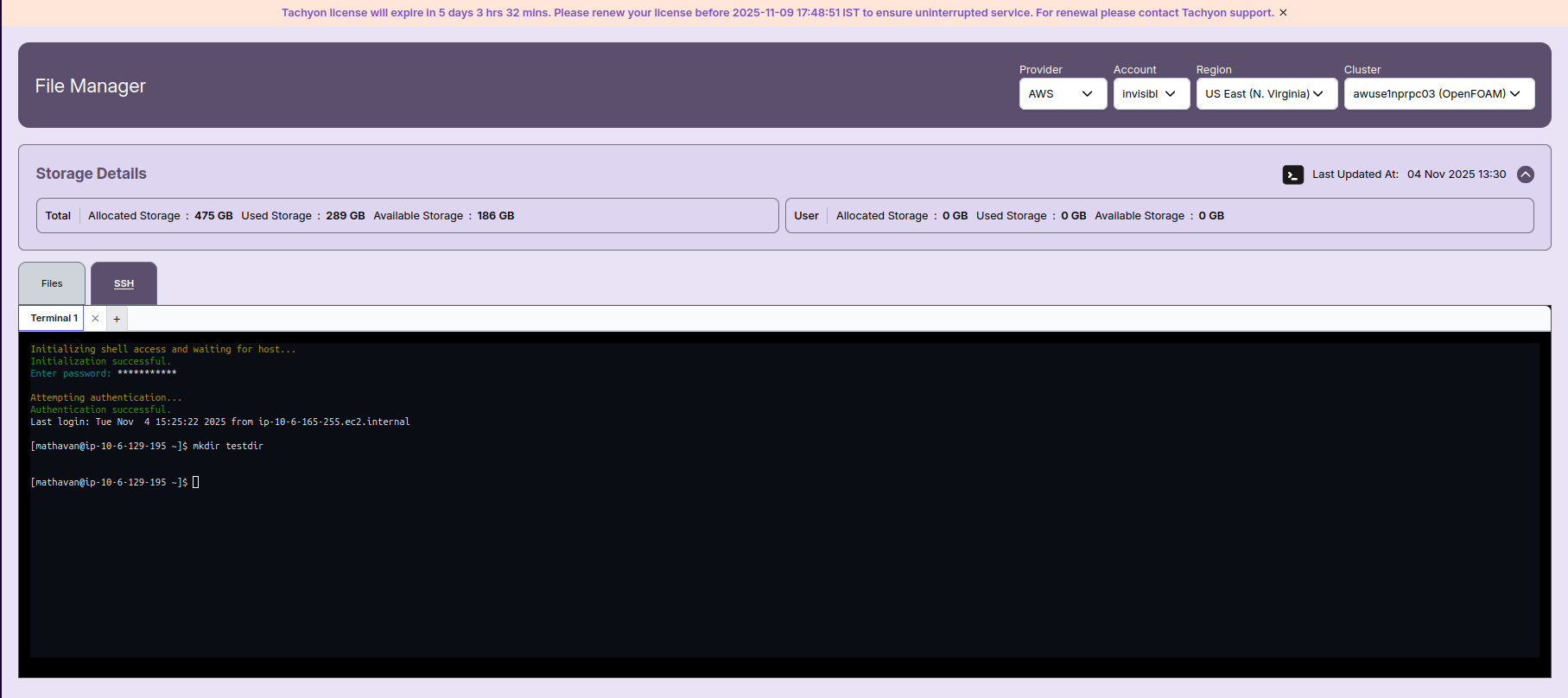
- Run standard Linux commands (
ls,mkdir,rm, etc.) - Perform file/folder operations
- Write and execute light shell or Python scripts
- Use multiple SSH tabs (multi-terminal experience)
📌 General Notes:
- All users use the same login node but have isolated SSH sessions.
- The node shuts down automatically after all sessions are inactive for the configured timeout.
🧰 Shell Functionality
| Users Can | Users Cannot |
|---|---|
| 🗂️ Manage files/folders within their home directory | ❌ Access HPC cluster nodes directly |
| 🧾 Execute simple Python/Shell scripts (non-intensive) | ❌ Submit or monitor simulation jobs |
| 📂 Copy/move files to shared directories | — |
📌 General Notes:
- If you encounter any UI issues or have questions about job submissions or status, please contact the Admin for support.
- Ensure you have selected the correct cluster, region, and provider when filtering queue data.