Requesting a New Workstation
Prerequisites
- Should have enough budget allocated for the logged-in user.
- Availability of application licenses for the logged-in user.
Steps to Request a Workstation
- Navigate to the Catalog Menu
- Open the HPC Dashboard and go to the Workstation menu.
- Click on the Catalog section, where preconfigured images for Windows and Linux servers are available.
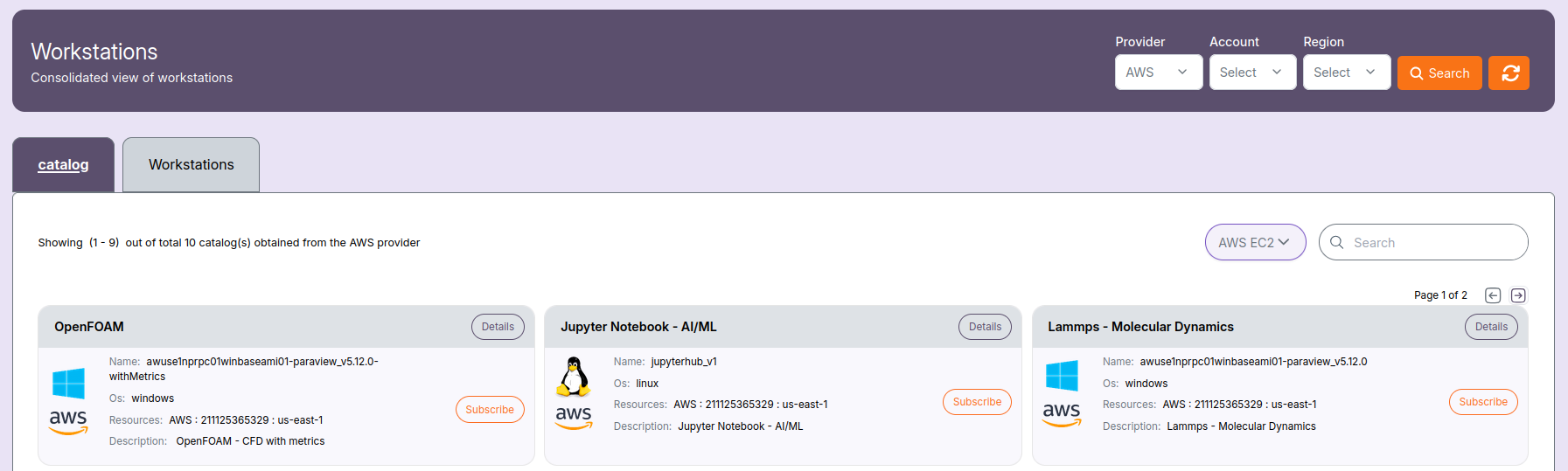
- Select a Preconfigured Image
-
Each catalog entry contains images with preinstalled tools in various versions.
-
Subscribe to Launch
- Click Subscribe next to your selected image.
-
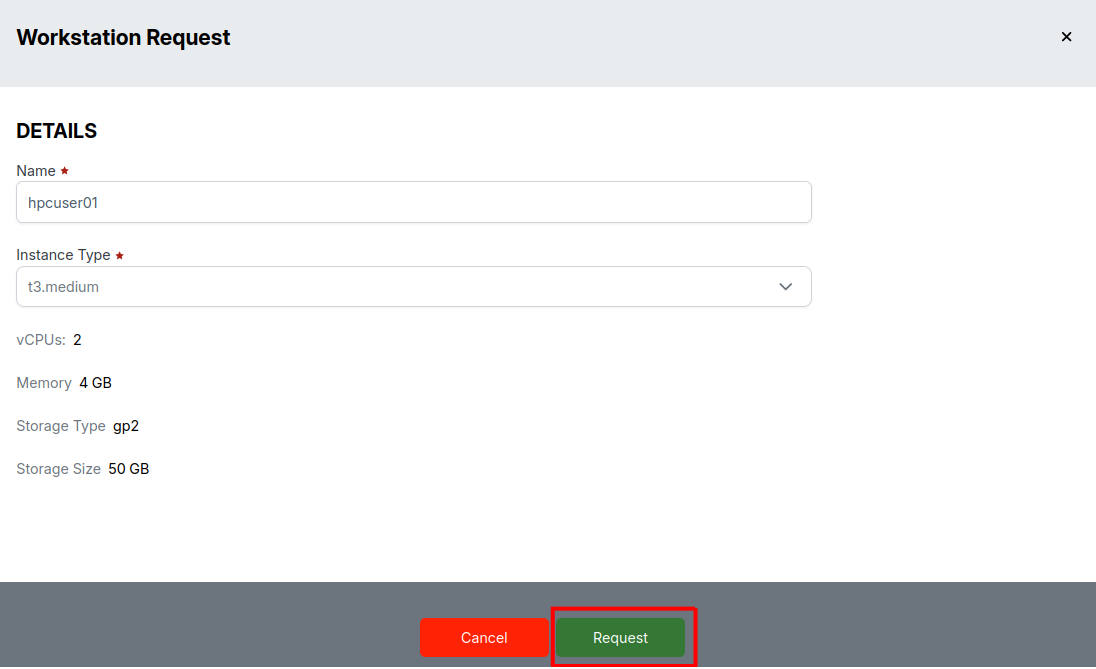
Provide a name for your workstation using alphabets, numbers, underscores, or hyphens. Special characters are auto-replaced with a hyphen.
-
Choose Instance Type
- Select a suitable instance type from the list allowed by the HPC admin.
- Click Request to proceed.
- Admin Notification
-
A notification is sent to the HPC admin for approval.
-
Admin Action
- The admin can view requests under the New Request section.
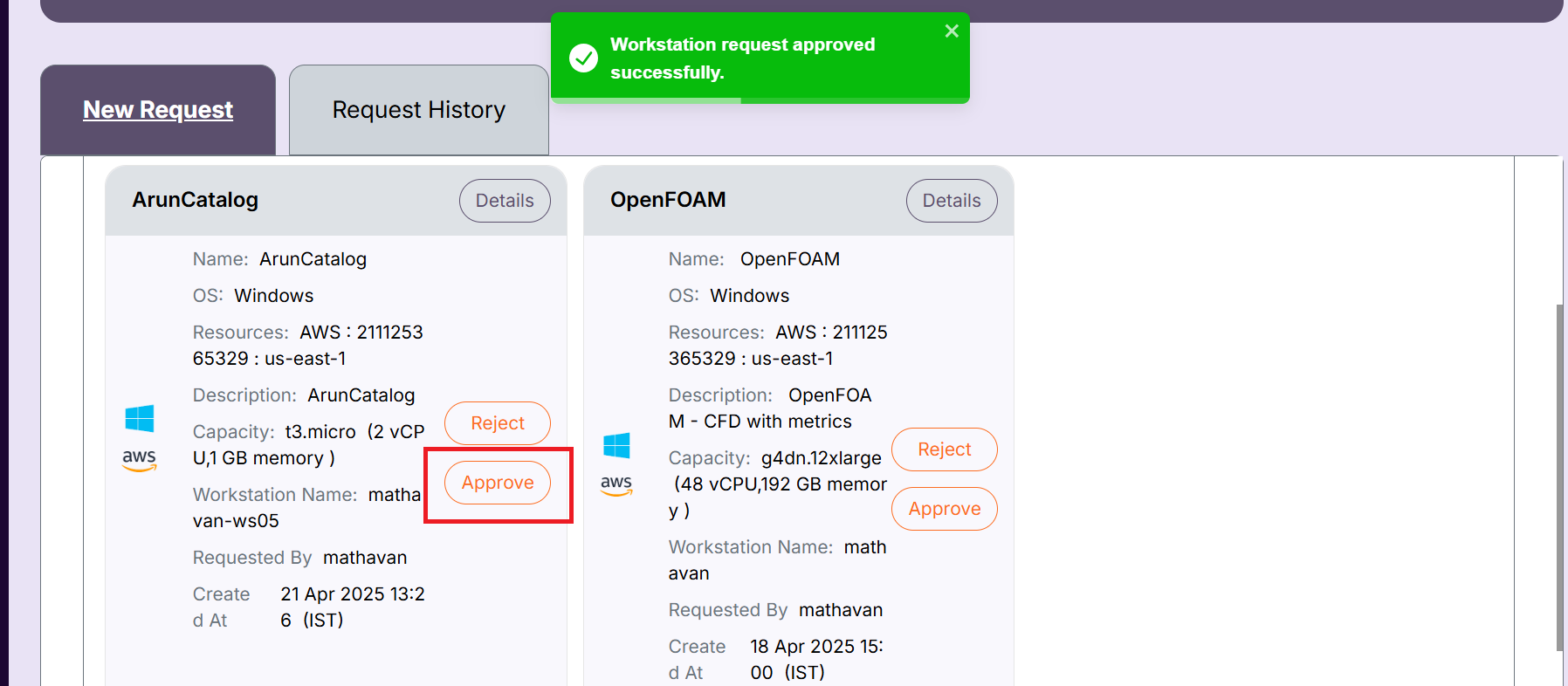
- They can Approve or Reject requests.
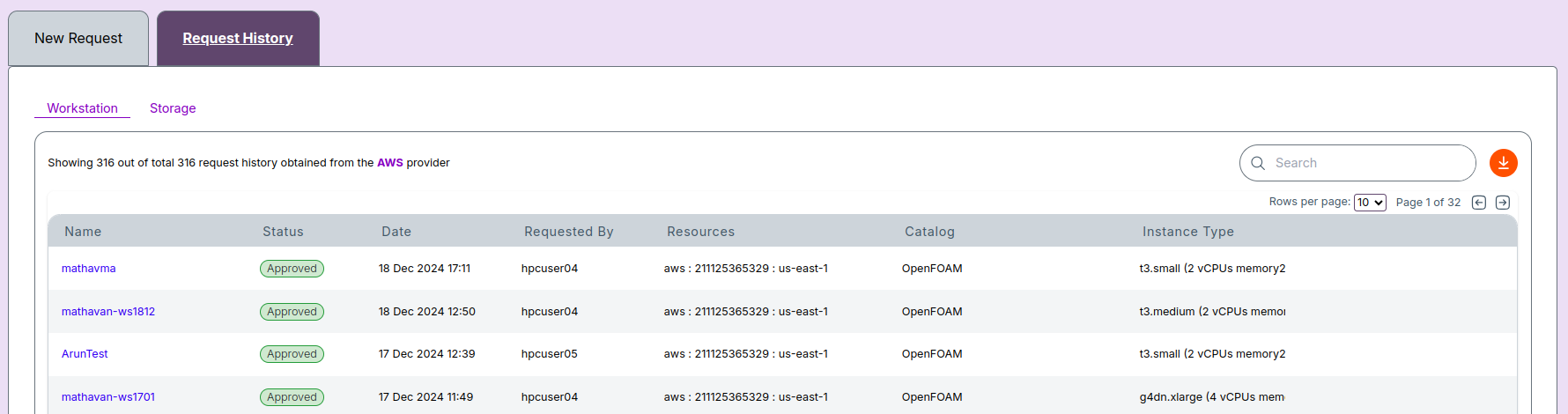
- Track Request History
- Approved/Rejected requests are moved to Request History.
- User will be notified of the decision.
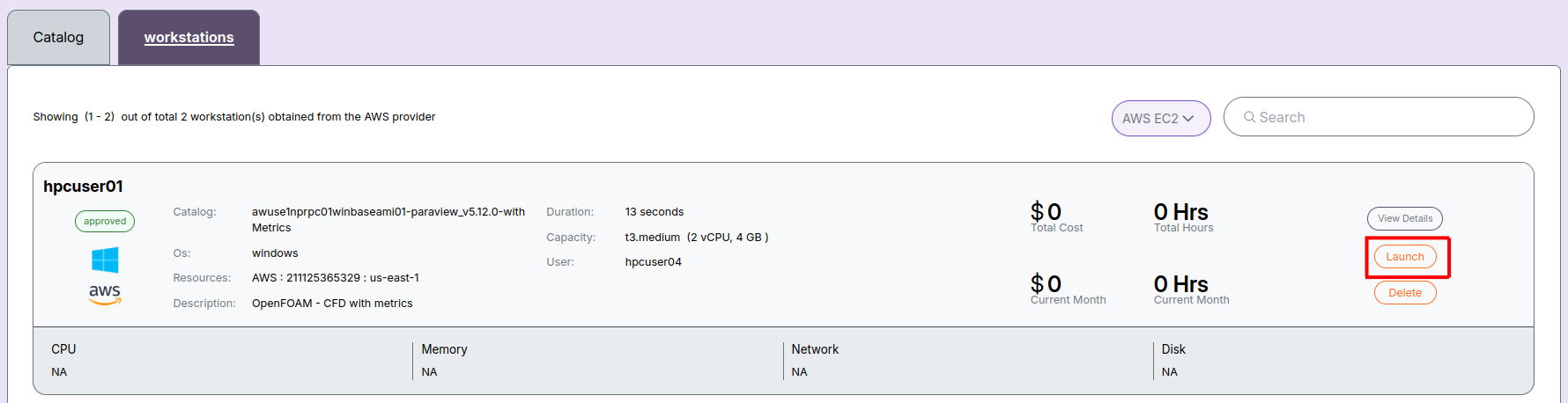
- Launch Approved Workstation
- Approved workstations will appear under the Workstations menu.
- You can then launch them.
- Rejected Requests
- Rejected requests can be deleted by the user.
-
📌 Note
- If you encounter any UI issues or have questions about job submissions or status, please contact the Admin for support.