Cluster Overview
Cluster Details
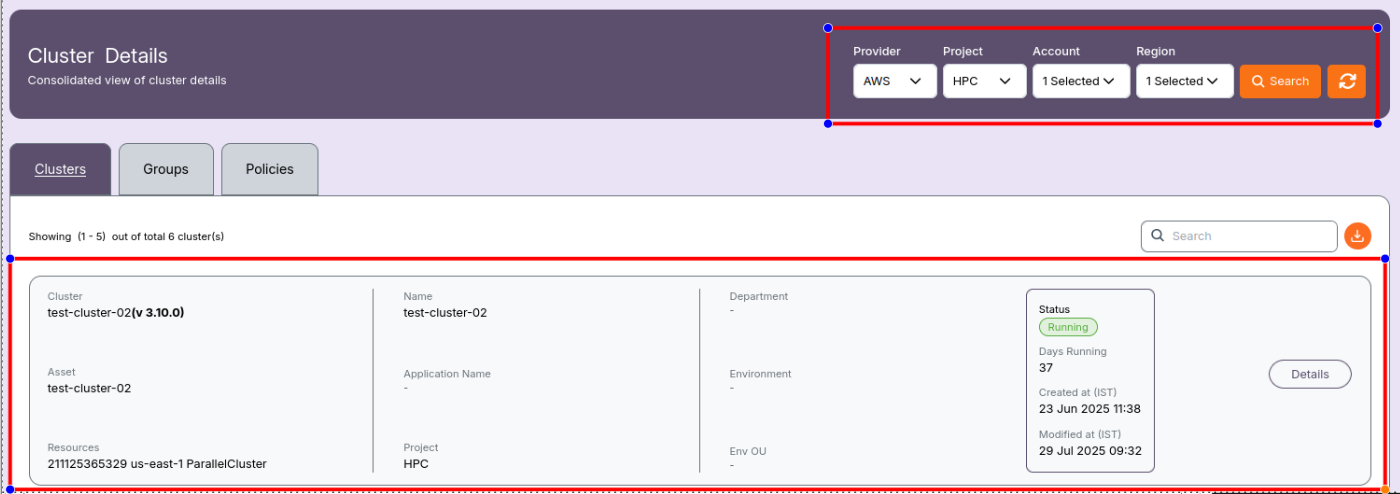
The Cluster Details section offers a consolidated view of all available clusters within the selected scope of Provider, Project, Account, and Region. This interface helps users inspect cluster configuration, status, and metadata quickly.
Filters
At the top of the screen, you can apply filters to narrow down the cluster list:
- Provider: Choose the cloud provider (e.g., AWS)
- Project: Select the project associated with the cluster
- Account: Choose the account under which the cluster is managed
- Region: Select the region to filter geographically
- Search: Click the orange Search button to apply filters and refresh the data
- Refresh: Use the orange circular refresh icon to reload data
Tabs
The view consists of three primary tabs:
- Clusters (default active tab)
- Groups
- Policies
Clusters Tab
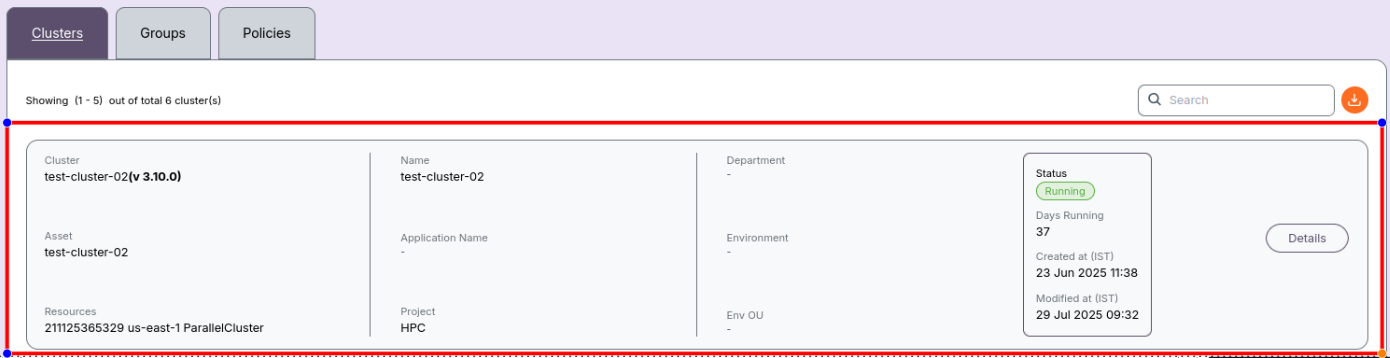
Each cluster card in this tab provides detailed information including identity, resource association, environment, and operational status.
Cluster Card Details
Each cluster entry shows the following:
- Cluster: Unique cluster identifier with version
(e.g.,awuse1nprpctest02-vj (v 3.10.0)) - Asset: Name or ID of the underlying resource
(e.g.,awuse1nprpctest02-vj) - Resources: Cluster ID and deployment location
(e.g.,211100000001 us-east-1 ParallelCluster) - Name: Name of the cluster node or head node
- Application Name: Specific application configured on the cluster
- Project: Project to which this cluster is associated
- Department: (If applicable)
- Environment: Use case or environment
(e.g.,Development,Demo) - Env OU: Organizational unit (if defined)
- Status:
- Running (green)
- Stopped (blue)
- Days Running: Number of days the cluster has been active or provisioned
- Created at (IST): Creation timestamp
- Modified at (IST): Last modification timestamp
- Details Button: Opens the cluster's configuration and monitoring information
📝 Note:
- Values are refreshed each time the Search button is clicked.
- Status badges (Running/Stopped) are color-coded for quick identification.
- This page is especially useful to:
- Monitor active/inactive clusters
- Detect configuration drift or inconsistencies
- Track changes via timestamps
- If you encounter any UI issues or have questions about job submissions or status, please contact the Admin for support.