Upload & Compression
Upload
The Upload action allows users to transfer individual files or multiple files from their local system to the current directory in the File Manager.
Option 1: Browse and Upload
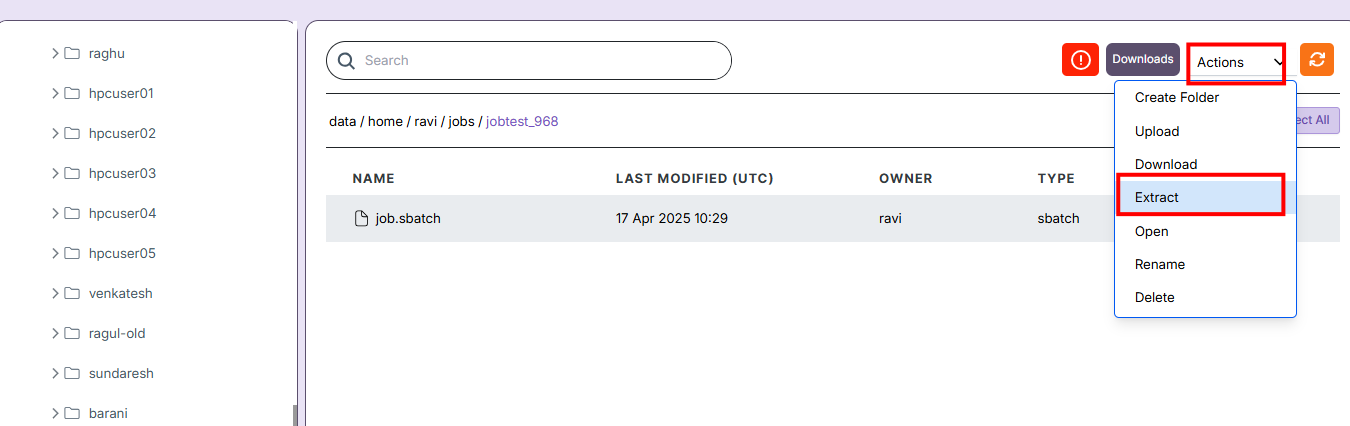
- Click the Actions button and select Upload.
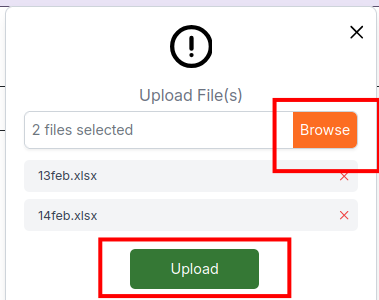
- In the popup dialog, click Browse to choose one or multiple files from your system.
- After selecting the files, click Upload to start transferring them.
- Users can upload up to 20 files per upload.
Option 2: Drag and Drop Upload
- Click the Actions button and select Upload.
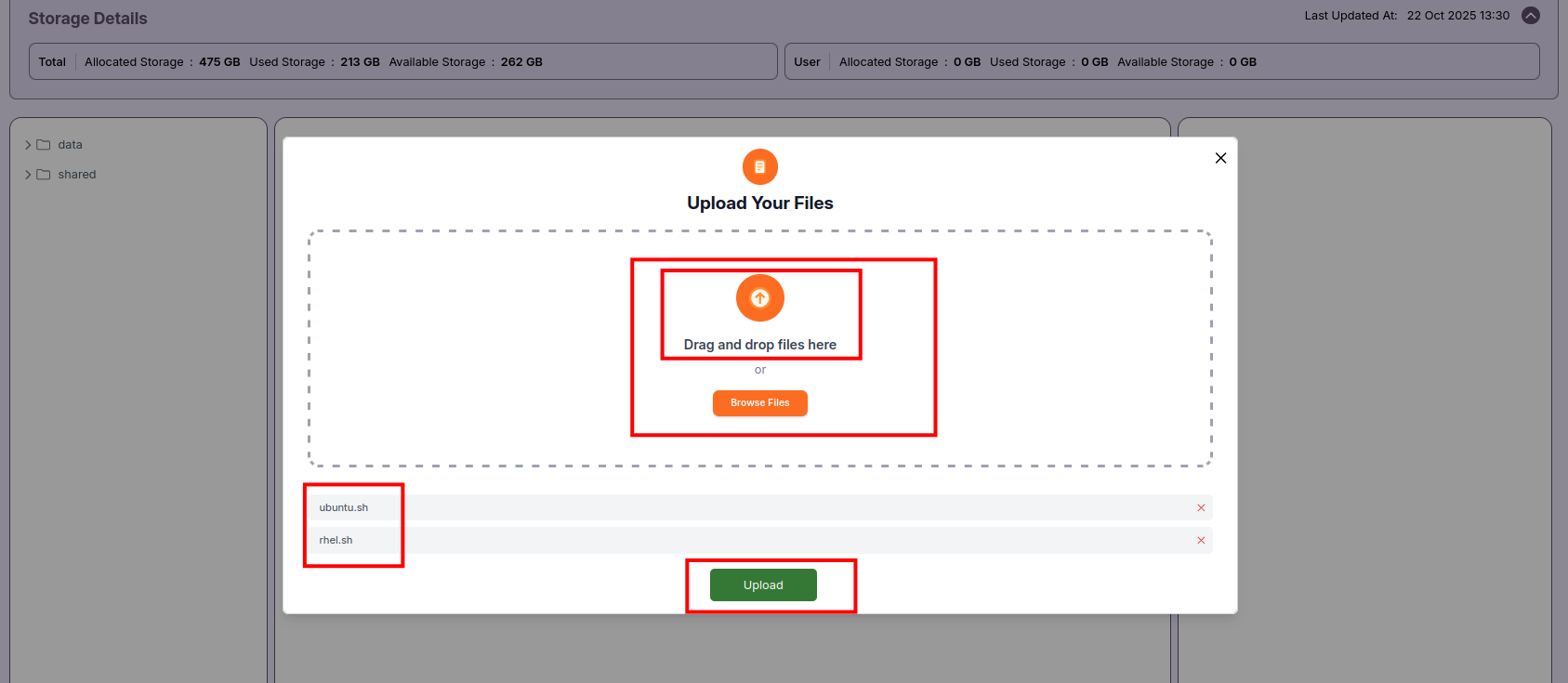
- In the popup dialog, drag and drop one or more files into the designated upload area.
- Alternatively, you can use the Browse Files button to manually select files.
- Once the files are added, click Upload to begin transferring them to the current directory.
- Users can upload up to 20 files per upload.
File Upload and Extract
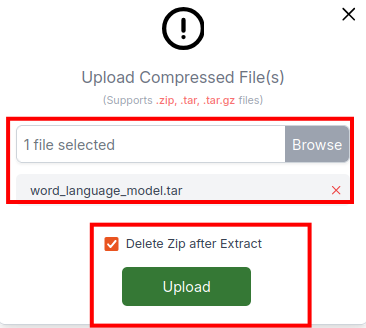
The Upload and Extract option is designed for compressed archives (e.g., .zip, .tar, .tar.gz).
- Select Upload and Extract from the Actions menu.
- Browse and select a compressed file.
- Optionally, check Delete Zip after Extract to remove the original archive after extraction.
- Click Upload to transfer and automatically unpack the archive into the directory.
File Upload Monitoring
Regardless of which upload method is used, the upload progress is displayed in the lower right corner.
- Each file has its own progress bar indicating percentage completion.
- Files can be uploaded sequentially or simultaneously.
- You can cancel an ongoing upload by clicking the Cancel button next to the respective file.
- Successfully uploaded files appear immediately in the directory listing.
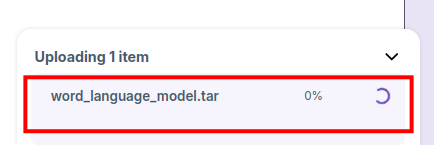
- Efficiently upload individual files or archives with extraction support, and monitor transfer progress with interactive controls for pause and cancellation.
🗜️ File and Folder Compression
The Compression feature allows users to compress one or more selected files and folders into a single ZIP archive directly from the File Manager.
Compress Files and Folders
- Hold down the
Ctrlkey and select the files and folders you want to compress using a mouse click. - Click the Actions dropdown menu.
- Choose Compress from the available options.
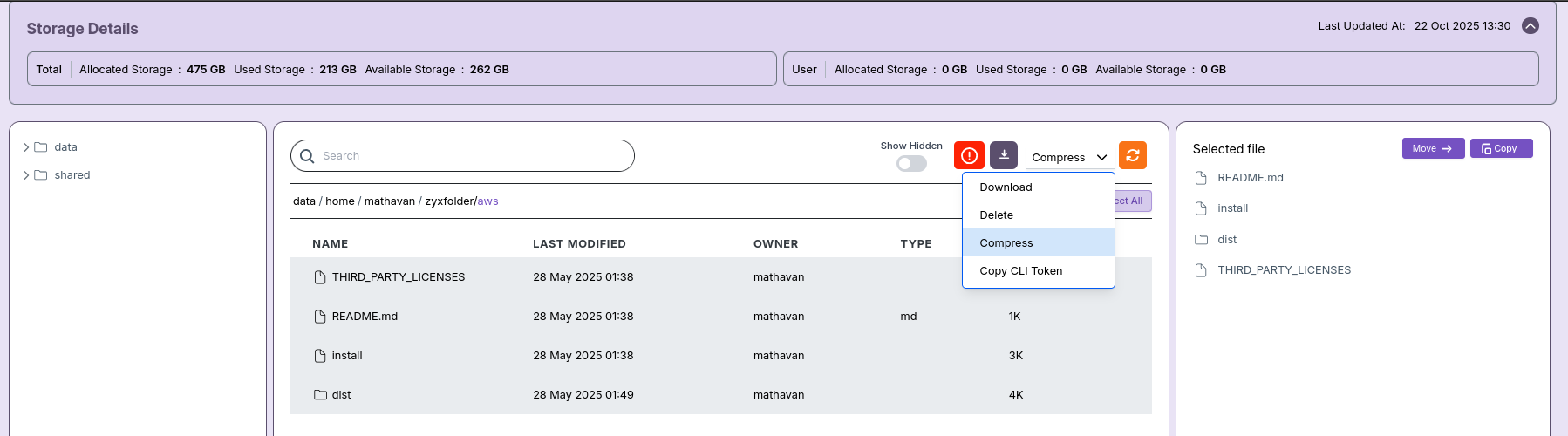
- A popup window will appear prompting you to enter a name for the compressed file.
- After typing the desired name, click the Compress button to proceed.
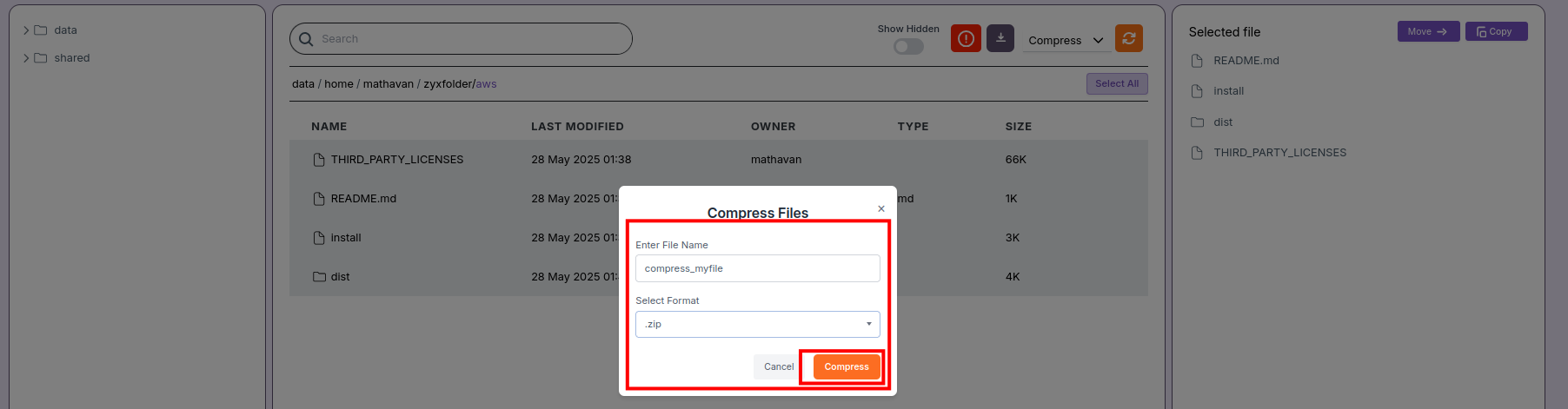
- Once completed, the compressed file will be created and listed in the same directory.
📝 Notes:
- You can select multiple files and folders simultaneously using the
Ctrlkey. - The compressed file will be saved in the current working directory.
- Ensure the total size of selected files does not exceed system limits for compression.
Extract Compressed Files
-
You can extract supported archive formats like
.zipor.tar.gzdirectly in the browser. -
Right-click on a compressed file (zip, tar, tar.gz) and select extract option from the actions menu. File will be extracted in the same folder.