Priority Job
Overview
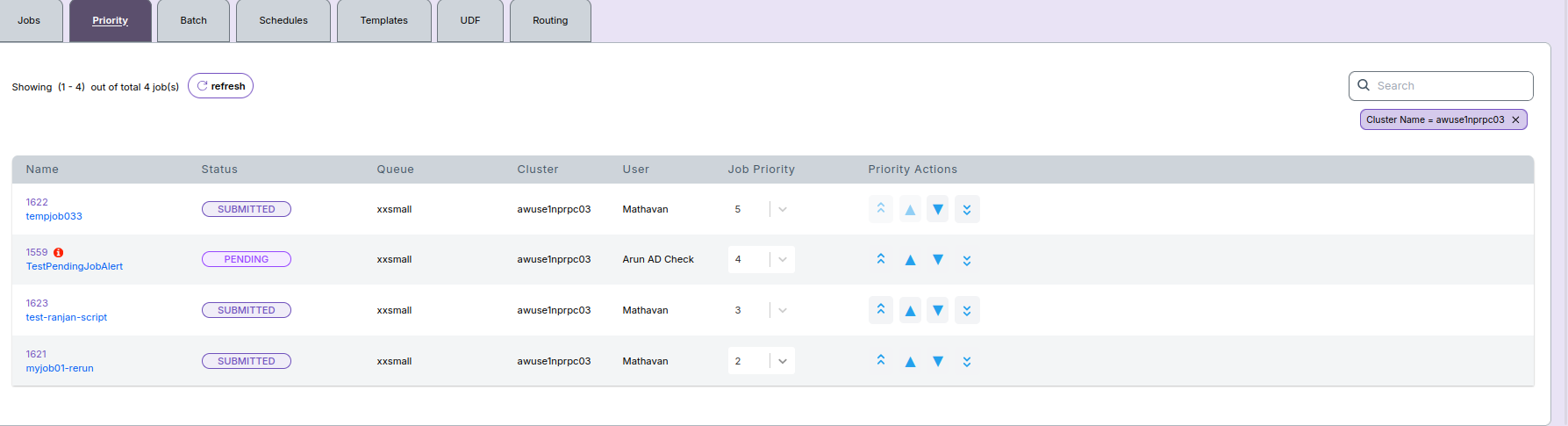
The Priority tab allows users to view and manage the execution priority of submitted jobs. This view displays key details such as job name, status, queue, cluster, user, current priority, and available actions to adjust the priority.
Prerequisite: Creating a Job
Before you can set or modify the priority of a job, you must first create a job from the Jobs module.
Steps to Create a Job
- Navigate to the Jobs module.
- Click the Create Job button.
- In the form, provide the following details:
- Provider
- Account
- Region
- Cluster Name
- Application Type and Version
- Queue Name
- QOS Name
- Enter the Job Name in the designated field.
- Fill in the Parameters section.
- Choose whether to:
- Run Immediately, or
- Schedule for Later.
- Paste the command in the Command field.
- Optionally, select Run Script Job to paste and execute a job script.
- Alternatively, create a job from an existing Template.
- Review the form and click Submit to launch the job.
📝 Note:
- To view detailed information about jobs, please follow the steps explained in the Job Details guide.
Columns Displayed in Priority Tab
- Name: Job name with clickable link to job details.
- Status: Current job status (e.g., Submitted, Pending).
- Queue: Queue assigned to the job.
- Cluster: Cluster where the job is running.
- User: User who submitted the job.
- Job Priority: Current priority value for the job.
- Priority Actions: Controls to modify the priority.
Priority Actions
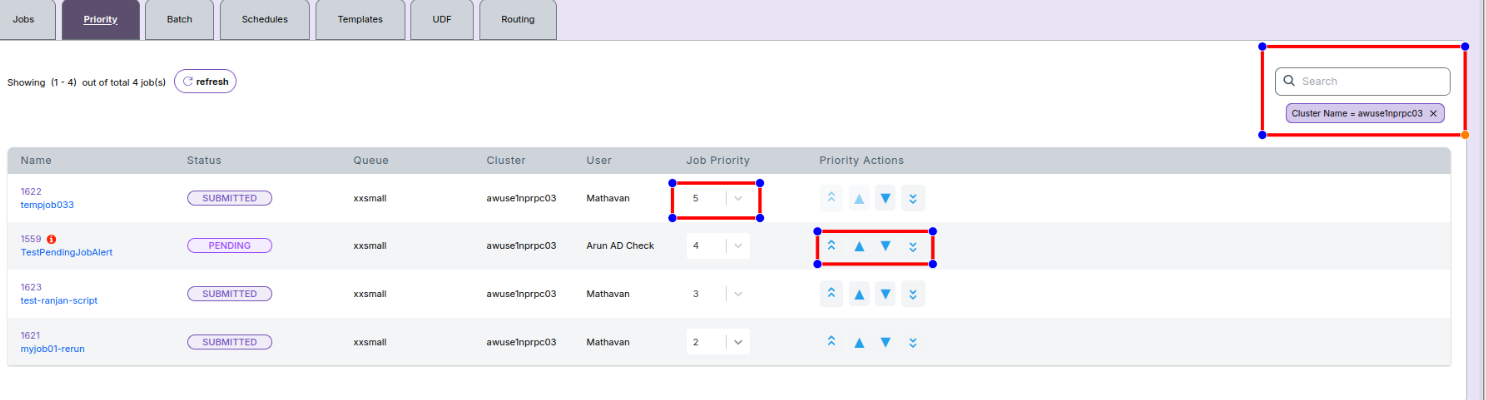
Users can adjust job priority using one of the following methods: - Number Field: Directly select a priority value from the dropdown. - Single Up Arrow: Increase priority by one level. - Double Up Arrow: Set priority to the highest allowed value. - Single Down Arrow: Decrease priority by one level. - Double Down Arrow: Set priority to the lowest allowed value.
Additional Controls
- Search Box: Filter jobs by name, ID, or other keywords.
- Refresh Button: Reload the job list to view updated priorities.

💡 Info:
- Changing a job’s priority takes effect immediately after selection or arrow click.
- Job priority may be restricted based on user role and permissions.
- Ensure a job is successfully created before attempting to modify its priority.
-
📌 Notes
- If you encounter any UI issues or have questions about job submissions or status, please contact the Admin for support.
- Ensure you have selected the correct cluster, region, and provider when filtering queue data.