Update an Alert Rule
This section explains how to update an existing alert rule in the Alerts module.
You can update alert rules to modify thresholds, names, or associated resources.
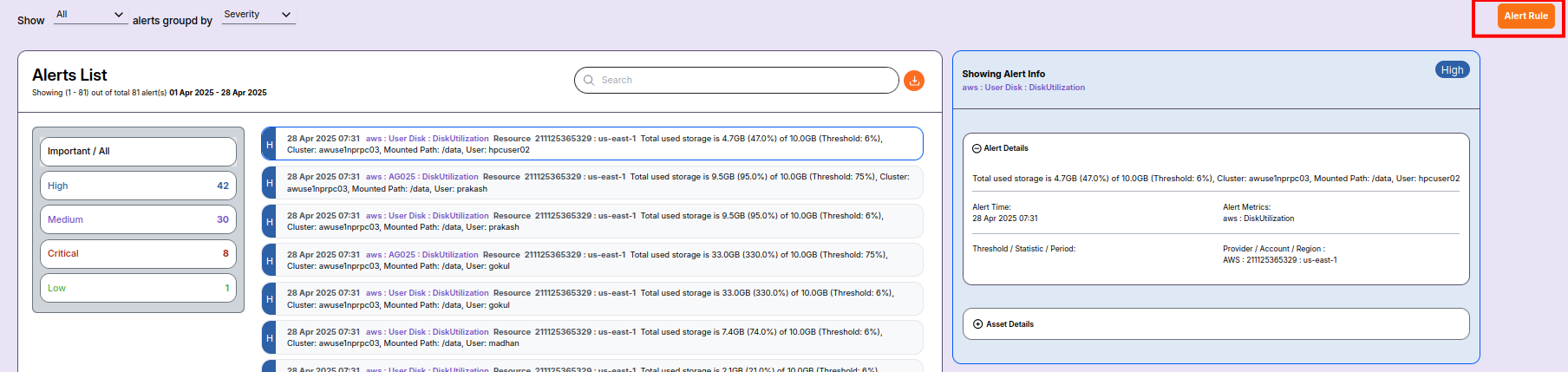
Step 1: Expand the Alert Rule
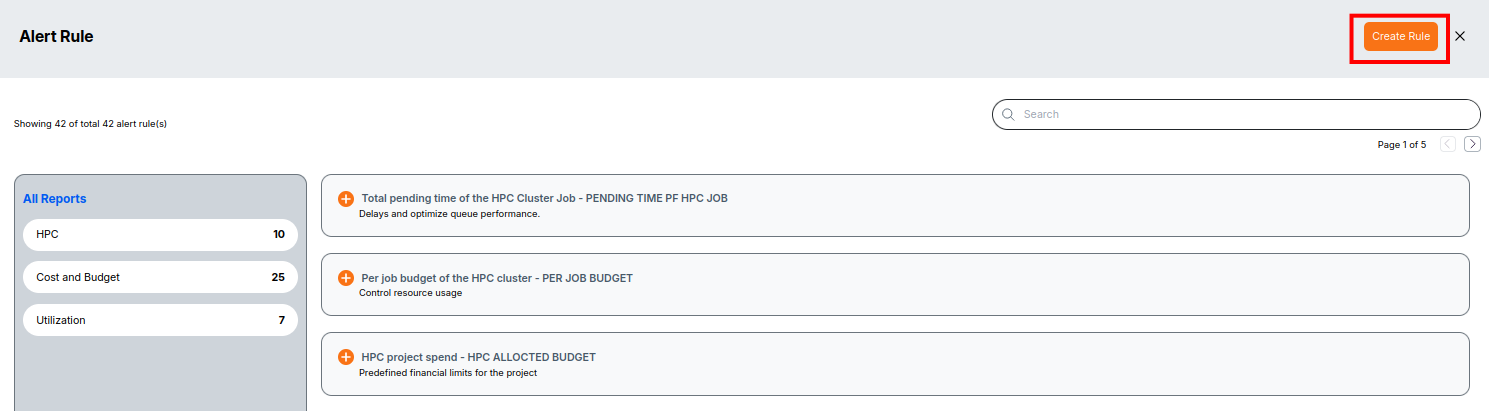
- Click on the alert rule from the Alert Rules list.
- The selected rule will expand, showing the rule details in an editable form.
Step 2: Select Rule to Update
From the Alerts List, locate and click on the rule that you want to update. Once selected, the rule will expand automatically, displaying the editable form with the previously configured values.
Step 3: Modify Alert Rule Fields
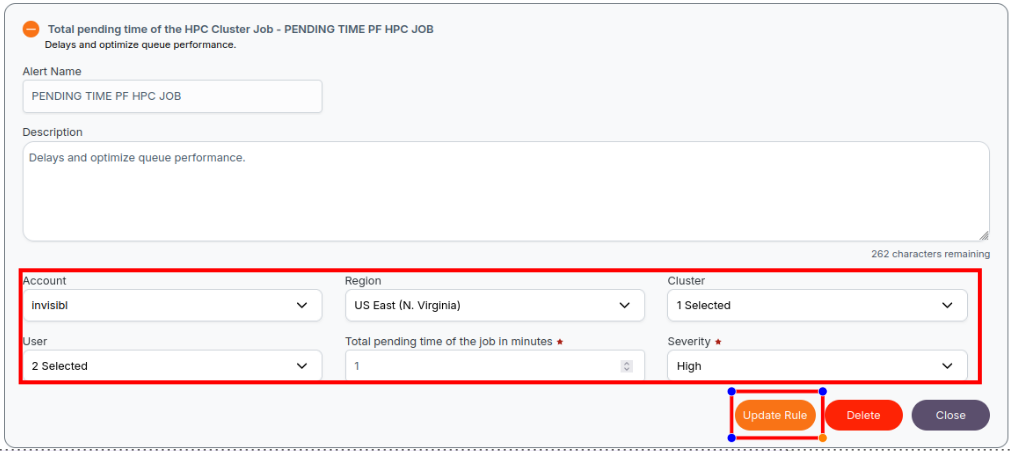
The existing values will be pre-filled in the edit form.
You can update: - Alert Name - Cluster or Queue - Threshold value - Condition logic
Step 4: Save Changes
After updating the required fields, click Save or Update.
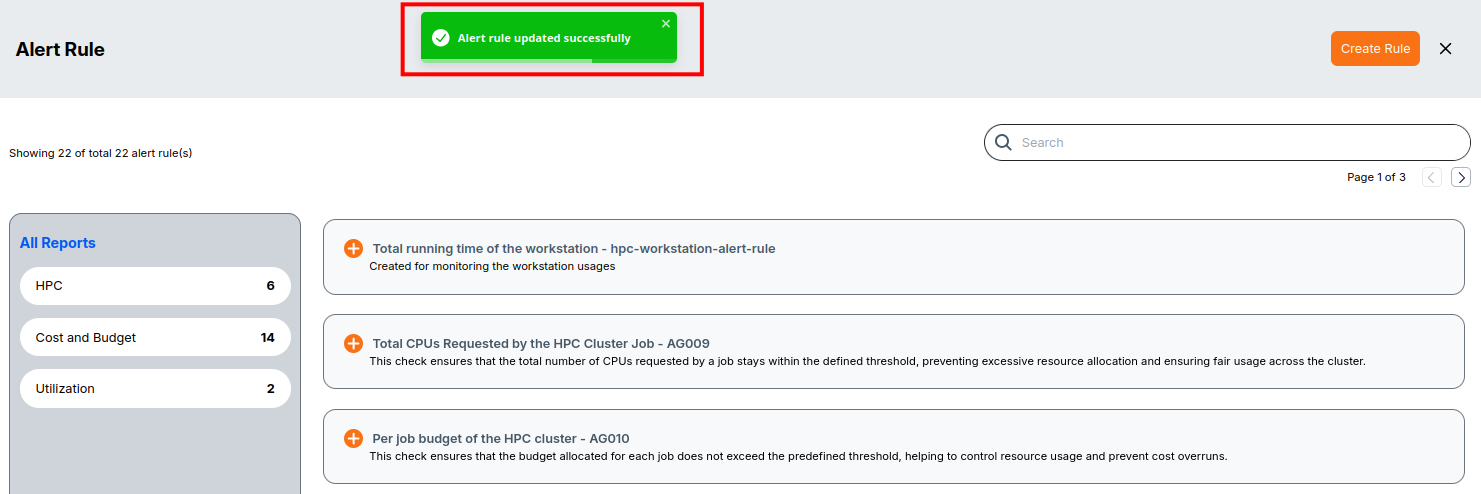
A confirmation toast or message will appear indicating success.
Step 3: Save the Changes
- After making changes, click the Update Rule button.
- A notification message will appear at the center-top of the screen confirming the update and its status.
📌 Note: Only Administrators can create and modify alert rules.