Submit a Job Using Script Mode
This section guides you through submitting a job using a custom shell script instead of the standard form.
Step 1: Open Job Submission Page
Navigate to Jobs > Create Job from the sidebar.

Step 2: Switch to Script Job Mode
Select the Script Job switch to enable the script input option.
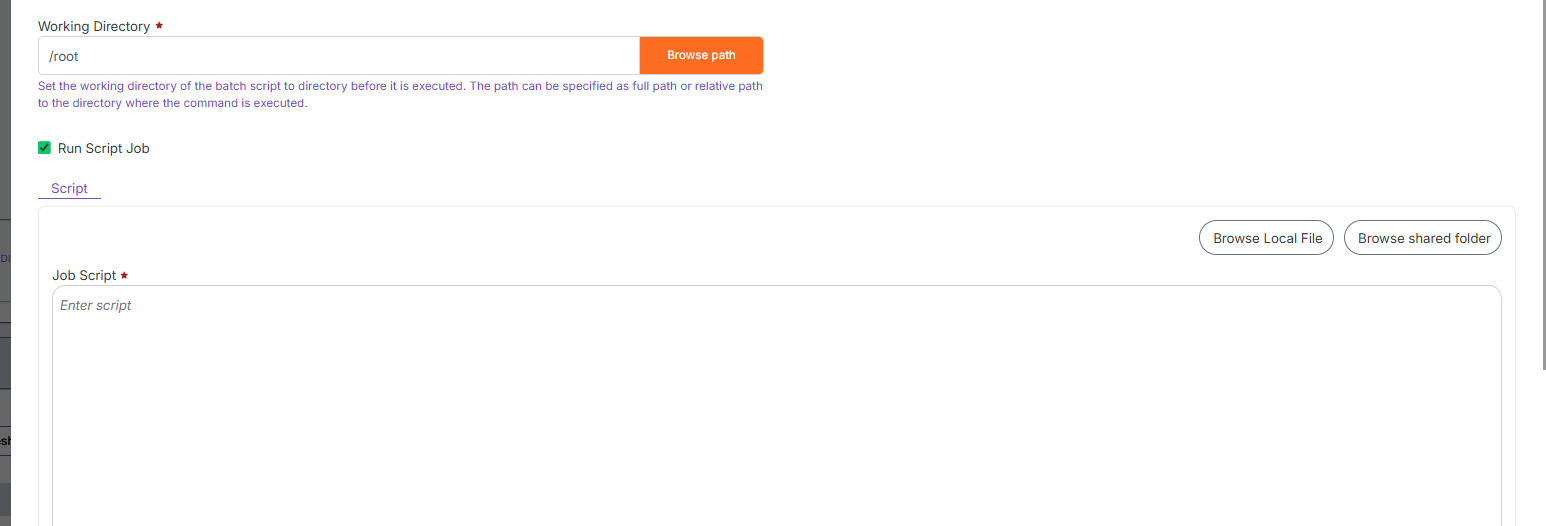
Step 3: Paste Your Shell Script
Paste the full bash shell script into the script editor provided.
Make sure it includes necessary module load, cd, and execution commands.
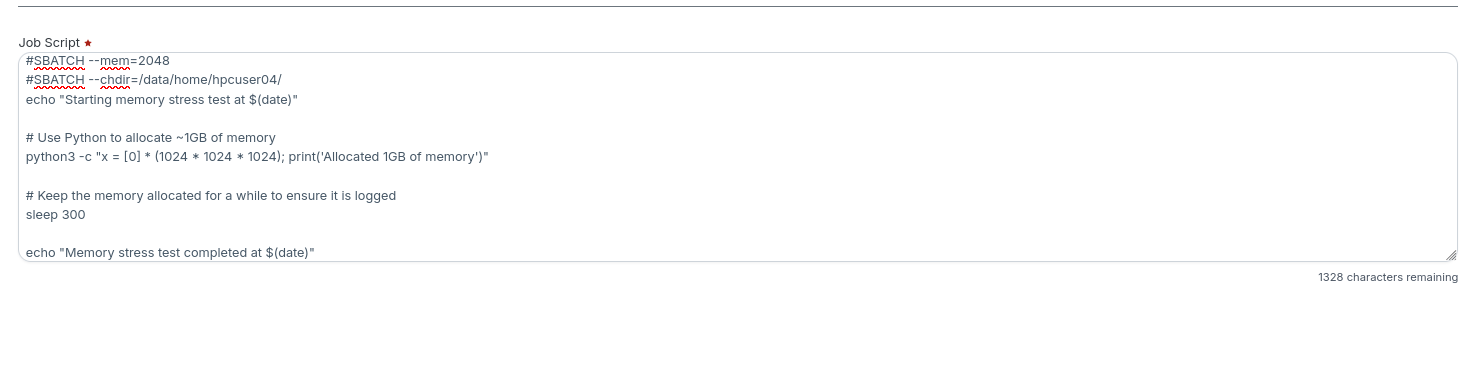
Step 4: Budget Validation
Click on Continue to validate your script job's estimated compute cost.
The system will block submission if budget is insufficient.

Step 5: Submit Scrip
-
📌 General Notes
- If you encounter any UI issues or have questions about job submissions or status, please contact the Admin for support.