Roles — Admin Guide
- Roles define what users can see and do in the system.
- Admins use roles to group permissions and assign them to users or user groups.
- A role controls both module visibility and actions (create, update, delete, etc.) available to the assigned user.
Overview
Roles simplify access management by letting administrators bundle multiple permissions into a single assignable entity.
Admins can:
- Create, edit, or delete roles
- Assign roles to individual users or user groups
- Define a Default Landing Page
- Choose which modules are visible to users
- Configure fine-grained permissions per module
- Audit all changes for compliance
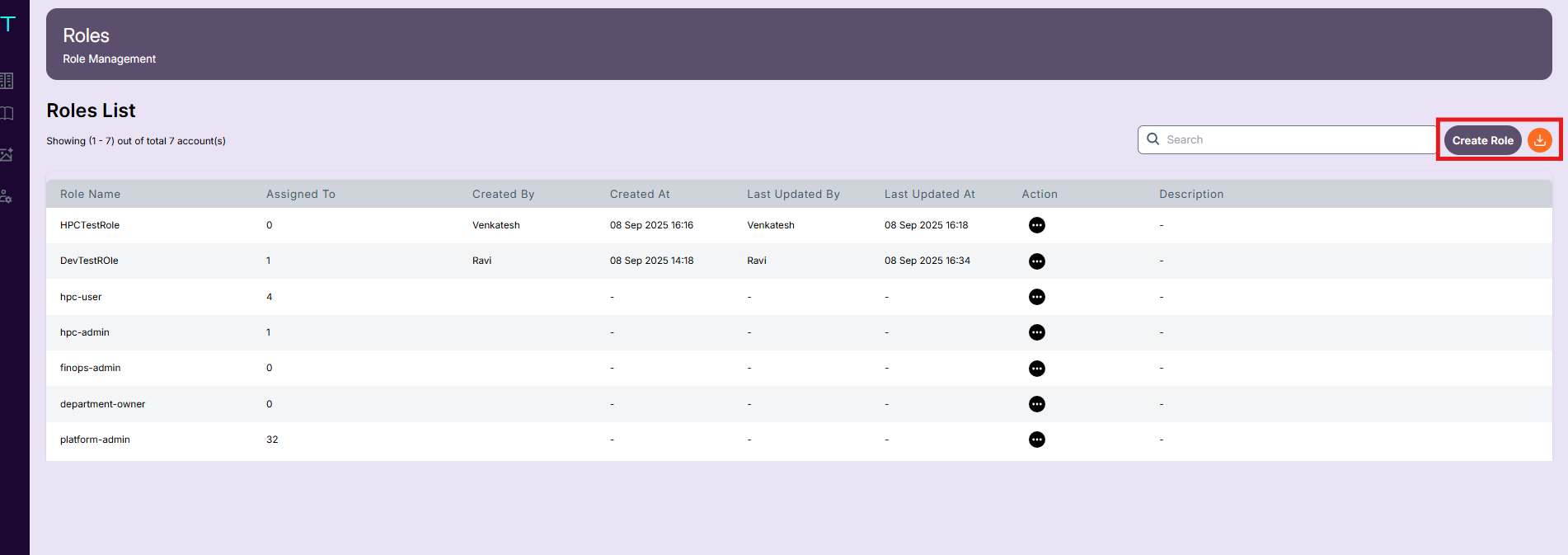
UI Location
Navigate to:
Admin Guide → Roles
Screenshot:
Creating a Role
Step 1: Open the Roles Section
- Go to Admin Guide → Roles.
- Click the Create Role button.
Screenshot:
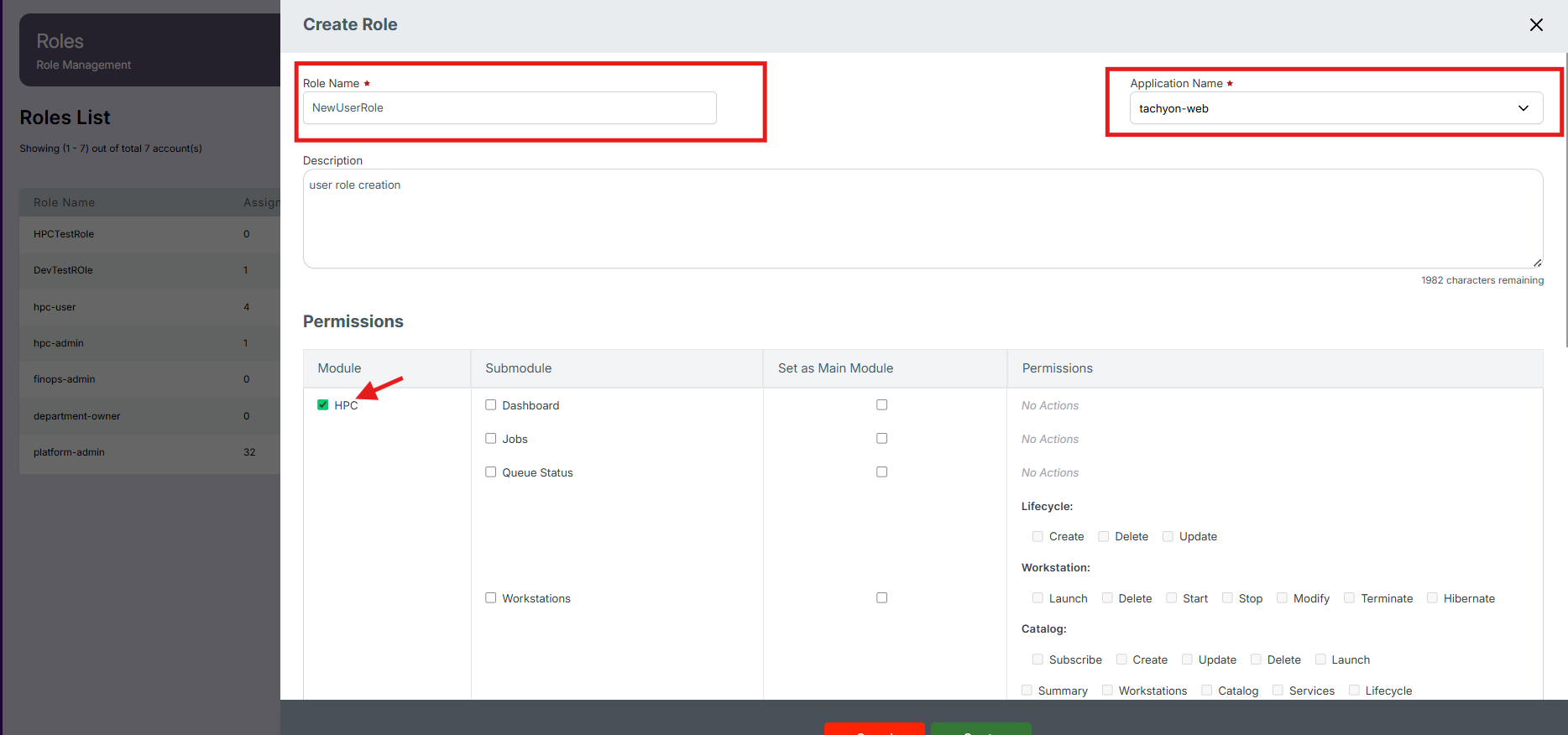
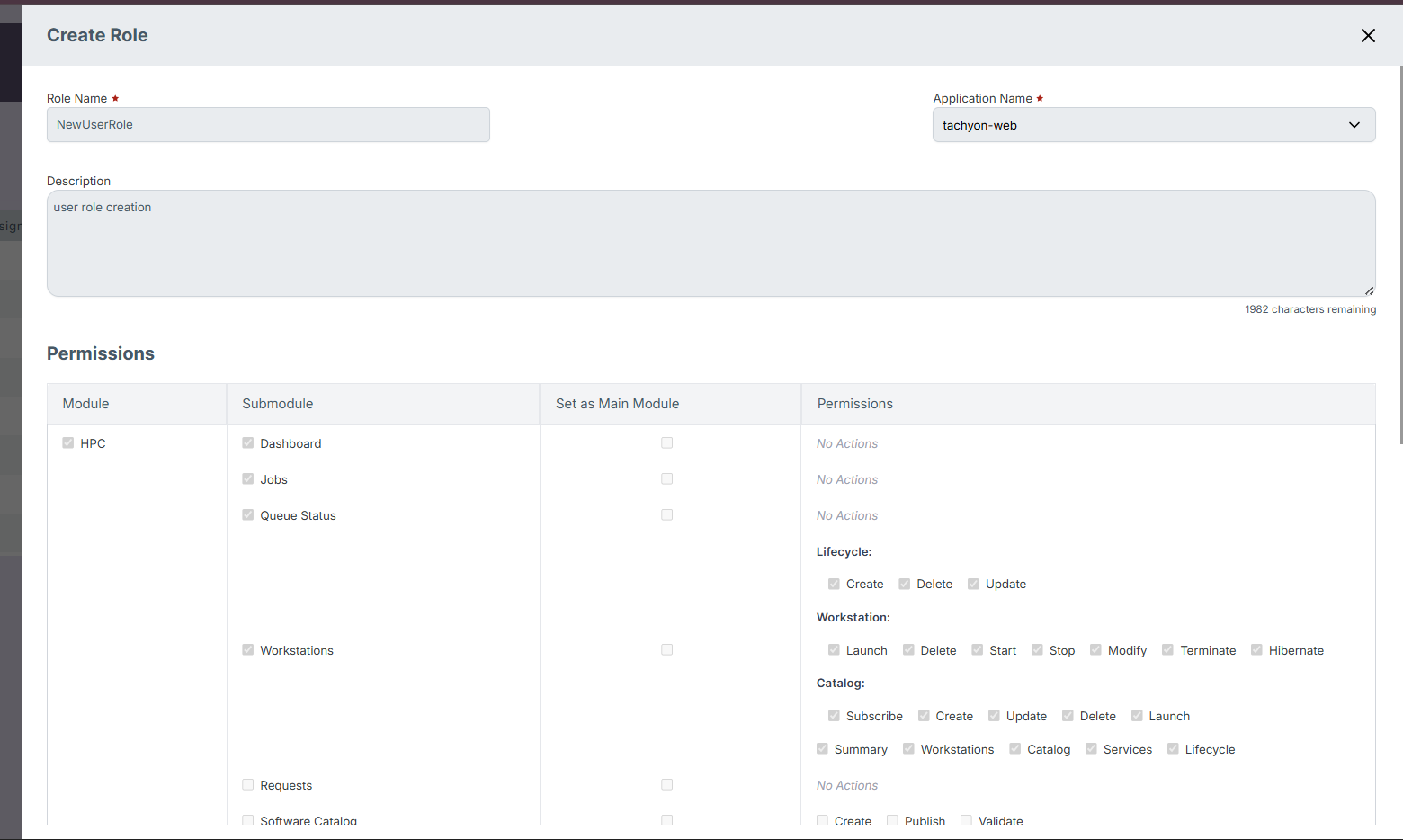
Step 2: Enter Role Details
- Role Name – Provide a meaningful name (e.g., ClusterOperator, FinanceViewer).
- Description – Add context about the role’s purpose.
- Application Name – Select the relevant application scope (e.g.,
tachyon-web).
Screenshot:
Tip
Use descriptive names like HPC Queue Admin or Spendboard Reviewer to make roles self-explanatory.Step 3: Configure Permissions
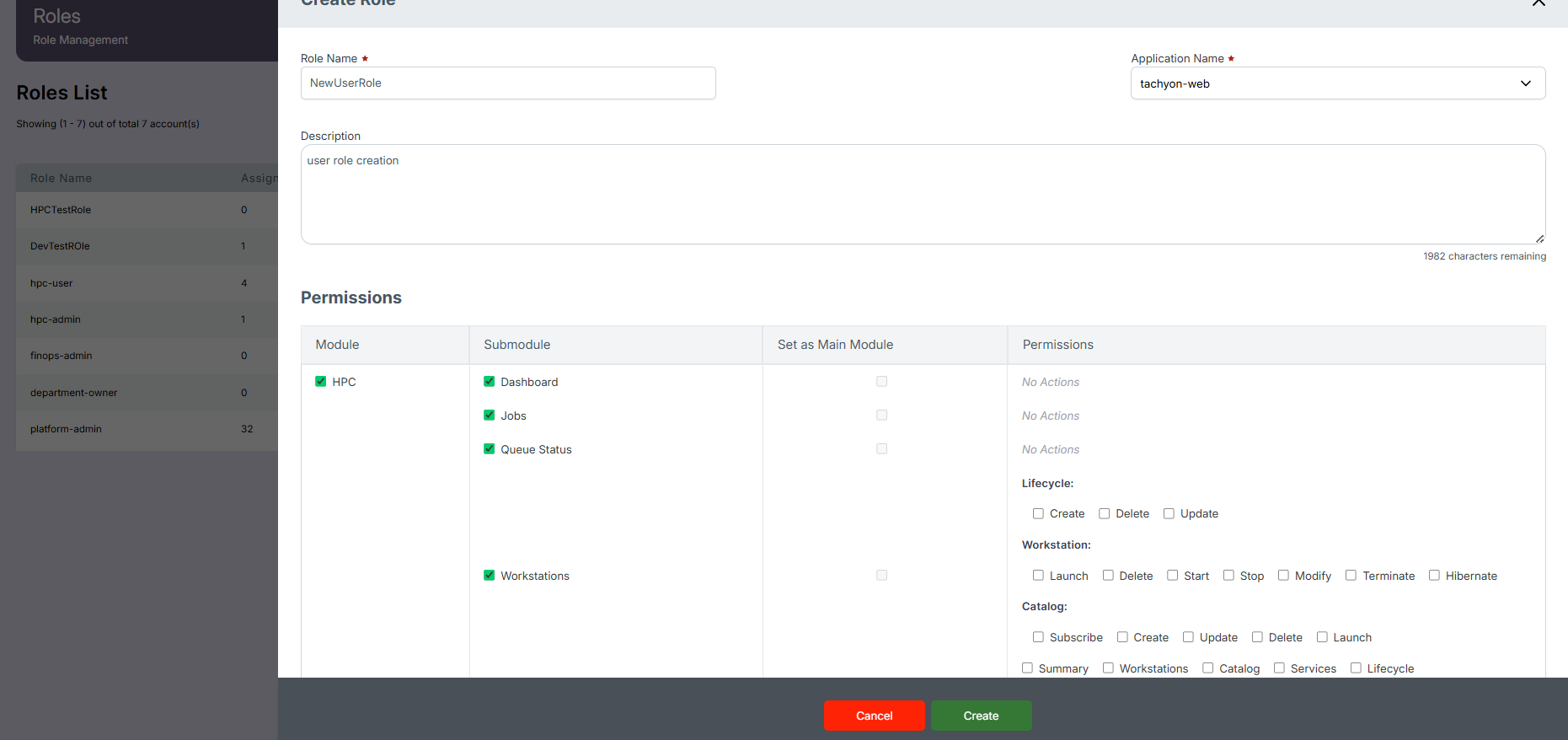
The Permissions section defines which modules and actions are available for this role.
| Field | Description |
|---|---|
| Module | Main system area (e.g., HPC, Admin, Observability) |
| Submodule | Specific feature or page under the module (e.g., Jobs, Workstations) |
| Set as Main Module | Marks a module as the default landing view |
| Permissions | Granular options (Create, Update, Delete, Launch, Validate, etc.) |
Screenshot:
Example
Selecting HPC → Workstations → Launch allows users to start or stop workstations but not create new clusters.Step 4: Default Landing Page
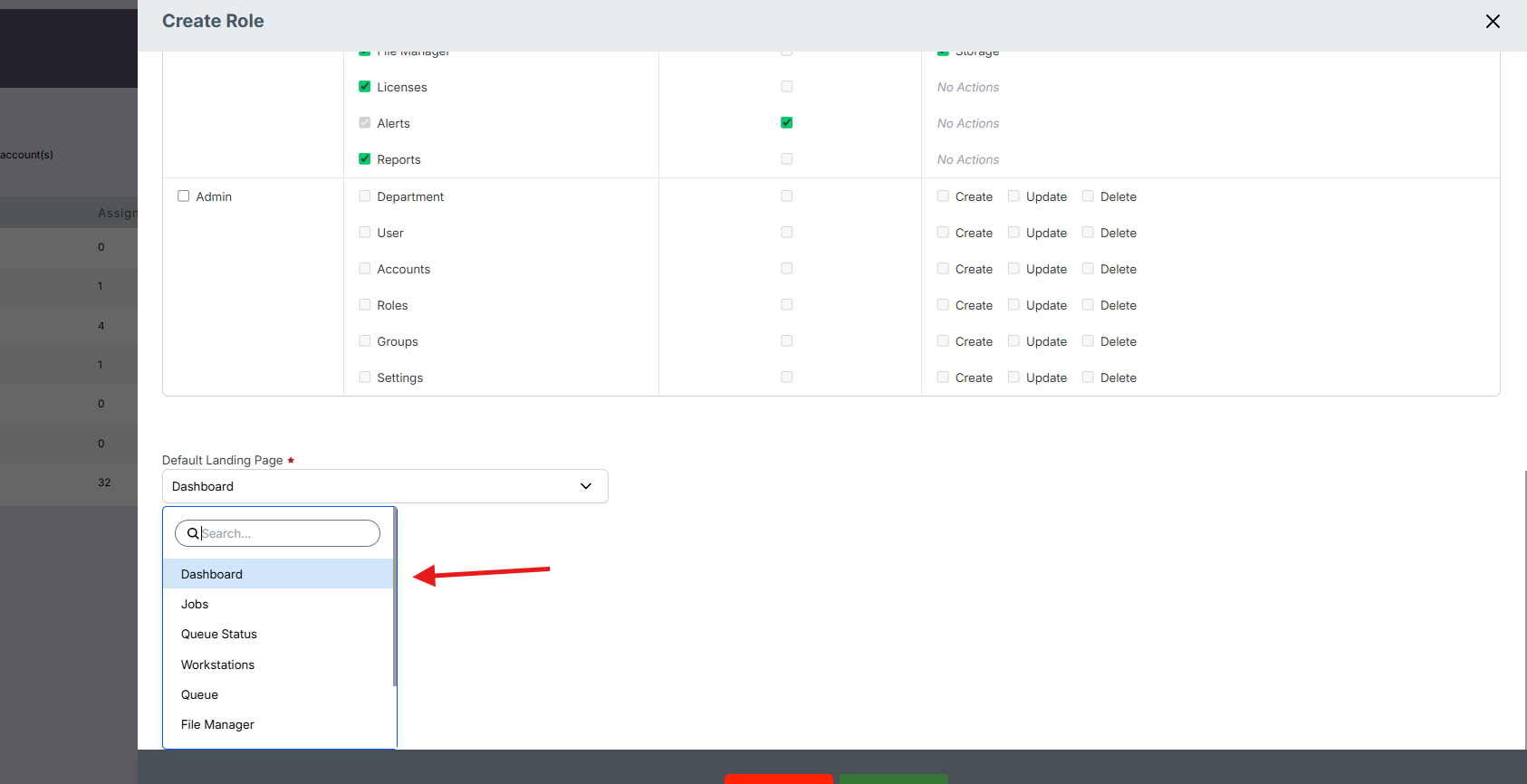
The Default Landing Page determines where a user lands after login.
This ensures that users start their session in the most relevant area.
Benefits
- Streamlines workflow for role-specific activities
- Reduces confusion by hiding unnecessary modules
- Enhances performance and security through limited access
Screenshot:
Example
A Jobs Manager role may have Jobs as their default landing page.Step 5: Save the Role
- Review all settings (name, permissions, modules, and landing page).
- Click Save.
Screenshot:
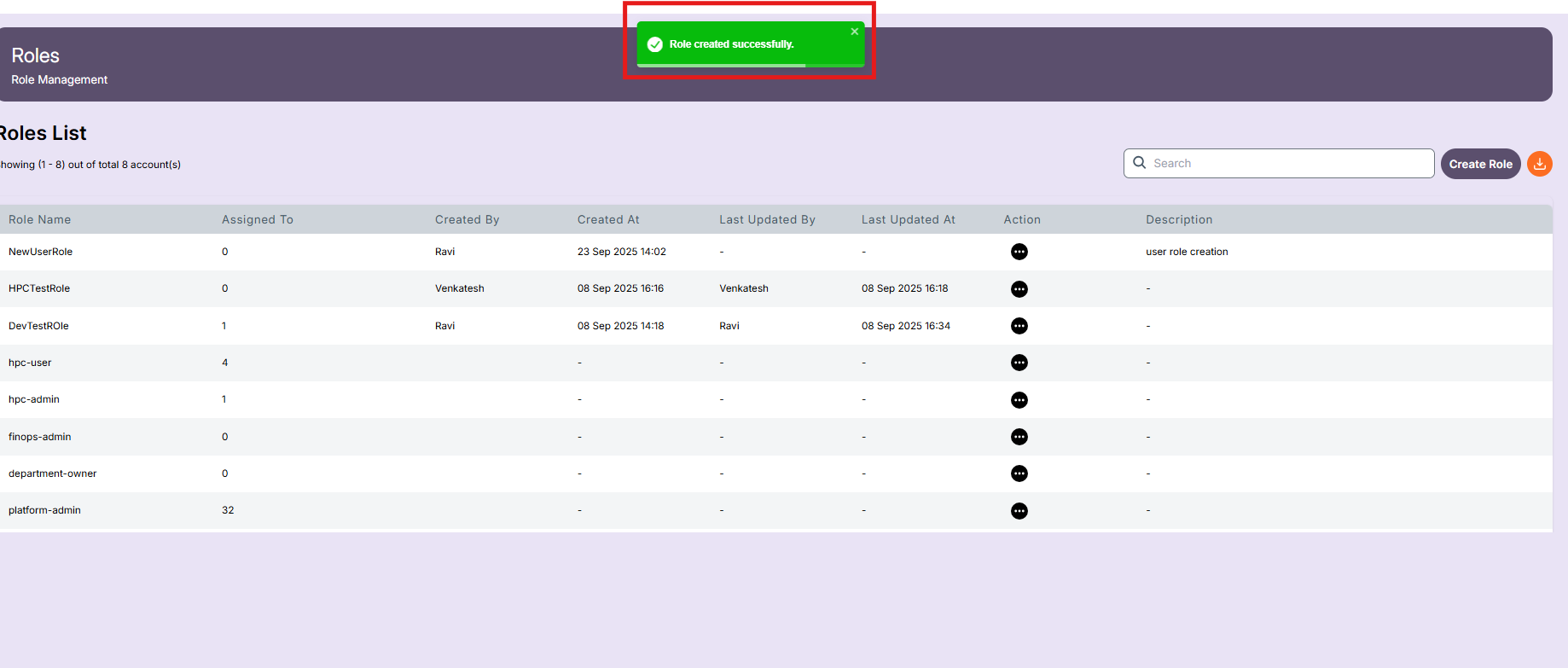
Expected Result
- A success notification appears.
- The new role is added to the Roles List table.
Viewing Role Details
- Click on a role name in the list to open the Role Details page.
- This page provides a read-only summary of all configurations.
Details Include:
- Role name and description
- Application name
- Default landing page
- Selected modules and permissions summary
- Metadata (Created by / Created on)
Screenshot:
Note
Role details cannot be edited from this view.Assigning a Role to a User
- Navigate to Admin → Users.
- Click the Edit icon beside a user.
- In the Role Name dropdown, select the preferred role.
- Click Update to save changes.
Screenshot:
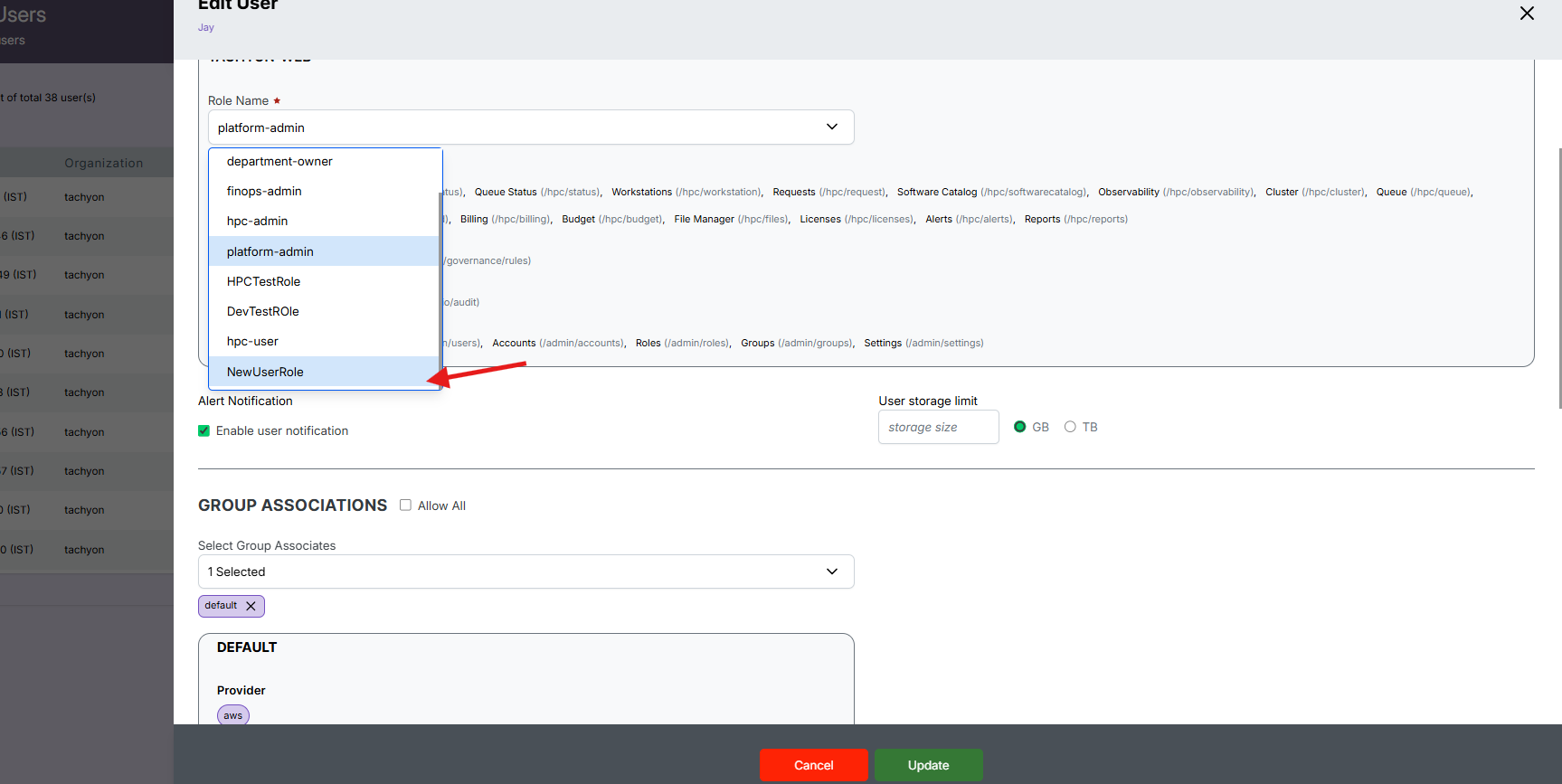
Result:
The user is now governed by the permissions defined in that role.
Editing a Role
- From the Roles List, click Edit on the desired role.
- Modify details such as name, landing page, or permissions.
- Click Save.
Screenshot:
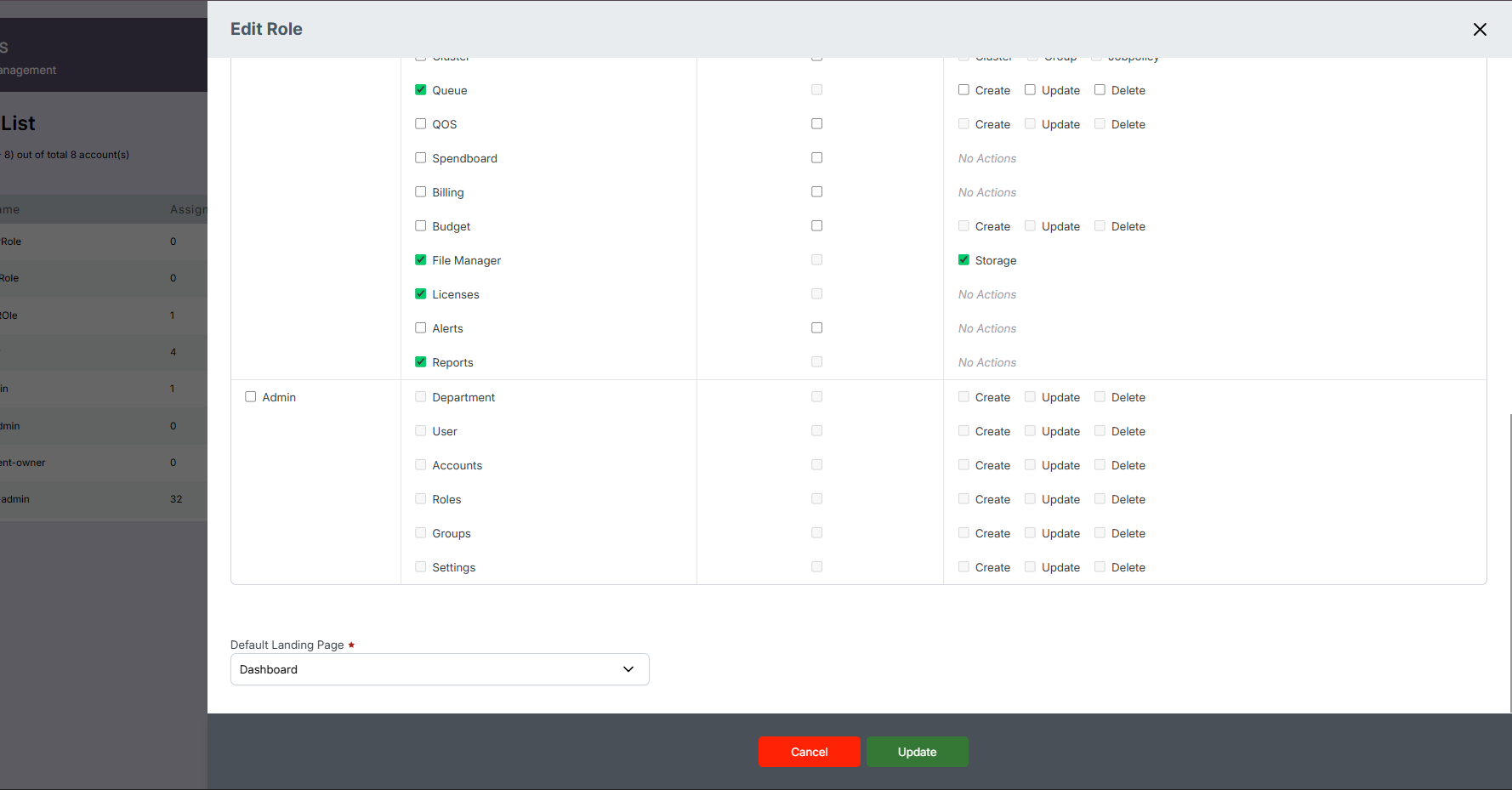
Caution
Updates immediately affect all users assigned to this role.Deleting a Role
- In the Roles List, click Delete.
- Confirm the deletion in the prompt.
Screenshot:
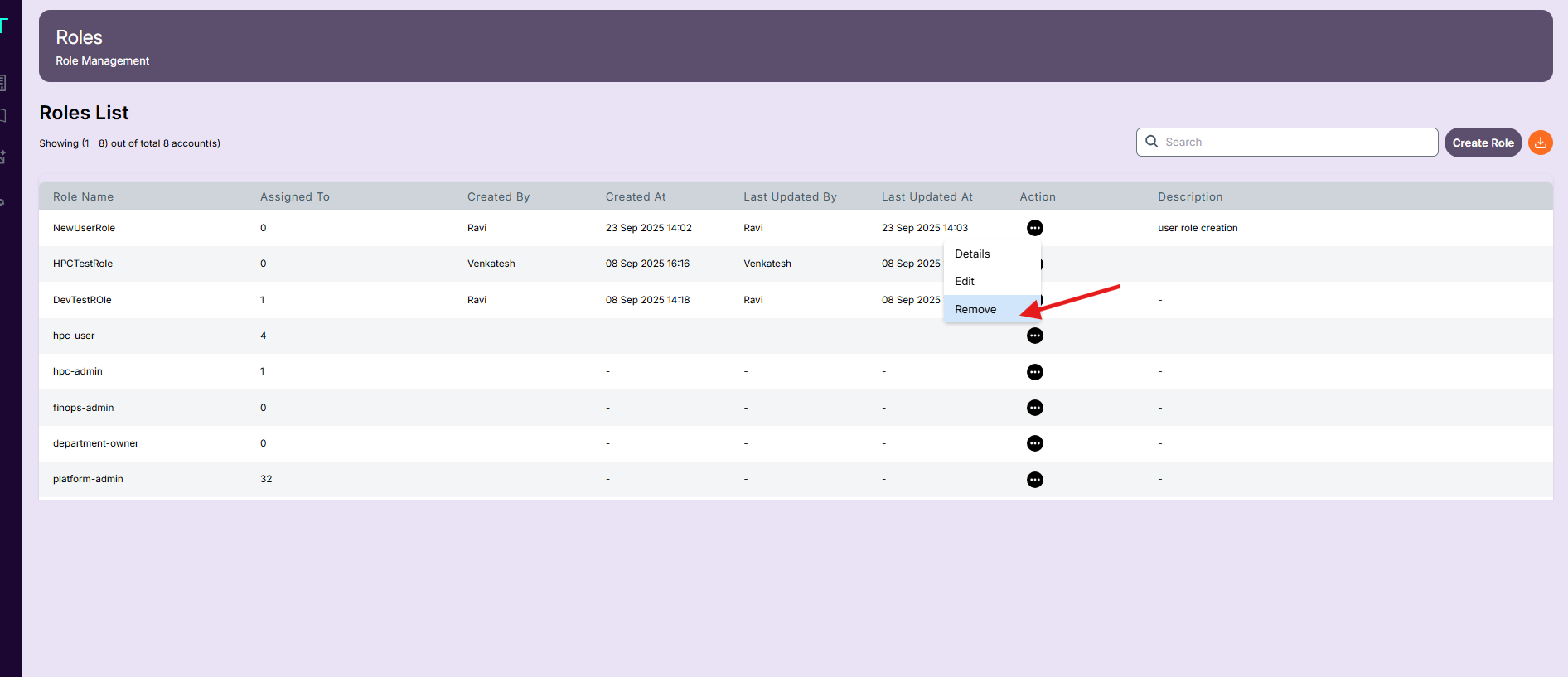
Note
You cannot delete a role currently assigned to users. Remove user assignments first before deletion.Best Practices
- Keep role names consistent and descriptive (e.g., Viewer, Operator, Admin).
- Avoid granting unnecessary permissions; follow the principle of least privilege.
- Periodically review roles to ensure they reflect current organizational needs.
- Maintain documentation of who created or modified each role for compliance.
Troubleshooting
| Issue | Possible Cause | Solution |
|---|---|---|
| Role not appearing for a user | Role not assigned | Reassign role in user settings |
| User unable to access module | Module not selected in role | Edit role and enable module |
| Role deletion blocked | Role assigned to users | Unassign users and retry |