Create Template
The Create Template form allows users to define reusable job submission templates for future use. Each field in the template form is described below:
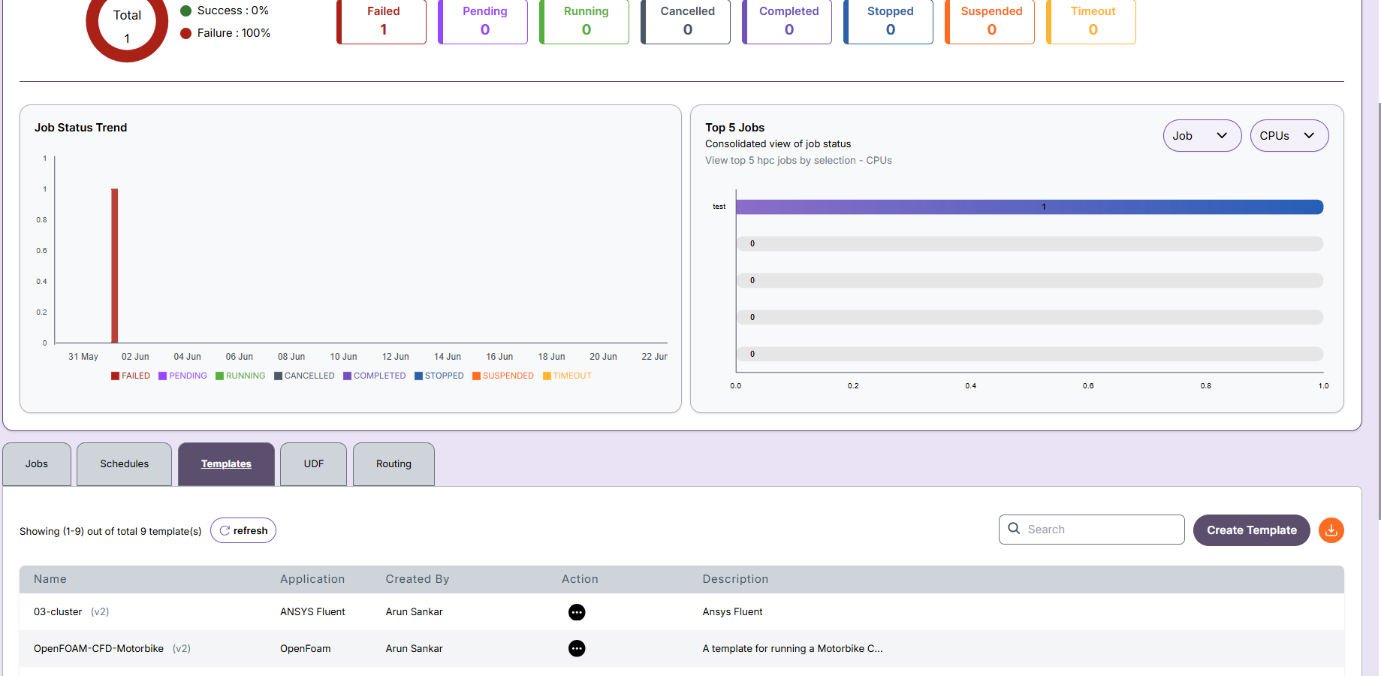
Step 1: Navigate to Templates Tab
Go to Jobs > Templates and click on Create Template.
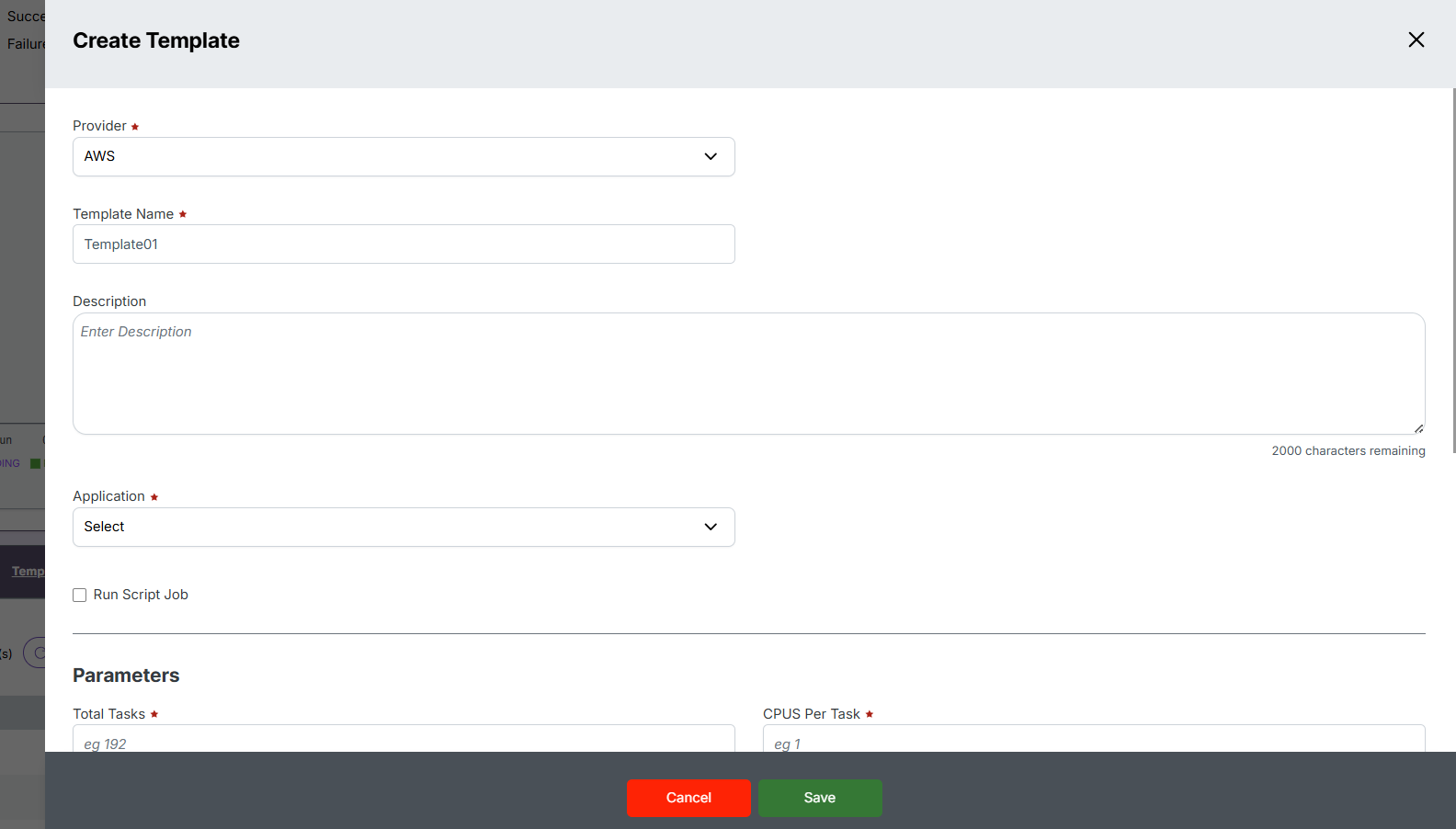
Step 2: Fill General Template Details
- Template Name: The unique identifier or label for the template. Used to reference the template during job submissions.
- Template Description: A brief summary explaining the purpose or usage of the template.
- Provider: Select the HPC or cloud platform provider (e.g., AWS, Azure) where the job will be submitted.
- Region: The region or location (such as US-East-1) in which the resources will be allocated.
- Application: The application/software to be used for job execution (for example, OpenFOAM, ANSYS).
- Versions: The version number of the selected application.
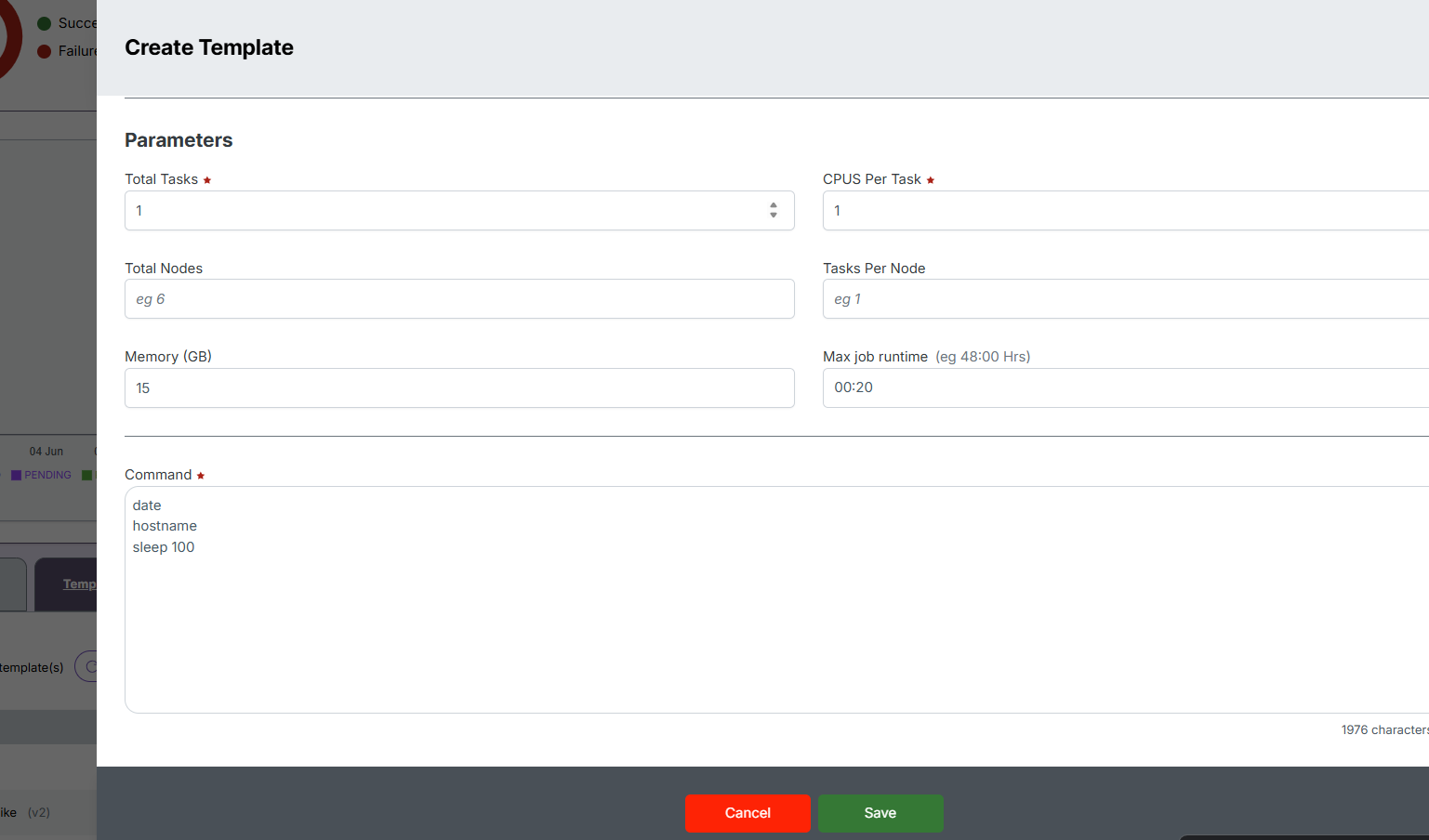
## Step 3: Configure Resources
- Total Tasks: Number of parallel tasks or processes to be run as part of the job.
- CPUs Per Task: Number of CPU cores allocated per individual task.
- Total Nodes: Number of compute nodes requested for this job.
- Tasks Per Node: How many tasks will run on each compute node.
- Memory (GB): Total memory in GB requested per node (set to 0 for unlimited).
- Max Job Runtime: Specify the upper limit for job run time (e.g., 48:00 Hrs).
Step 4: Add Parameters
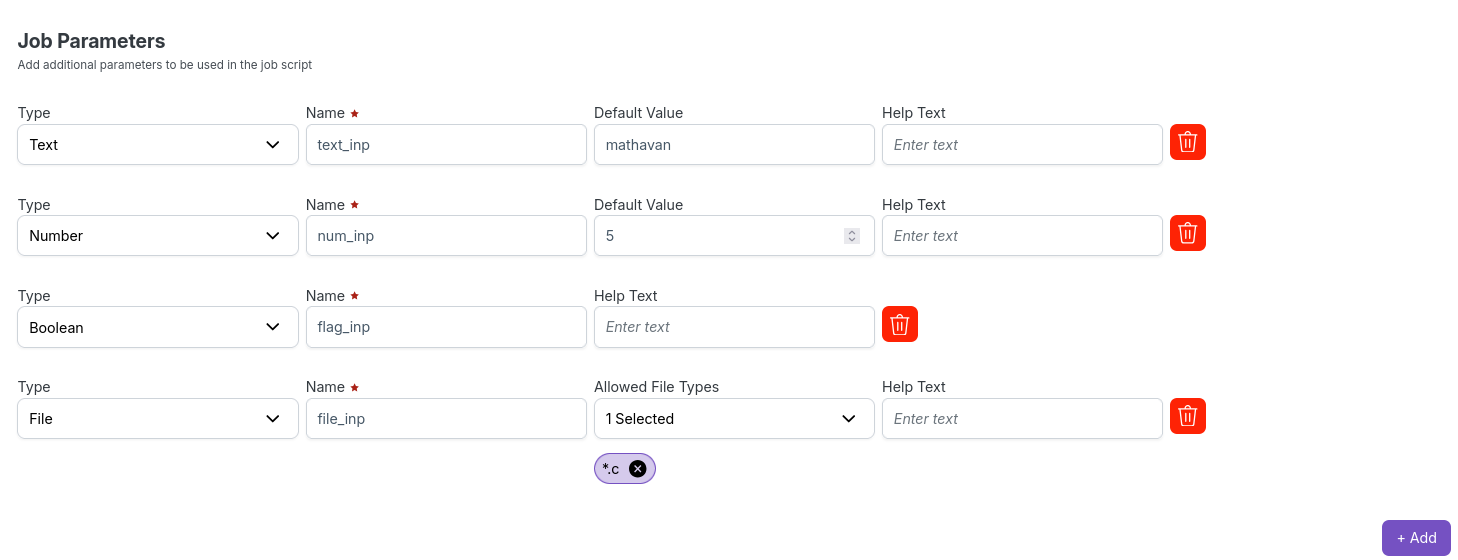
The Job Parameters section allows users to define additional inputs that can be passed to the job script. These parameters increase the flexibility and reusability of job submissions.
- Type: Select the data type for the parameter. Options may include Text (string input), Number (integer or float), Boolean (true/false switch), or File (file upload).
- Name: Enter a unique name or key for the parameter, which will be referenced in the job script.
- Default Value: Specify a pre-filled value that appears by default when submitting the job. For Boolean and File types, this may be left blank or populated as appropriate.
- Allowed File Types: (Displayed for File type) Choose specific file extensions that are permitted for upload (e.g., *.c).
- Help Text: Provide additional context or instructions that help users fill out the parameter correctly.
- Remove (Trash Icon): Click the trash icon to remove unwanted parameters from the form.
- + Add: Press the + Add button to create additional parameter fields as needed for your job script.
-
📌 Notes
- Defining job parameters makes job scripts modular and reusable, allowing different inputs to be passed without editing the script directly. Maintain clear names and help text to aid future users.
Step 5: Add Command Section
- Command: The default command(s) or script to execute when the job starts.
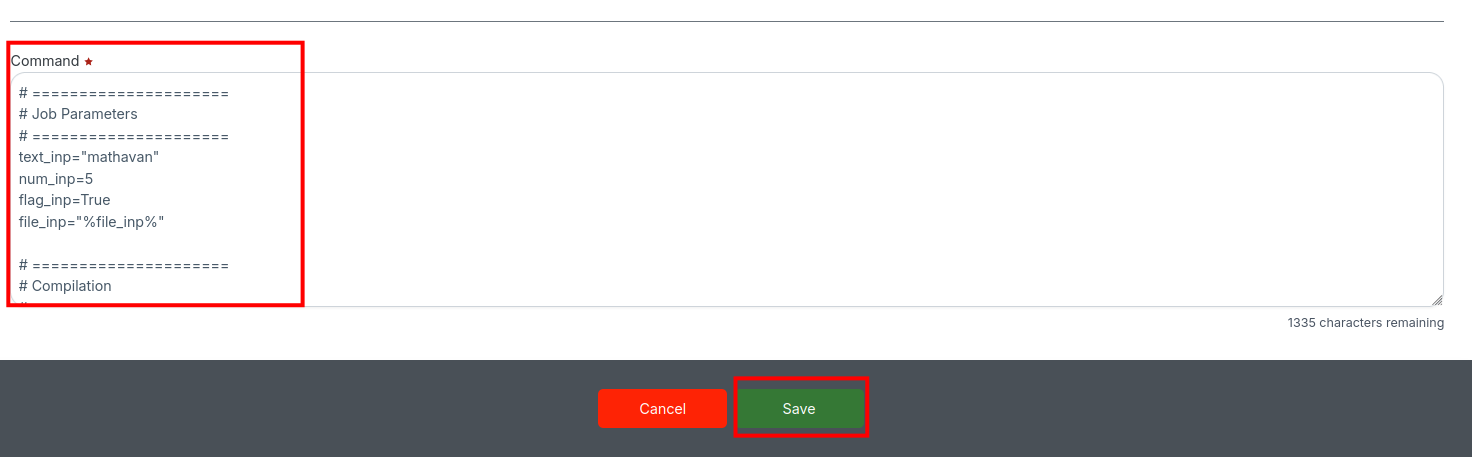
After enter the all imputs in this template form, review and click and save button. it will be listed in the template list.
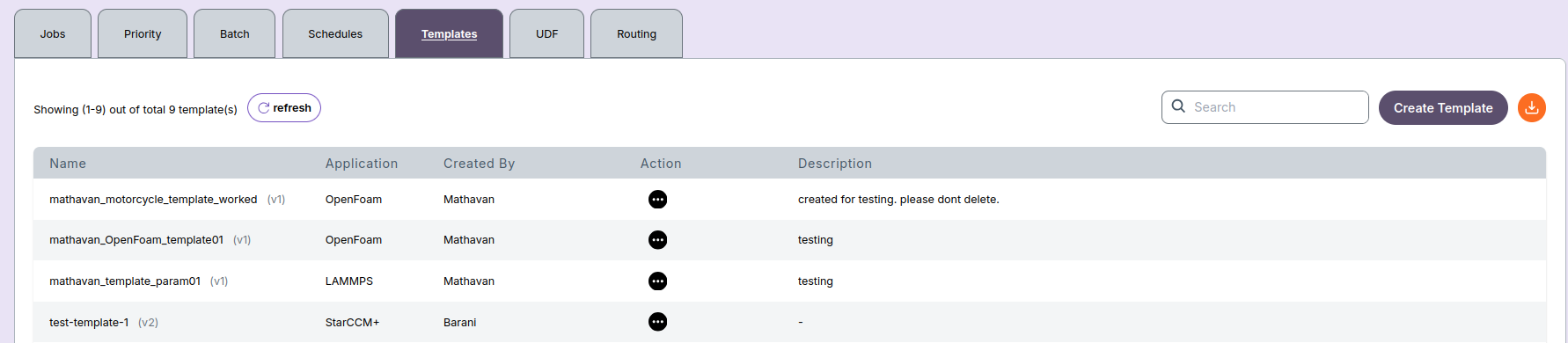
Template Actions
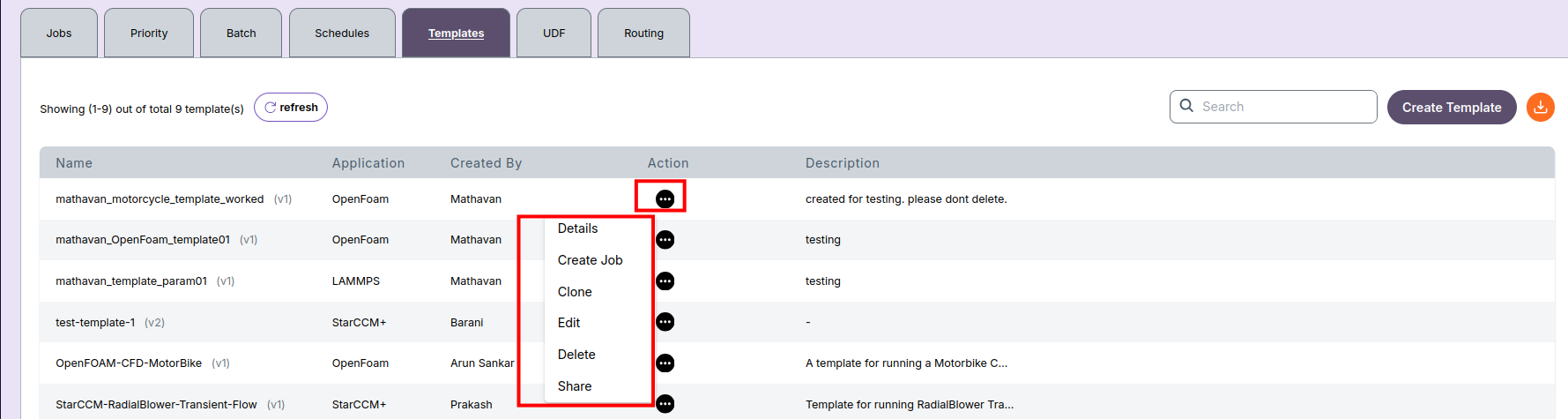
To manage a template, click the Actions button in the template list and select the desired operation:
- Details: View all information about the selected template, including its configuration and metadata.
- Create Job: Launch a new job using the template as your starting point.
- Clone: Make a copy of the template and change the name to quickly create variations.
- Edit: Modify the template’s parameters, description, or application details.
- Delete: Permanently remove the template from your list.
- Share: Grant access to other users. You can share with restricted users or make the template public for all users.
-
📌 Notes
- All template operations begin by clicking the Actions button next to the entry. Cloning is helpful for building new templates based on existing setups, while sharing enables workflow reusability across users and teams.
-
📌 Notes
- If you encounter any UI issues or have questions about job submissions or status, please contact the Admin for support.
- Templates simplify the job submission process by storing commonly used configurations, reducing repetitive input, and minimizing errors.