Queues Overview
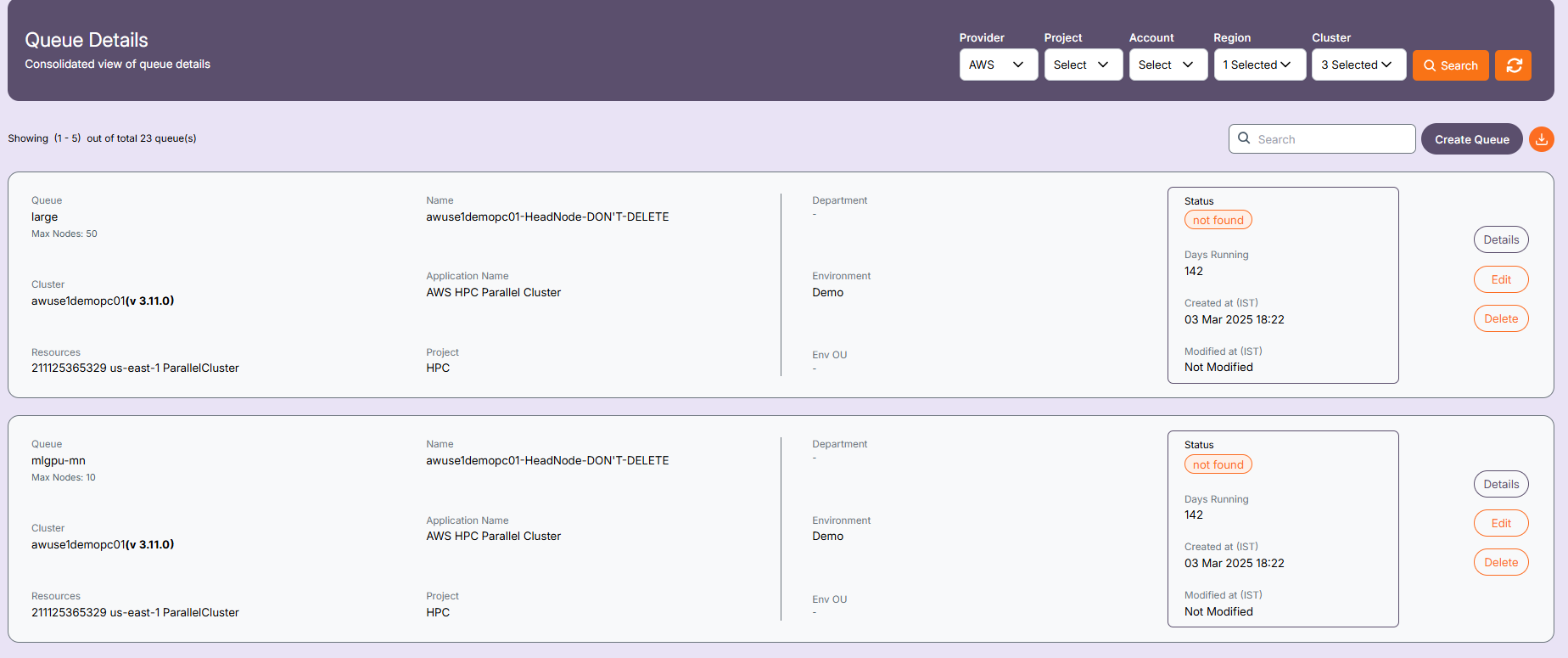
The Queues module provides users with the ability to view, manage, and configure queue resources across selected cloud accounts, regions, and HPC clusters.
The following filters can be used to narrow down the queue list:
- Provider - Select the cloud provider
- Project - Select the cloud project
- Account - Choose the cloud account
- Region - Specify the region
- Cluster - Select the HPC cluster
Search functionality is also available for queue names.
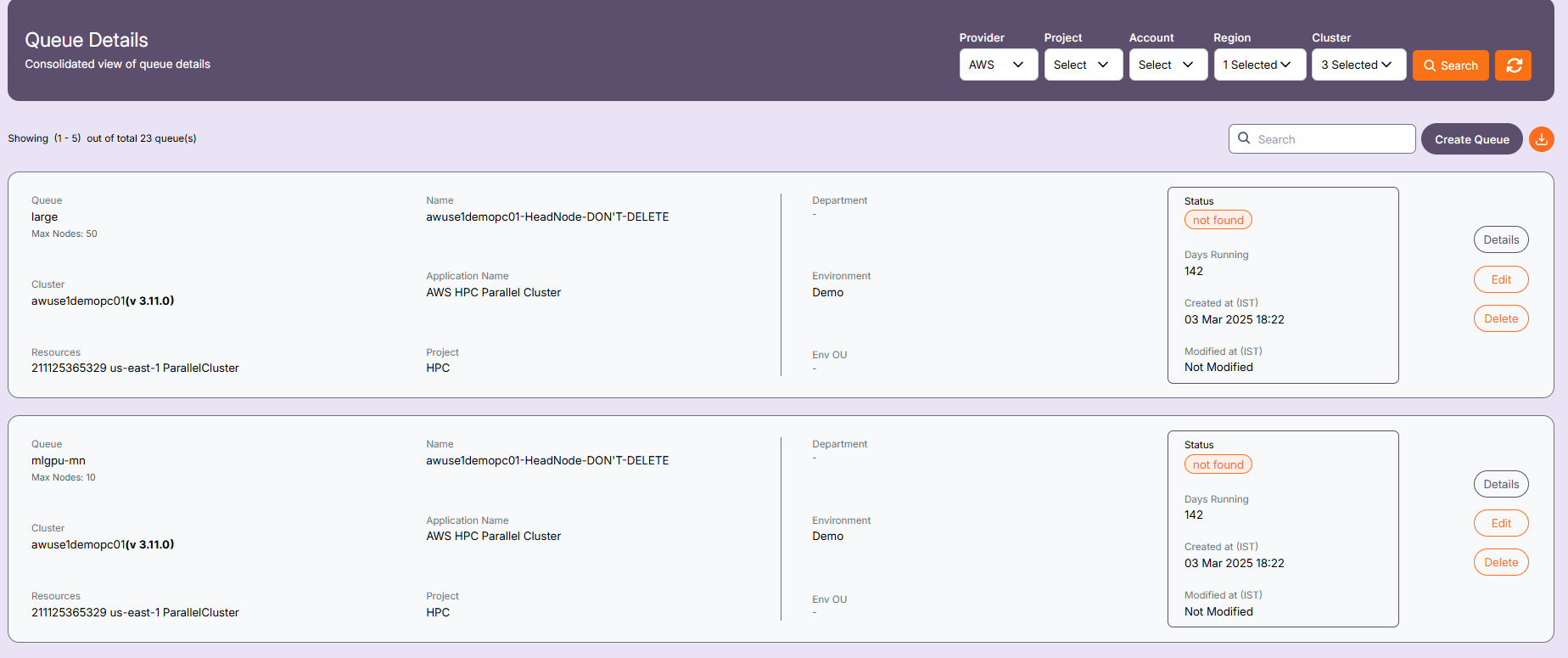
Queue List View
Purpose: Displays a list of all configured queues. Details:
- QUEUE NAME: Name of the queue.
- CLUSTER NAME: Cluster associated with the queue (with version).
- RESOURCES: Account ID, region, and resource type.
- NODE INFO: Maximum node count, CPU, memory, and vCPUs.
- STATUS: Indicates queue health such as
UPorNOT FOUND. - TAGS: Metadata such as Environment, Department.
- CREATED/UPDATED TIMESTAMP: Shows the creation and modification date/time.
- ACTIONS: View details, Edit, Delete.
⚙️ Create Queue
This guide explains how to create and configure a queue for your p-cluster on AWS HPC.
Each section below provides detailed descriptions of the fields in the Queue Creation UI.
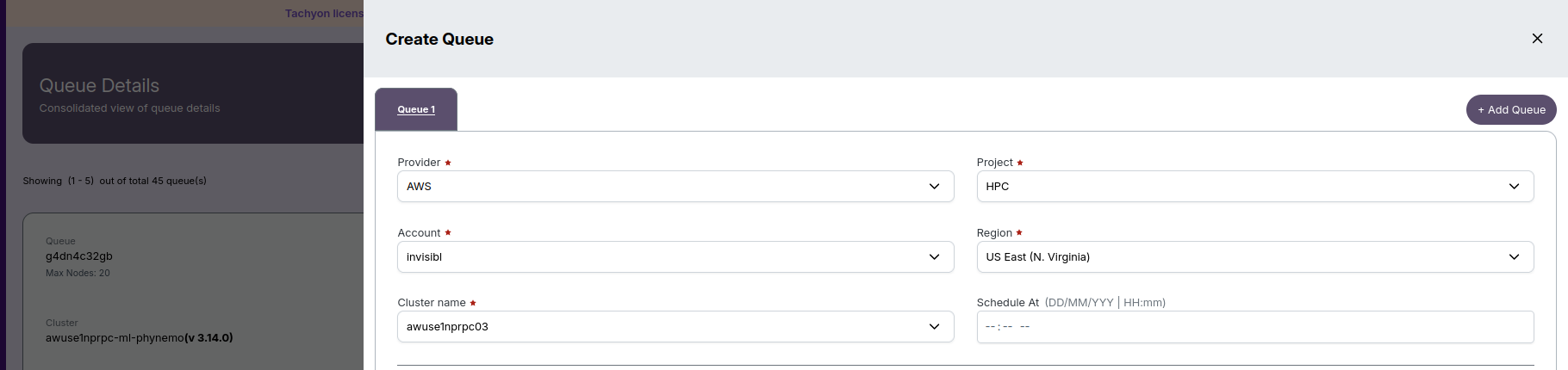
1. 🧩 Queue Setup Fields
Provider
Value: AWS
Select AWS as the cloud provider to leverage Amazon’s compute resources for your HPC queue.
Project
Example: HPC
Assign the queue to a project. Typically, HPC (High Performance Computing) is used for batch or scientific workloads.
Account
Example: invisible
Enter the AWS account identifier or alias associated with your billing and IAM roles.
Region
Example: US East (N. Virginia)
Select the AWS region where the queue’s resources will be deployed.
Cluster Name
Example: awuse1nprpc03
Specify the name of the cluster on which this queue will operate.
Schedule At
Example: Optional Date/Time
Optionally, set a specific time for the queue to start or activate.
2. ⚙️ Queue Configurations
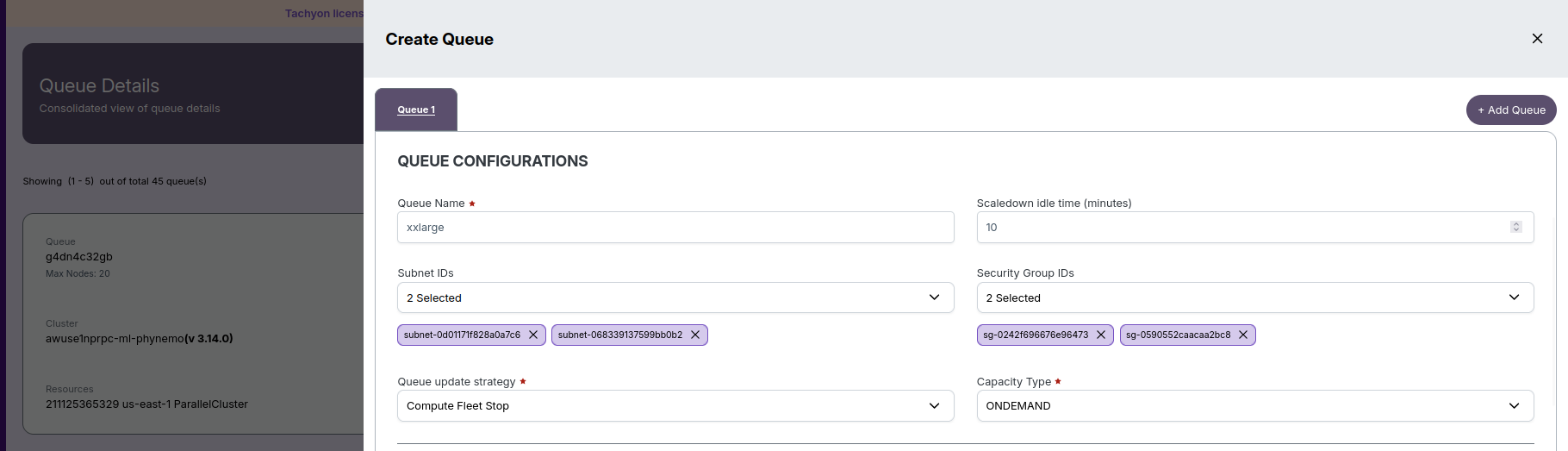
Queue Name
Example: xxlarge
Provide a clear and descriptive queue name (e.g., xxlarge for larger instance types).
Scaledown Idle Time
Example: 10 minutes
The duration (in minutes) after which idle compute instances will automatically shut down or scale down.
Subnet IDs
Select one or more AWS subnets where the queue’s compute resources will be launched.
Security Group IDs
Specify the security groups (firewall rules) controlling network access for compute instances.
Queue Update Strategy
Example: Compute Fleet Stop
Defines how updates to the queue are applied while the compute fleet is active.
Capacity Type
Example: ONDEMAND
Choose between:
- OnDemand – pay-as-you-go compute
- Spot – cost-optimized instances (may be interrupted)
3. 💽 Root Volume Settings
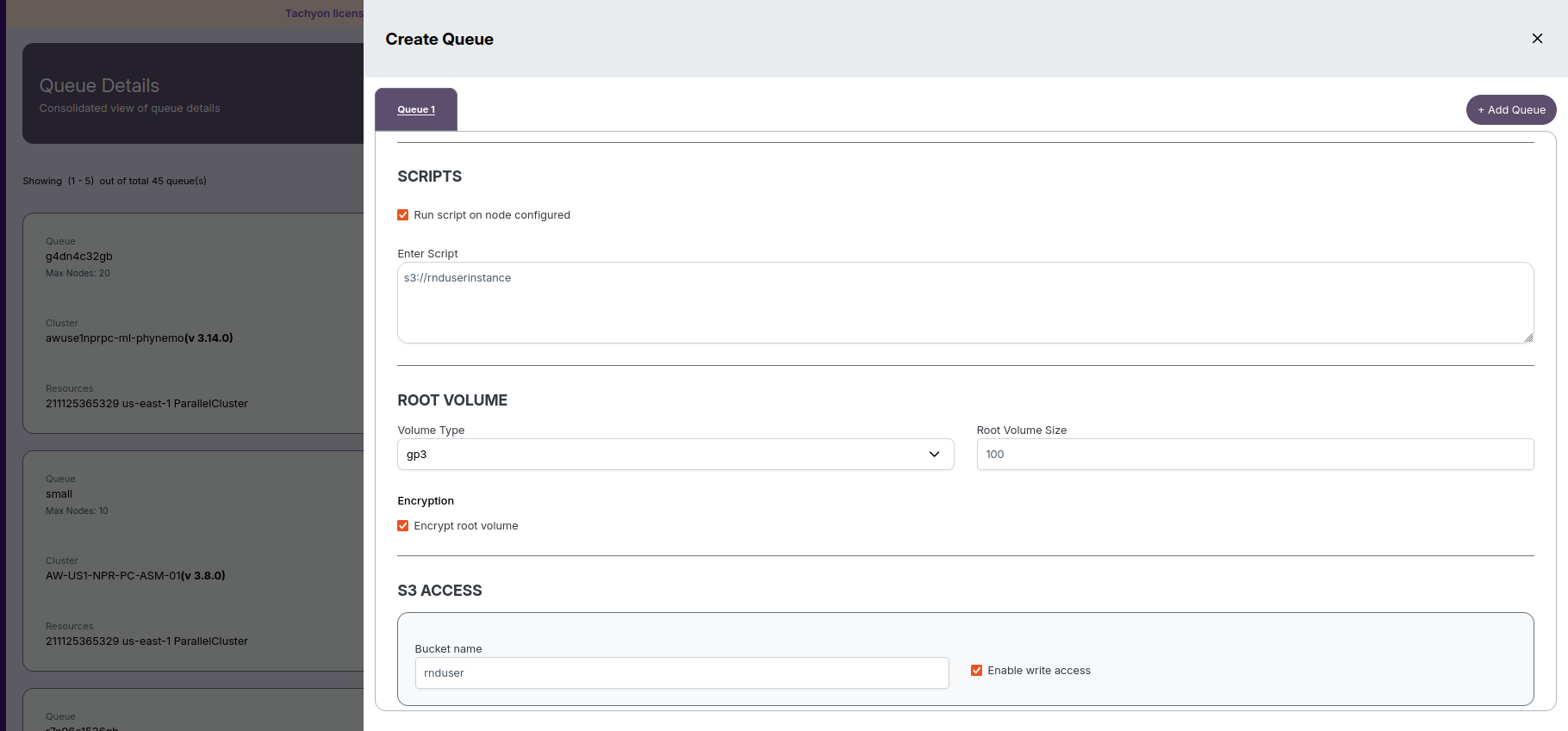
Volume Type
Example: gp3
Select the EC2 root disk type. gp3 provides a good balance between cost and performance.
Root Volume Size
Example: 100 GiB
Define the storage size for each compute node’s root disk.
Encryption
Enable or disable EBS encryption for compliance and data protection.
-
💡Tip:
- Always enable encryption for workloads handling sensitive or proprietary data.
4. ☁️ S3 Access
Bucket Name
Example: rnduser
Specify the S3 bucket used for queue input/output data storage.
Enable Write Access
Allow compute nodes in the queue to write data to the S3 bucket.
IAM Policies
Example: iampolicy
Attach AWS IAM policies that define allowed S3 and resource access for jobs running in the queue.
-
💡Tip:
- 🔒 Ensure IAM policies are tightly scoped to the minimum required actions.
5. 🖥️ Compute Resource Configuration
Name
Example: compute01
Provide a name for the EC2 compute resource associated with the queue.
Capacity Reservation ID
(Optional) Select an existing AWS Capacity Reservation if guaranteed compute capacity is required.
Instance Type
Example: c7i-flex.12xlarge
Choose the EC2 instance type that fits your compute and memory requirements.
Min/Max Instance Count
Define the minimum (e.g., 0) and maximum (e.g., 10) number of instances the queue can scale to.
Preferences
| Option | Description |
|---|---|
| Use EFA | Enable Elastic Fabric Adapter for high-performance, low-latency networking. |
| Use Placement Group | Ensures nodes are physically co-located to improve inter-node communication. |
| Turn off Multithreading | Disables hyperthreading, beneficial for certain HPC workloads requiring deterministic performance. |
| ## 6. 🧾 Script and Boot Commands |
Run Script on Node Configured
Enable this option to execute initialization or setup scripts when each instance boots.
Script Location
Example: s3://rnduserinstance
Specify the S3 path or file location of your bootstrap script.

Additional Options
- Force Update – Apply queue updates immediately, even if compute nodes are running.
- Save / Cancel – Click Save to apply your edits or Cancel to discard changes.
Tags
Use AWS tags for billing, cost tracking, ownership, or resource grouping.
Click Save to create the queue or Cancel to discard changes.
- ✅ Choose subnet and security group IDs carefully to ensure both secure and functional network access.
- 💾 Adjust root volume size/type based on workload I/O needs — larger datasets may require more storage.
- 🔐 Always enable encryption when handling sensitive or proprietary data.
- 🧱 Define IAM roles and policies narrowly to minimize security exposure.
- 🚀 Use EFA and Placement Groups for tightly coupled MPI or latency-sensitive workloads.
- 💰 Consider using Spot Instances for cost savings when job interruptions are acceptable.
- ⚙️ Utilize startup scripts to automatically install dependencies, download datasets, or configure runtime environments.
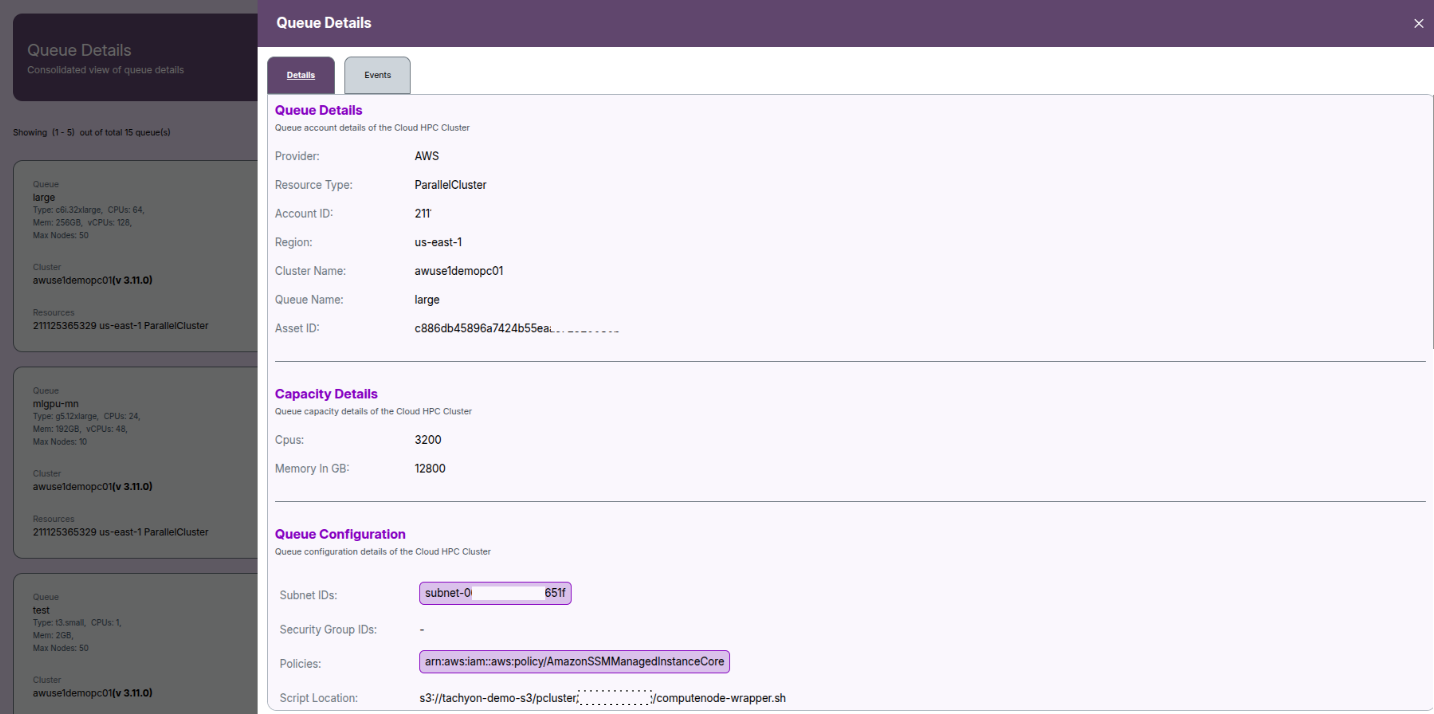
Queue Details
Metadata:
- Provider: AWS
- Resource Type: ParallelCluster
- Account ID: e.g. 211125365329
- Region: e.g. us-east-1
- Cluster Name: e.g. awuse1nprpc03
- Queue Name: e.g. xxsmall
- Asset ID: [internal system ID]
Capacity:
- CPUs: Total CPUs available, across all nodes (e.g. 200)
- Memory in GB: Aggregate memory (e.g. 800GB)
Configuration:
- Subnet IDs: Subnet for compute nodes.
- Security Group IDs: Cloud security group(s) applied.
- Policies: IAM policies linked for the queue.
- Script Location: S3 bucket path for node setup scripts.
Volume and Storage:
- Volume Type: EBS volume class (e.g. gp3).
- Size: Provisioned storage, in GB.
- Encryption: True/False for at-rest encryption.
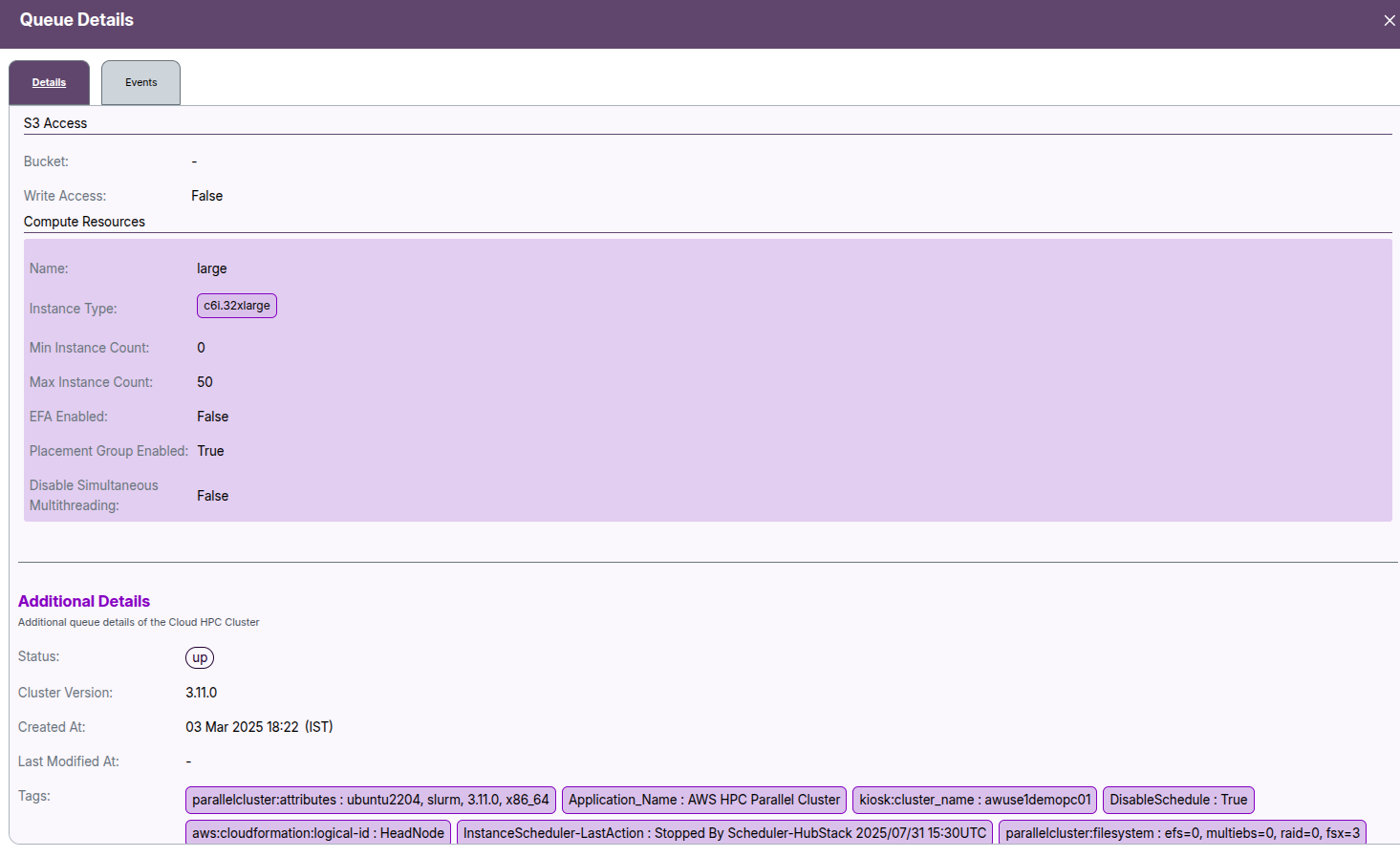
- S3 Access: Shows if S3 access is enabled for the queue.
- Bucket: AWS S3 bucket name in use.
- Write Access: Whether write operations to S3 bucket are permitted.
Compute Resources:
- Name: Resource configuration name (e.g. xxsmall)
- Instance Type: e.g. c6i.2xlarge
- Min Instance Count: Minimum nodes (e.g. 0)
- Max Instance Count: Maximum allowed (e.g. 50)
- EFA Enabled: Whether Elastic Fabric Adapter is active (Y/N)
Additional Details
- Cluster Version: Version number of the deployed HPC cluster (e.g., v 3.6.0).
- Created At: Timestamp marking when the queue or cluster resource was created.
- Last Modified At: Timestamp for the last update or modification made.
- Tags: Key-value metadata tags associated with the queue or cluster. These typically include:
- Environment (e.g., production, development)
- Role (e.g., head node, compute node)
- Template used for creation
- Scheduler actions or configuration settings
- Any other custom metadata for resource tracking
Tags help with organizing, filtering, and managing cloud resources efficiently and are automatically applied or user-defined.
Events & Logs
To track queue activities:
- Navigate to the Events tab (top right or from side menu).
- View logs related to:
- Queue creation
- Configuration updates
- Lifecycle changes
- Scheduled actions
- Tags and IAM policy applications
- Events provide useful auditing and debugging information, especially in multi-queue environments.
- If you encounter any UI issues or have questions about job submissions or status, please contact the Admin for support.
- Ensure you have selected the correct cluster, region, and provider when filtering queue data.
Queue Edit
The Queue Edit module allows Admin users to modify and configure an existing queue for an HPC cluster running on AWS infrastructure.
Editing a queue lets you adjust provider details, resource limits, compute configurations, storage, security settings, and access permissions.
Accessing the Queue Edit Page
- From the Queue List page, click the Edit icon next to the queue you want to modify.
- The Queue Edit screen opens with multiple configuration sections.
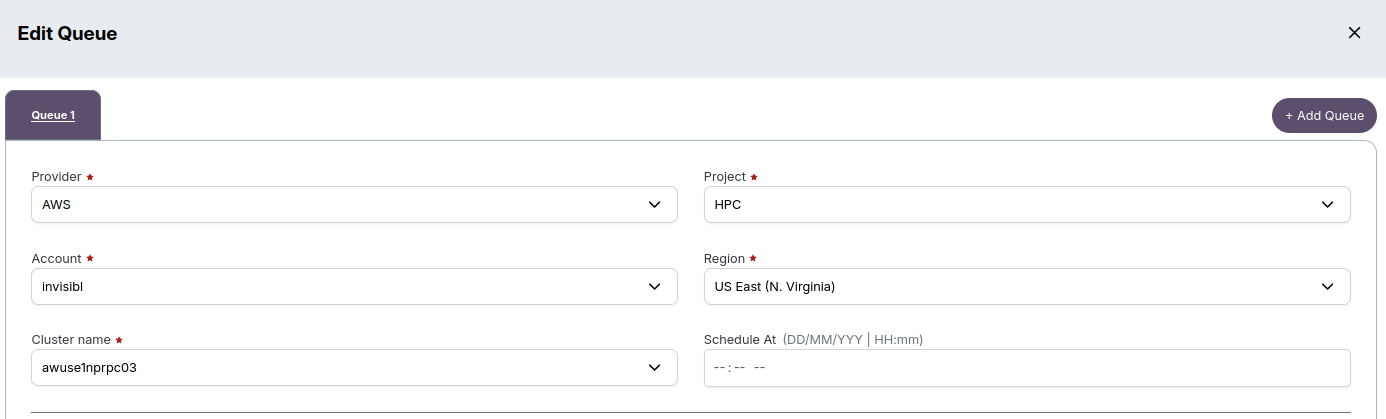
Provider Details
Use this section to define or update the base provider information for the queue.
- Provider – Select the cloud provider (e.g., AWS).
- Project – Specify the project name under which the queue operates (e.g., HPC).
- Account – Enter the AWS account identifier or alias (e.g., invisibl).
- Cluster Name – Provide the cluster name linked to this queue (e.g., awuse1nprpc03).
- Region – Choose the AWS region hosting your cluster (e.g., US East - N. Virginia).
- Schedule At – Optionally schedule the queue activation for a future date and time (
DD/MM/YYYY | HH:mm).
-
📌 Note
- Use the Schedule At field to apply queue changes automatically during low-usage hours.
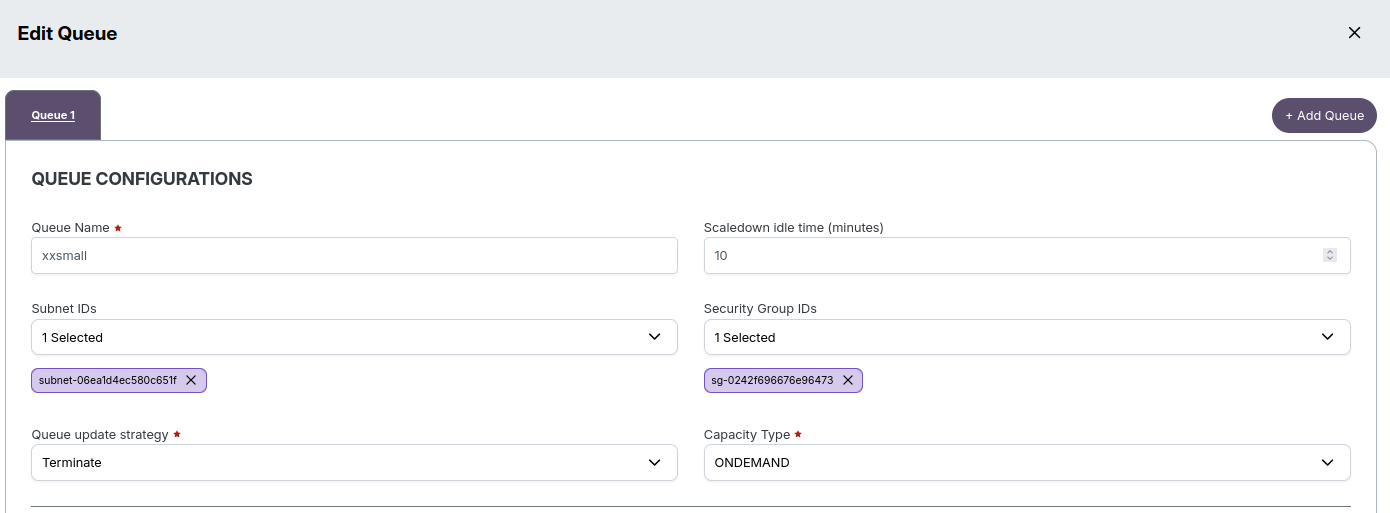
Queue Configuration
Configure general queue properties and networking options.
- Queue Name – Provide a unique name for the queue (e.g., small).
- Subnet IDs – Select the subnet(s) where compute instances will launch.
- Security Group IDs – Add one or more security groups to control network access.
- Queue Update Strategy – Choose how compute nodes behave during updates.
- Terminate: Existing instances are stopped and relaunched.
- Retain: Existing instances are kept running.
- Capacity Type – Define whether the queue uses ONDEMAND or SPOT instances.
- Scaledown Idle Time (minutes) – Set the number of idle minutes before instances scale down (e.g., 10).
Compute Resources
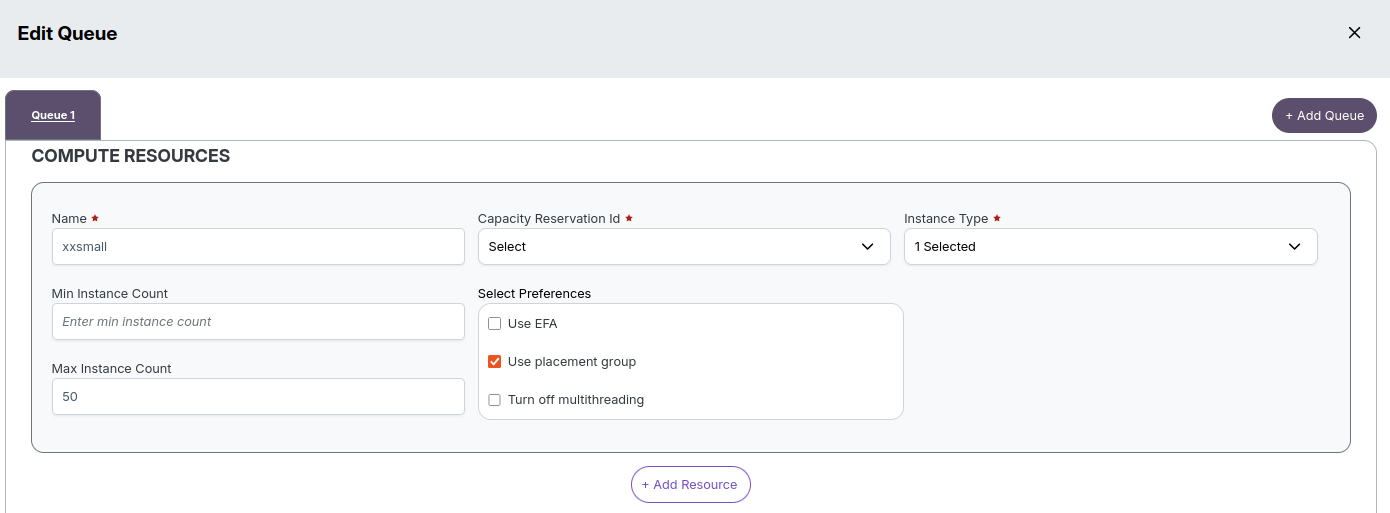
Specify instance-level settings for the queue’s compute resources.
- Name – Name for the compute resource group (e.g., small).
- Capacity Reservation ID – (Optional) Provide a Capacity Reservation ID for dedicated instances.
- Instance Type – Choose the EC2 instance type (e.g., c7-flex.12xlarge).
- Min Instance Count – Minimum number of instances to maintain (e.g., 0).
- Max Instance Count – Maximum instances that can be launched (e.g., 10).
Compute Preferences
- Use EFA – Enable Enhanced Networking for low-latency MPI workloads.
- Use Placement Group – Group instances for high network performance.
- Turn Off Multithreading – Disable Hyper-Threading for dedicated CPU usage.
-
📌 Note
- Enable EFA and Placement Group for tightly coupled HPC applications that require low-latency interconnects.
Scripts
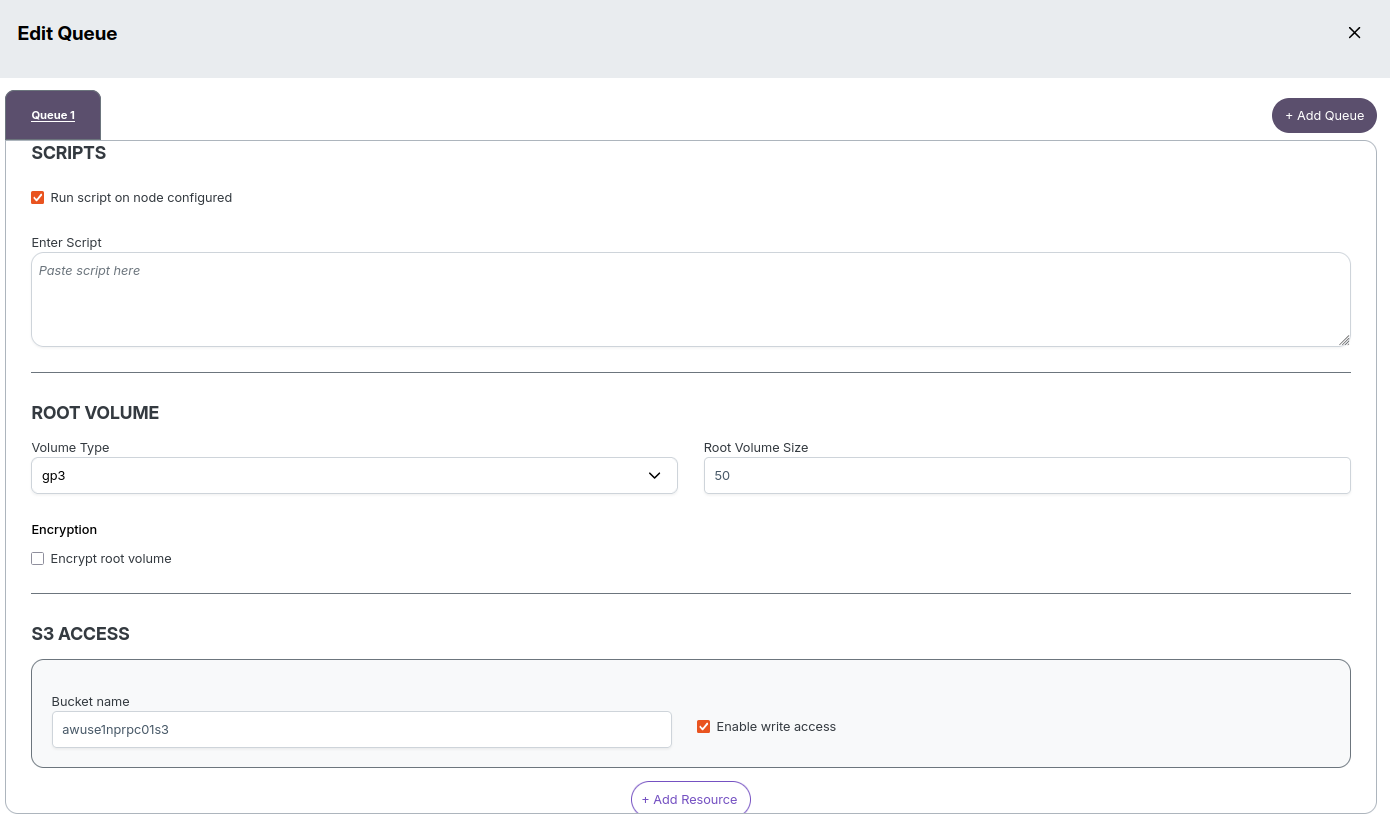
Use this section to attach or run custom scripts during node setup.
- Run Script on Node Configured – Toggle to enable custom user scripts.
- Enter Script – Provide the S3 path or inline script (e.g.,
s3://bucket/setup.sh).
-
⚠️ Warning
- Ensure the script path is valid and accessible from the cluster’s IAM role, otherwise the setup may fail.
Root Volume
Configure the root EBS volume for compute nodes.
- Volume Type – Choose the disk type (e.g., gp3).
- Root Volume Size (GB) – Specify disk size (e.g., 50 GB).
- Encryption – Enable encryption for data-at-rest protection.
-
📌 Note
- Use encrypted root volumes to meet security and compliance standards.
S3 Access
Grant compute nodes access to an S3 bucket for job input/output.
- Bucket Name – Enter the target S3 bucket name (e.g., awuseslpctdemo).
- Enable Write Access – Allow compute nodes to write data to this bucket.
-
📌 Note
- Disabling write access enforces read-only mode to prevent unintended data modification.
IAM Policies
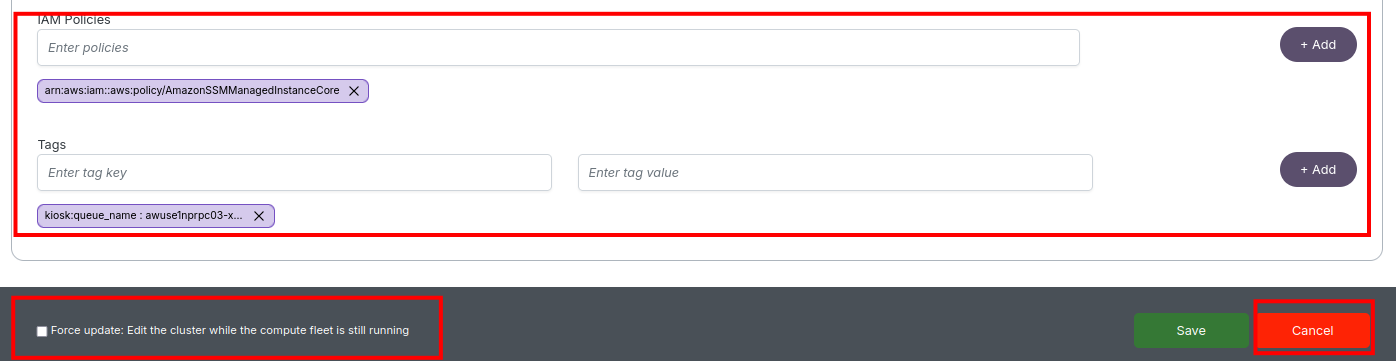
Attach IAM policies that grant AWS permissions to compute instances.
- Enter Policies – Add one or more policy ARNs as needed:
arn:aws:iam::aws:policy/AmazonSSMManagedInstanceCorearn:aws:iam::aws:policy/SecretsManagerReadWrite
-
📘 Info
- Attach multiple IAM policies as required for compute, storage, and monitoring operations.
Tags
Add tags to organize and identify resources for billing and tracking.
- Tags – Add key-value pairs such as
Environment: ProdorOwner: HPC-Team.
Additional Options
- Force Update – Apply queue updates immediately, even if compute nodes are running.
- Save / Cancel – Click Save to apply your edits or Cancel to discard changes.
-
⚠️ Warning
- Using Force Update may cause running jobs to restart. Apply only during maintenance windows.
Edit Flow Summary
Follow the steps below to edit and update a queue:
- Open the Queue Edit screen.
- Update Provider Details → select cloud, region, and schedule time.
- Modify Queue Configurations → networking, scaling, and capacity options.
- Adjust Compute Resources → instance type, count, and preferences.
- Add Scripts for custom initialization.
- Configure Root Volume and S3 Access for storage.
- Attach required IAM Policies.
- Add Tags for easy tracking.
- Choose whether to Force Update, then click Save.
Notes for Admins
-
✅ Best Practices
- Always verify subnet and security group selections before saving changes.
- Ensure IAM roles have permissions for EC2, S3, and CloudWatch before applying updates.
- Test configuration changes using a smaller queue before updating production clusters.
- Monitor scaling behavior and instance health from the Compute Fleet dashboard after updates.
- Use the Schedule At option to apply edits during off-peak hours.
-
⚠️ Common Issues
- Subnet Mismatch: EFA and placement groups require all subnets to be in the same Availability Zone.
- IAM Policy Error: Missing or incorrect permissions can prevent node startup or script execution.
- Script Access Error: Ensure S3 scripts are correctly referenced and accessible.
- Force Update Impact: Applying force updates may interrupt active compute sessions or jobs.