Sharing & Permissions
File Sharing
The Share action allows you to share selected files or folders with other users, enabling them to access or collaborate based on the permissions set by the owner.
- Select the file or folder you wish to share.
- Click the Actions button and choose Share from the dropdown menu.
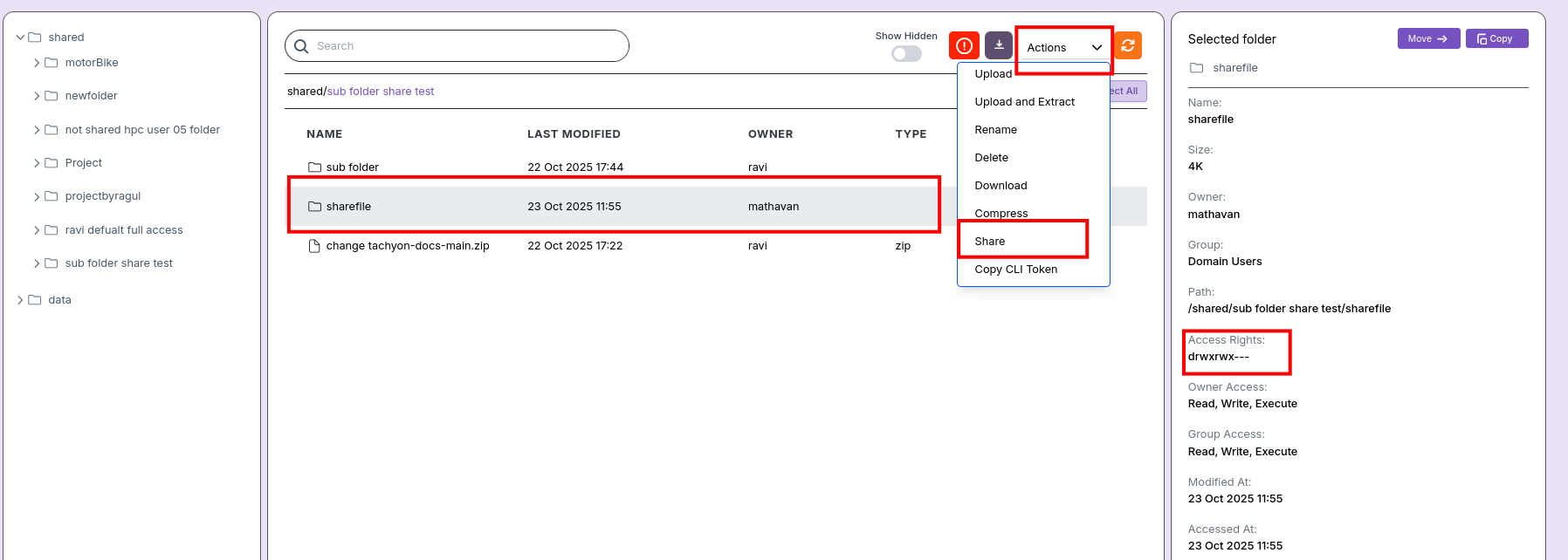
- After clicking Share, a confirmation popup will appear.
- In this popup, you can define access permissions for other users or groups:
- Enable or disable Read, Write, or Execute permissions as required.
- When you enable the Apply to all subfolders checkbox, the selected permissions will also be inherited by all nested folders.
- Once permissions are set, click Apply to confirm.
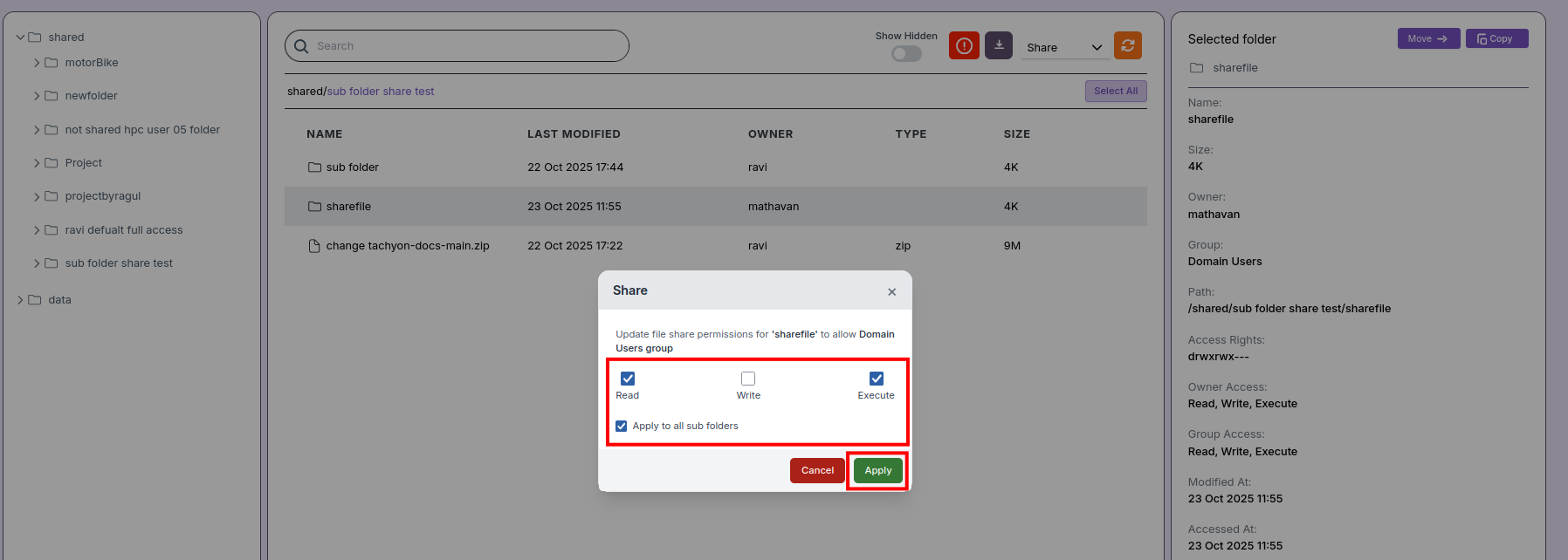
- The permission changes are applied immediately to the selected file or folder.
- Only the owner 🔒 of the file or folder can share it further.
- Other users with access can read, view, or write the shared content, but cannot share it again.
📝 Note:
- Shared permissions are applied instantly after clicking Apply.
- Verify access rights before sharing sensitive files or folders.
- When Apply to all subfolders is selected, permissions propagate recursively.
- Only the file owner can change permissions.