🔁 File Transfer (Move, Copy, Download)
This section describes how to move, copy, and download files or folders.
📦 Move or Copy Files
📝 Steps to Move/Copy a File
- Select the file you want to move or copy from the file list.
- Click the Move or Copy button located on the right-side panel.
- The interface will then prompt you to choose a destination folder.
- In the folder tree, navigate to the target directory (e.g.,
app/Test) and click on it. - Click the green Confirm Move (or Confirm Copy) button.
- A confirmation message like "File moved Successfully" or "File copied Successfully" will appear.
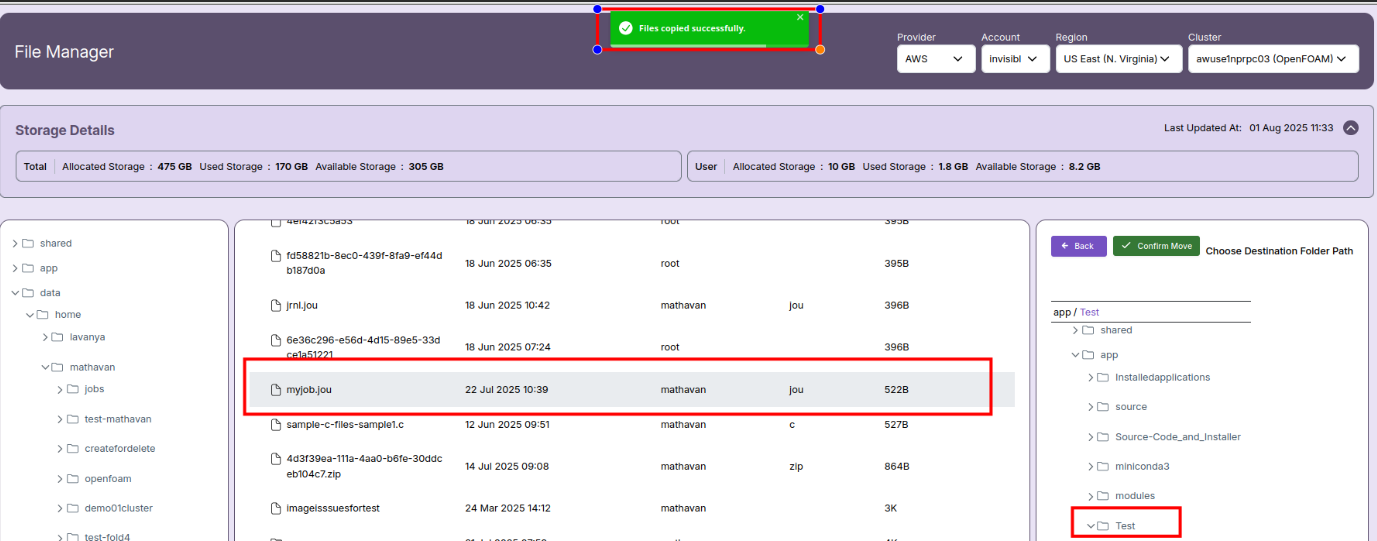
- ✅ Once the message is received, you can browse to the destination directory to verify the file has been moved or copied successfully.
📝 Note:
- Only one operation (Move or Copy) can be performed at a time.
- Ensure you select a valid destination folder before confirming the action.
- You can use the folder tree on the right to explore directories easily.
📁 Multiple File/Folder Download
The File Manager allows users to download multiple files or folders as a consolidated ZIP file. Follow the steps below:
✅ Steps to Download Multiple Files/Folders
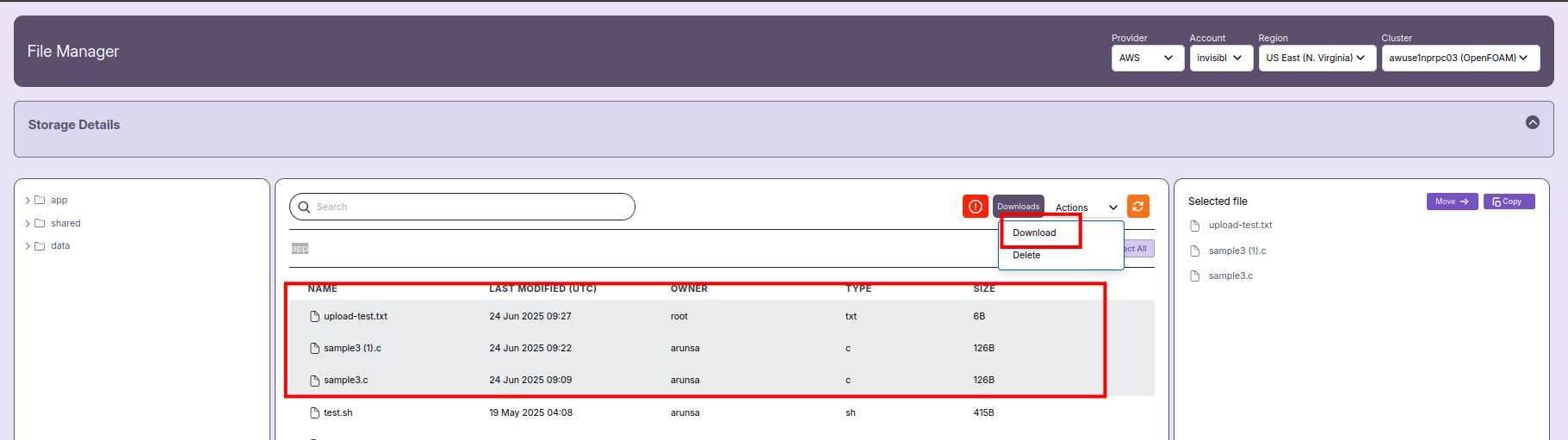
- Select Files/Folders
- In the left or center file panel, hold the
Ctrlkey (orCmdon Mac) and click to select multiple files or folders you wish to download. -
Selected files will appear on the right panel under Selected file.
-
Initiate Download
- Click the Actions dropdown button in the center panel and choose Download.
-
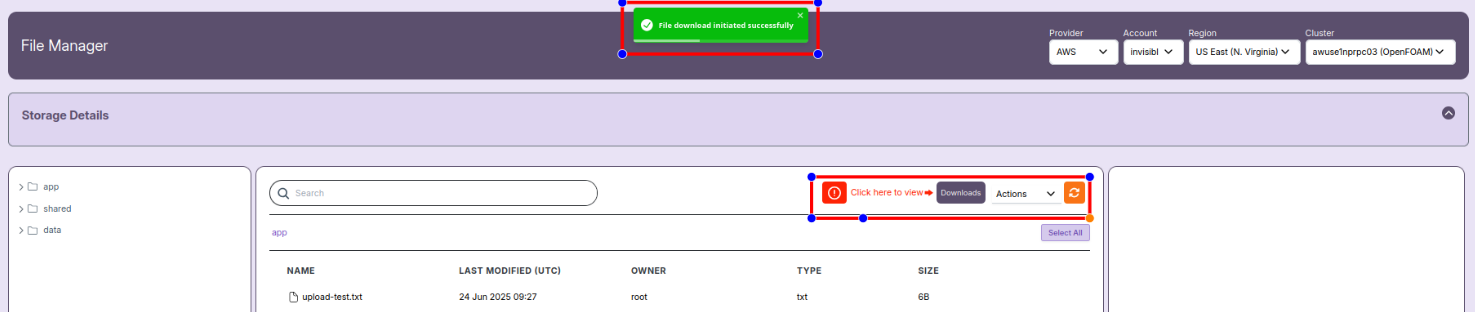
A green pop-up message saying “File download initiated successfully” will appear.
-
Access Downloaded ZIP Files
- Next to the Actions dropdown, click the Downloads button when the message "Click here to view" appears.
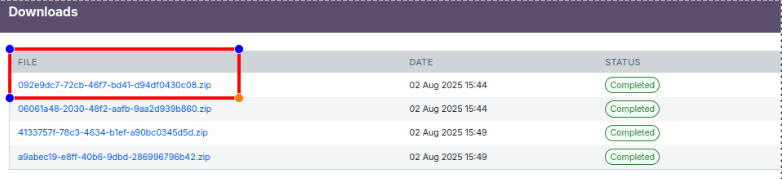
- This opens a list of ZIP files created for download.
- You can download them by clicking the ZIP file link (status must show Completed).
📝 Notes:
- All selected files and folders will be bundled into a single ZIP file for easy download.
- If a ZIP status shows Failed, contact your system administrator for support.
- Ensure your selected files do not exceed system size limits for ZIP creation.