🧾 File and Folder Basics
This section covers how to create, rename, and delete files or folders.
📁 Create Folder
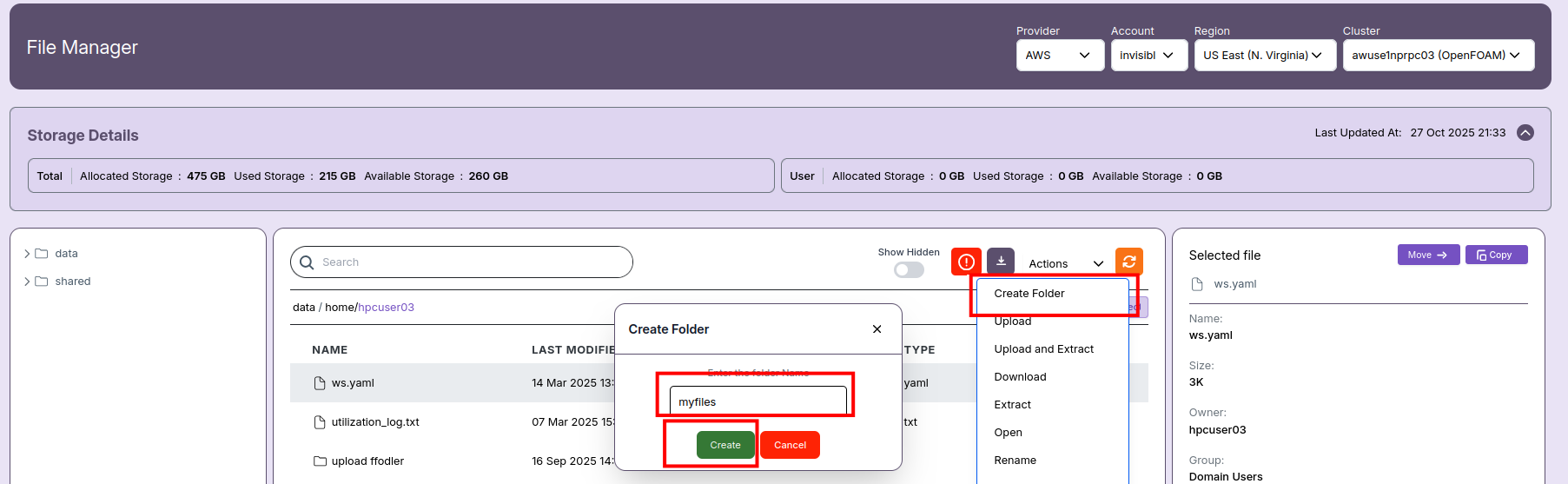
Open the Actions Menu
- Navigate to the File Manager window.
- Locate the Actions dropdown button above the file listing area.
- Click on the Actions dropdown and select Create Folder from the list.
Enter Folder Name and Create
- A dialog box labeled Create Folder will appear.
- In the field labeled Enter the folder Name, type your desired folder name (for example,
myfiles). - Click the Create button to make the new folder.
- If needed, you can click Cancel to abort the process.
🗑️ File Deletion
To delete a single file:
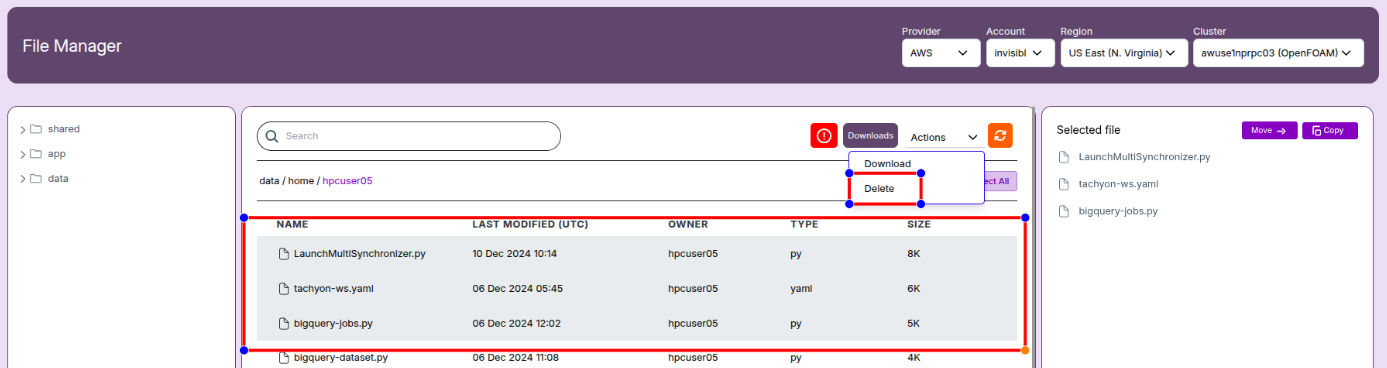
- Select the desired file from the list.
- Click on the Actions dropdown.
- Choose Delete to remove the file.
To delete multiple files:
- Hold down the
Ctrlkey and click to select multiple files. - Click on the Actions dropdown.
- Choose Delete to remove all selected files at once.
📝 Note:
- You can only delete files together. If both files and folders are selected at the same time, the delete option will not work.
🗂️ Folder Deletion
To delete a single folder:
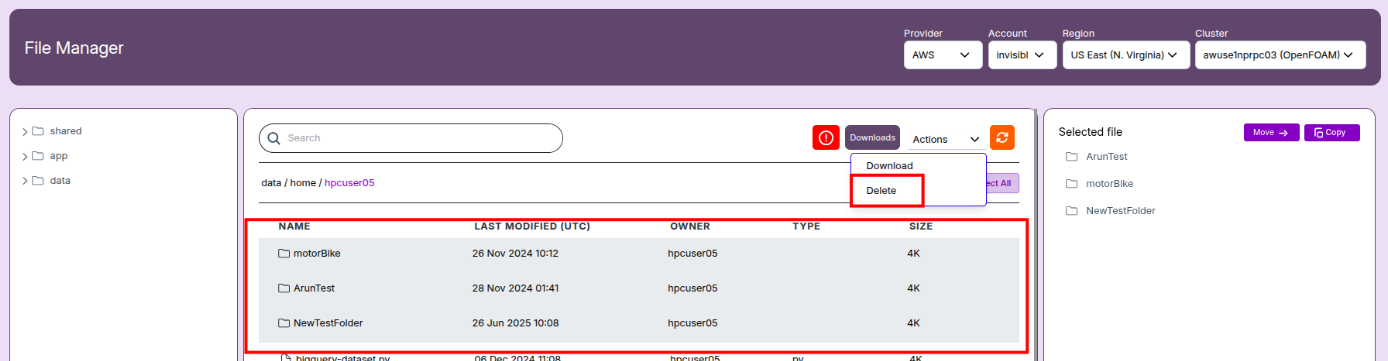
- Select the folder from the list.
- Click on the Actions dropdown.
- Choose Delete to remove the folder.
To delete multiple folders:
- Hold down the
Ctrlkey and select multiple folders. - Click on the Actions dropdown.
- Choose Delete to remove all selected folders at once.
📝 Note:
- Folders must be selected exclusively. Mixed selection with files will prevent deletion.
✏️ Rename Files or Folders
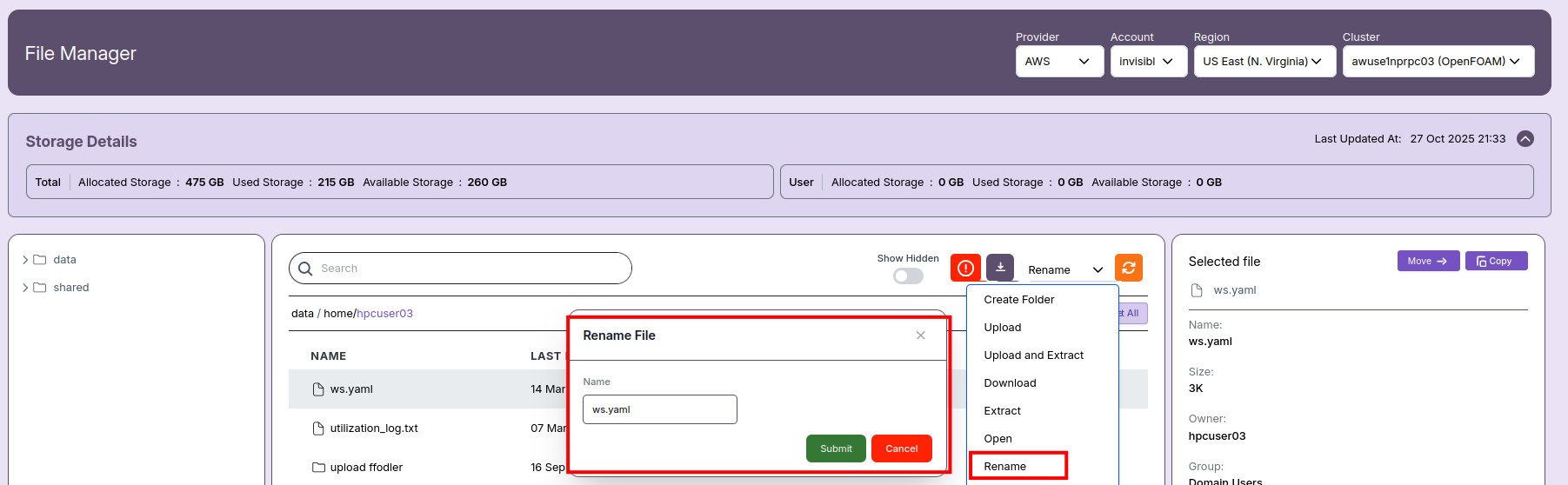
- Select an item.
- Click Actions → Rename.
- Enter a new name and click Save.
📝 How to Open and Edit a File
This section explains the steps for opening and editing files using the File Manager interface.
Only certain file types and permissions allow editing.
📂 Steps to Open and Edit a File
1. Select and Open the File
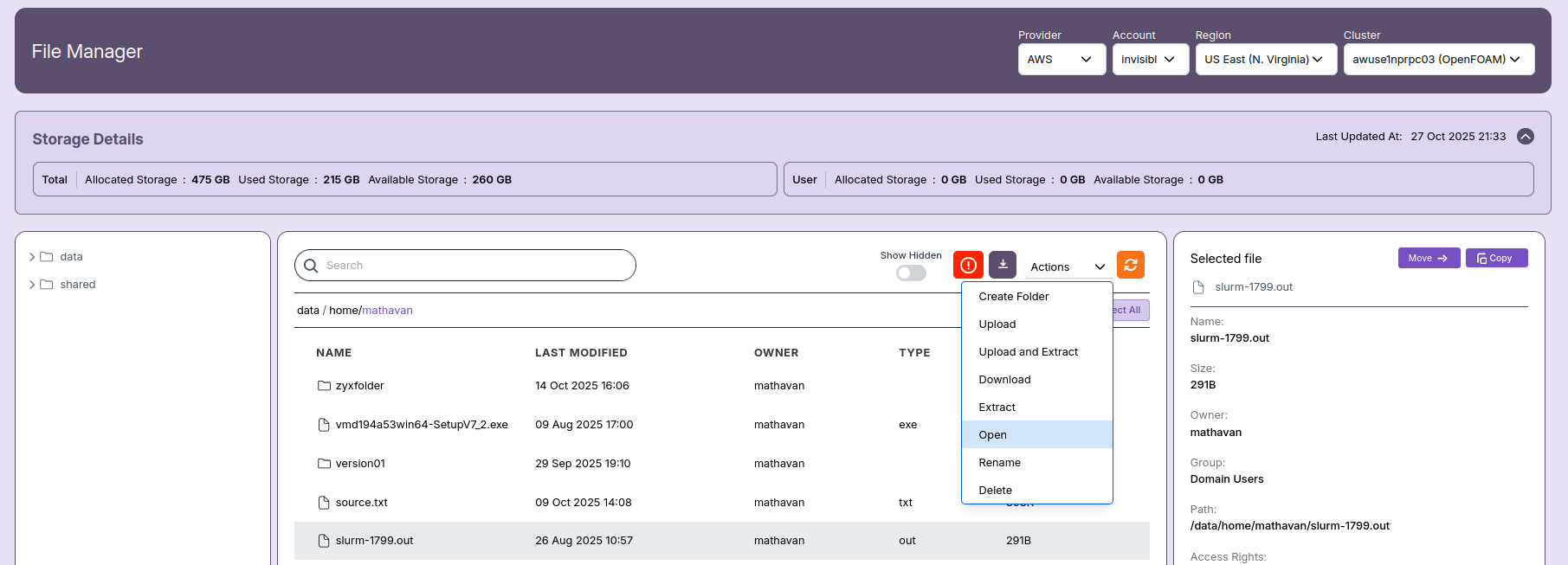
- In the File Manager, select (highlight) the file you want to open from the file list.
- Click the Actions dropdown menu above the file listing.
- Choose Open from the dropdown to open the file in a popup window.
- Refer to the first image for the location of this menu item.
2. Use the File Viewer/Editor
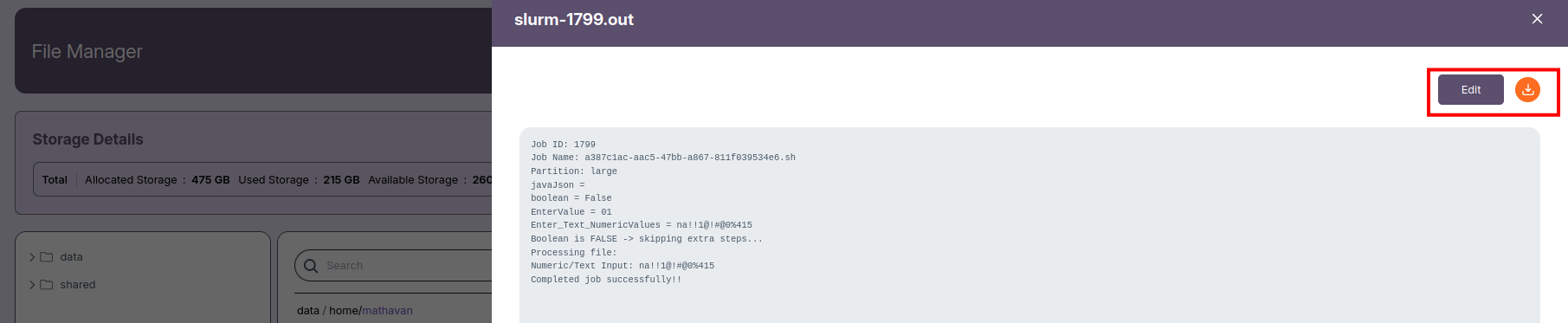
- The selected file will open in a popup window.
- In this window, you will see Edit and Download buttons at the top right.
- You can view the file, download it, or click Edit if the file format and permissions allow.
- Only files in .txt, .sh, and .yaml formats are editable.
- If the user is not the file owner, the edit operation will not be permitted.
- Editing and download controls are shown in the second image.
3. Editing and Saving the File
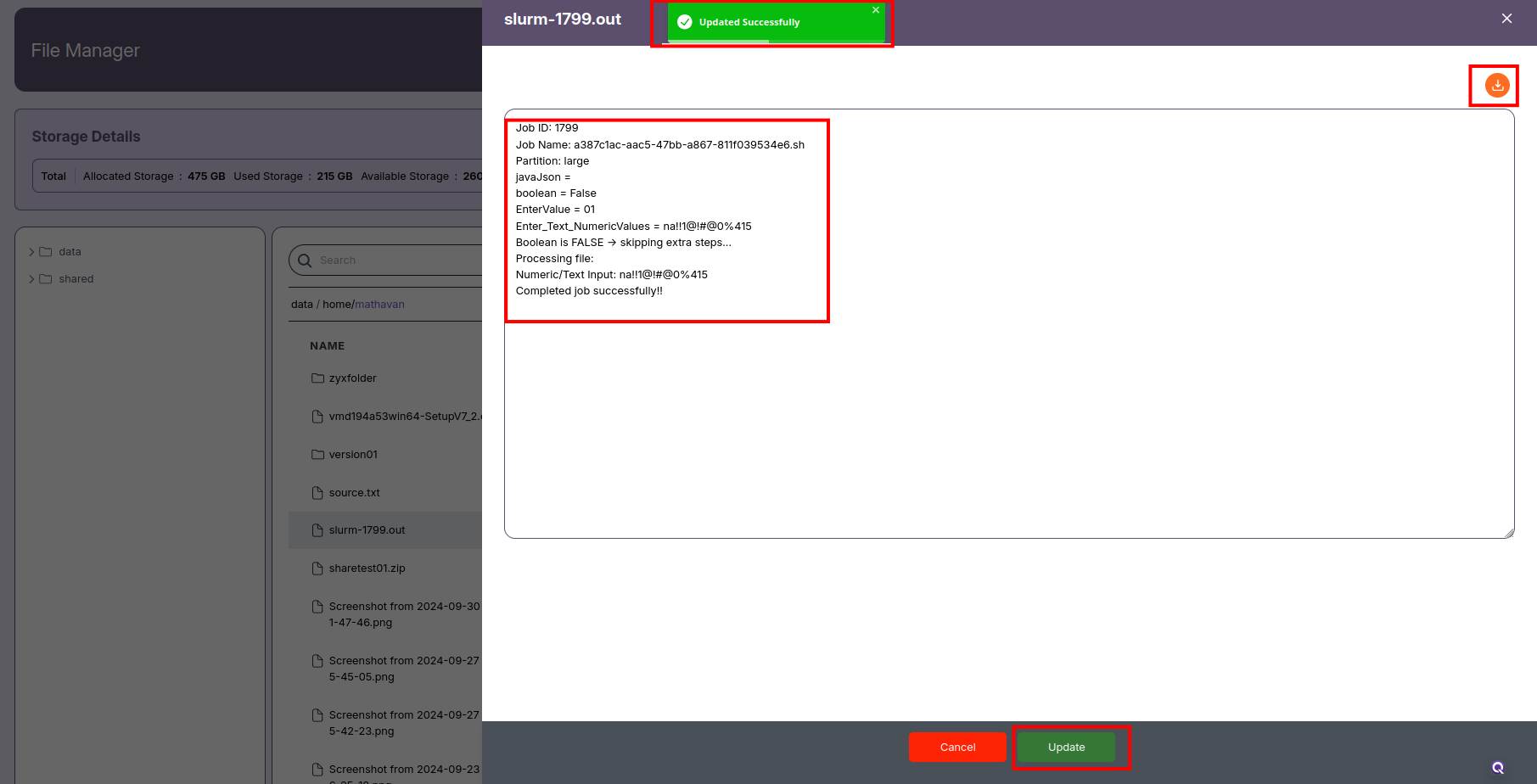
- After clicking Edit, an editable window will appear for the file content.
- Make the necessary changes.
- Click the Update button at the bottom to save your changes.
- A confirmation popup will indicate that the file was successfully updated.
- The third image shows the edit mode with the Update button.
📝 Notes
📝 Notes:
- Permissions: Users can only edit files they own. Editing others’ files is not permitted.
- Supported Formats: Only
.txt,.sh, and.yamlfiles can be edited directly in the File Manager. - Download: Any file, regardless of type, can be downloaded for offline use if permitted by access rights.
Follow these steps to securely view and edit your own files within the File Manager interface.