Job Dashboard Overview
The Job Dashboard provides a consolidated view of all jobs submitted across clusters, users, and applications. It helps track job progress, failures, and system utilization.
Step 1: Access the Job Status Page
Navigate to Jobs > Job from the sidebar.
This opens the main dashboard with overall job summaries, trends, and details.

Step 2: Overview Section
- Total Jobs → Count of all jobs submitted (e.g., 450)
- Success % / Failure % → Overall job health
- Completed / Pending / Running / Cancelled / Stopped / Suspended / Timeout / Failed → Status-wise breakdown of jobs
- Last Refreshed at → Shows the timestamp of the most recent data update on the screen.

This provides a quick health snapshot of the cluster workload.
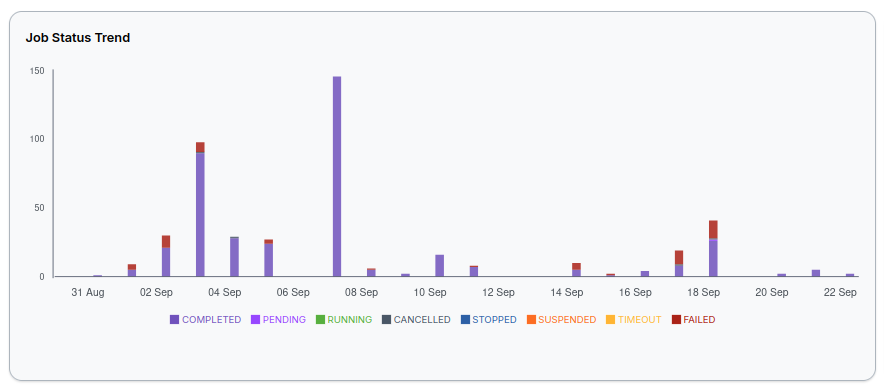
Step 3: Job Status Trend
A timeline chart showing daily job counts by status (Completed, Pending, Failed, etc.).
Use this to track job patterns over time and spot unusual failure spikes.
Step 4: Top 5 Jobs
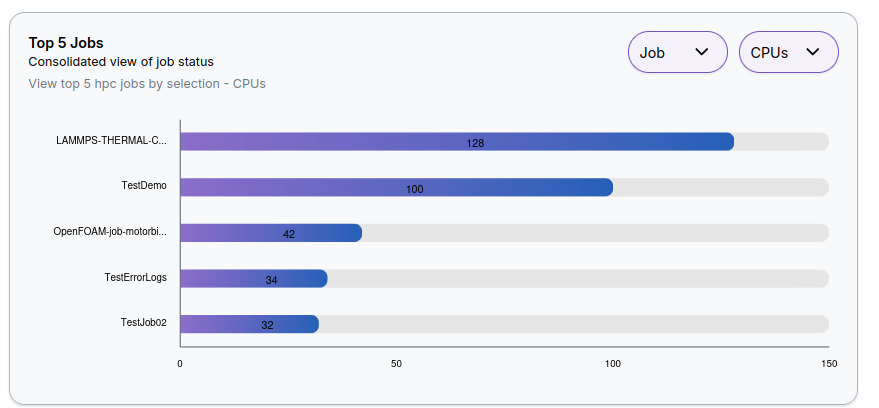
A bar chart listing jobs that consumed the most resources.
- Ranked by CPU usage (default, can switch metric from dropdown)
- Displays job names with corresponding load
This helps identify high-impact jobs for optimization.
Step 5: Filters (Top Panel)

You can refine the dashboard view by selecting:
- Provider → AWS, GCP, etc.
- Account → Project/account scope
- Region → Cloud region
- Cluster → Target cluster
- Type → Cluster type
- Duration → Date range for job history
Click Search to apply filters.
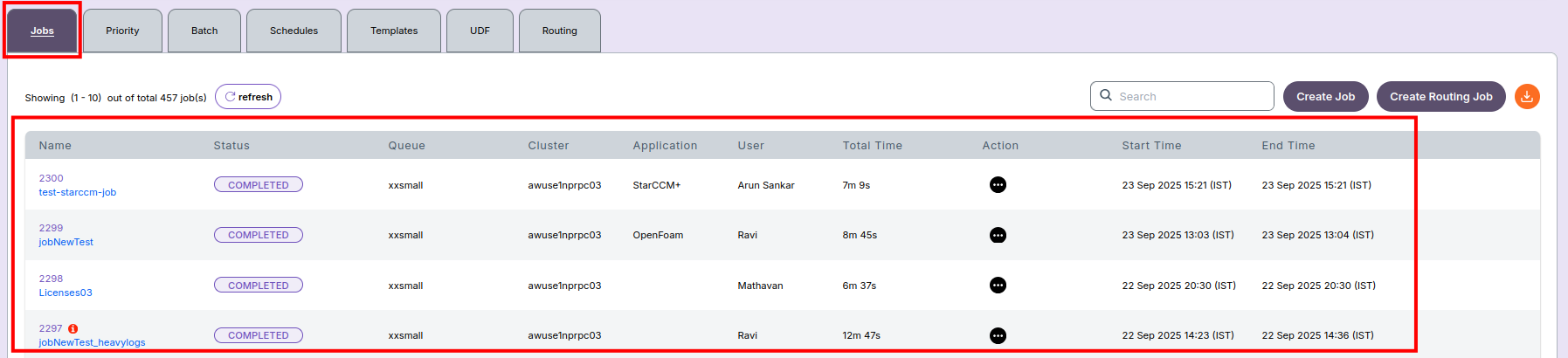
Step 6: Job Table (Detailed View)
The job table lists detailed information for each job:
- Name → Job ID or label
- Status → Current state (Completed, Failed, etc.)
- Queue → Queue used for job submission
- Cluster → Target cluster
- Application → Application executed (e.g., OpenFOAM, LAMMPS)
- User → Submitted by
- Total Time → Runtime duration
- Action → Job actions (logs, rerun, etc.)
- Start / End Time → Job execution timestamps
🔎 Search Options
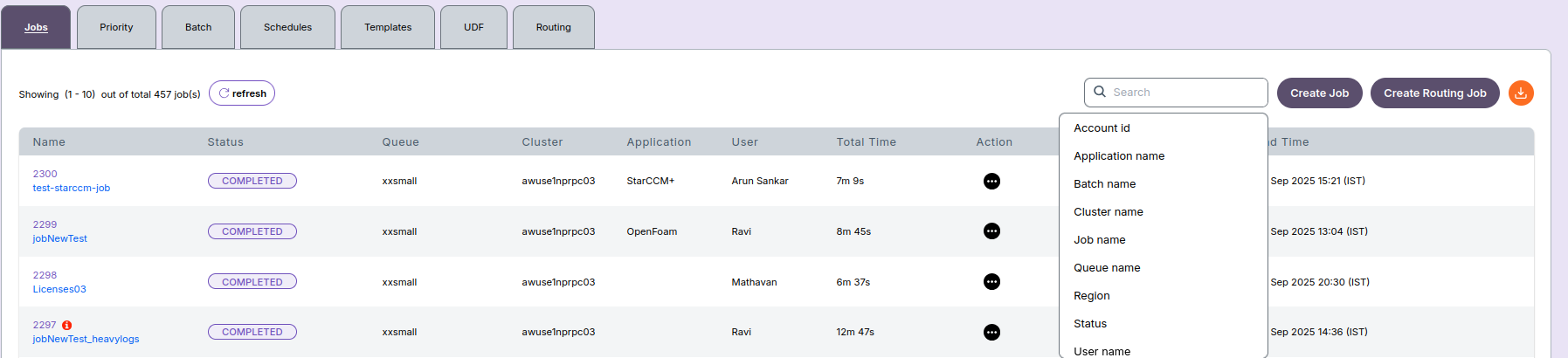
The search field allows you to quickly locate jobs using multiple filters:
- Select a Search Field
Available options include: - Account ID
- Application Name
- Batch Name
- Cluster Name
- Job Name
- Queue Name
- Region
- Status
- User Name
-
Choose Search Type (for Job Name)
-
Contains (:) → Returns jobs that include the entered text
- Equals (=) → Returns jobs that exactly match the entered text

- Enter or Select Job Name
- When typing a job name, the system lists matching results.
- You can select directly from the list (no need to type full name).
- Alternatively, use free-text search: entering partial or relevant words will display all matching jobs.

This makes it easy to locate jobs quickly without knowing the full job ID.
-
Notes
- Use Create Job for new submissions.
- Use Create Routing Job for workflow-based submissions.
- If a job is stuck or failing repeatedly, check logs or contact the Admin.