Connecting to Your Workstation via NICE DCV
You can connect to a running workstation through a web browser or the NICE DCV desktop client.
Open the Connection Options
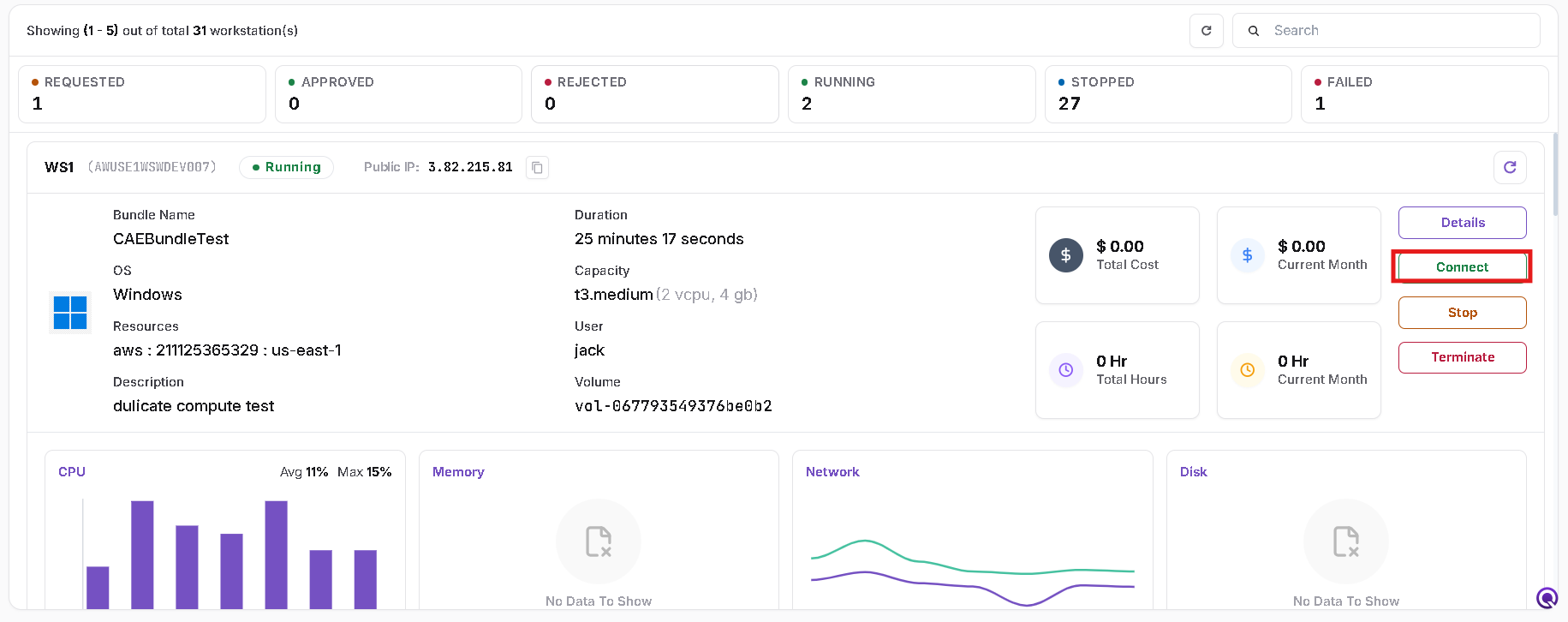
- Open Workstations from the navigation menu.
- Select the Workstations tab.
- Locate the workstation you want to access.
- Confirm that its status is Running.
- Click Connect on the workstation card.
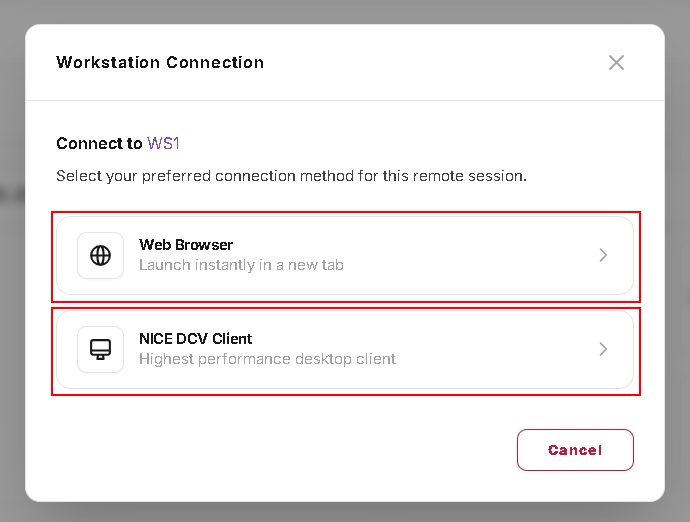
The Workstation Connection dialog opens and displays the selected workstation name.
Choose your preferred connection method:
- Web Browser: Opens the remote session in a new browser tab.
- NICE DCV Client: Opens the connection through the NICE DCV desktop client.
Click Cancel to close the dialog without connecting.
Connect Through a Web Browser
Open the Browser Session
- Click Web Browser in the Workstation Connection dialog.
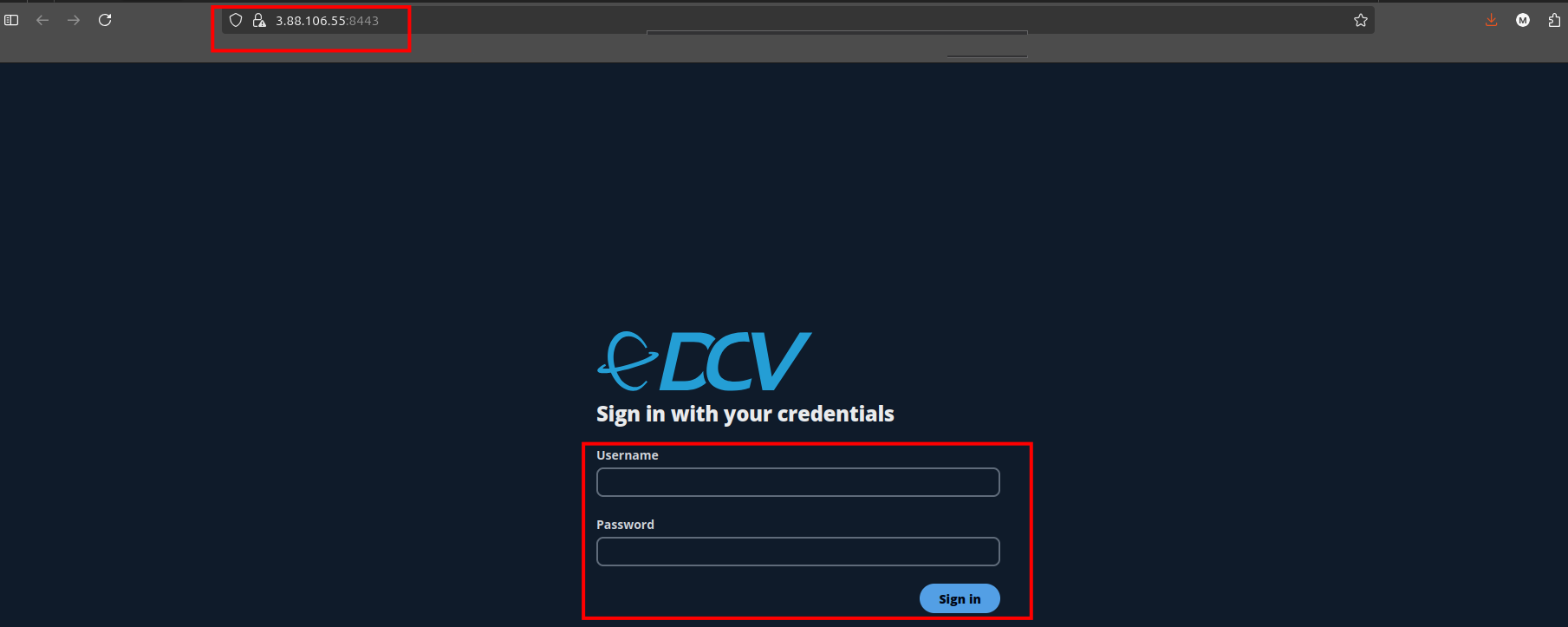
- A new browser tab opens with the DCV login page.
Sign In
- Enter your assigned Active Directory (AD) username and password.
- Click Sign in.
Access Your Workstation
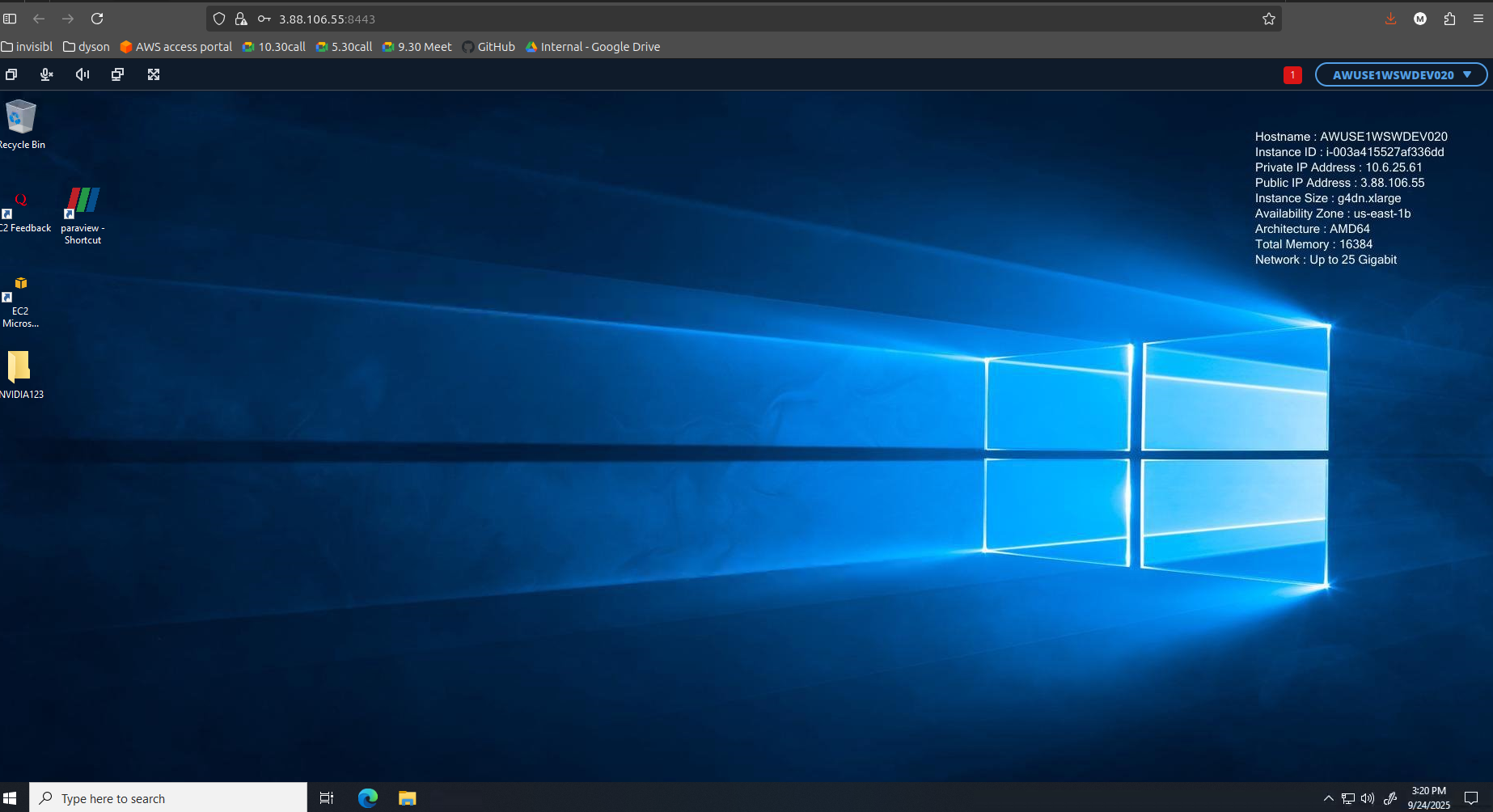
After successful authentication, the workstation desktop appears in the browser.
You can access files and use the applications installed on the workstation.
- Use your assigned AD credentials to sign in.
- Browser access does not require installation of the NICE DCV desktop client.
Connect Through the NICE DCV Client
Ensure that the NICE DCV desktop client is installed on your computer before using this connection method.
- Click Connect on the running workstation.
- Select NICE DCV Client in the connection dialog.
- Continue through the client's connection and login process.
Verify the Server Certificate
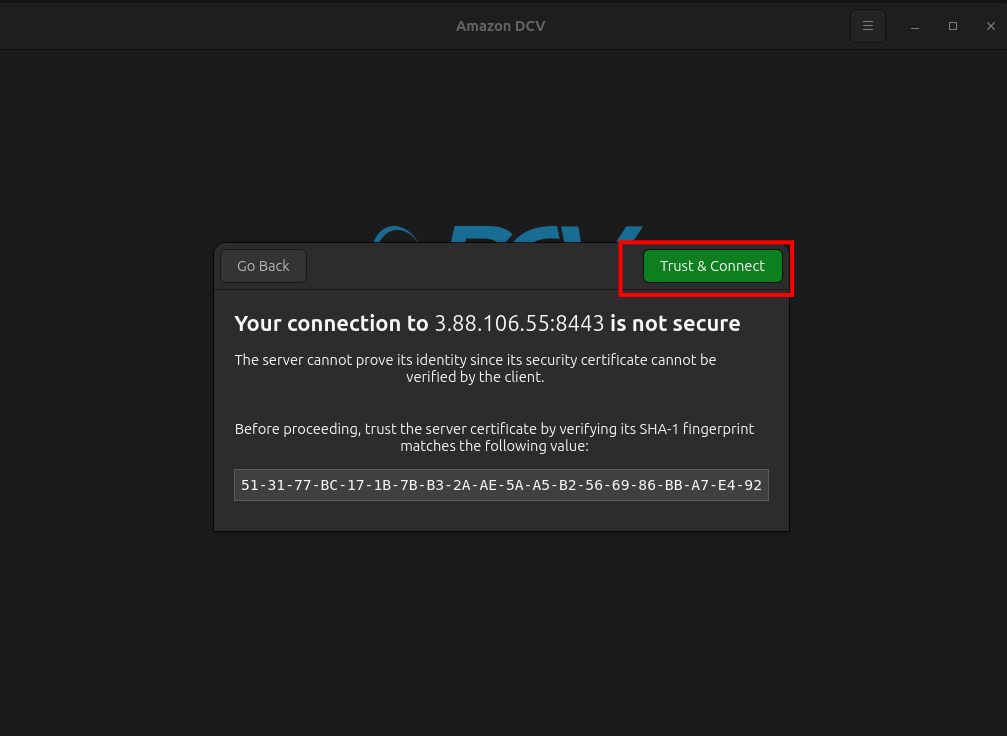
The client may display Your connection is not secure when it cannot verify the server certificate.
If this prompt appears:
- Compare the certificate fingerprint with the value provided by your system administrator.
- If the fingerprints match, click Trust & Connect.
- If they do not match, or you cannot verify the fingerprint, click Go Back and contact your administrator.
Enter Your Credentials
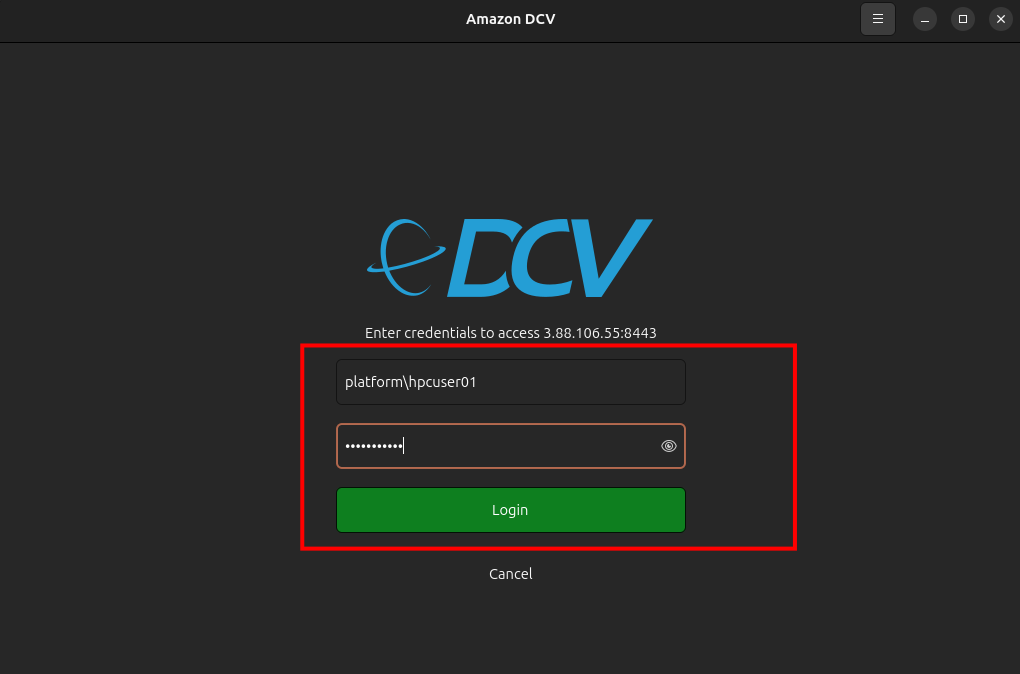
- Enter your assigned username and password in the client login window.
- Click Login.
Access Your Workstation
After successful authentication, the client displays the workstation desktop.
You can access files and use the installed applications through the remote session.
General Notes
- Confirm that the workstation is Running before connecting.
- Check the workstation name in the connection dialog.
- Use your assigned credentials for authentication.
- If a certificate warning appears, verify the fingerprint with your administrator before trusting the connection.
- Contact your administrator if the connection or login fails.