Jobs Overview
The Jobs page provides a consolidated view of submitted jobs and their current status. Users can view job information, search for specific jobs, create new jobs, and access available job actions.
Step 1: Access the Jobs Page
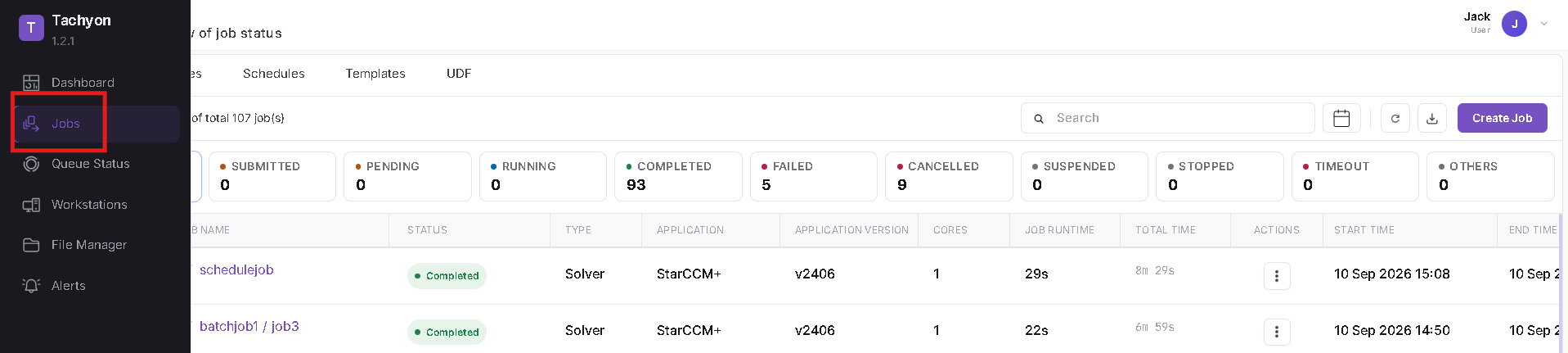
Navigate to Jobs from the left navigation menu.
Step 2: View Job Status Summary
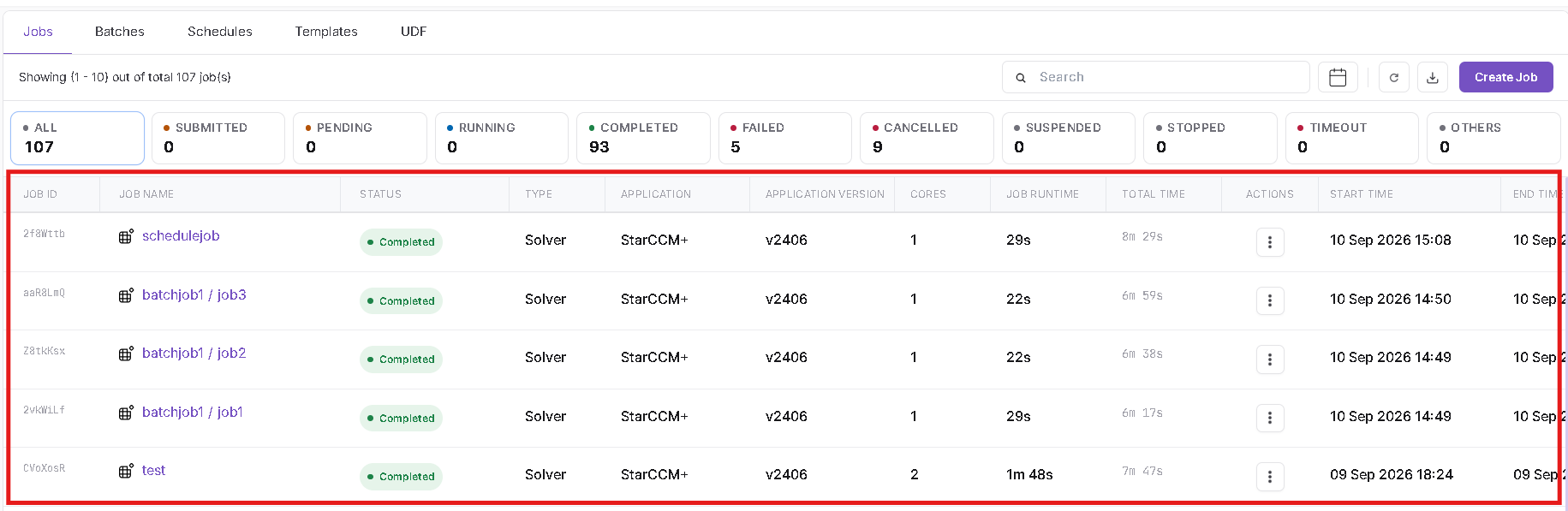
The top section displays the number of jobs in each status, including:
- All
- Submitted
- Pending
- Running
- Completed
- Failed
- Cancelled
- Suspended
- Stopped
- Timeout
- Others
These counters provide a quick summary of the current job statuses.
Step 3: View Jobs
The Jobs table displays information about submitted jobs, including job details, current status, application, cluster, execution information, and available actions.
Step 4: Search Jobs
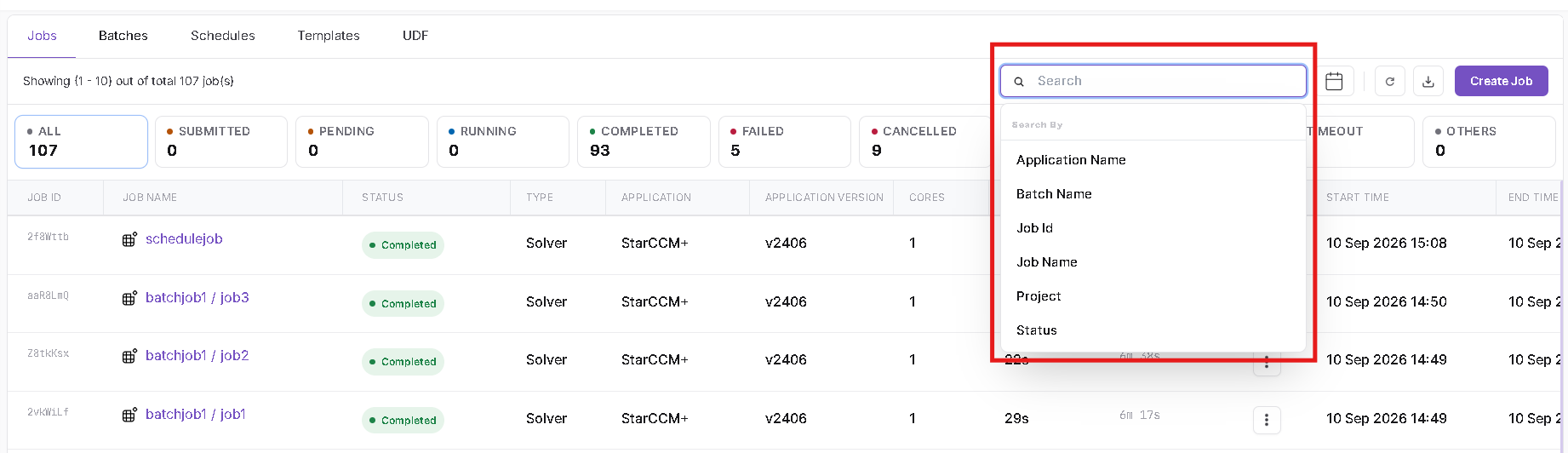
Use the Search field to locate specific jobs.
The available search fields include:
- Application Name
- Batch Name
- Job ID
- Job Name
- Project
- Status
Search Type
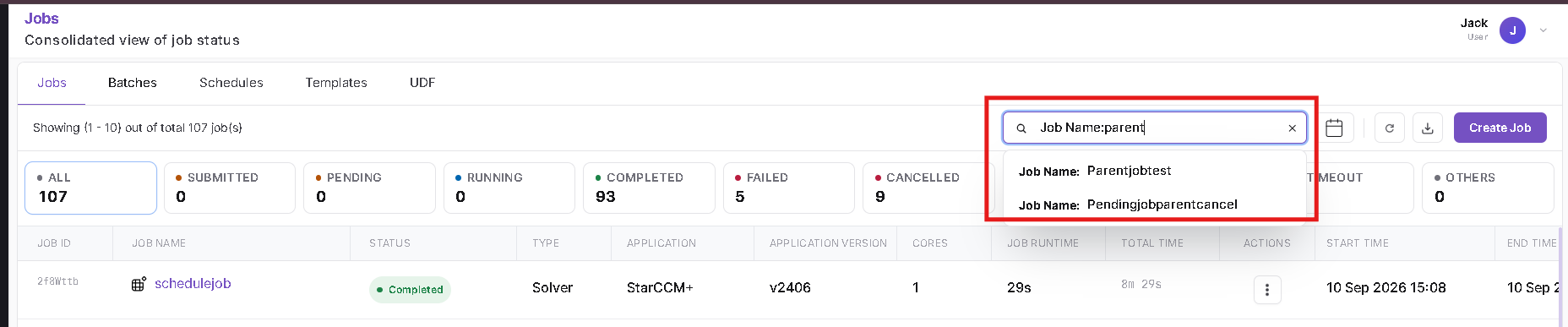
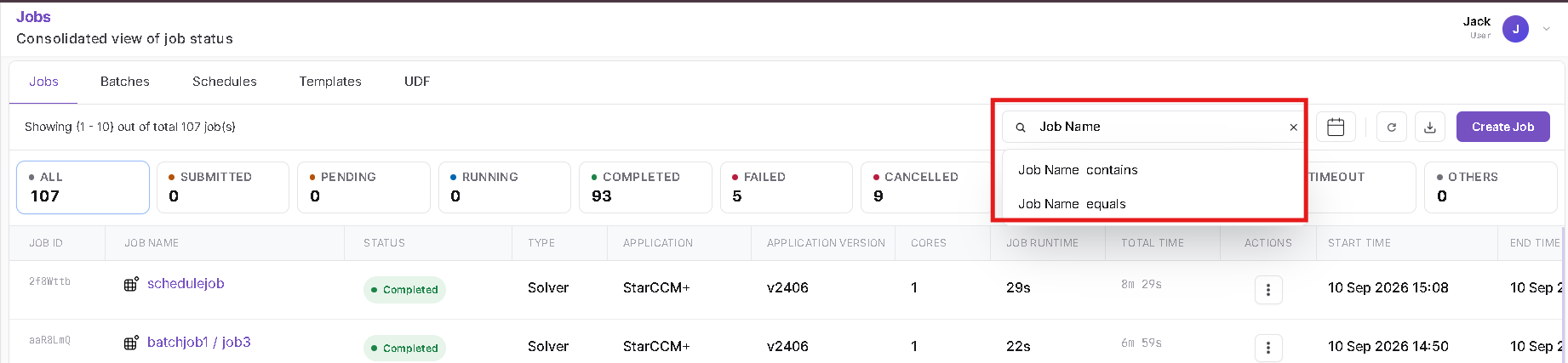
For supported fields such as Job Name, select the required search condition:
- Contains (:) – Finds jobs containing the entered value.
- Equals (=) – Finds jobs that exactly match the entered value.
Enter Search Value
Enter the required value in the search field. Matching values are displayed for selection where applicable.