🔗 Cluster Mapping
Cluster Mapping controls which organizations or groups can access a cluster.
Administrators can map a cluster to:
- All Departments
- A specific Department / Organization
- A specific Group
The mapping works together with the Organization and User Group associations configured for each user.
Open Cluster Mapping
Steps
- Navigate to Clusters.
- Open the Cluster Details page.
- Click Cluster Mapping.
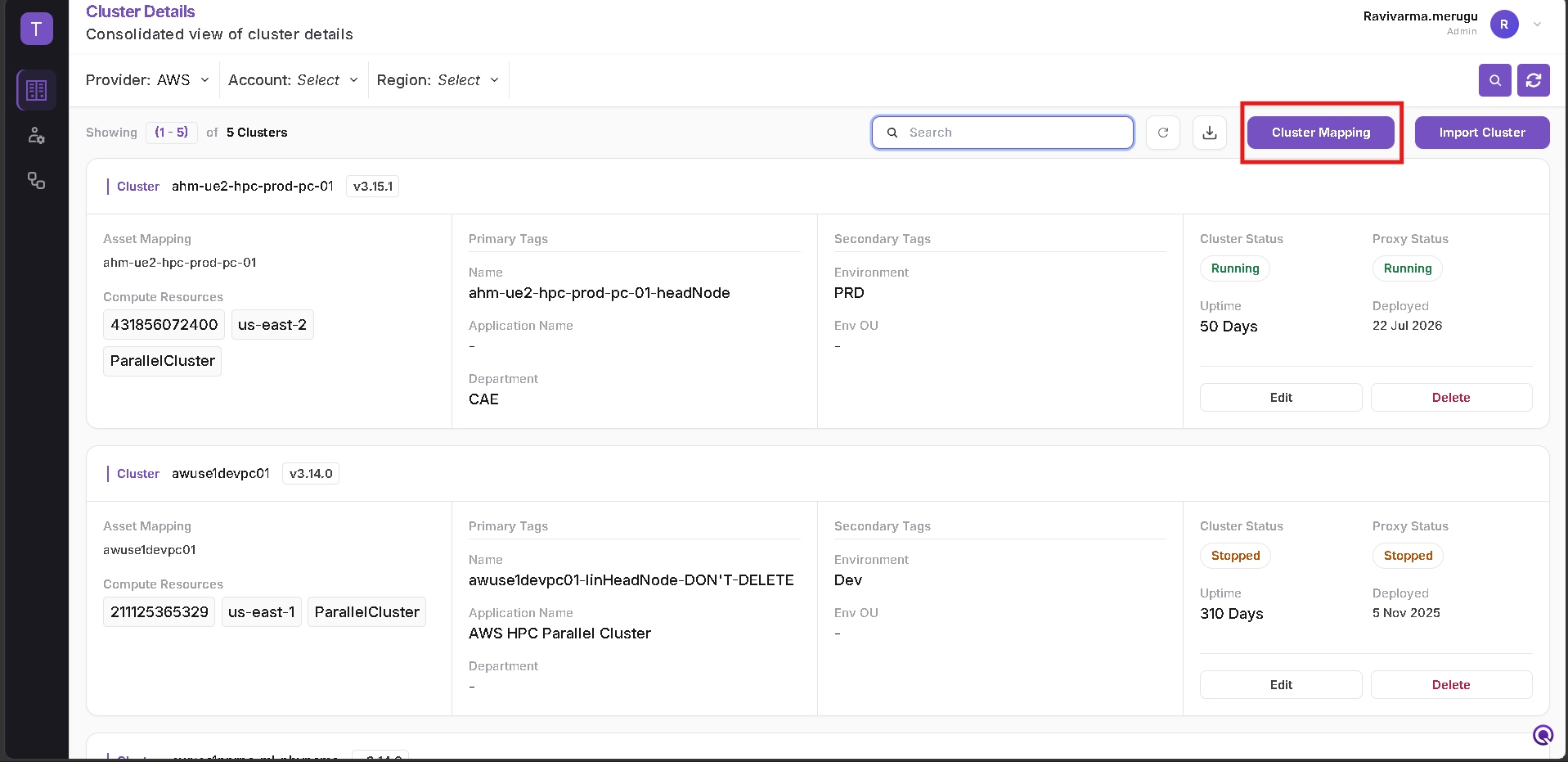
View Existing Cluster Mappings
The Cluster Mapping page displays the mappings currently configured for available clusters.
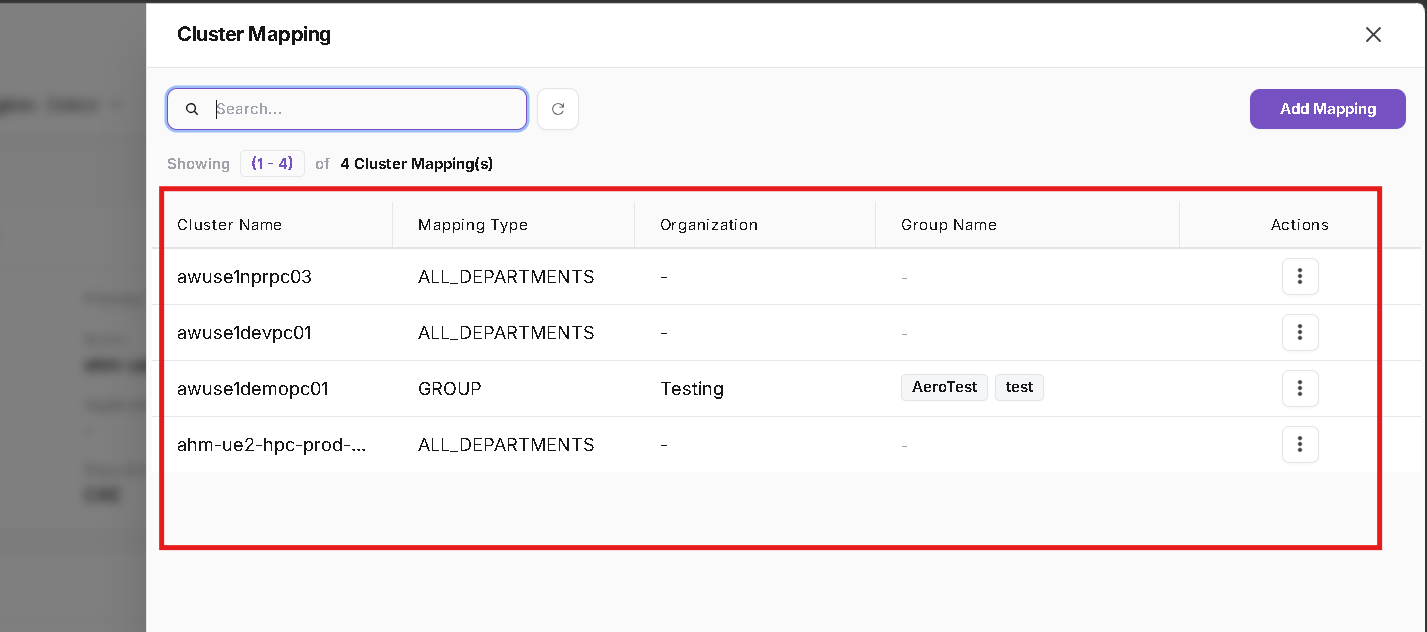
The mapping list includes information such as:
- Cluster Name
- Mapping Type
- Organization
- Group Name
- Actions
The mapping type indicates whether access is available to all departments or restricted to a specific organization or group.
➕ Add a Cluster Mapping
Click Add Mapping to configure access for a cluster.
When creating a mapping, select:
- Provider
- Account
- Region
- Cluster
Then configure the required Identity Filter.
Identity Filters
Three identity-filter options are available:
All Departments
Select All Departments when the selected cluster should be available without restricting access to a particular organization or group.
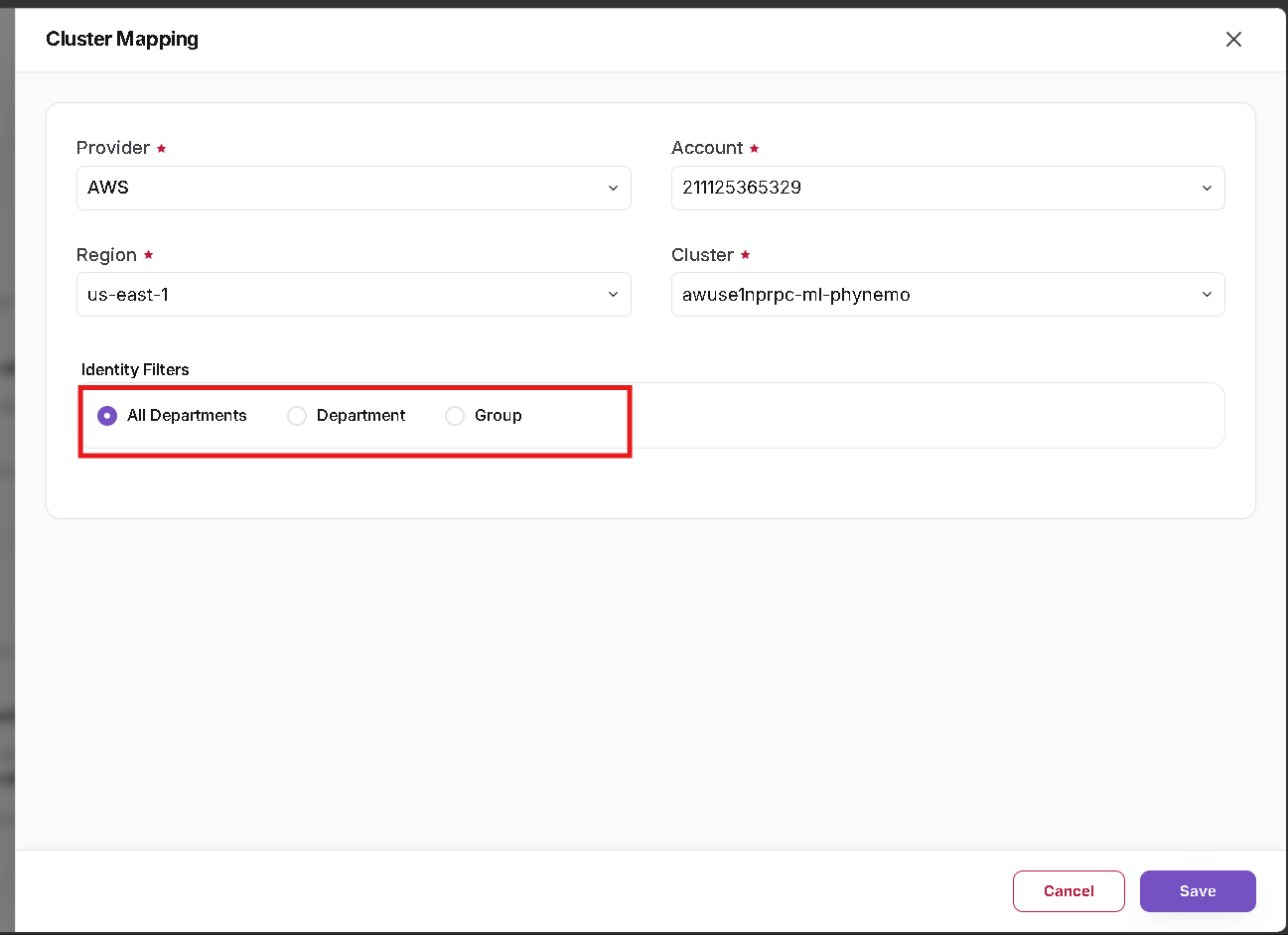
Department
Select Department to restrict cluster access to a particular organization.
After selecting Department, the mandatory Organization field is displayed.
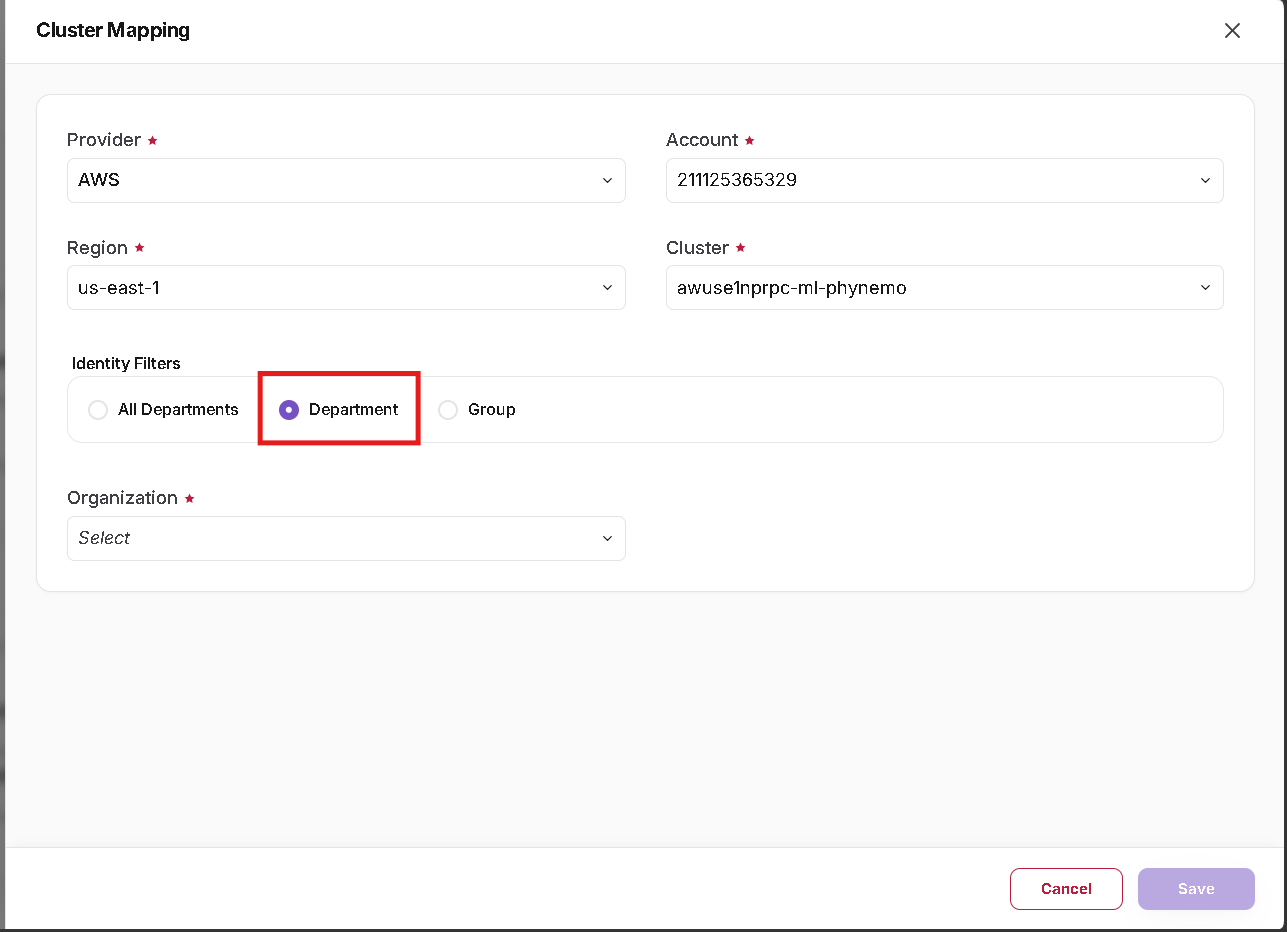
- Select the required Organization.
- Users associated with the applicable organization can access the mapped cluster according to the configured mapping.
Group
Select Group when cluster access should be restricted further to a particular group within an organization.
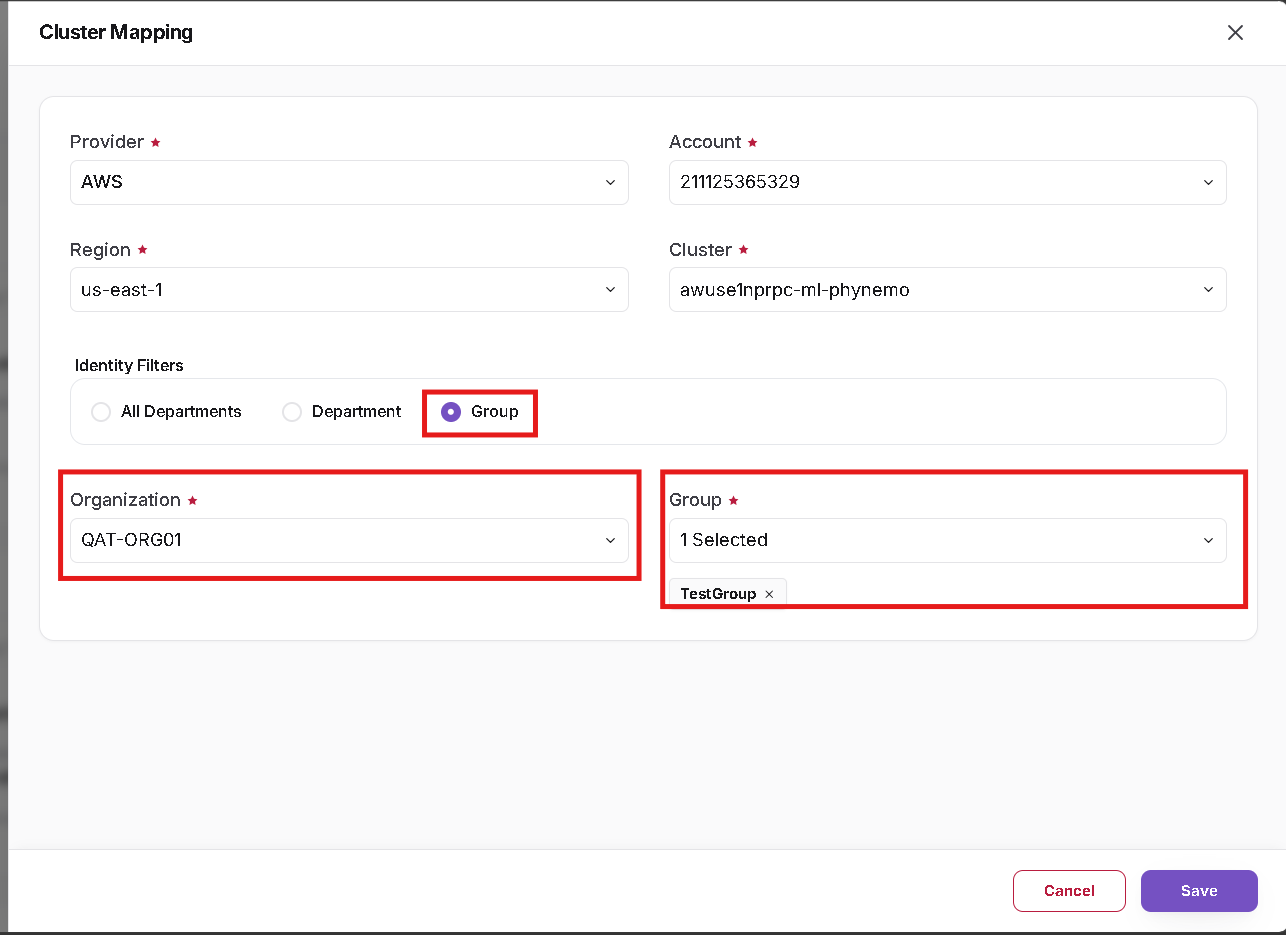
When Group is selected:
- Select the required Organization.
- Select the required Group belonging to that organization.
- Click Save to create the mapping.
- User access depends on the Organization and User Group associations configured in User Management.
- Department mapping provides access based on the selected organization.
- Group mapping provides more specific access based on both organization and group.
- Verify the selected cluster and identity filter carefully before saving a new mapping.
✏️ Edit a Cluster Mapping
From the Cluster Mapping list:
- Locate the required mapping.
- Open the Actions menu.
- Select Edit.
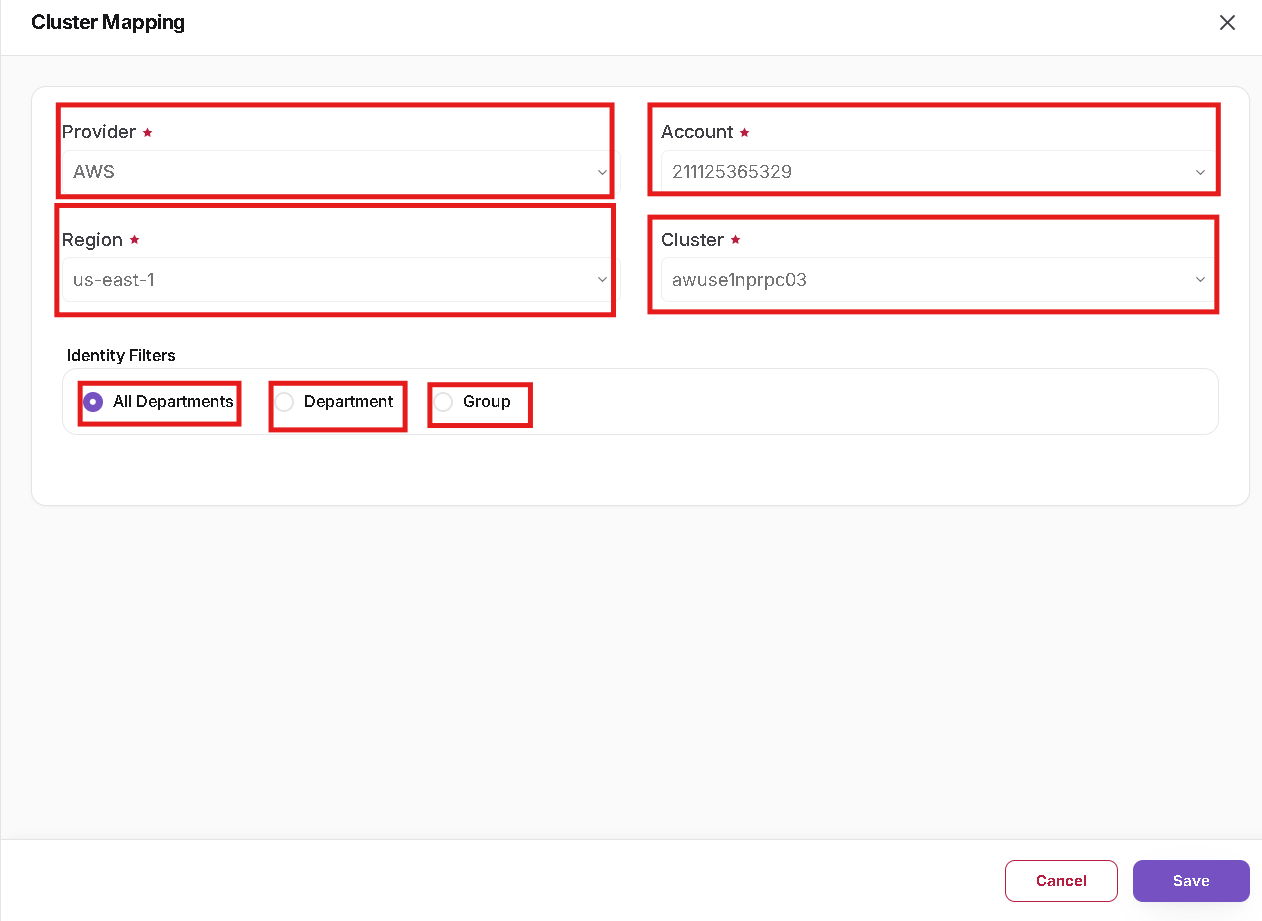
When editing an existing mapping:
- Provider
- Account
- Region
- Cluster
are already associated with the selected mapping and cannot be changed.
The administrator can modify the Identity Filter configuration.
For example, the mapping can be updated between:
- All Departments
- Department
- Group
Click Save after making the required changes.
- The cluster itself is selected while creating a new mapping.
- When editing an existing mapping, the mapped cluster cannot be changed.
- To map a different cluster, create a new Cluster Mapping instead.
🔐 How Cluster Access Is Determined
Cluster Mapping works together with User Management and Organization configuration.
The access relationship is:
User → Organization and User Group → Cluster Mapping → Available Cluster
For example:
- A user is associated with an Organization and User Group.
- A cluster is mapped to an organization or group.
- The platform evaluates the user's associations against the cluster mapping.
- Matching clusters become available to the user for applicable workload operations.
- Organization and User Group are mandatory associations during user creation.
- Changing a user's organization or group association can change the clusters available to that user.
- Cluster mappings should be reviewed whenever organization or group assignments are changed.