🏢 Organization Management
Organization Management allows administrators to define organizational units, assign an owner, create groups within an organization, and review the projects associated with those groups.
Organizations and groups form the organizational hierarchy used across Tachyon for user association, project organization, and cluster access configuration.
⚙️ Hierarchy Settings
Tachyon supports a configurable two-level organizational hierarchy. Administrators can define the terminology used for each hierarchy level based on their enterprise structure.
Steps
- Navigate to Admin → Organization.
- Click the Settings icon on the Organization page.
- The Hierarchy Settings dialog displays the configured hierarchy levels.
- Configure the required names for:
- Level 1
- Level 2
- Click Save to apply the hierarchy configuration.
For example, the hierarchy can be configured as:
Organization → Group
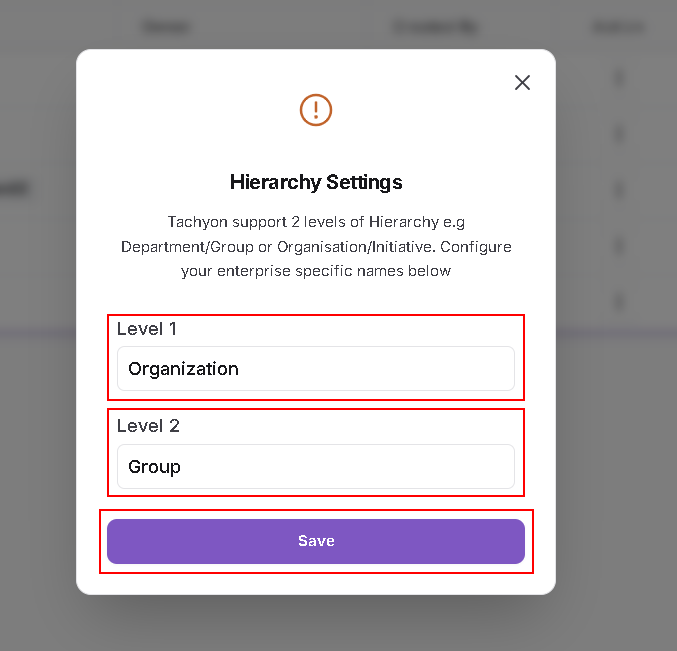
- Tachyon supports two hierarchy levels.
- The hierarchy labels can be configured based on the terminology used by the organization.
- The configured hierarchy is used when organizing users, groups, projects, and supported access mappings.
📋 View Organizations
Steps
- Navigate to Admin → Organization from the left menu.
- The Organization page displays the configured organizations.
- Review the organization details and associated groups.
- Use the Search field to locate an organization when required.
- Click Create Organization to create a new organization.
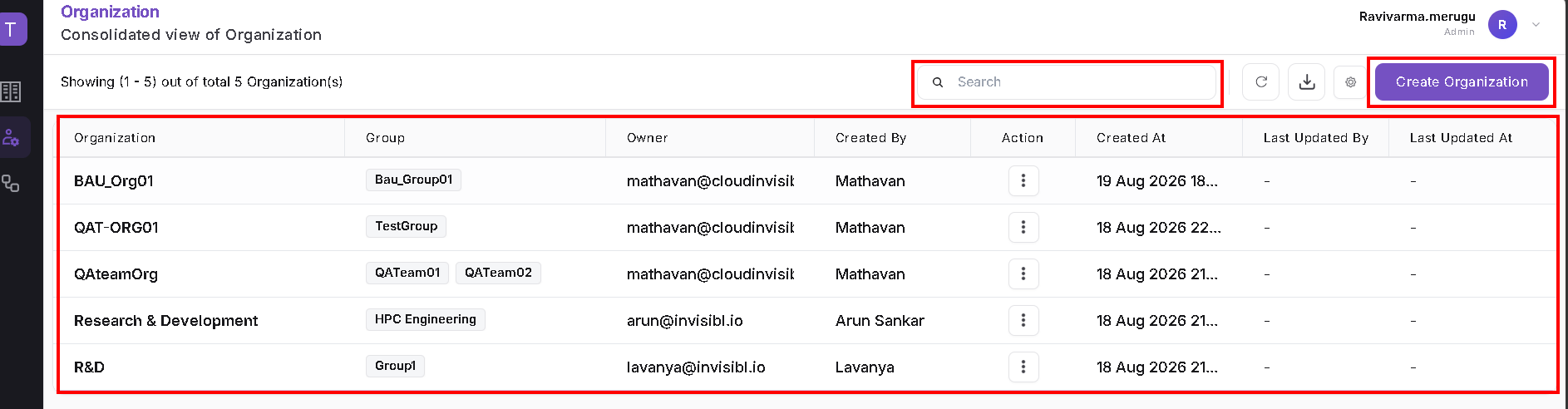
The Organization list displays information such as:
- Organization
- Group
- Owner
- Created By
- Created At
- Last Updated By
- Last Updated At
- Action
- An organization can contain one or more groups.
- Users can be associated with an Organization during user configuration.
- Organization and Group associations are also used in supported Cluster Mapping configurations.
➕ Create an Organization
Steps
- Navigate to Admin → Organization.
- Click Create Organization.
- The Create Organization screen is displayed.
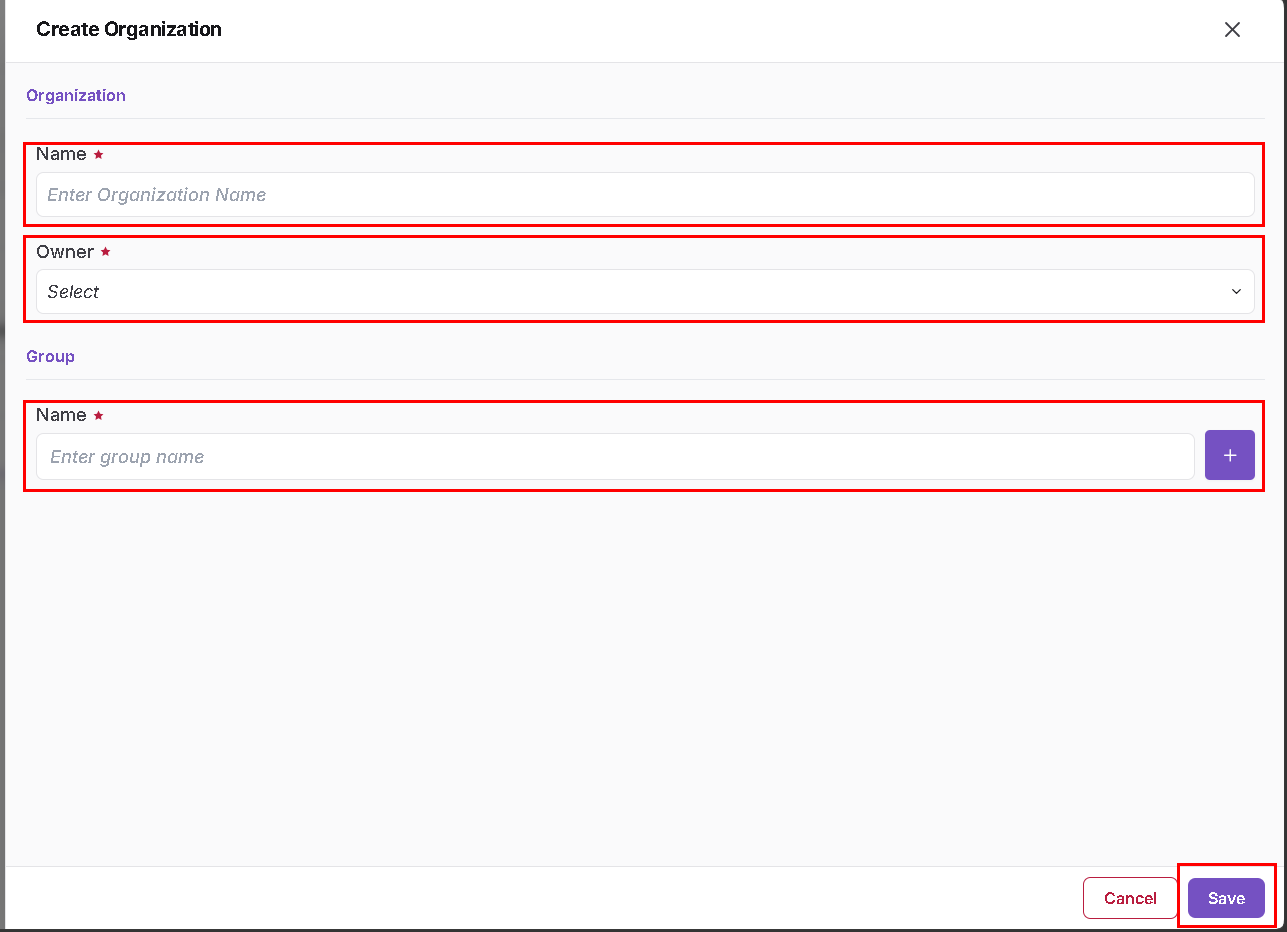
Organization
Configure the following fields:
- Name – Enter the organization name.
- Owner – Select the user who will own the organization.
Group
- Enter the initial group name under the Group section.
- Click the + button to add the group.
- Additional groups can be added when required.
- Click Save to create the organization.
- Organization Name and Owner are required fields.
- Groups provide the second level of the configured organizational hierarchy.
- Multiple groups can be maintained within an organization.
✏️ Edit an Organization
Steps
- From the Organization list, locate the required organization.
- Open the Action menu.
- Select Edit.
- The Edit Organization screen displays the current organization configuration.
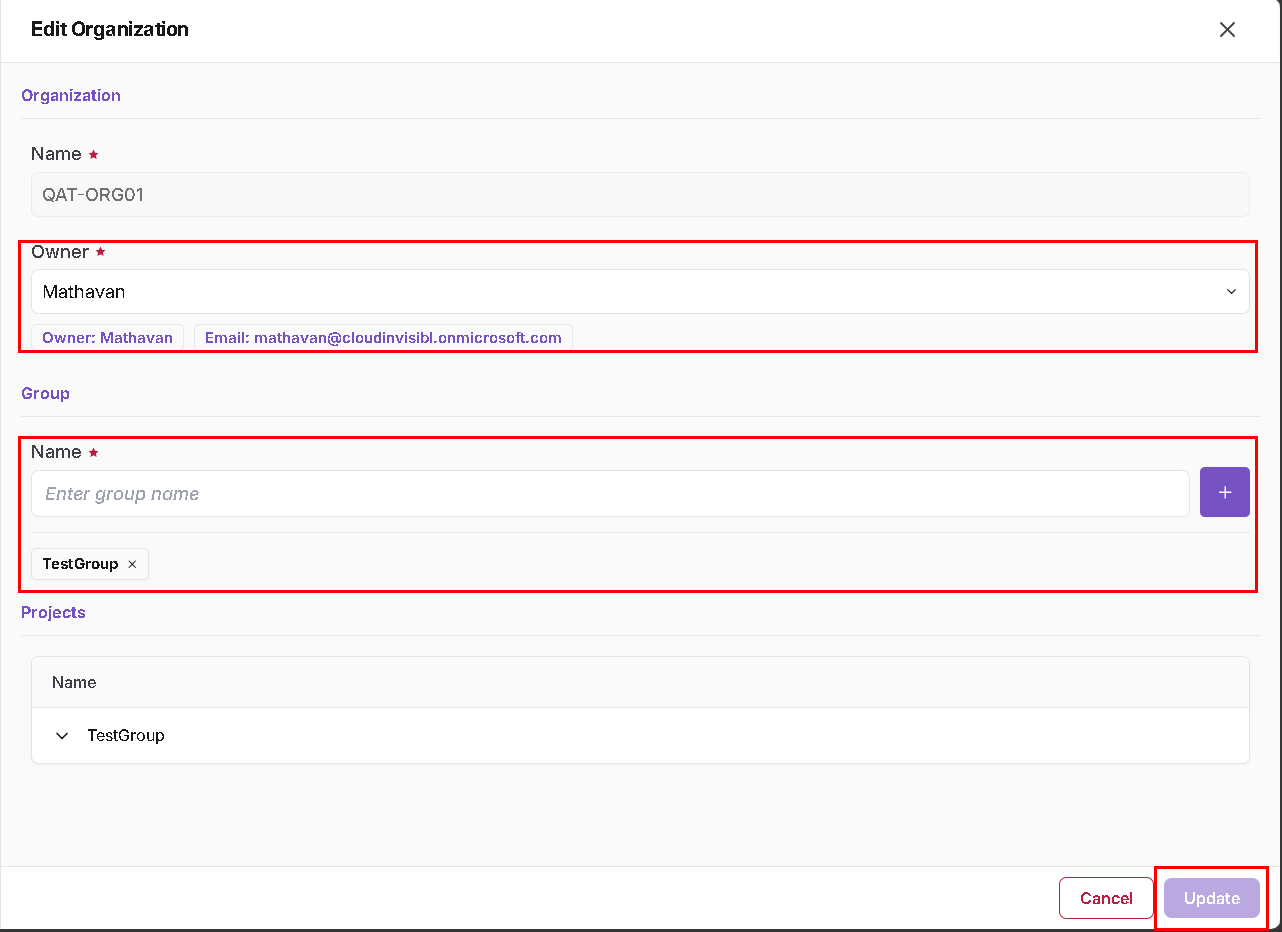
Organization Details
- Name displays the organization name.
- Owner identifies the configured owner.
- Update the available organization information when required.
👥 Groups
- Existing groups associated with the organization are displayed under the Group section.
- Enter a group name and click the + button to add another group.
- Existing groups can be removed when permitted.
📁 Projects
The Projects section provides visibility into project associations available under the organization's group structure.
- Review the groups displayed in the Projects section.
- Expand the required group to review the available project associations.
- An organization can contain one or more groups.
- Users can be associated with an Organization and User Group.
- Project associations can be represented within the Organization and Group hierarchy.
- Organization and Group identities can also be used when configuring Cluster Mapping.
- After making the required changes, click Update to save the organization.
🗑️ Delete an Organization
Organizations can be deleted from the Organization list when they are no longer required and deletion is permitted.
Steps
- Locate the required organization.
- Open the Action menu.
- Select Delete.
- Review the confirmation prompt before confirming the deletion.
- Review existing user, group, project, and access associations before deleting an organization.
- Do not delete an organization that is still required by active configurations.
🔗 Relationship with Users, Projects, and Cluster Access
The configured hierarchy connects several areas of Tachyon.
A typical relationship is:
Organization → Group → User / Project → Cluster Access
For example:
- An organization can contain one or more groups.
- Users can be associated with an Organization and User Group.
- Projects can be represented within the Organization and Group hierarchy.
- Cluster Mapping can use organizational identity information to control cluster availability.
- Where the Cluster Mapping interface uses the Department label, it represents the corresponding Level 1 organizational identity configured for the environment.
- Verify Organization and Group associations before modifying cluster mappings.
- Changes to user Organization or Group associations can affect access controlled through identity-based mappings.
- Project membership and cluster mapping should be reviewed together when validating workload access.