Create a User Defined Function (UDF)
This section explains how to create a UDF (C script) to be used in ANSYS Fluent jobs.
Step 1: Navigate to the UDF Page
From the Jobs tab, click on UDF in the top menu.
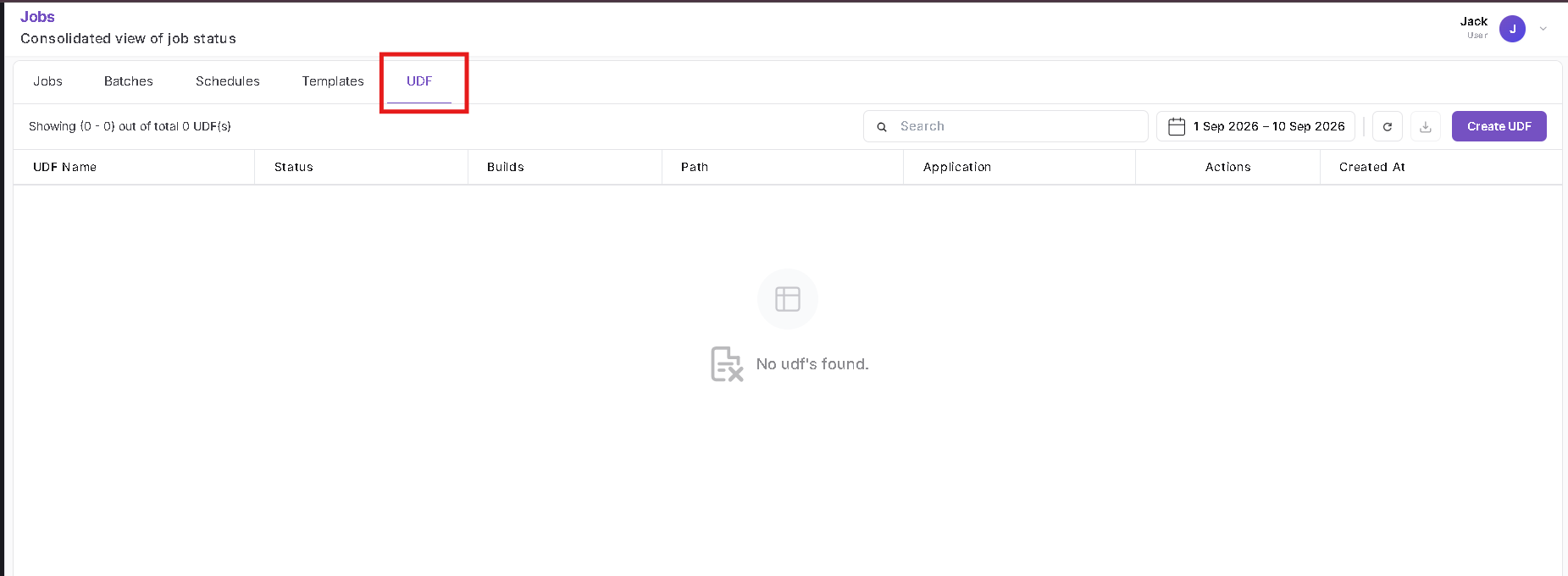
Step 2: Click on Create
Click the Create button to start the UDF creation flow.

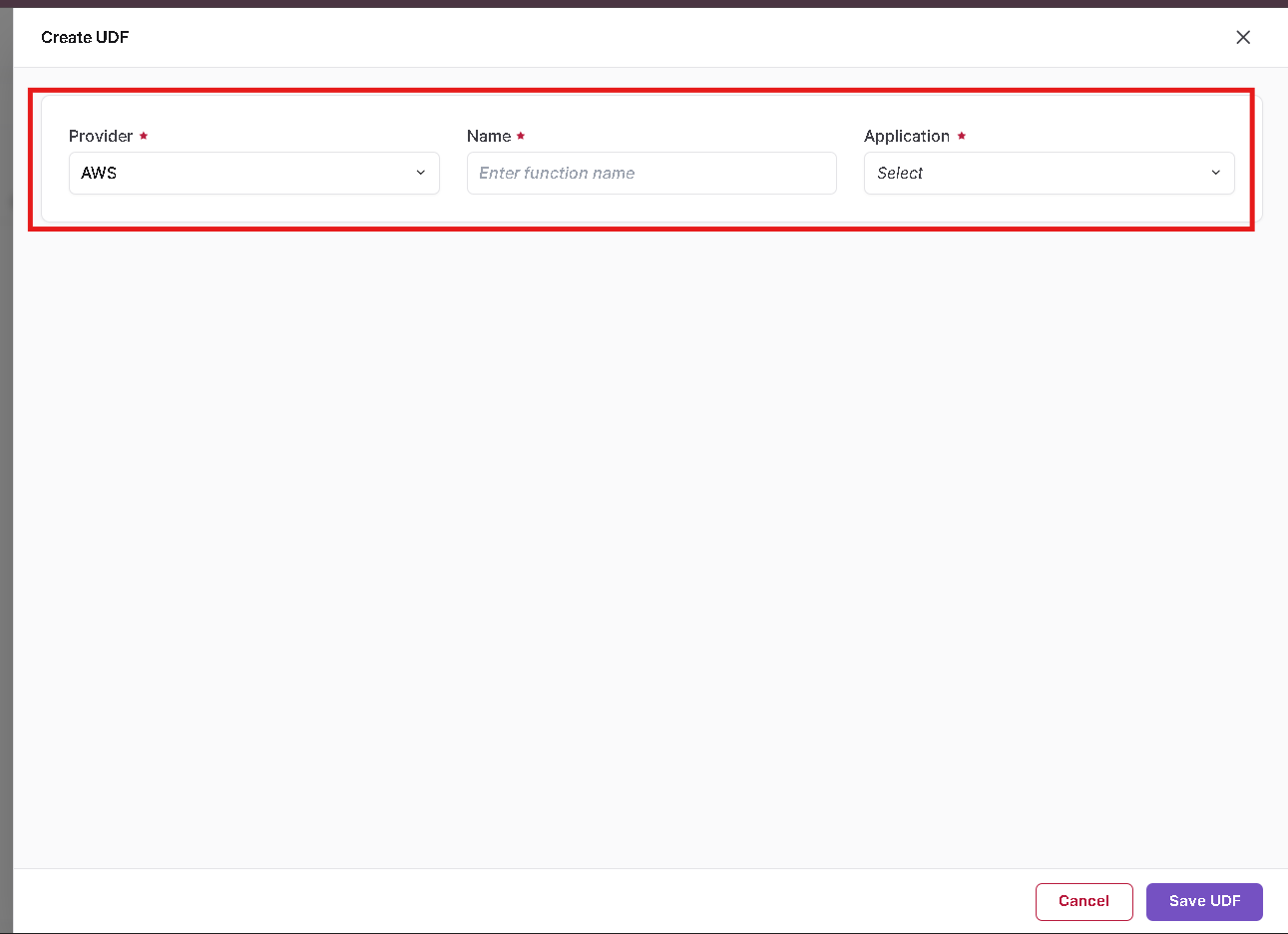
Step 3: Fill UDF Information
Provide: - UDF Name - Application (e.g., ANSYS Fluent) - Version (e.g., 2025 R1)
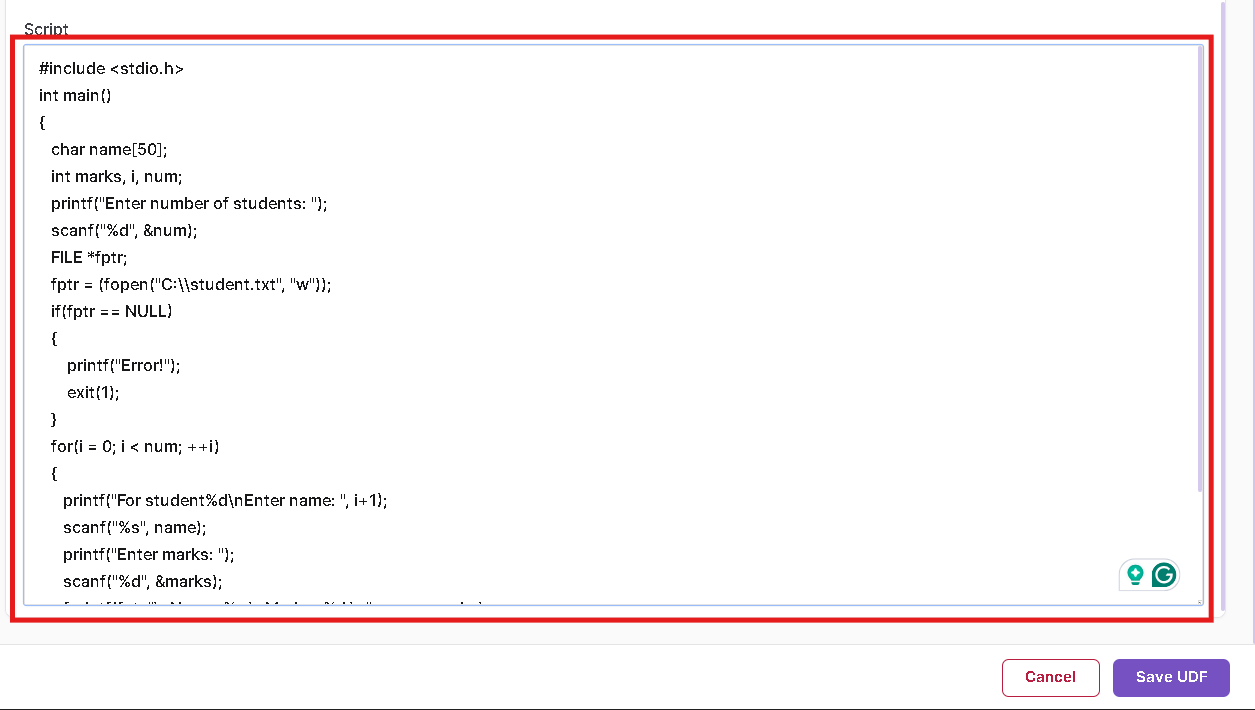
Step 4: Upload the Script File
Click Open Local File or drag and drop your .c or .h file for upload.
Step 5: Configure Journal File (Optional)
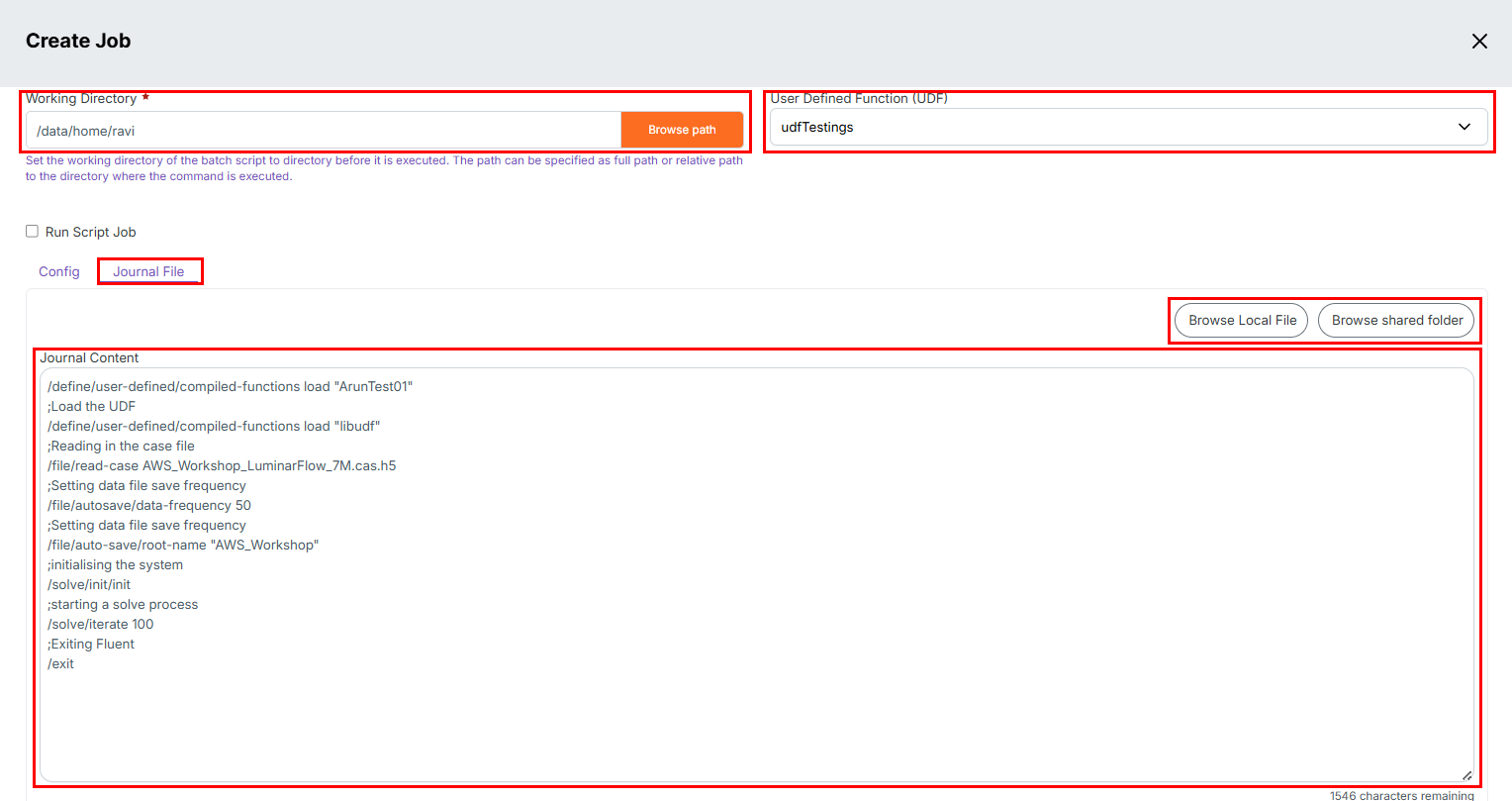
If your job requires a Fluent journal file, you can add it from the Working Directory section:
- Set the Working Directory path.
- Under Journal File, click Browse Local File or Browse Shared Folder to select your journal file.
- The Journal Content editor will display the loaded journal script, which you can review or edit directly before submission.
Step 6: UDF Creation Complete
click on create UDF,the UDF will appear in the list after successful creation.

-
📌 General Notes
- If you encounter any UI issues or have questions about job submissions or status, please contact the Admin for support.