Create Project
Projects are used to group users and associate workloads with project-specific resources and data.
Note: Project creation is available to Manager users. Administrators can manage existing projects across the platform.
Step 1: Open Projects
Navigate to:
HPC → Projects
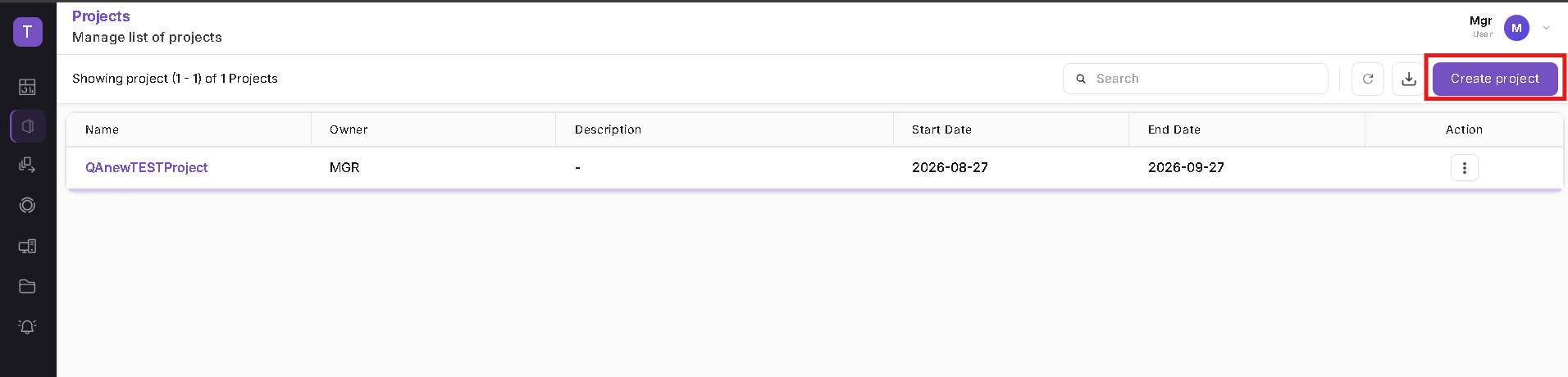
The Projects page displays the projects available to the logged-in user.
Click Create project to begin creating a new project.
Step 2: Enter Project Details
The Create project form displays the configuration required for the new project.
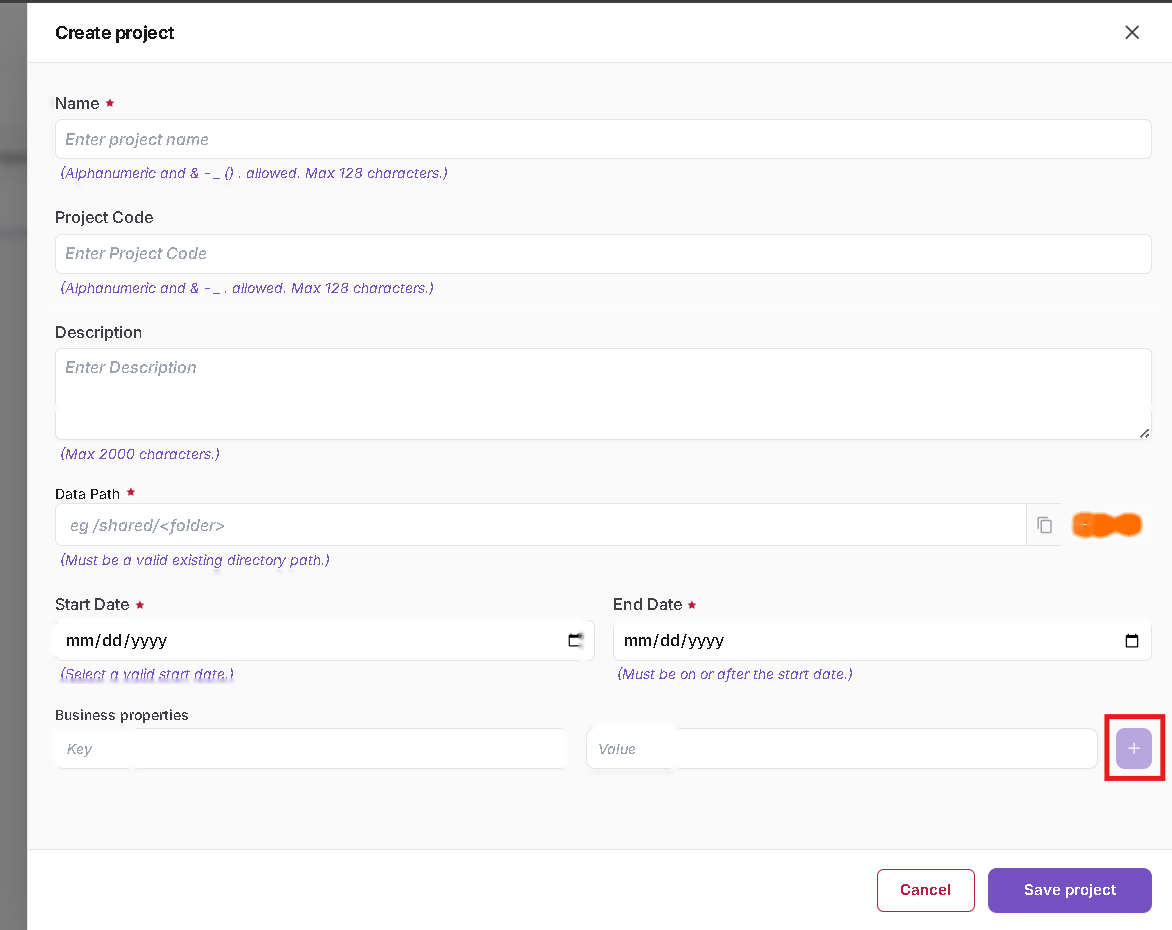
Enter the required project information.
| Field | Description |
|---|---|
| Name | Name of the project. This is a mandatory field. |
| Project Code | Optional project code used to identify the project in supported workload flows. |
| Description | Optional description of the project. |
| Data Path | Shared data directory associated with the project. The selected path must be a valid existing directory. |
| Start Date | Date from which the project becomes active. |
| End Date | Project end date. The end date must be on or after the start date. |
| Business properties | Optional Key/Value metadata associated with the project. |
Step 3: Select the Data Path
Use Browse next to the Data Path field to select the shared directory that should be associated with the project.
The configured Data Path is used to associate the project with its shared workload data.
Step 4: Configure Project Dates
Select the required Start Date and End Date.
The End Date must not be earlier than the Start Date.
Step 5: Add Business Properties
Business properties can be used to associate additional metadata with the project.
Enter the required Key and Value.
Use the + button to add additional business properties when required.
Step 6: Save the Project
After entering the required information, review the project configuration and click Save project.
The newly created project is added to the Projects list.
After the project has been created, use Manage Members to assign users to the project.
- Project Name is mandatory.
- Data Path must point to a valid shared directory.
- Project Code is displayed with the project name in supported workload flows.
- Business properties are optional.
- Users must be added to the project before the project becomes available to them in supported workload flows.