Move, Copy & Download
File Manager allows you to move or copy items between directories and download selected files or folders to your computer.
The steps are the same for administrators and users. Available files, folders, and operations depend on your account's permissions.
Before You Begin
- Open File Manager.
- Select the required Provider, Account, Region, and Cluster.
- Use the folder tree to navigate to the directory containing your files.
Move Files or Folders
Moving an item transfers it from its current location to the selected destination.
Step 1: Select the Item
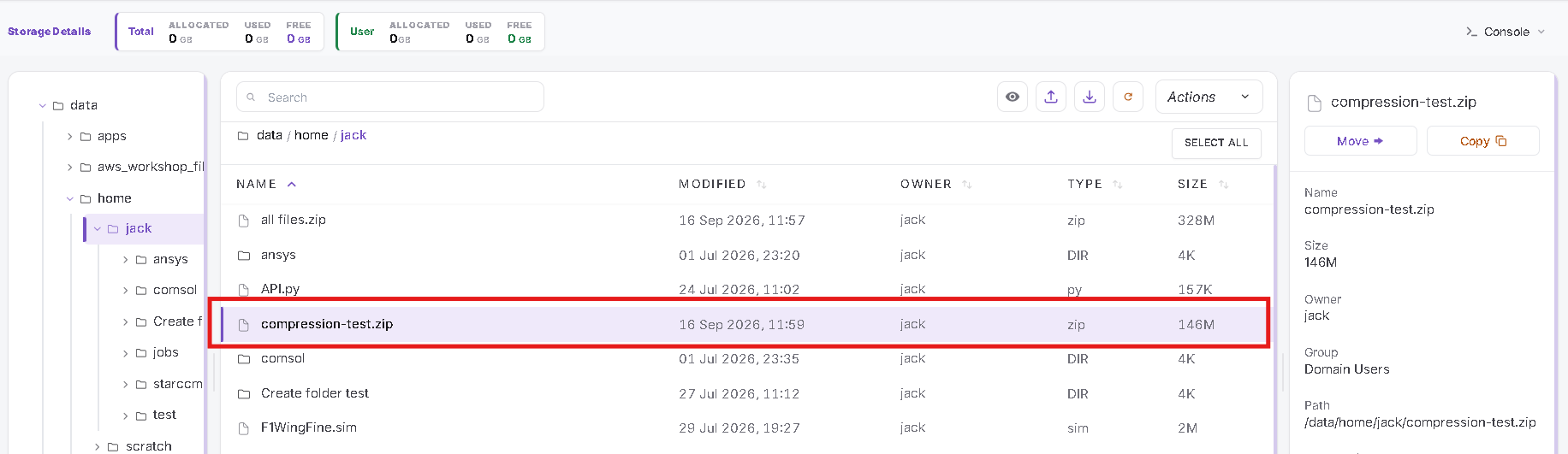
Select the file or folder you want to move.
The right-side details panel displays the selected item and the Move and Copy buttons.
Click Move.
Step 2: Choose the Destination
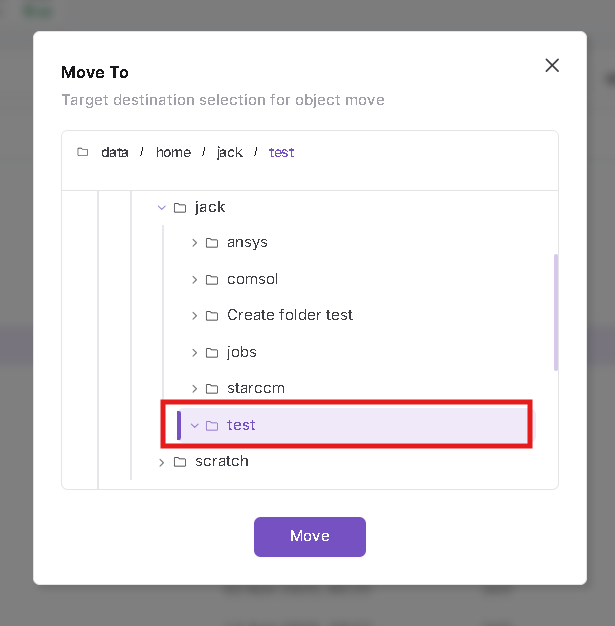
The Move To dialog opens.
- Expand the folders in the directory tree.
- Select the destination folder.
- Check the destination path displayed above the tree.
- Click Move.
In this example, the destination is /data/home/jack/test.
Step 3: Verify the Move
A Files moved successfully. message confirms the operation.
Open the destination directory and verify that the item appears there.

Copy Files or Folders
Copying an item creates a copy in the destination directory while keeping the original in its source location.
Step 1: Select the Item
Select the file or folder you want to copy, then click Copy in the right-side details panel.
Step 2: Choose the Destination
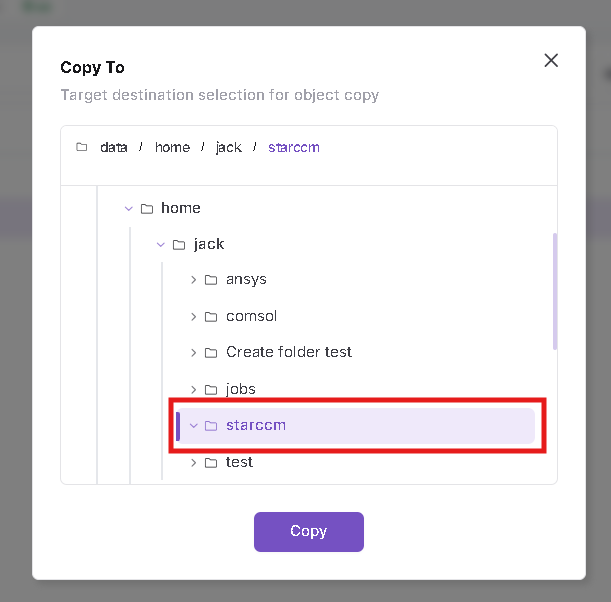
The Copy To dialog opens.
- Expand the folders in the directory tree.
- Select the destination folder.
- Check the destination path displayed above the tree.
- Click Copy.
In this example, the destination is /data/home/jack/starccm.
Step 3: Verify the Copy
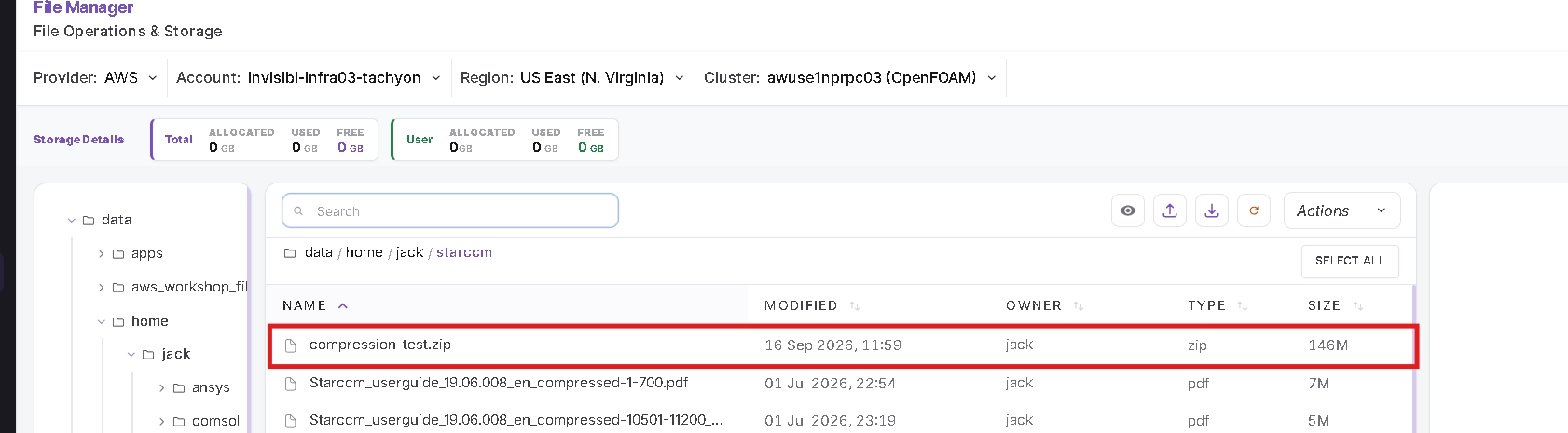
A Files copied successfully. message confirms the operation.
Open the destination directory and verify that the copied item appears there.
Select Multiple Items
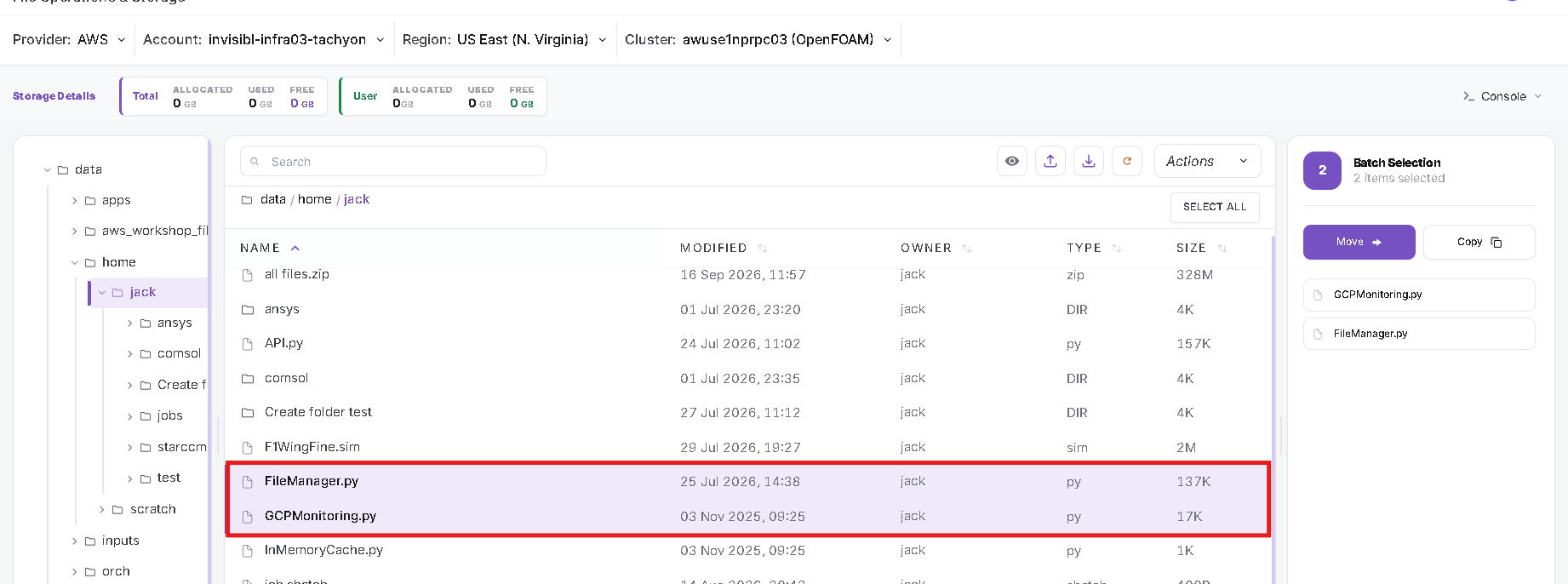
Hold Ctrl and click the required items to select multiple files or folders.
The right-side panel changes to Batch Selection, showing the selected item count and names. It also provides Move and Copy buttons for the selection.
Review the selected items before starting an operation.
Download Files or Folders
Selected files or folders can be prepared as a ZIP archive and downloaded to your computer.
Step 1: Select the Items
Select the files or folders you want to download.
For multiple items, hold Ctrl while selecting them. Check the Batch Selection panel to confirm your selection.
Step 2: Start the Download Request
Open the Actions dropdown and select Download.
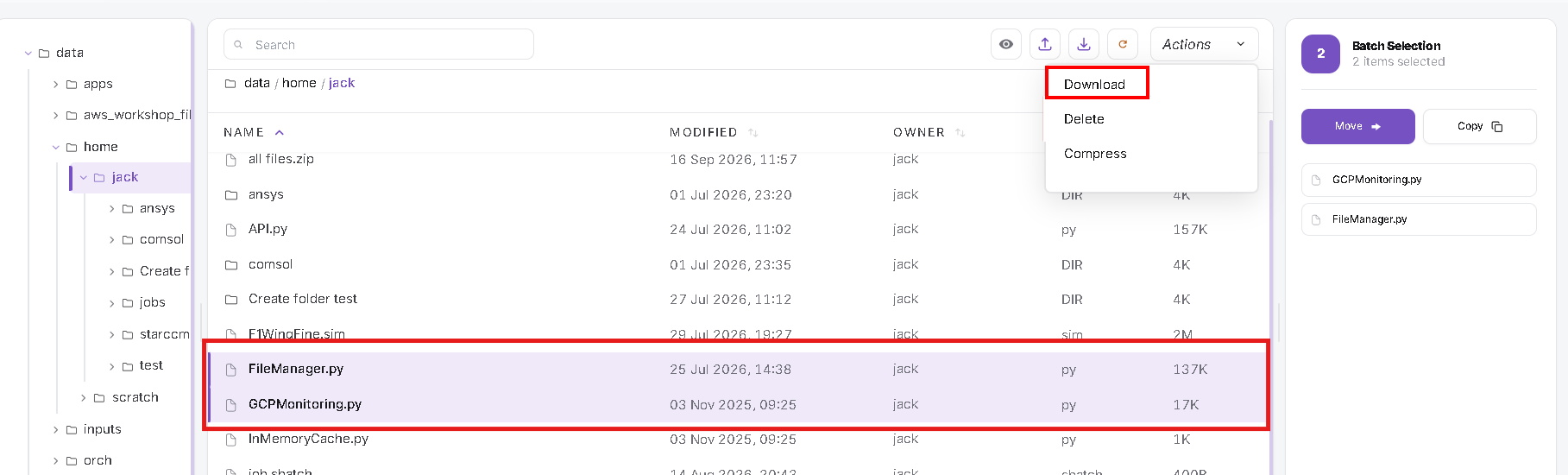
A File download initiated successfully message appears.
This confirms that the request has started. Wait for the archive to become available in the Downloads list.

Step 3: Open the Downloads List
Click the Downloads icon—the downward arrow in the toolbar above the file list.
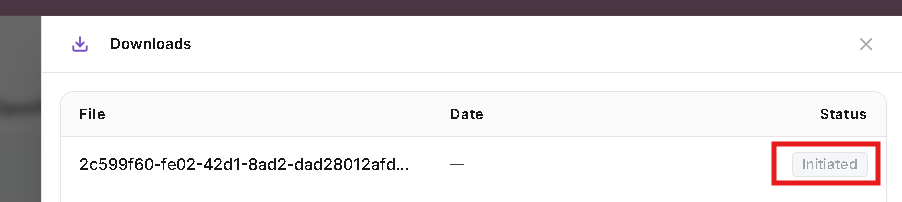
The Downloads dialog displays the following columns:
| Column | Description |
|---|---|
| File | The generated archive identifier or download link. |
| Date | The date and time displayed for the download entry. |
| Status | The current state of the download request. |
A new request may initially show Initiated.
Step 4: Download the Completed ZIP
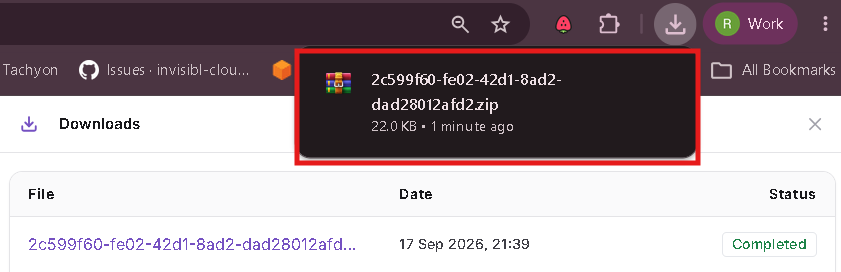
Wait until the entry shows Completed.
Click the linked filename in the File column to download the ZIP archive.
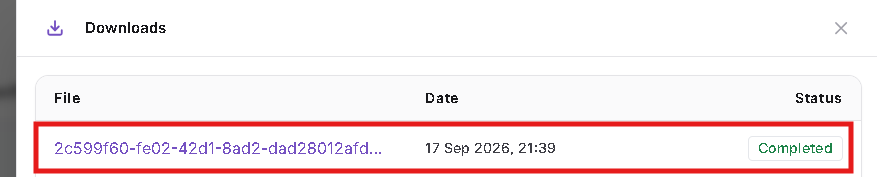
The ZIP appears in your browser's downloads. Open it from the browser or your computer's download location.
Notes
- Check the destination path before confirming a move or copy.
- File operations require the appropriate permissions for the source and destination.
- A download request confirmation does not mean the ZIP has already been saved to your computer. Open the Downloads list and click the archive link after its status becomes Completed.
- ZIP preparation time depends on the selected content.
- If an operation fails or a download does not complete, contact your administrator or support team.