Cluster Applications
The Applications tab in the Cluster Resources side panel displays the applications and versions configured for the selected cluster.
Open Cluster Applications
- Navigate to HPC → Cluster → Clusters.
- Hover over the required cluster card.
- Click View Details.
- Select the Applications tab.
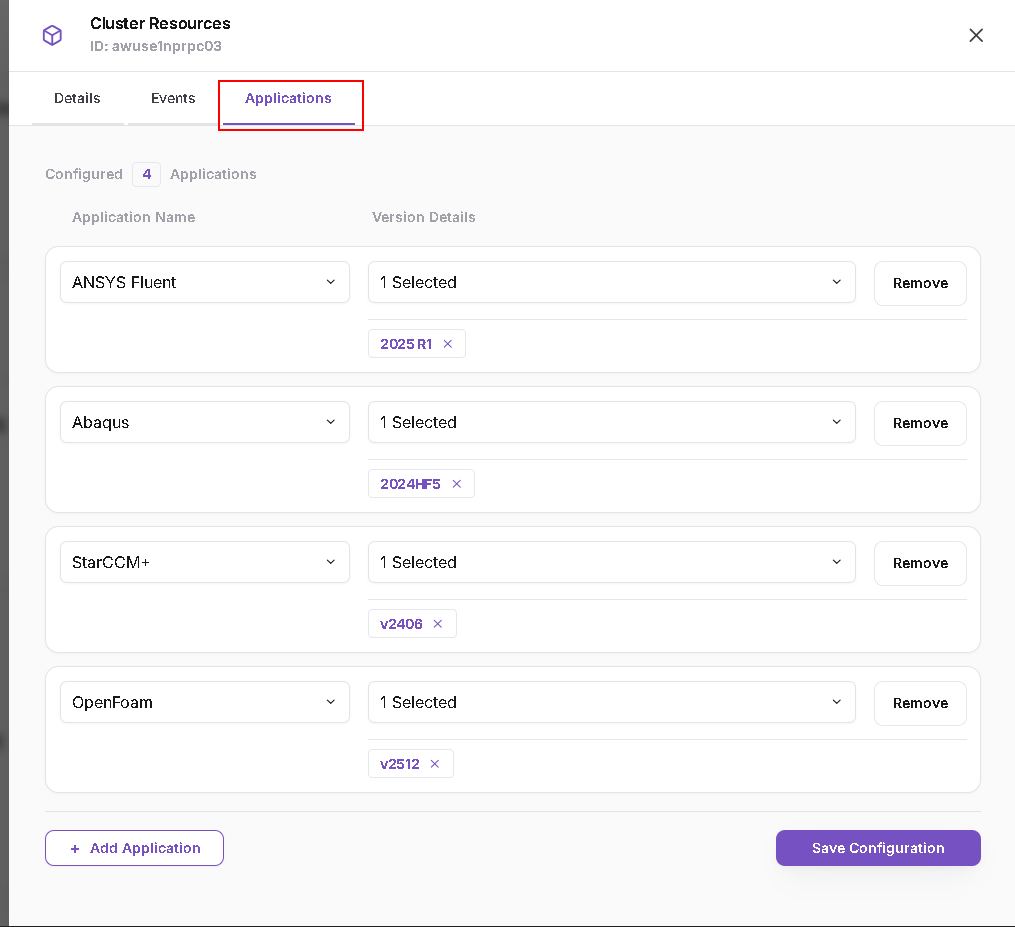
View Configured Applications
The count above the application list shows the number of configured applications.
Each application entry contains:
| Control | Description |
|---|---|
| Application Name | Dropdown showing the selected application |
| Version Details | Selector showing the number of selected versions |
| Version tags | Selected versions displayed below the selector |
| Remove | Removes the application entry from the form |
The screenshot shows four configured applications. The applications and available versions vary by cluster and environment.
Add an Application
- Click Add Application.
- Select the required application in Application Name.
- Select the required version or versions in Version Details.
- Review the selected version tags.
- Repeat for additional applications if needed.
- Click Save Configuration to save the changes.
Update Application Versions
- Locate the application entry.
- Open Version Details.
- Adjust the selected versions.
- To remove a selected version, use the X on its version tag.
- Click Save Configuration.
Remove an Application Entry
- Locate the application entry you want to remove.
- Click Remove.
- Review the remaining entries.
- Click Save Configuration.
Review the application and version selections before saving. Configuring an application entry should not be described as installing software unless that behaviour has been separately confirmed.