Cluster Events
The Events tab in the Cluster Resources side panel displays recorded events for the selected cluster.
Use this tab to review event statuses and messages when investigating cluster operations.
Open Cluster Events
- Navigate to HPC → Cluster → Clusters.
- Hover over the required cluster card.
- Click View Details.
- Select the Events tab.
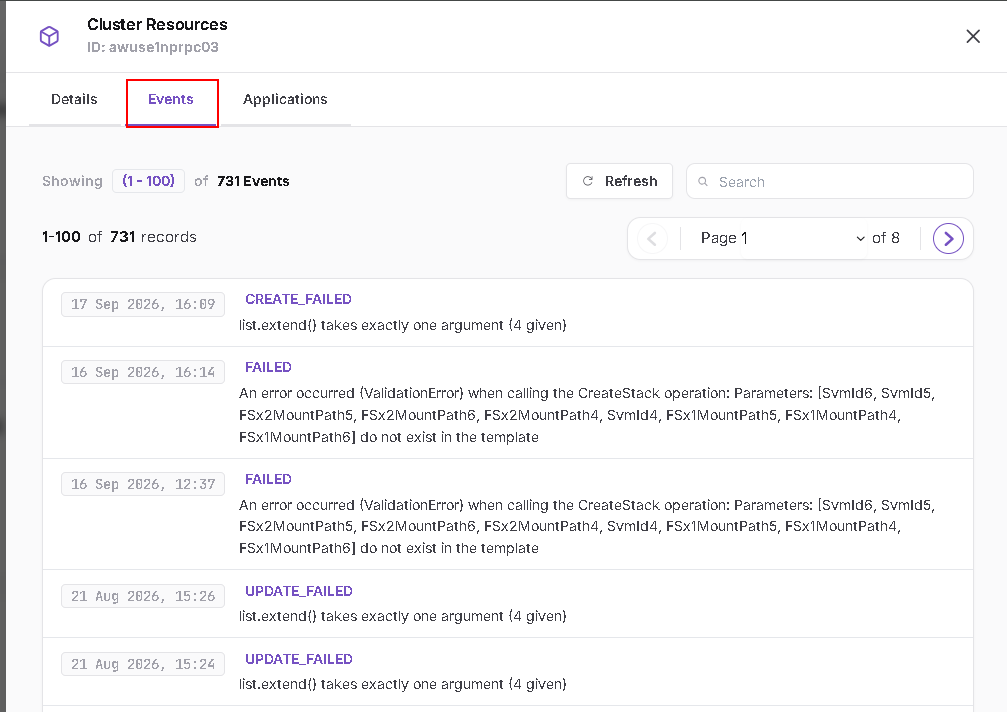
Event List
Each event entry displays:
| Item | Description |
|---|---|
| Timestamp | Date and time shown for the event |
| Status | Recorded event status |
| Message | Description or error information associated with the event |
For example, the screenshot includes CREATE_FAILED, FAILED, and UPDATE_FAILED entries with explanatory messages.
The displayed statuses and messages depend on the selected cluster and its recorded operations.
Search and Refresh
- Use the Search field to search the event list.
- Clear the search text to return to the unfiltered list.
- Click Refresh to reload the events.
Pagination
The panel displays the current record range and total event count.
Use:
- The previous and next arrows to move between pages.
- The page selector to choose another page.
The counts shown in the screenshot are examples.
Review a Failed Event
- Locate the event associated with the operation you are investigating.
- Review its timestamp and status.
- Read the accompanying message.
- Share the cluster identifier, timestamp, status, and message with the relevant support team when further investigation is required.
Click the X in the upper-right corner to close the panel.