Manage Files & Folders
This page explains how to create a folder, rename or delete an item, and open and edit a supported file.
Before starting, open File Manager, select the required cluster, and navigate to the directory you want to work in.
Create a Folder
- Open the Actions menu above the file list.
- Select Create Folder.
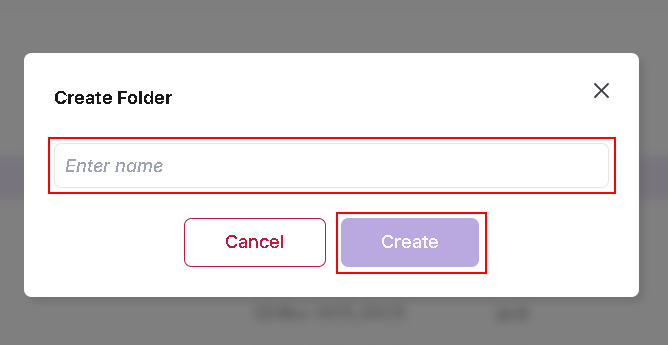
- In the Create Folder dialog, enter the folder name in the Enter name field.
- Click Create.
- Check the directory listing for the new folder.
To close the dialog without creating a folder, click Cancel.
Rename a File or Folder
- Select the file or folder in the directory listing.
- Open Actions → Rename.
- Replace the existing name with the new name.
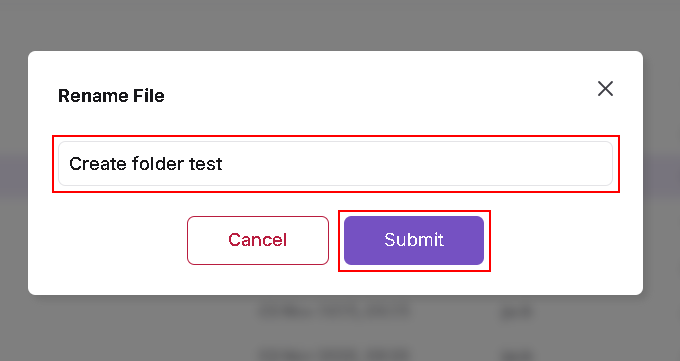
- Click Submit.
- Check the updated name in the directory listing.
The current dialog is titled Rename File, including when a folder is selected, as shown below.
Click Cancel to close the dialog without applying the change.
Delete a File
- Select the file you want to delete.
- Open Actions → Delete.
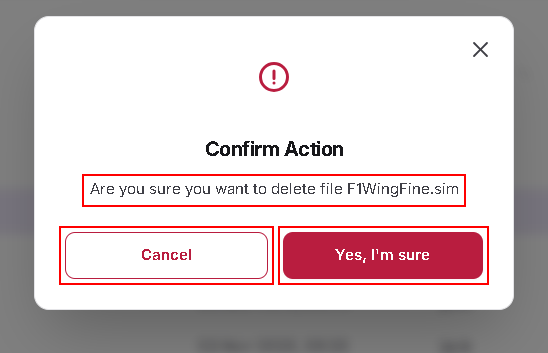
- In the Confirm Action dialog, check the file name.
- Click Yes, I'm sure to confirm deletion, or Cancel to keep the file.
- After confirming, check that the file is no longer listed.
Delete a Folder
- Select the folder you want to delete.
- Open Actions → Delete.
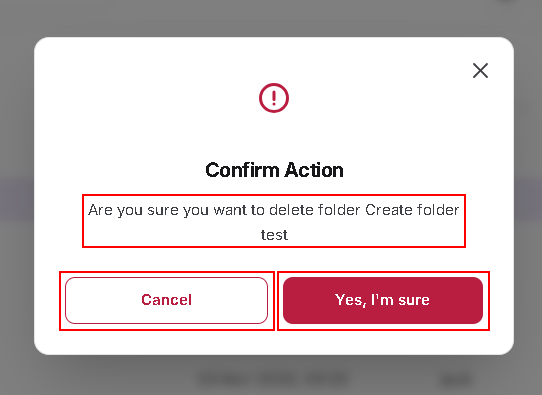
- In the Confirm Action dialog, check the folder name.
- Click Yes, I'm sure to confirm deletion, or Cancel to keep the folder.
- After confirming, check that the folder is no longer listed.
Delete Multiple Files
- Hold Ctrl and click each file you want to delete.
- Ensure that only files are selected.
- Open Actions → Delete.
- Review the deletion confirmation and confirm to proceed.
- Check that the selected files are no longer listed.
Delete Multiple Folders
- Hold Ctrl and click each folder you want to delete.
- Ensure that only folders are selected.
- Open Actions → Delete.
- Review the deletion confirmation and confirm to proceed.
- Check that the selected folders are no longer listed.
Selection restriction: Files and folders cannot be deleted together in one mixed selection. Delete files and folders in separate operations.
Open and View a File
- Select a file in the directory listing.
- Open Actions → Open.
- Review the file contents in the viewer.
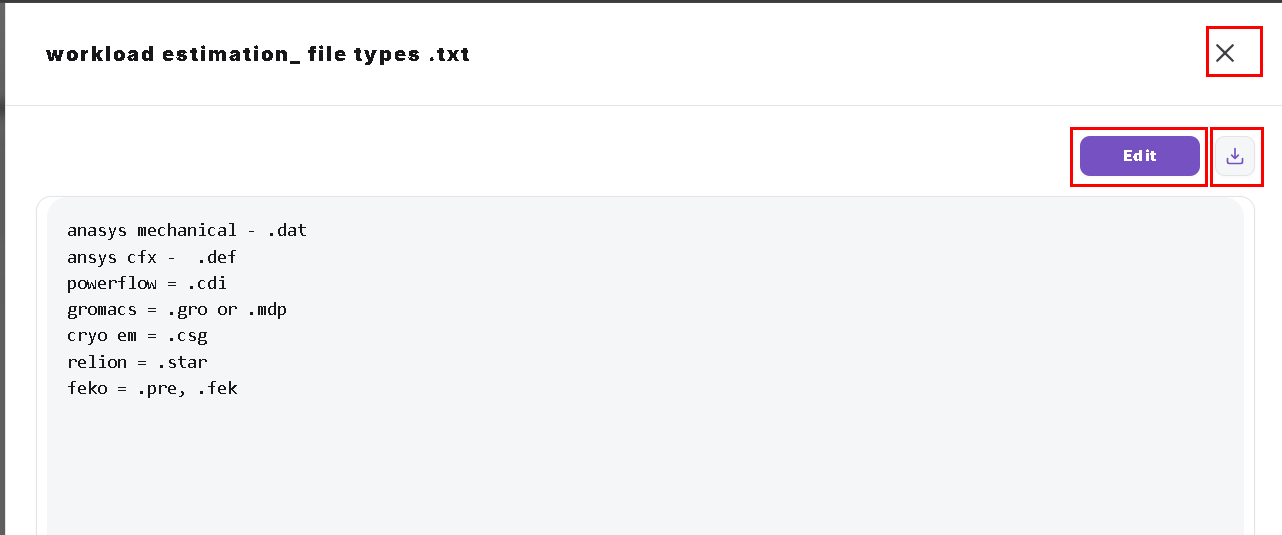
The viewer displays the file name at the top. For the text file shown below, the controls include:
- Edit: Switch to editing the file.
- Download icon: Download the file.
- X: Close the viewer.
Edit and Update a File
- Open a supported file that you have permission to edit.
- Click Edit in the viewer.
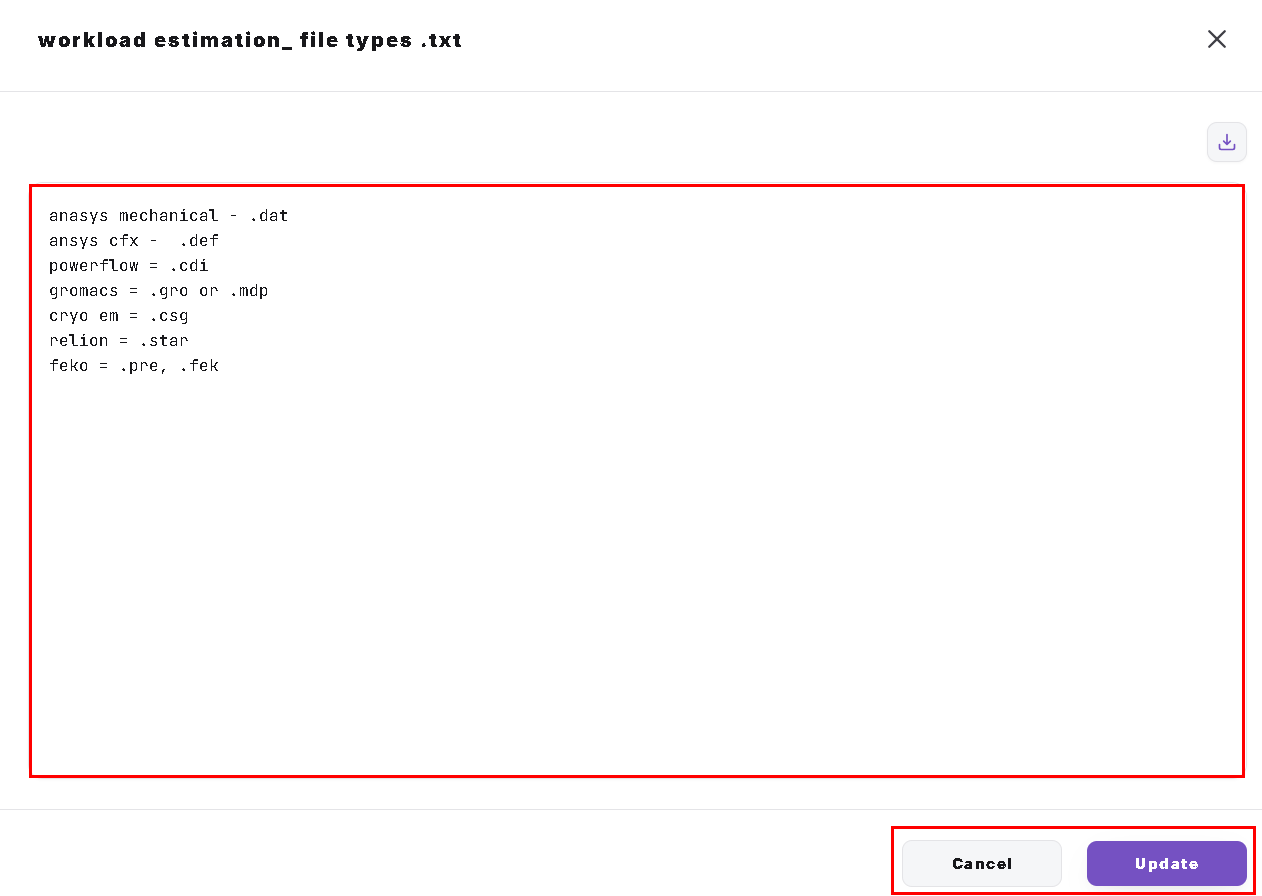
- Make the required changes in the editor.
- Click Update at the bottom to save the changes.
- Reopen the file to verify the saved content.
Click Cancel to leave edit mode without applying your changes.
The screenshot below shows a text file in edit mode, with Cancel and Update at the bottom.
General Notes
- Only
.txt,.sh, and.yamlfiles can be edited directly in File Manager. - Only the file owner can edit a file. Users cannot edit files owned by other users.
- Hold Ctrl and click individual items to select multiple files or folders.
- Multiple files can be deleted together, and multiple folders can be deleted together.
- A mixed selection containing both files and folders prevents deletion. Perform these deletions separately.
- Check the selected items before confirming a rename or deletion.
- Contact your administrator if an operation is unavailable or fails.