Manage Project Members
Project membership determines which users can access a project during supported workload flows.
Managers and Administrators can manage the users assigned to a project.
Step 1: Open Manage Members
Navigate to:
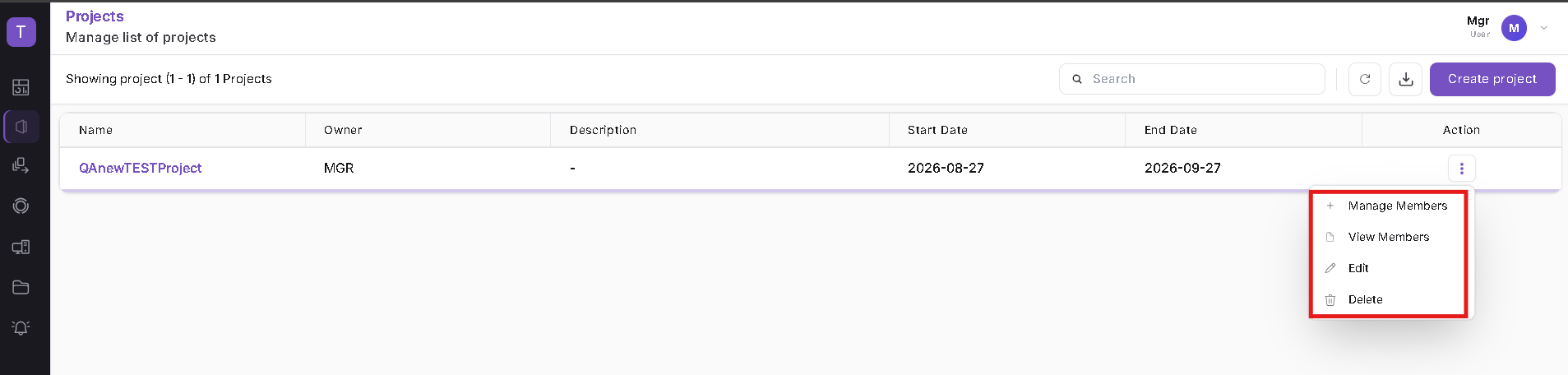
HPC → Projects
Locate the required project.
Open the three-dot Action menu and select Manage Members.
Step 2: Review Available and Assigned Users
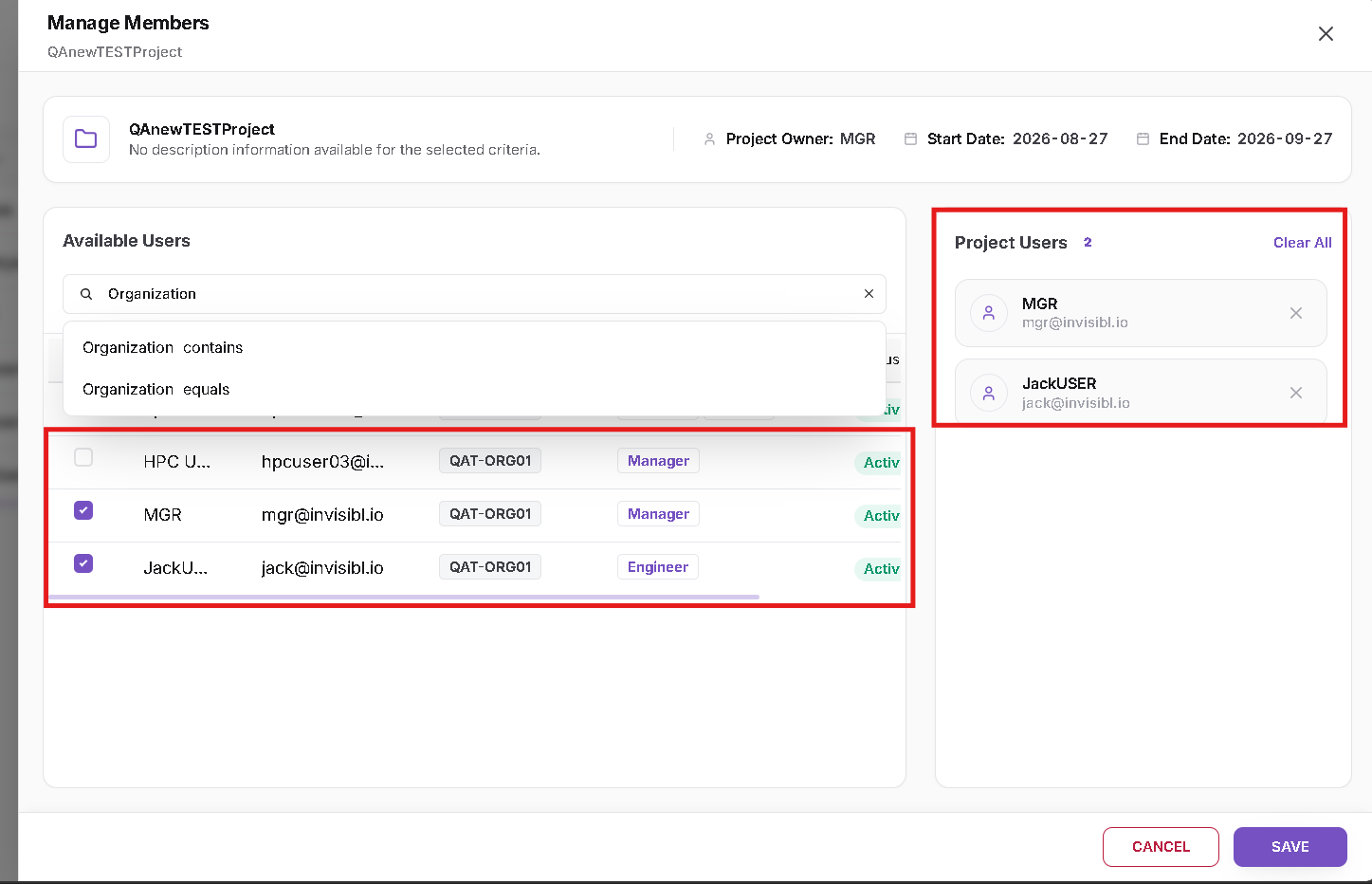
The Manage Members page displays project information at the top of the page and separates users into two sections:
Available Users
Displays users who can be added to the project.
The available-user information can include:
- User Name
- Department or Organization
- User Groups
- Role
- Status
Project Users
Displays users currently assigned to the project.
Step 3: Search and Filter Users
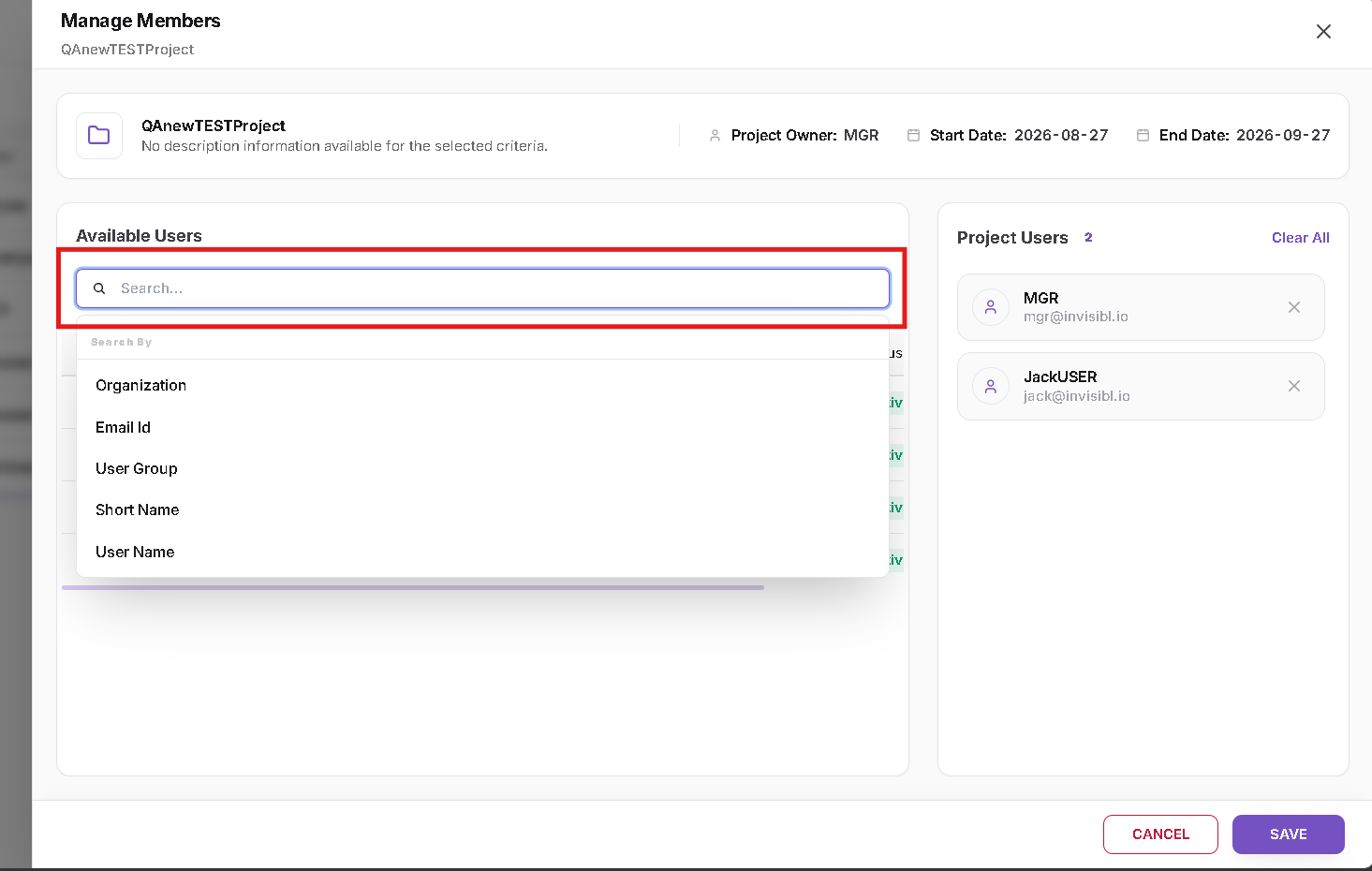
Use the search control in the Available Users section to locate the required user.
The available search or filter criteria include:
- Organization
- Email ID
- User Group
- Short Name
- User Name
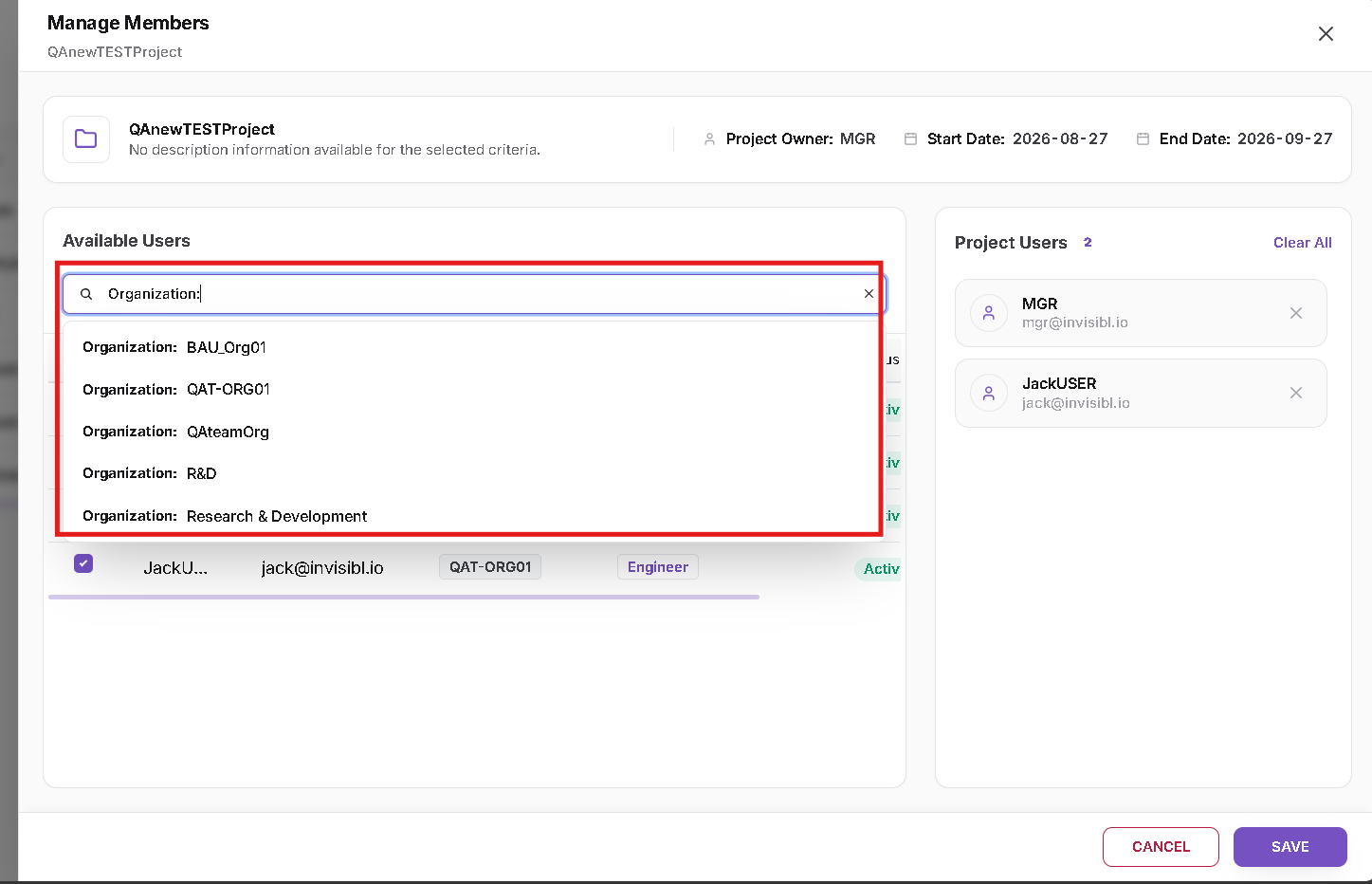
When Organization is selected, choose the required organization to display matching users.
Step 4: Add Users to the Project
To add a user:
- Locate the required user under Available Users.
- Use Search or Filter if required.
- Select the checkbox next to the required user.
- Verify that the user appears under Project Users.
- Repeat the process when multiple users need to be added.
- Click Save.
The selected users are now members of the project.
Step 5: Remove Users from the Project
To remove an existing project member:
- Locate the user under Project Users.
- Click the × icon next to the user, or clear the corresponding user selection.
- Verify that the user is removed from Project Users.
- Click Save.
After the membership change is saved, the removed user will no longer have access to that project in supported workload flows.
View Project Members
To review the current membership without modifying it:
Navigate to:
HPC → Projects → Actions → View Members
The User List displays the users currently assigned to the selected project.
The following information is displayed:
- Name
- Short Name
- User Group
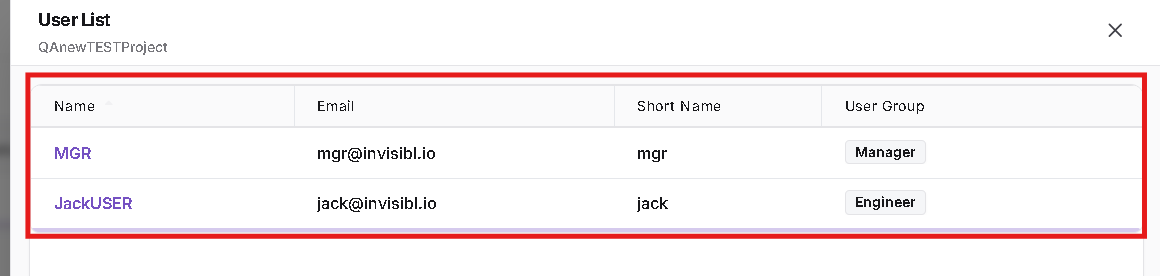
This provides a read-only view of the current project membership.
Project Membership and User Access
Project membership directly controls project availability for supported workloads.
The relationship is:
Manager/Admin → Project → Project Members → User Workload Access
After a user is added and the membership is saved, the assigned project becomes available to that user during supported workload operations.
If the user is removed and the change is saved, the project is no longer available to that user.
- Use Manage Members to add or remove project users.
- Use View Members for a read-only view of project membership.
- Membership changes affect project availability in supported workload flows.
- Save membership changes before leaving the Manage Members page.