File Manager
Overview
The File Manager allows you to browse directories, review storage usage, inspect file information, and perform file and folder operations within the selected cluster.
Access File Manager
- Select File Manager from the navigation menu.
- Choose the appropriate Provider, Account, Region, and Cluster using the selectors at the top of the page.
- Browse the available directories and files.
Storage Details
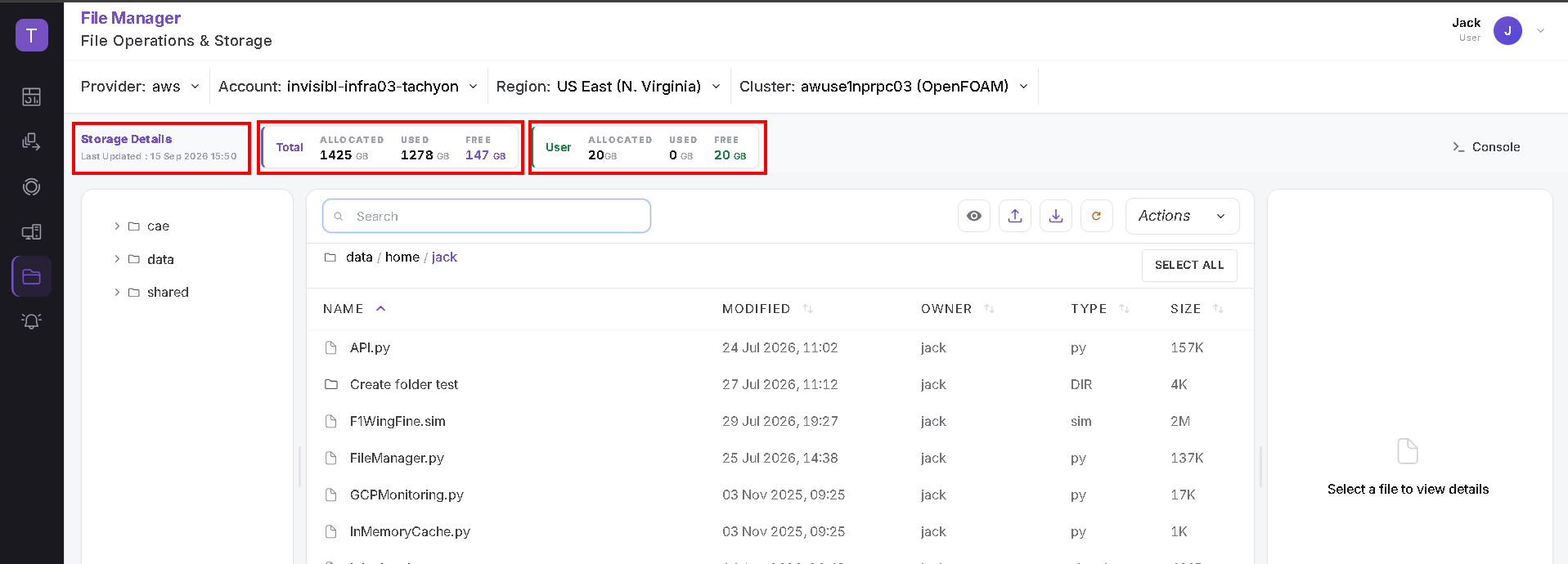
The Storage Details section displays two cards:
- Total: Storage information for the selected environment.
- User: Storage information for your user account.
Each card shows:
- Allocated: Allocated storage capacity.
- Used: Storage currently used.
- Free: Remaining storage capacity.
The Last Updated timestamp appears beside the storage information. Storage values vary by environment and user account.
Browse Directories and Files
The interface has three main areas:
- Left panel: A directory tree for browsing folders.
- Center panel: The contents of the current directory.
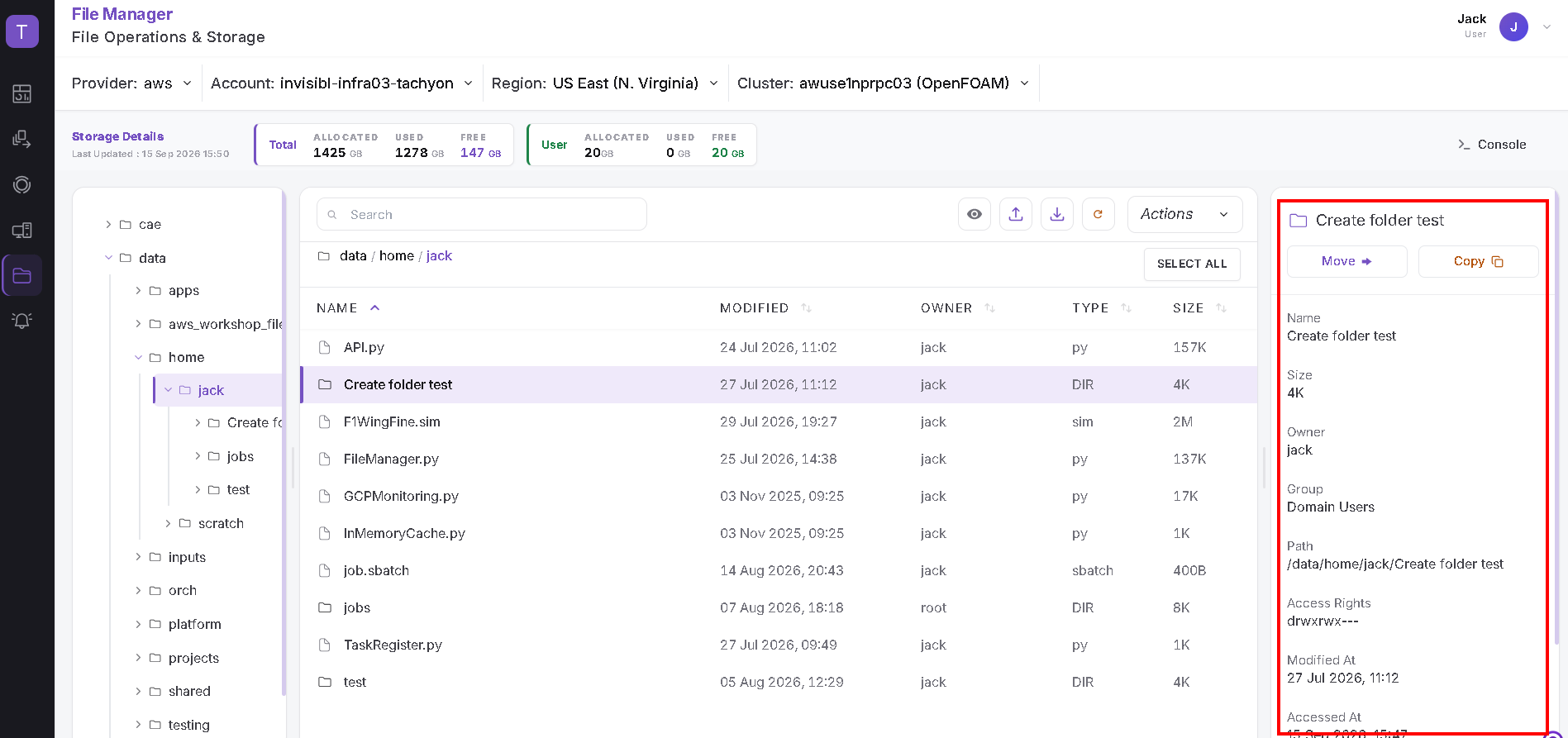
- Right panel: Information about the selected file or folder.
Expand folders in the directory tree to explore their contents. The path above the file list identifies the current directory.
The file list contains these columns:
| Column | Description |
|---|---|
| Name | File or folder name |
| Modified | Last modification date and time |
| Owner | Owner of the file or folder |
| Type | File type or directory indicator |
| Size | Displayed file or folder size |
Use the Search field to find items in the file listing. The column headers provide sorting controls.
Click an item to select it. The selected row is highlighted. A SELECT ALL control is available above the list.
File and Folder Details
Selecting a file or folder displays its information in the right panel, including:
- Name
- Size
- Owner
- Group
- Path
- Access Rights
- Modified At
- Accessed At
Scroll within the panel to view information below the visible area.
The Move and Copy buttons appear at the top of this panel. For the full workflow, see Move, Copy & Download.
Actions Menu
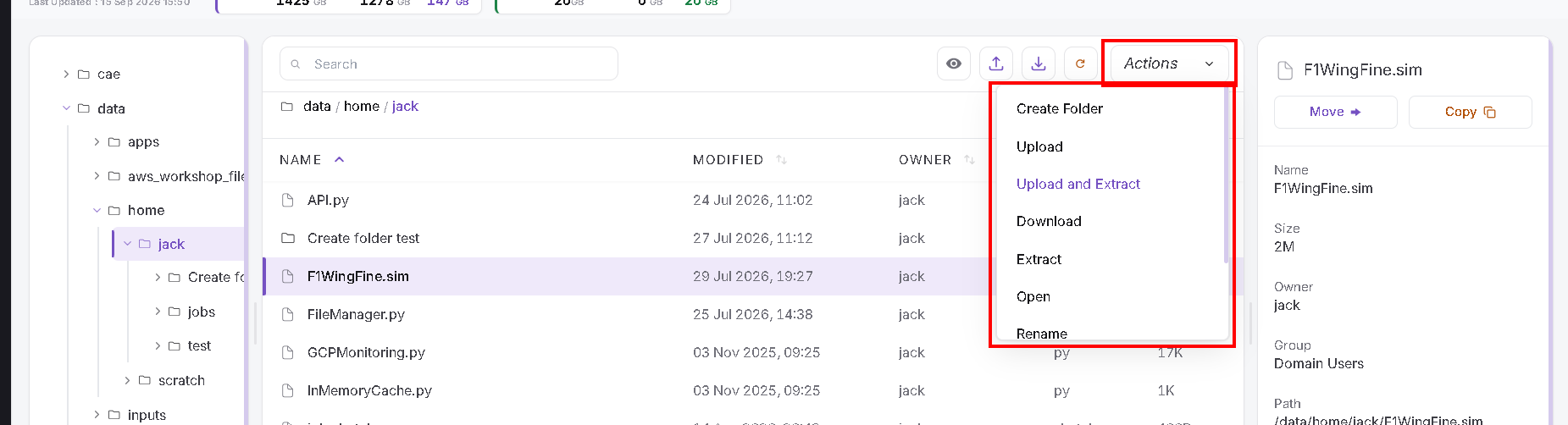
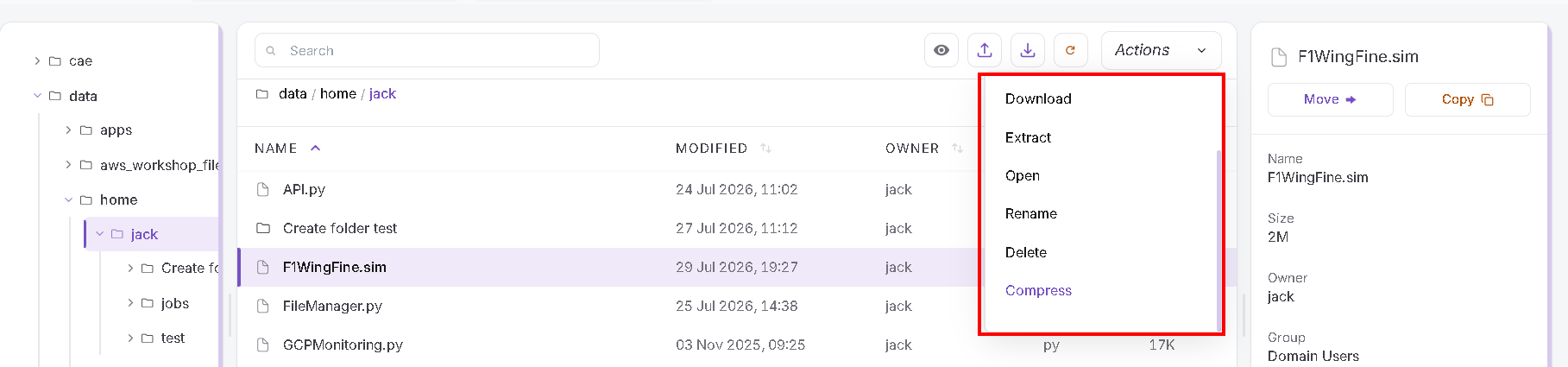
The Actions menu is above the file listing. Its contents depend on the selected item. Scroll inside the menu to see additional options.
File Actions
The file menu includes:
- Create Folder
- Upload
- Upload and Extract
- Download
- Extract
- Open
- Rename
- Delete
- Compress
Choose an action appropriate to the selected file and your access rights.
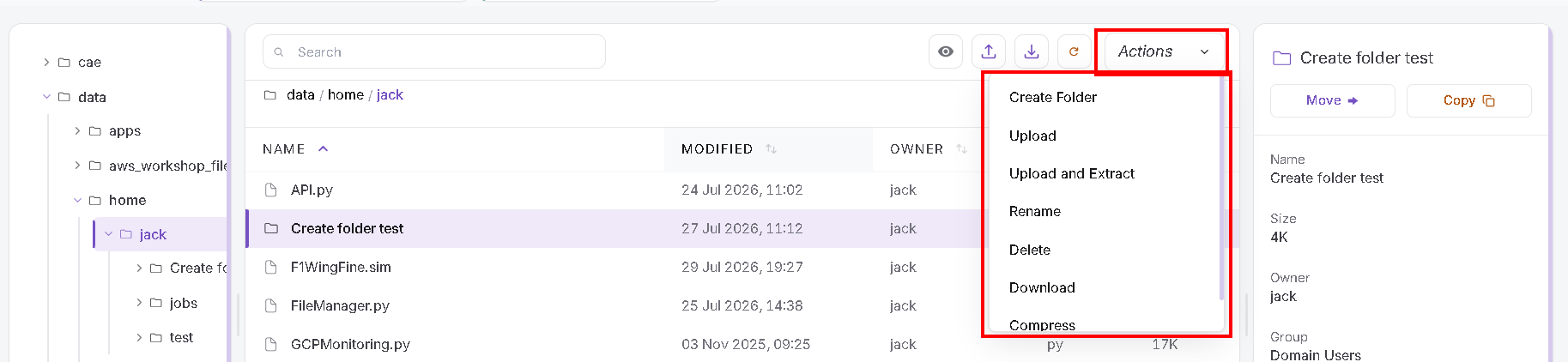
Folder Actions
The folder menu shown below includes:
- Create Folder
- Upload
- Upload and Extract
- Rename
- Delete
- Download
- Compress
Sharing in the Shared Directory
For files and folders under /shared, the Actions menu also
provides Share to manage permissions for the Domain Users group.
See Sharing & Permissions for the full workflow.
Refresh and Console
- Use the refresh icon above the file list to reload its contents.
- The Console control appears near the storage section. See Shell Access for terminal access instructions.
Related Tasks
General Notes
- Check the selected cluster and current directory before performing file operations.
- Review the selected item's name and path before renaming, moving, or deleting it.
- Contact your administrator if you encounter access or file-operation issues.