Budget
The Budget tab is used to configure and manage provider, organisation-level, and user-level budget allocations.
Navigation
Navigate to:
Billing → Budget
The Budget page contains:
- An organisation-level tab whose name follows the configured organisation terminology.
- User
- Credits
Organisation-level Budget
The organisation-level tab displays the cloud provider budget/credit summary and the active budget allocations for the configured organisation hierarchy.
The page includes:
- Cloud provider annual budget and credit summary.
- Currency selector.
- Provider Budget.
- Active Allocations table.
- Search.
- New Budget.
- Refresh and download controls.
- Actions for existing budget records.
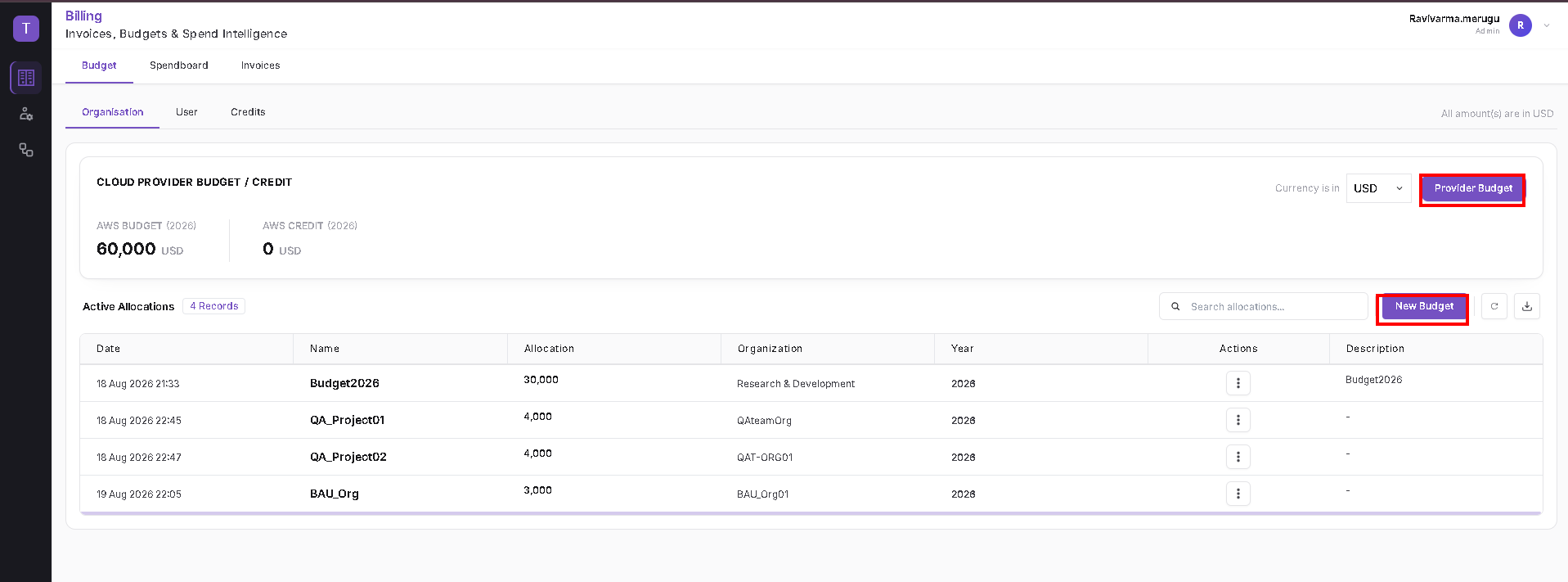
Configure Provider Budget
- Click Provider Budget.
- In Provider Budget — Annual Infrastructure Budget, select the required Year.
- Review the provider information for the selected year.
- Enter or update the annual provider commitment as required.
- Review the displayed Allocated and Available values.
- Click Save Configuration.
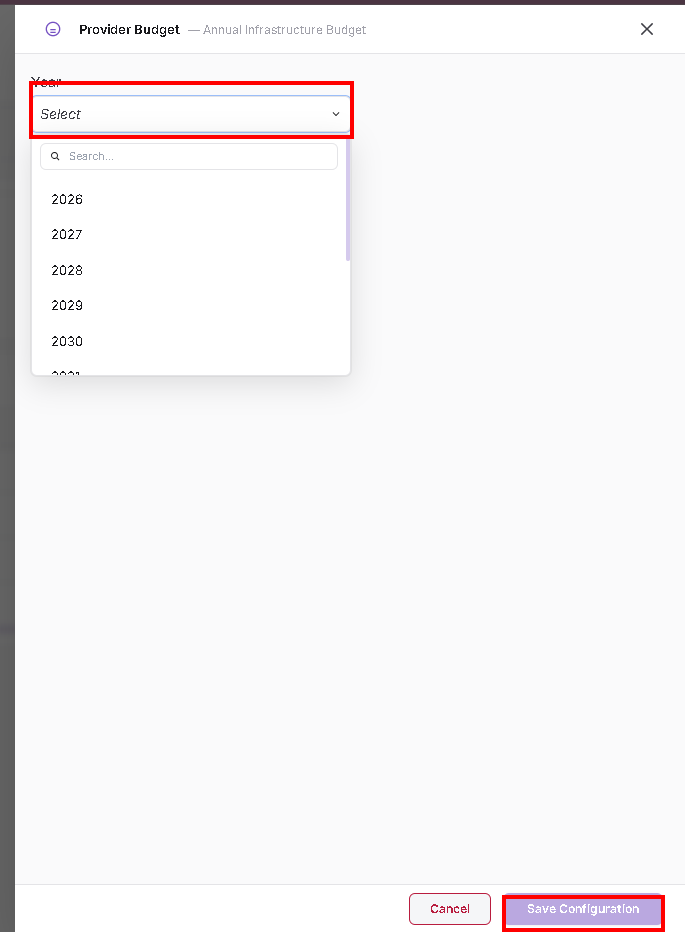
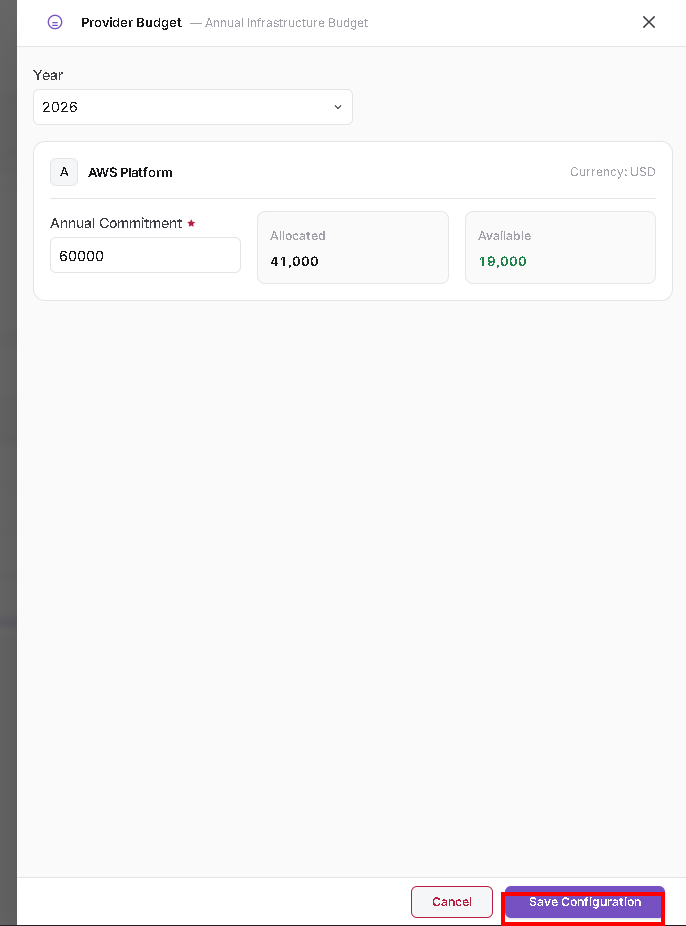
Create an Organisation-level Budget
- From the organisation-level Budget tab, click New Budget.
- In General Configuration, enter:
- Budget Identity
- Year
- Business Purpose, if required.
- In Organisation Allocation, select the required organisation level and Primary Cloud Provider.
- Review the Current Utilization Matrix.
- Configure the Annual Operating Budget and monthly allocation values.
- Use the available allocation option when the budget should be distributed automatically across the year/future months.
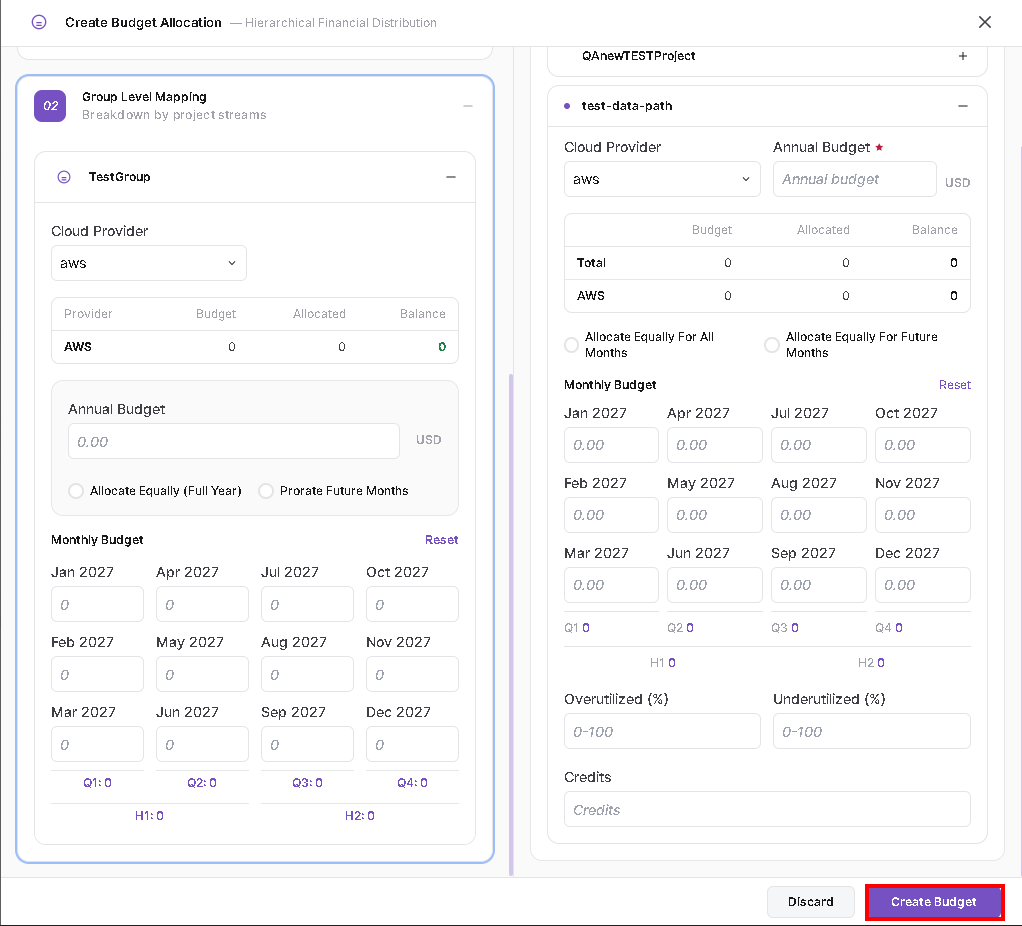
- Open Group Level Mapping to configure the required group.
- Add the applicable project stream(s) and configure their provider/budget distribution.
- Review the total and balance values before saving.
- Click Create Budget.
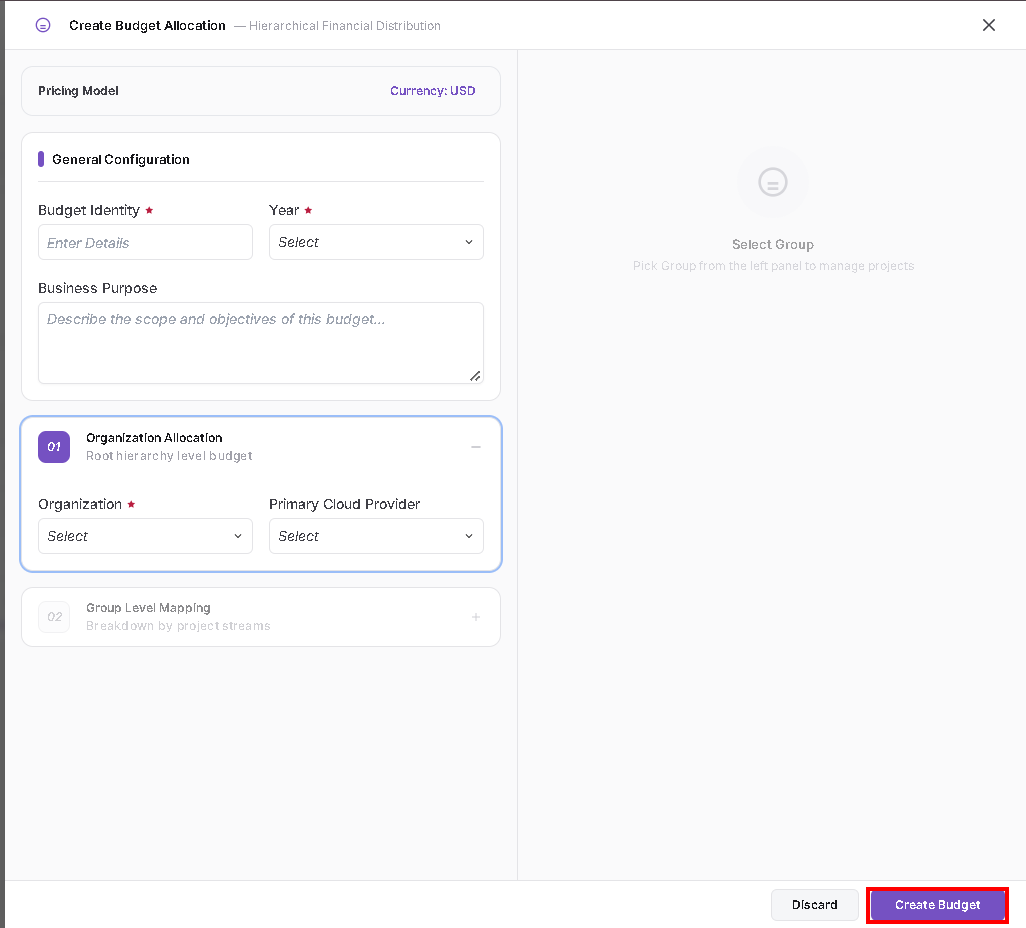
Edit an Organisation-level Budget
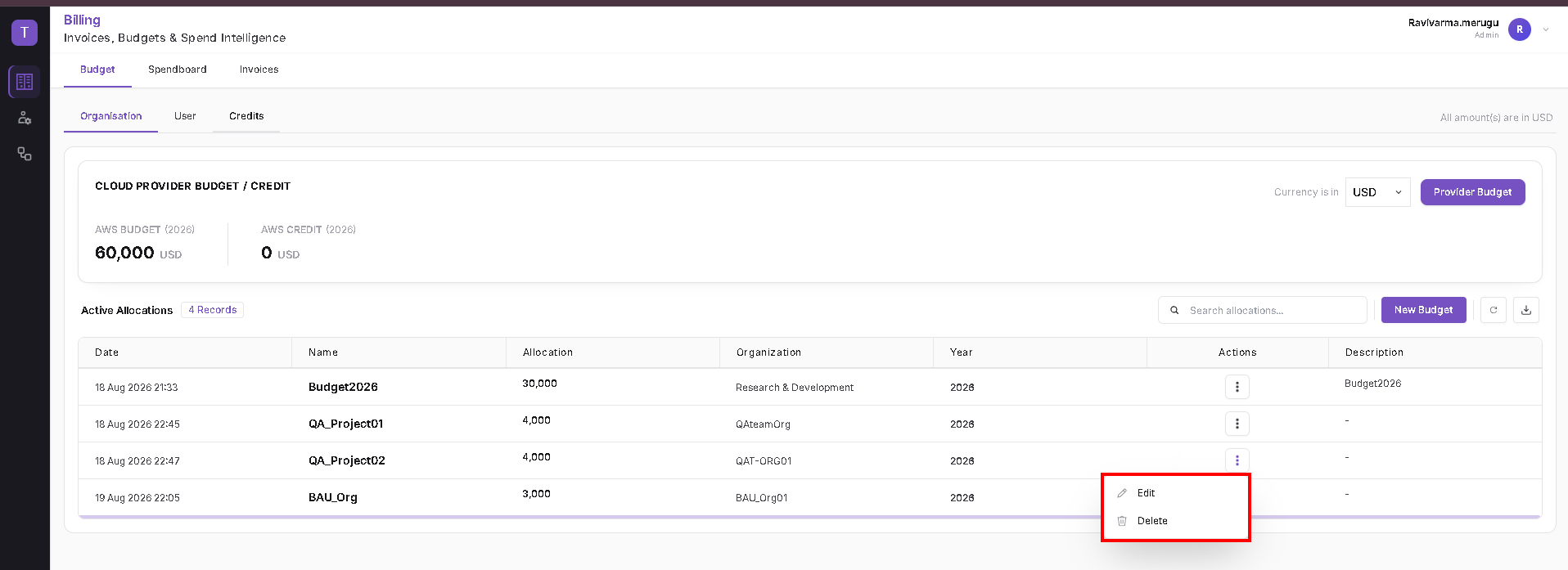
- Locate the required record under Active Allocations.
- Open the three-dot Actions menu.
- Select Edit.
- Update the required budget, organisation, group, project, or allocation values.
- Review the updated totals and balances.
- Click Update Allocation.
The same Actions menu also provides Delete.
User-level Budget
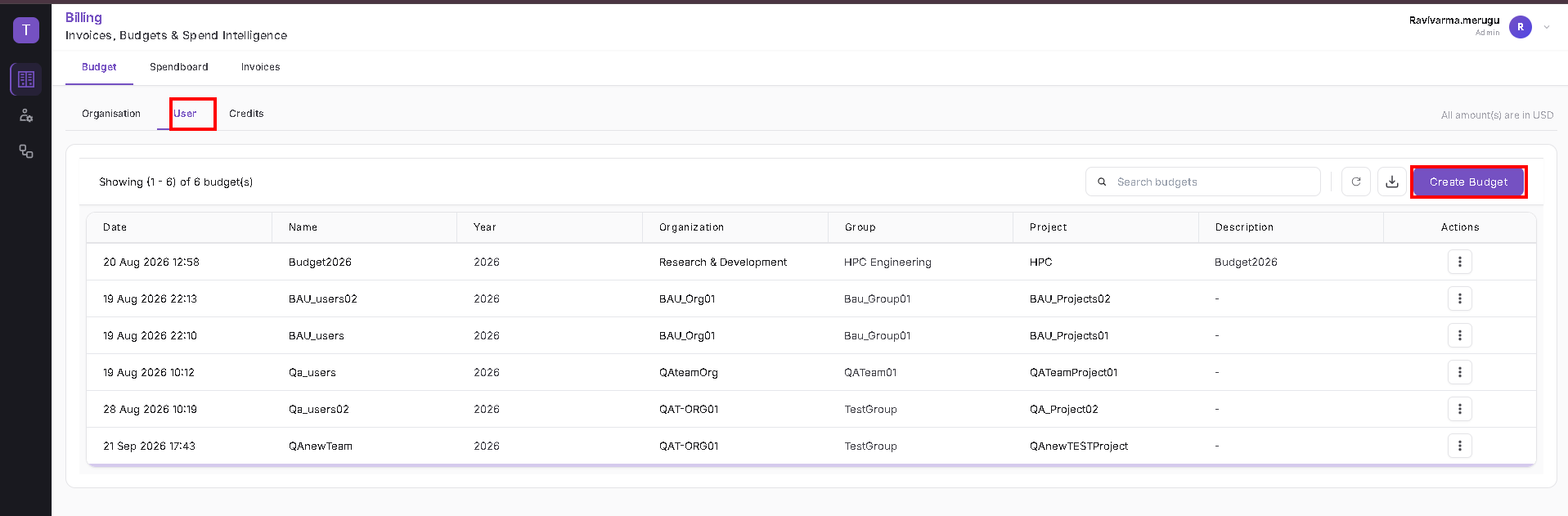
Select the User sub-tab to configure budgets that are mapped through organisation, group, project, and cluster resources down to user allocation.
The User budget list displays:
- Date
- Name
- Year
- Organisation
- Group
- Project
- Description
- Actions
It also provides search, refresh, download, and Create Budget controls.
Create a User Budget
- Click Create Budget.
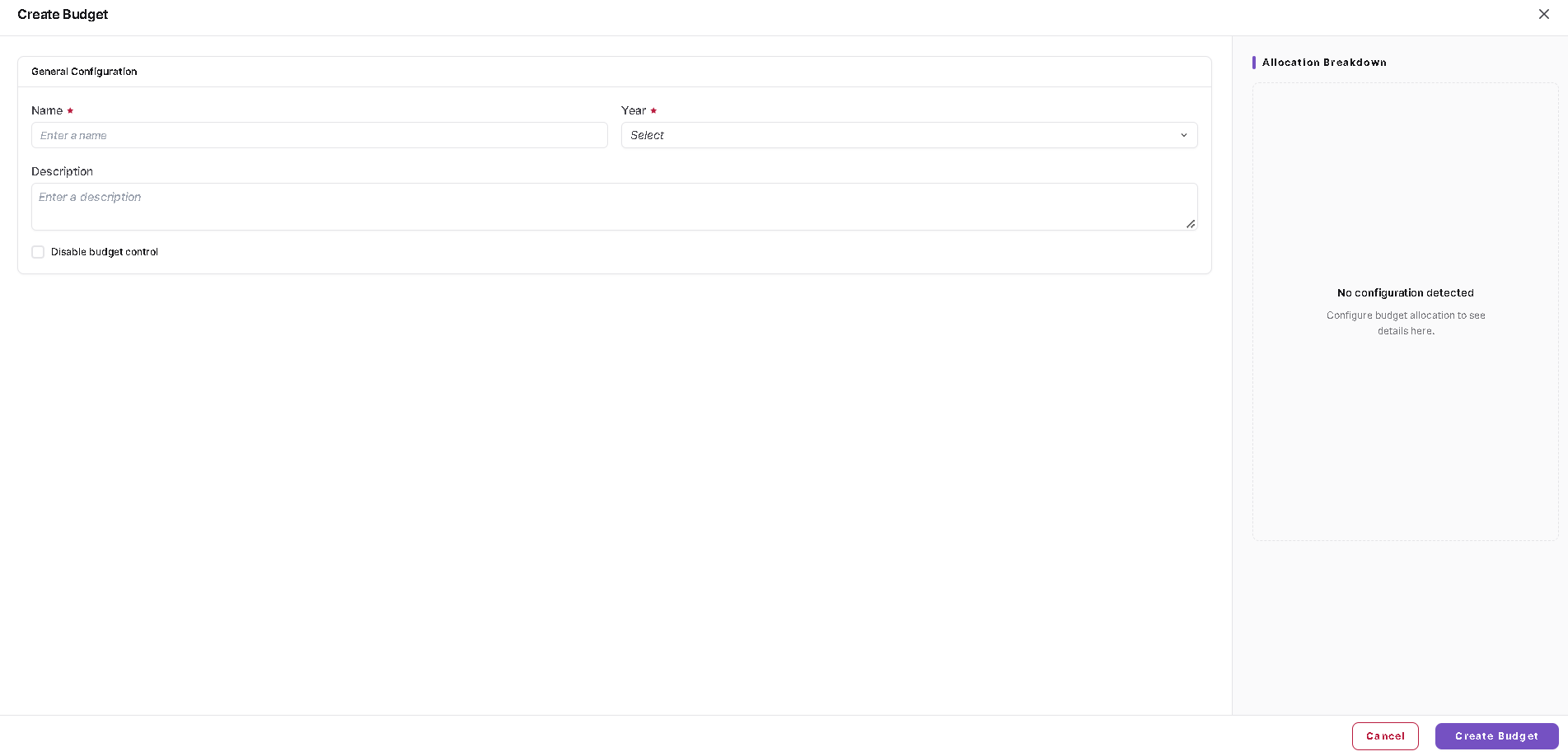
- In General Configuration, enter:
- Name
- Year
- Description, if required.
- Use Disable budget control only when the budget should not enforce the configured control.
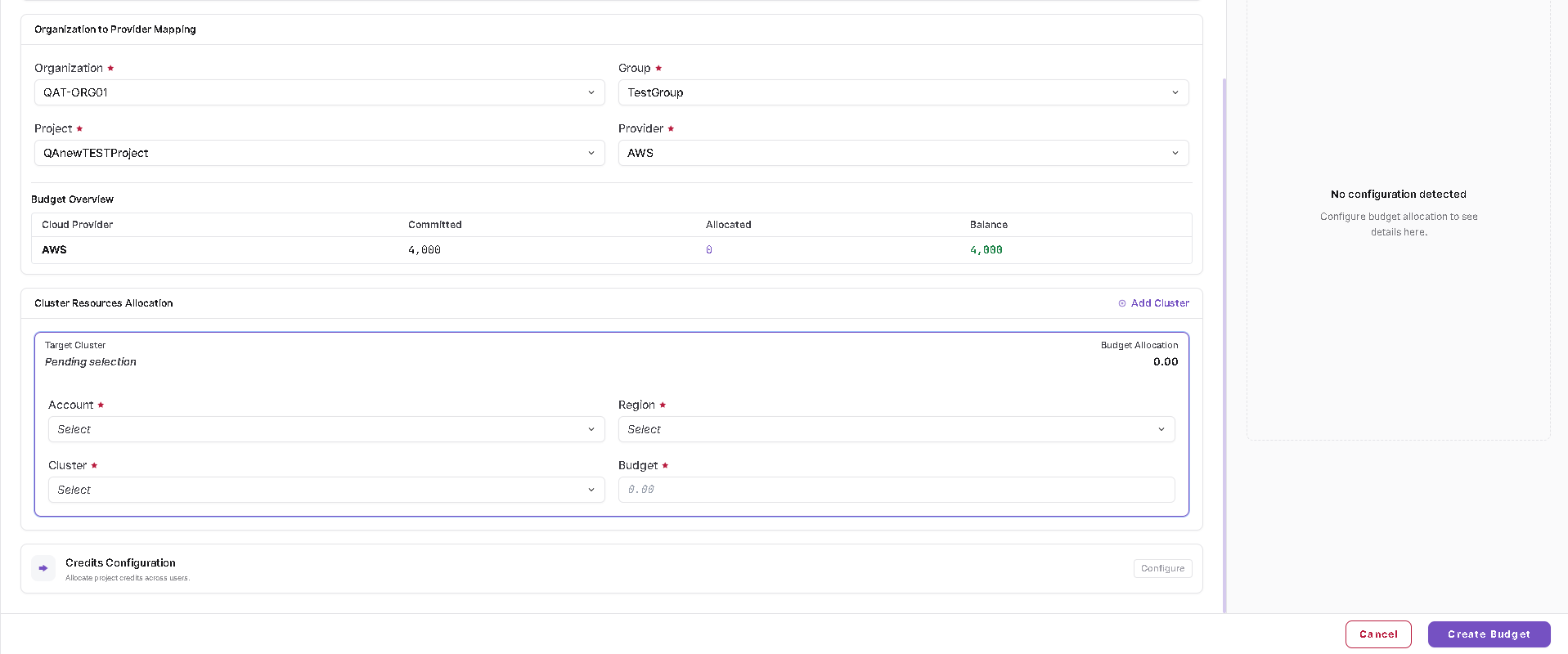
- Under Organisation to Provider Mapping, select:
- Organisation
- Group
- Project
- Provider
- Review the Budget Overview showing committed, allocated, and balance values.
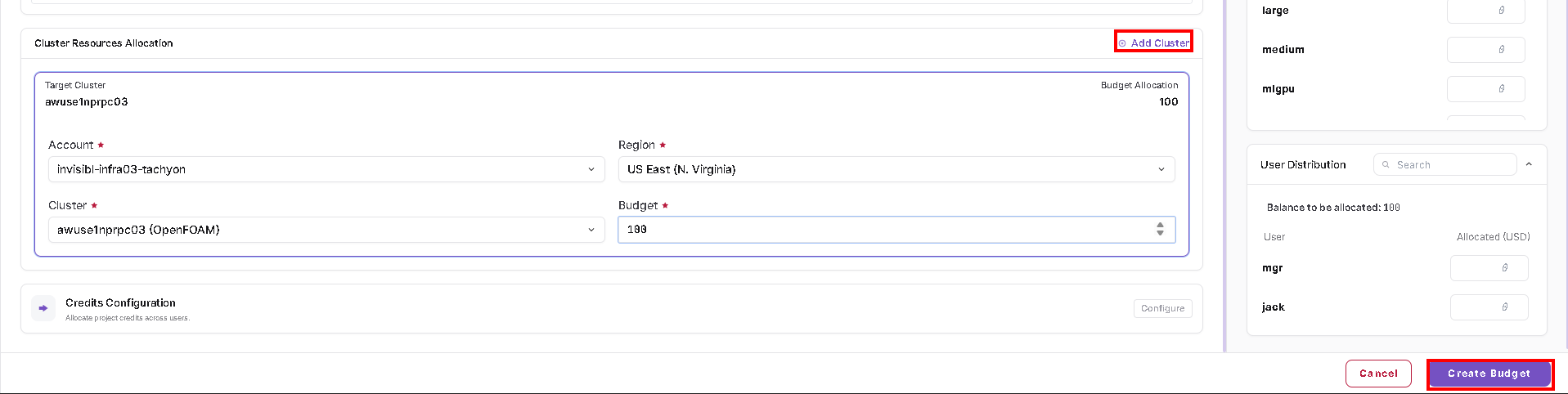
- Under Cluster Resources Allocation, click Add Cluster when another cluster allocation is required.
- Select the:
- Account
- Region
- Cluster
- Budget amount
- Review the Allocation Breakdown on the right.
- Allocate the available budget across the displayed Queue Distribution and User Distribution entries as required.
- Review the remaining balance.
- Click Create Budget.
Edit a User Budget
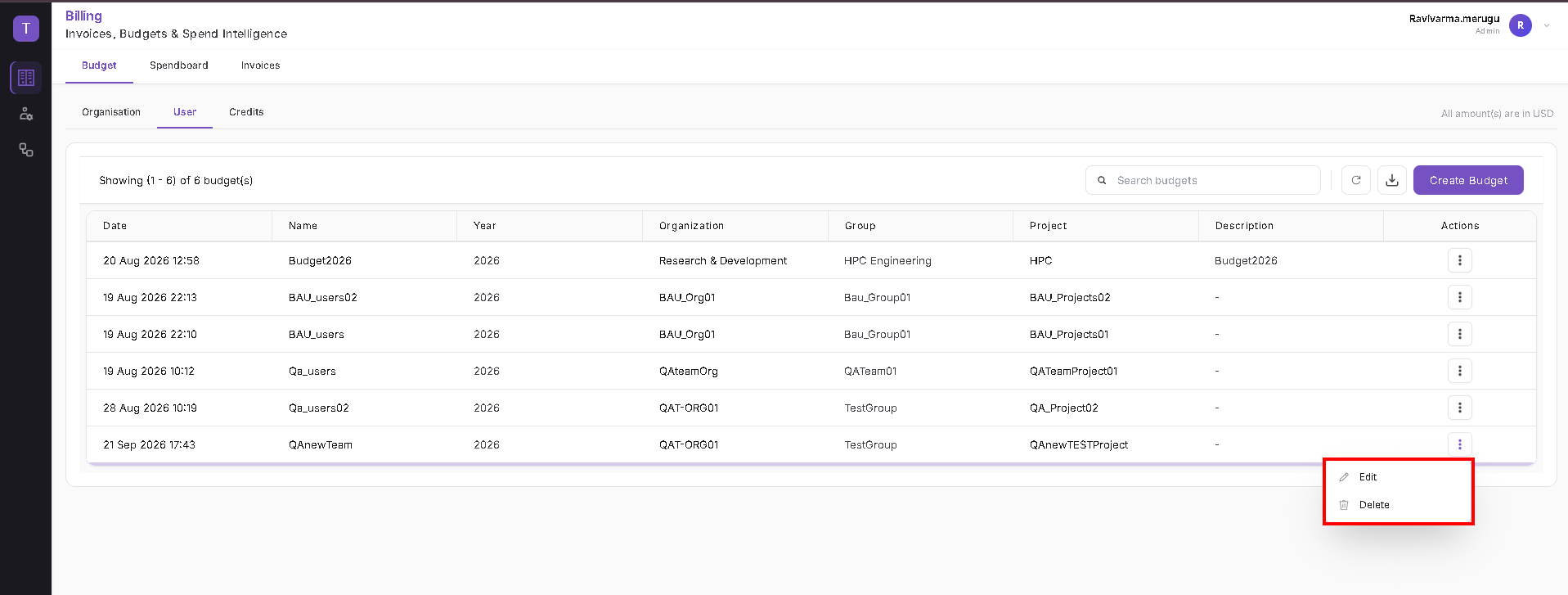
- Locate the required user budget.
- Open the three-dot Actions menu.
- Select Edit.
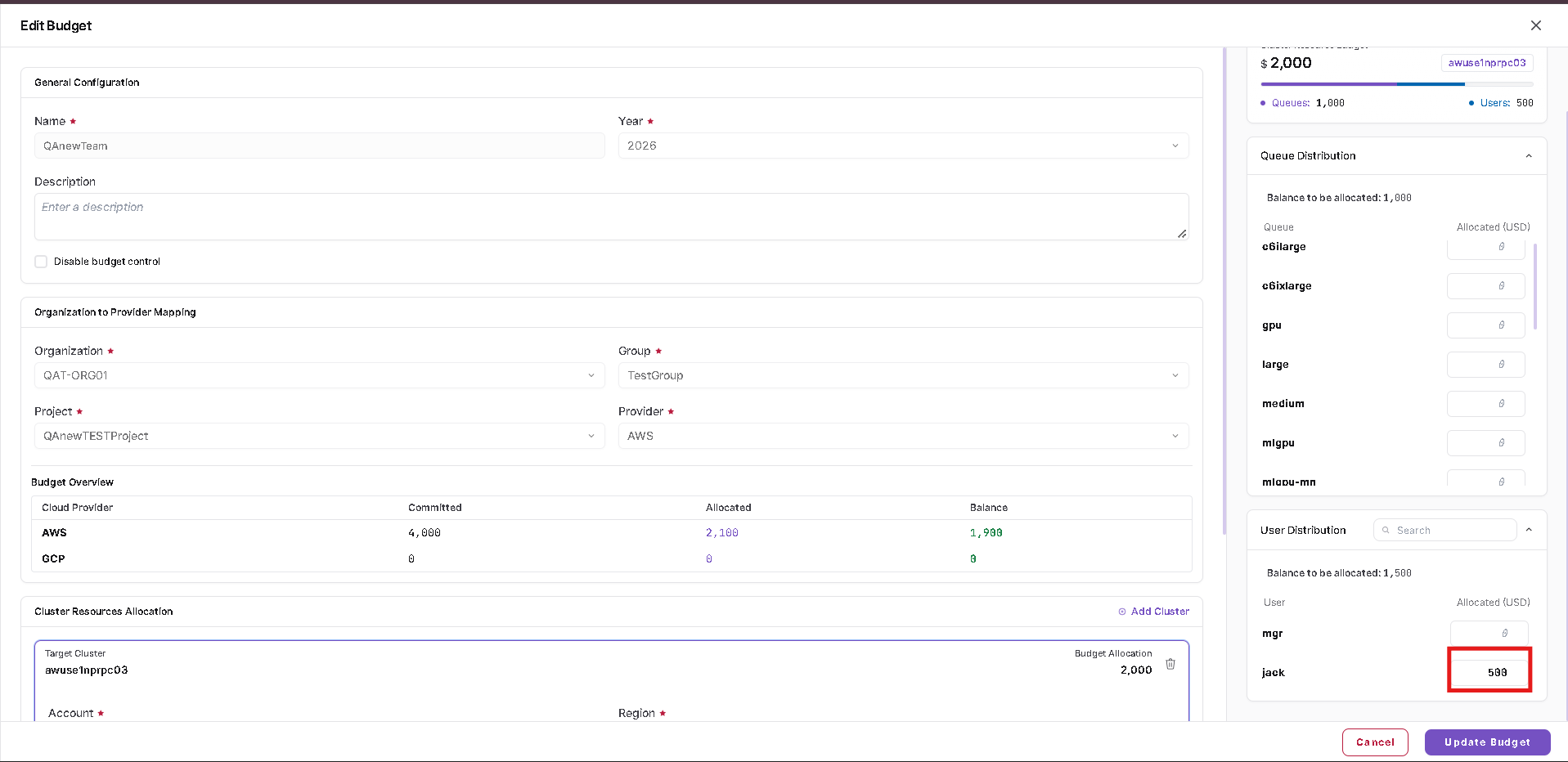
- Update the required general configuration, organisation/provider mapping, cluster resource allocation, queue allocation, or user allocation.
- Review the Allocation Breakdown.
- Click Update Budget.
The same Actions menu also provides Delete.
Credits
Select the Credits sub-tab under Billing → Budget to create and manage cloud credit pools and allocate credits to organisation hierarchies.
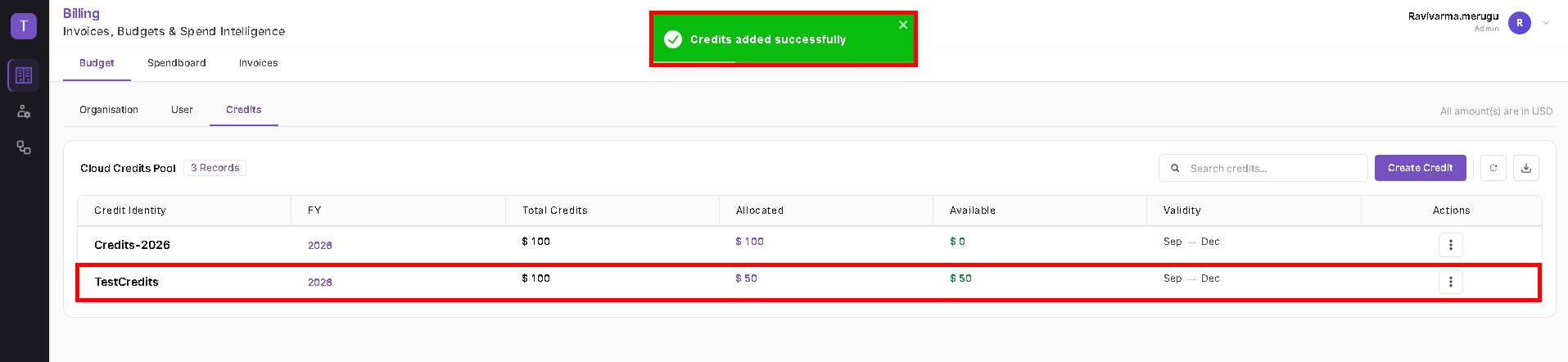
The Cloud Credits Pool displays:
- Credit Identity
- FY
- Total Credits
- Allocated Credits
- Available Credits
- Validity
- Actions
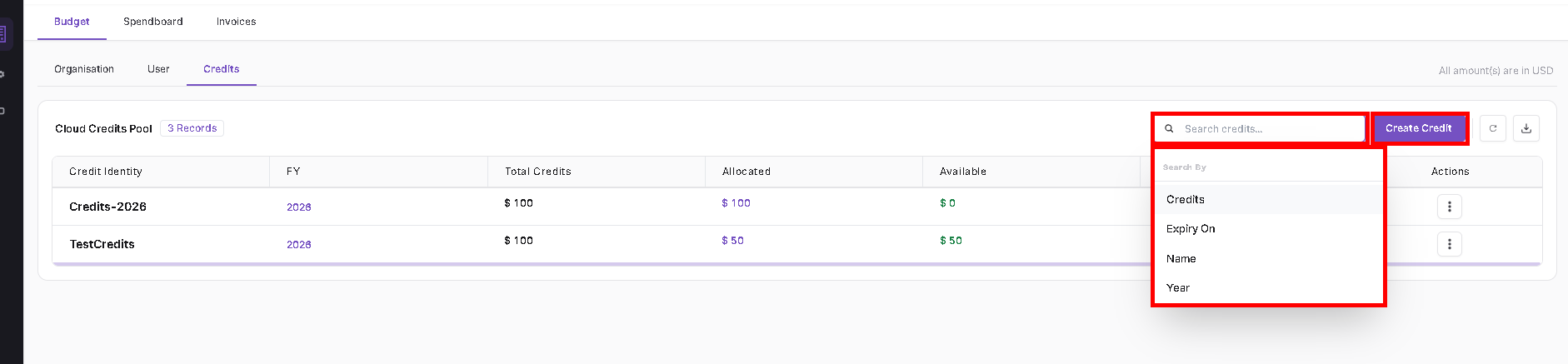
Use Search credits to locate an existing credit record, Create Credit to create a new credit pool, Refresh to reload the list, and Download to export the displayed data.
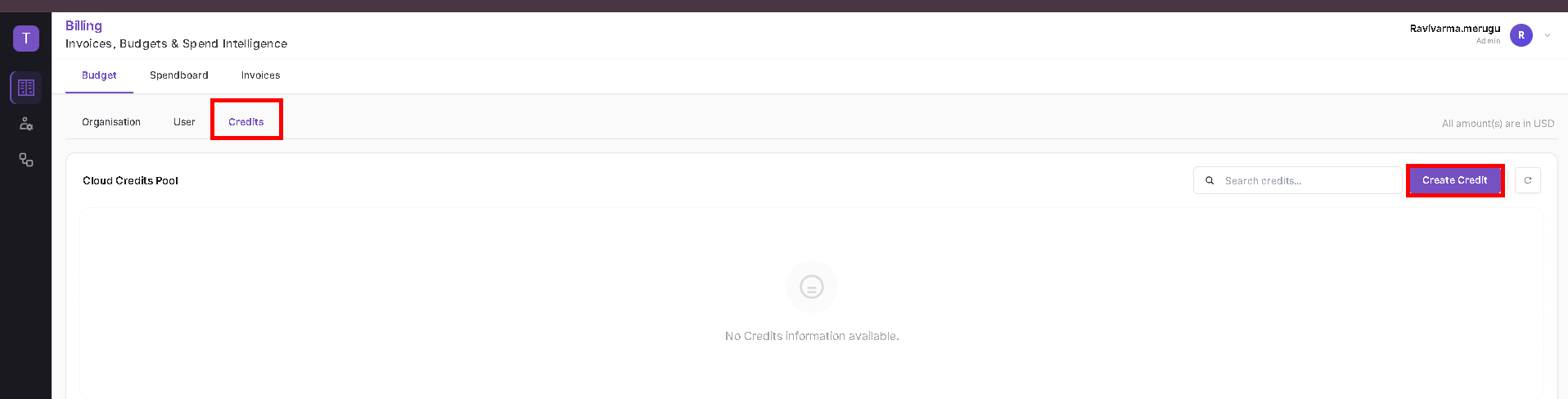
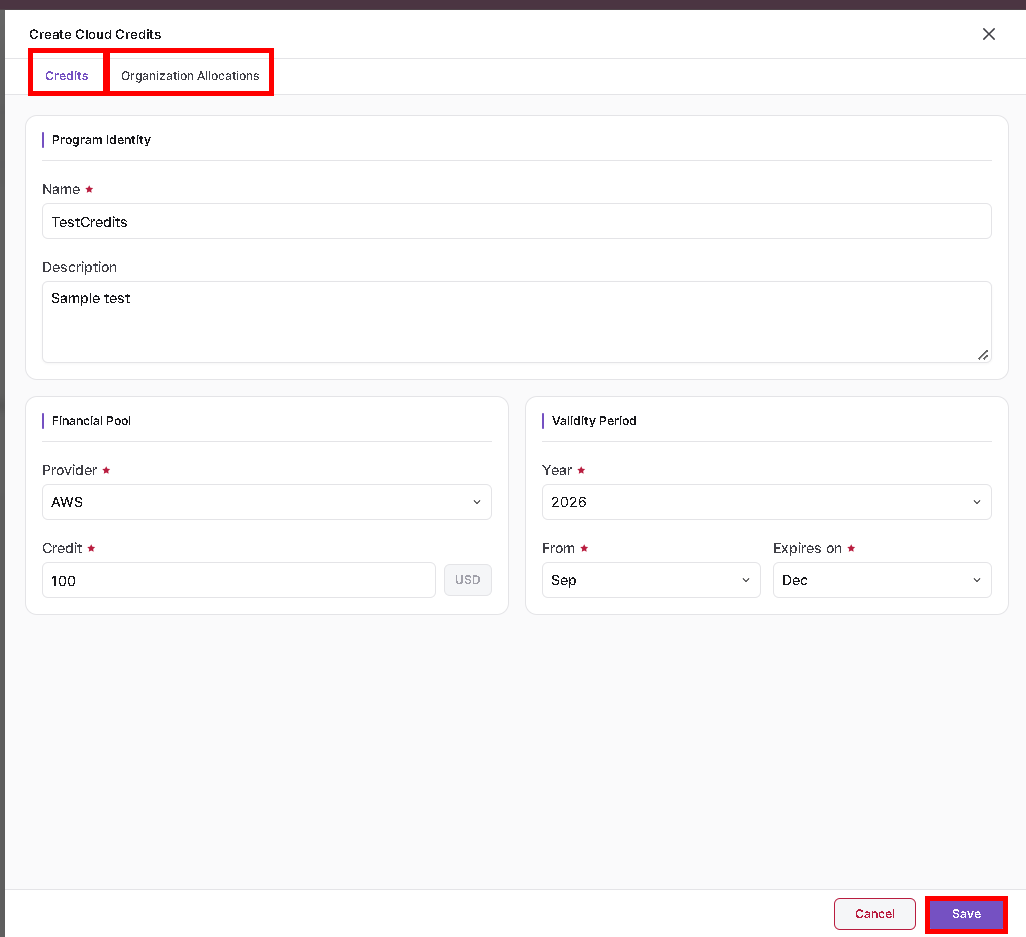
Create Cloud Credits
- Click Create Credit.
- In the Credits tab, enter the credit program details:
- Name
- Description, if required
- Provider
- Credit amount
- Year
- From month
- Expires on month
- Review the entered credit definition.
- Open Organization Allocations to distribute the credit pool, or click Save when no organisation allocation is required at this stage.
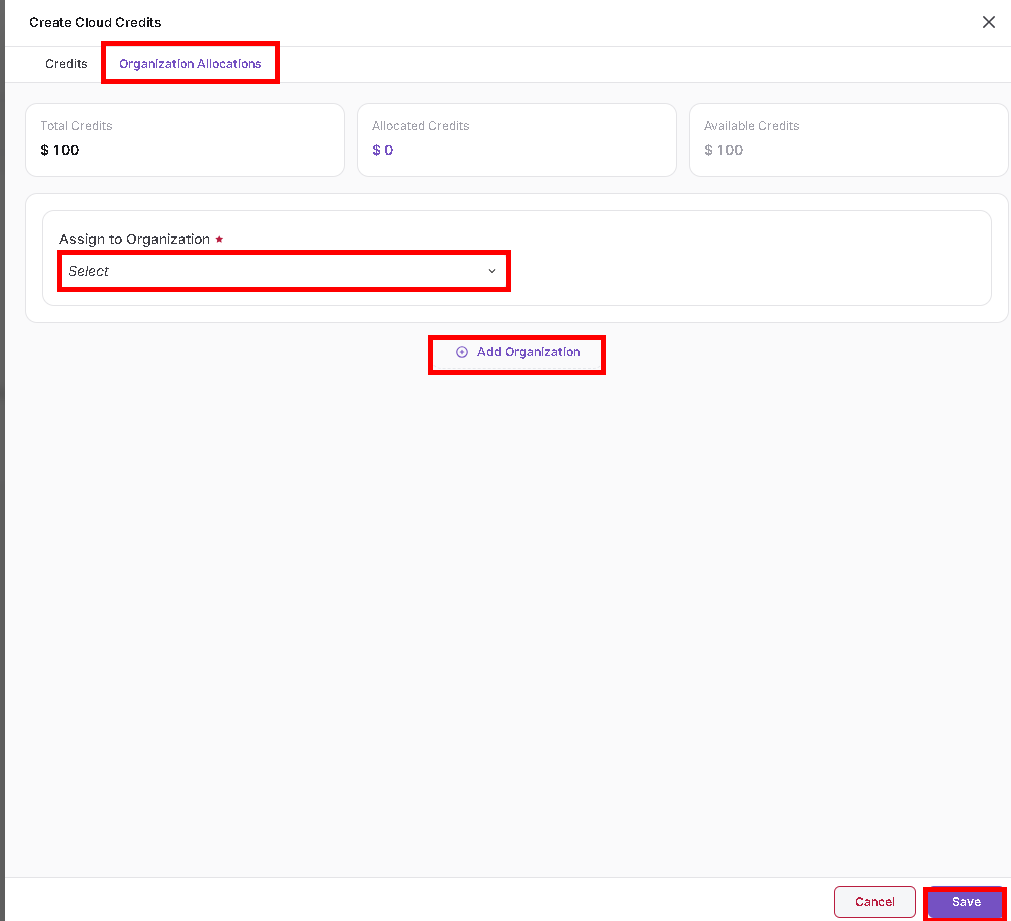
Allocate Credits to an Organisation
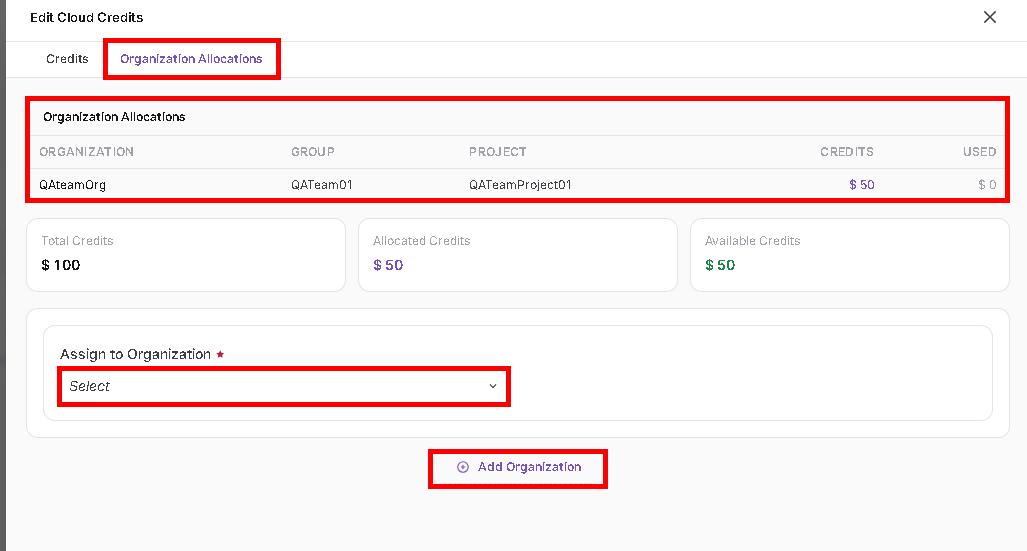
- Open the Organization Allocations tab.
- Review Total Credits, Allocated Credits, and Available Credits.
- Select the required value from Assign to Organization.
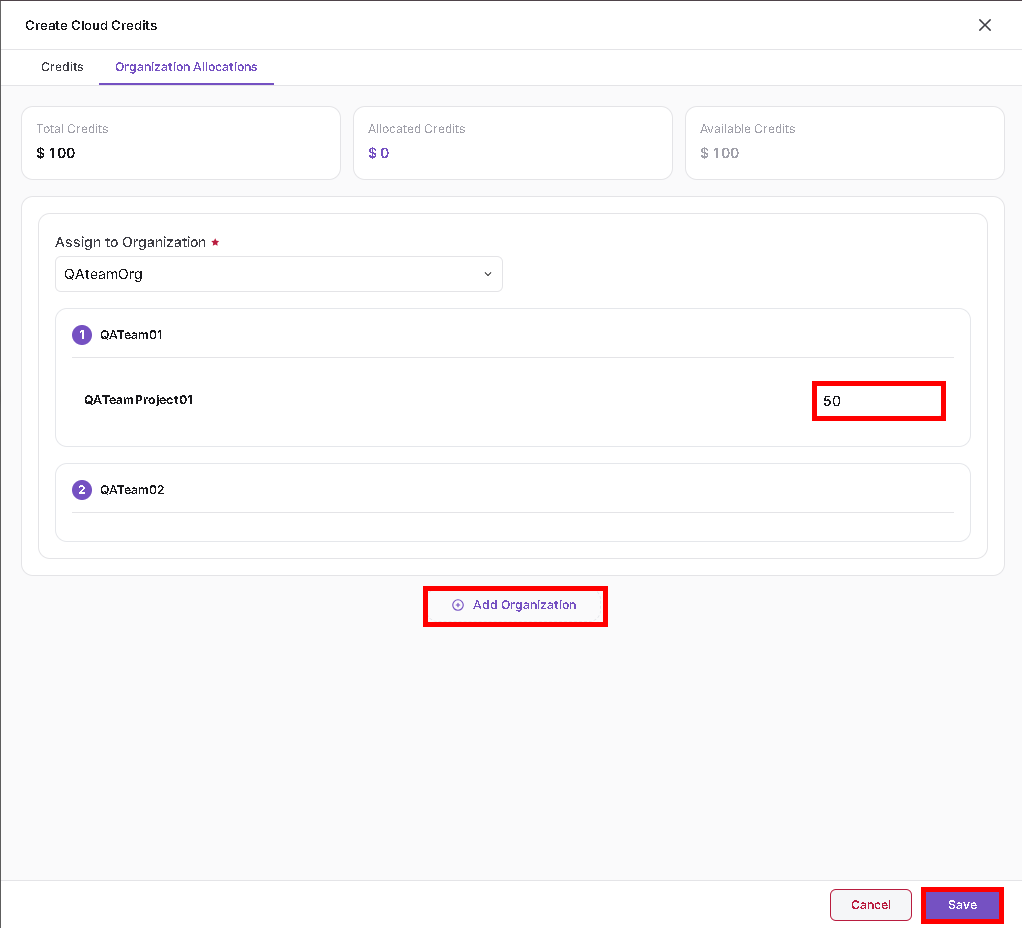
- The corresponding organisation hierarchy is displayed.
- Enter the required credit amount for the applicable project.
- Use Add Organization when credits must be allocated to another organisation.
- Confirm that the allocated and available credit totals are correct.
- Click Save to create the cloud credit configuration.
After an organisation is selected, the available groups and projects under that organisation are displayed. Enter the required credit amount against the applicable project.
After the configuration is saved successfully, the new credit record appears in the Cloud Credits Pool with its total, allocated, available, and validity values.
Search Credits
Use Search credits to search the credit pool. The current Search By options include:
- Credits
- Expiry On
- Name
- Year
Edit Cloud Credits
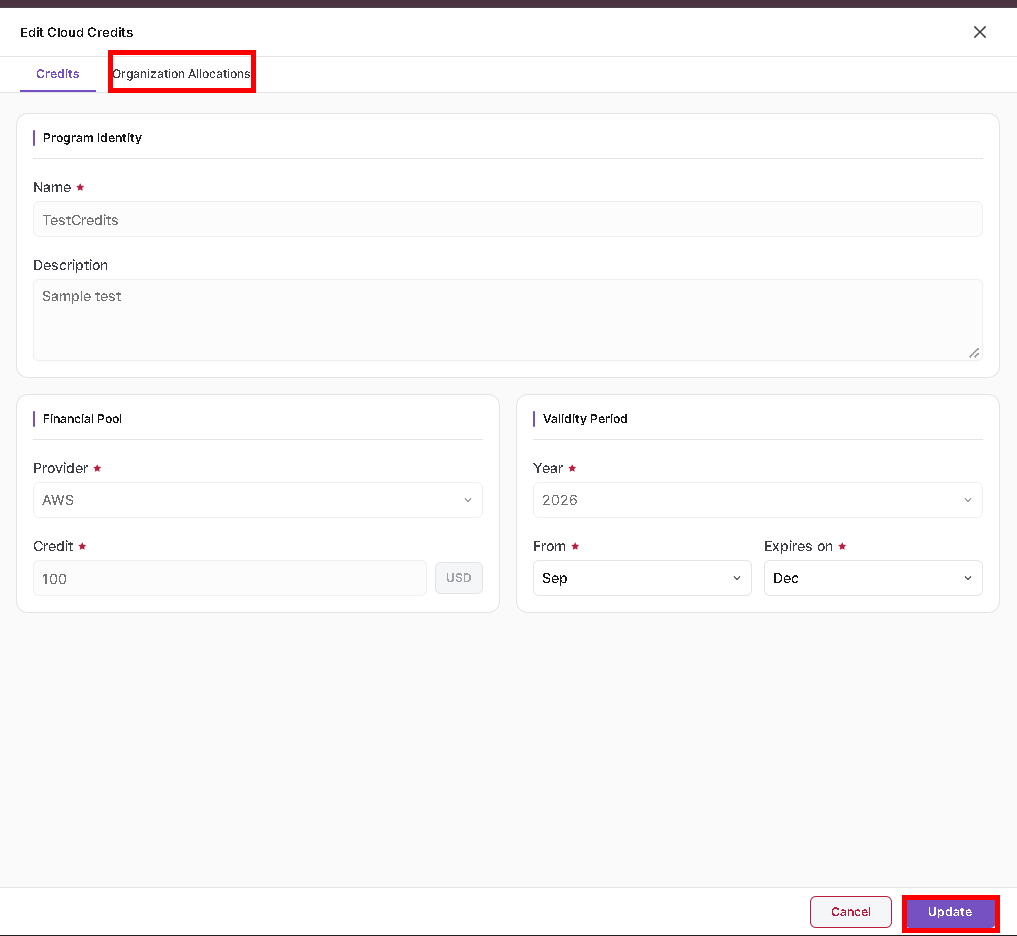
- Locate the required credit record.
- Open the three-dot Actions menu.
- Select Edit.
- Review or update the allowed credit configuration.
- Open Organization Allocations to review the existing Organisation → Group → Project allocation and the Credits and Used values.
- Add another organisation allocation when required.
- Review the updated allocated and available credit values.
- Click Update to save the changes.

- The organisation-level tab name is dynamic and follows the organisation terminology configured by the administrator.
- Review committed, allocated, and balance values before creating or updating a budget.
- All amount displays follow the currency shown in the Billing page.
- Cloud credits can be allocated across the available organisation, group, and project hierarchy.