Job Routing (User Guide)
When an administrator has enabled Job Routing under Admin → Settings and configured the applicable rules, Tachyon selects a cluster and queue for an eligible job. The Routing rule-management tab is available to administrators, not regular users. Users submit and monitor jobs through the normal Jobs interface.
Step 1: Open Create Job
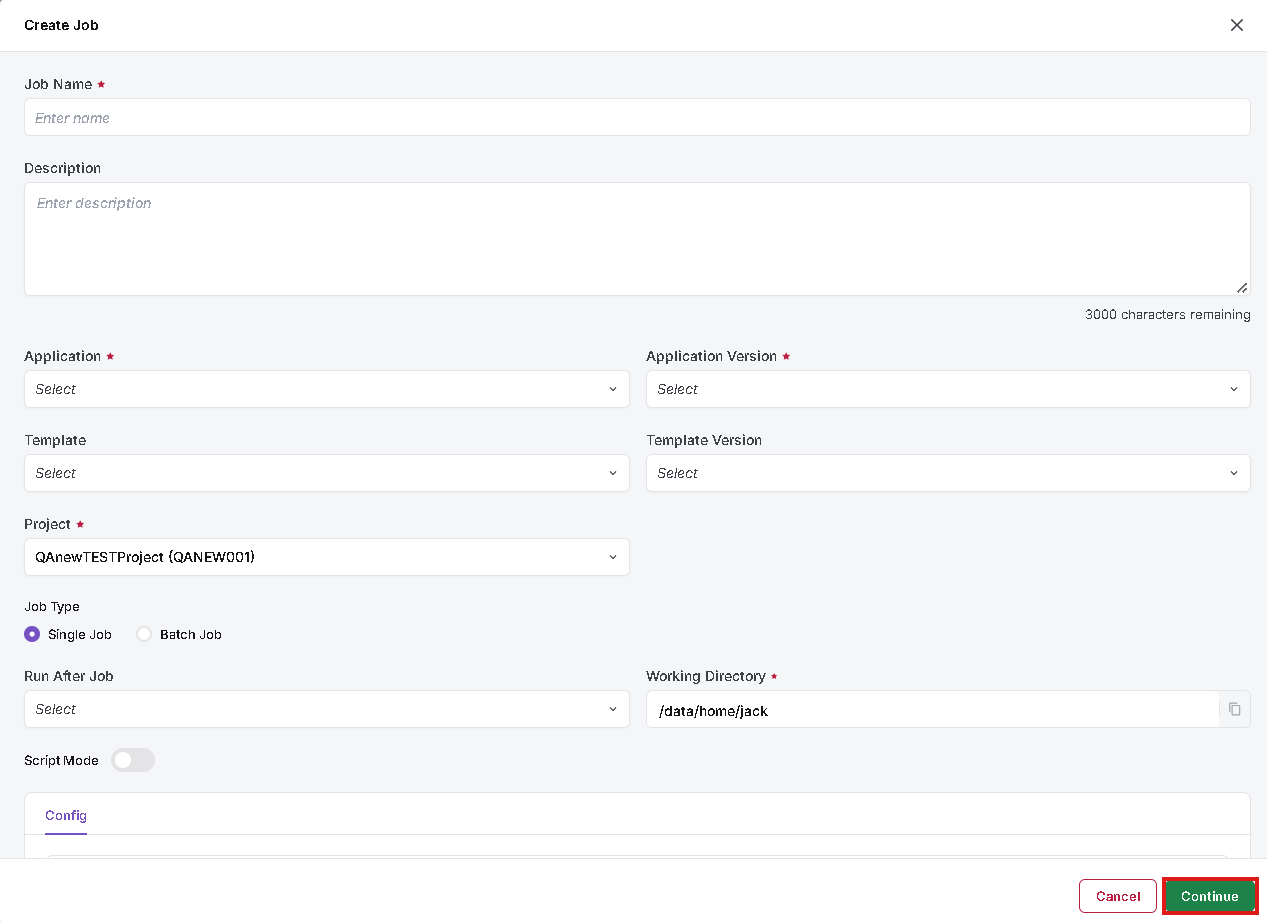
Navigate to Jobs, click Create Job, and choose Traditional Solver → Configure. Enter the required Job Name, Application, Application Version, Project, and Working Directory. Select Single Job as needed.
When routing is enabled, the Cluster dropdown is not displayed in this Single Job form: the platform selects the cluster based on the administrator's routing configuration. The illustrated Create Job screen belongs to JackUSER with routing enabled. Click Continue after entering the details and configuration.
Step 2: Configure the job resources
Enter the required Cores, Memory (GB), Max Job Runtime, and Command, then choose when to run the job. The illustrated test requested 1 core, 1 GB of memory, and a maximum runtime of 00:10, with a short command that records the time and host before and after execution.
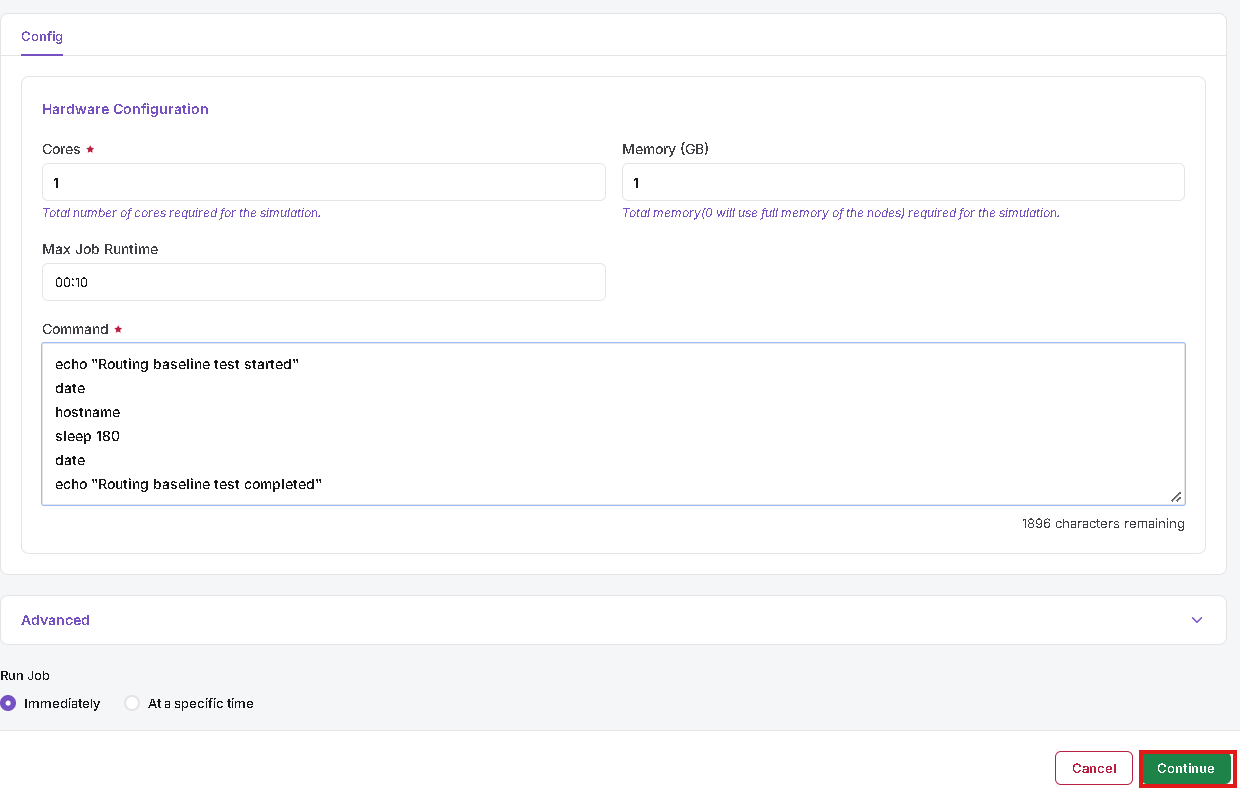
Routing does not replace the normal job resource requirements: enter values suitable for the workload. Click Continue to review the job and budget.
Step 3: Review budget and submit
Review the budget summary, including total, used and available budget and the estimated job cost. Click Submit.

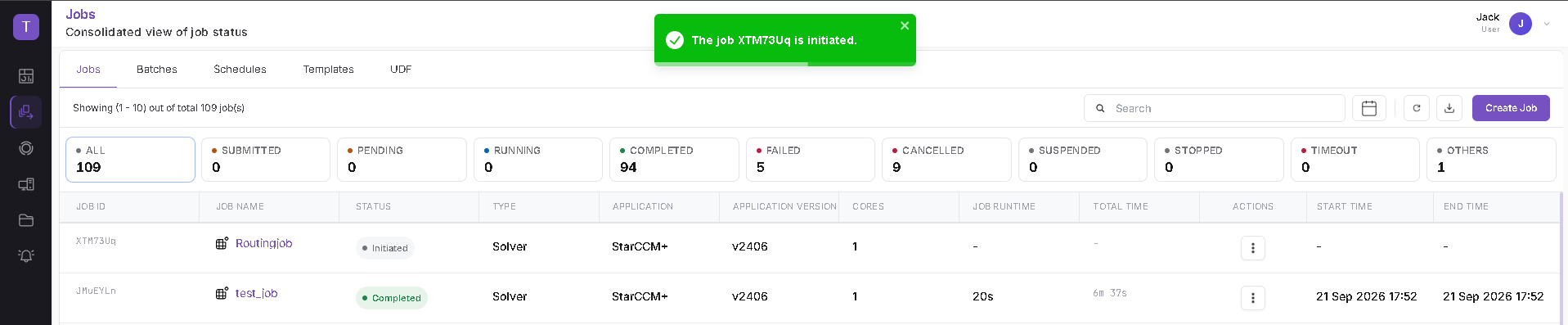
A confirmation is displayed and the new job appears in the Jobs list. Its status may initially be Initiated or Submitted and change as processing continues.
Step 4: Check the assigned cluster and queue
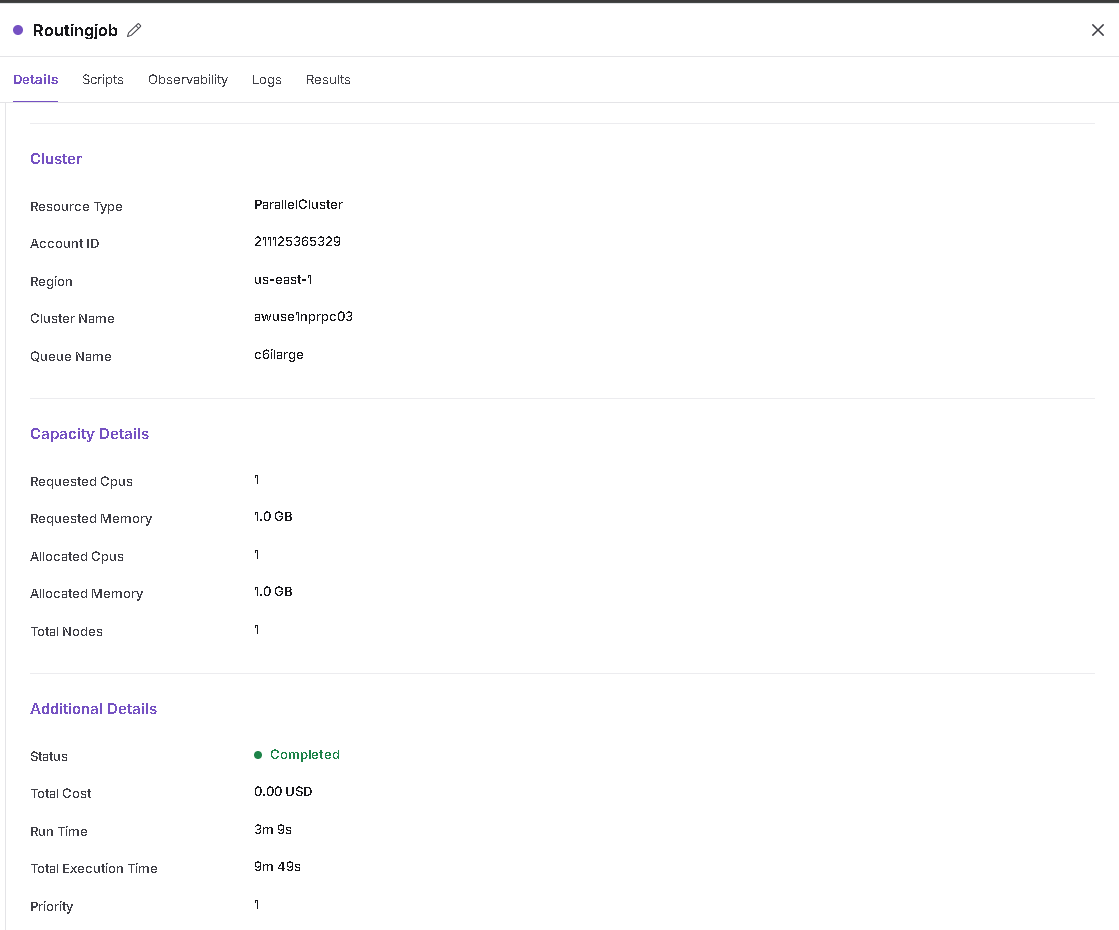
Click the submitted Job Name in the Jobs list to open Job Details. Under Cluster, check Cluster Name and Queue Name; use Capacity Details to review the requested and allocated resources.
In the captured primary-route example, the job used cluster awuse1nprpc03, queue c6ilarge, 1 CPU, and 1 GB of memory, and completed successfully.
The administrator's rules and current availability can result in a different queue. In the captured second submission, while c6ilarge was occupied, the next job was assigned to c6ixlarge on the same cluster. It subsequently completed with 1 allocated CPU and 1 GB memory.
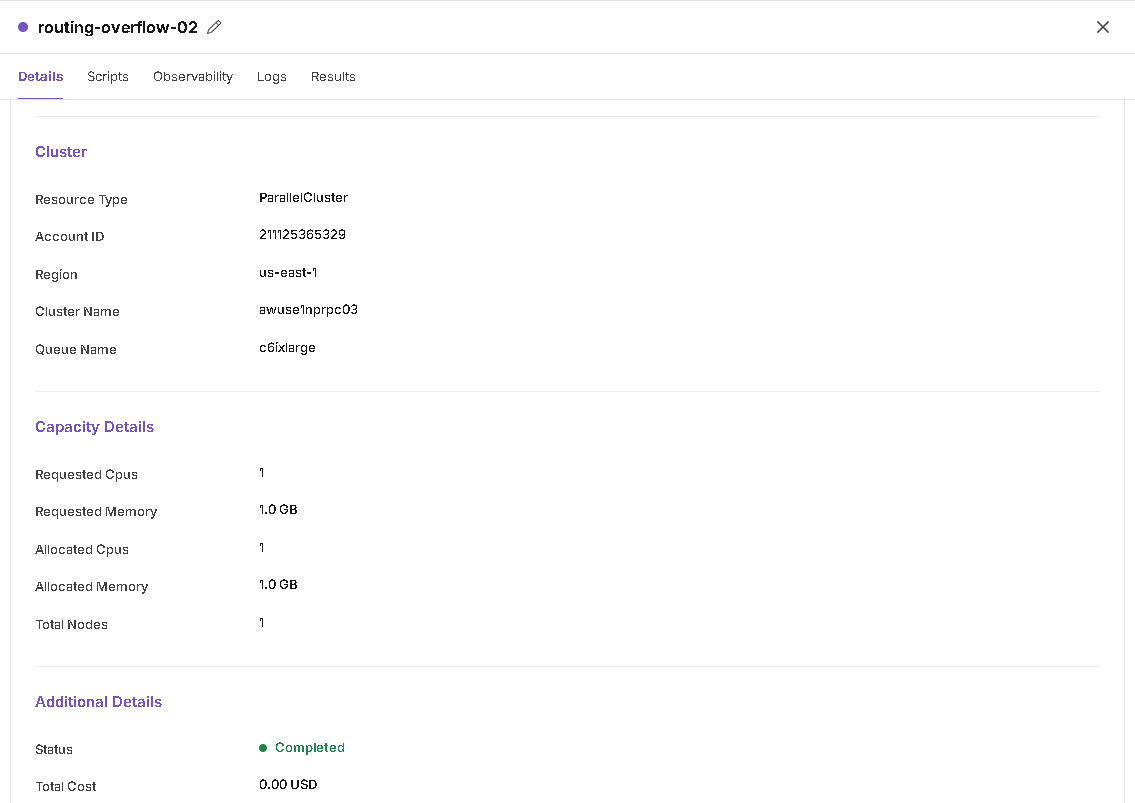
The completed overflow job is also visible in the Jobs list.

General notes
- Users do not need to create or edit routing rules; ask an administrator if a particular routing policy is required.
- A rule can include primary and secondary clusters, but these screenshots demonstrate primary-cluster and alternative-queue selection only. Secondary-cluster failover was not verified in this documented test.
- If a job remains Pending, check its status description and contact an administrator rather than assuming that a particular queue or licence is unavailable.
- The documented example is a controlled test with StarCCM+ v2406. Your application's available clusters, queues, resource requirements and actual results may differ.